Easy Tech Tuts
How to Integrate Zoom With GoHighLevel
By Impran M N
Zoom doesn't plug into GoHighLevel as a flip-a-switch setting — it comes in through the App Marketplace as a dedicated app called Zoom For Workflows, which adds Zoom-specific actions you can drop into any automation. That distinction matters: this isn't just about attaching a meeting link to a booking, it's about giving your workflows the ability to create, update, and manage Zoom meetings and webinars on their own. This guide covers finding the app, what it actually does once installed, and how to start building Zoom into an automation.
01Search for Zoom in the App Marketplace
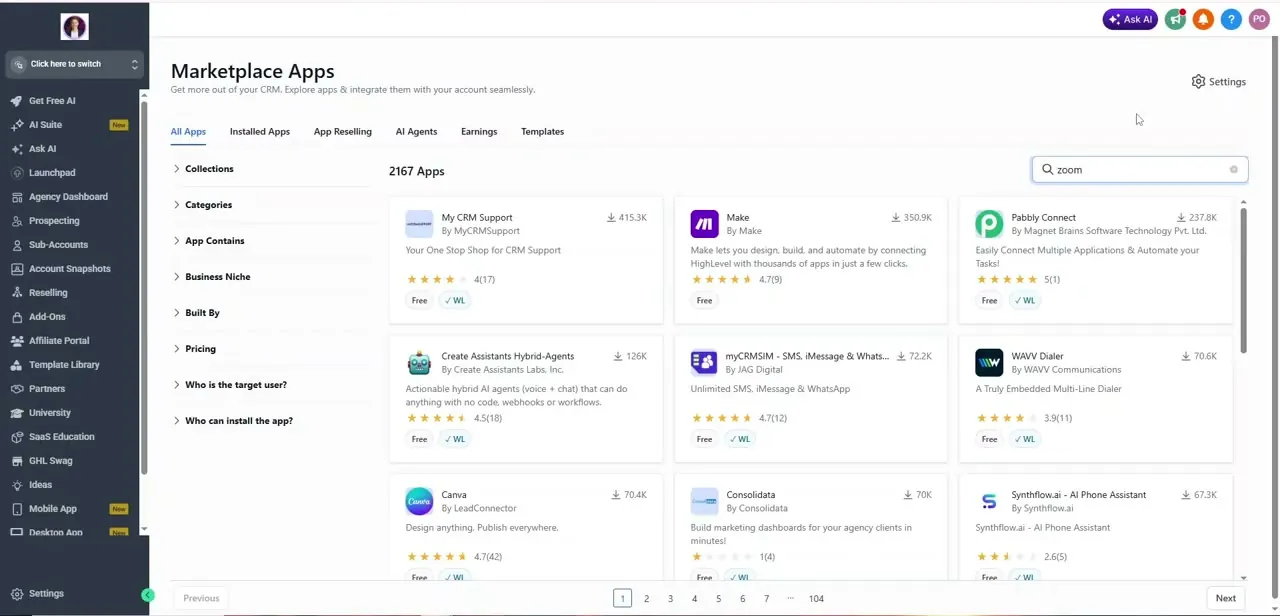
From the left sidebar, open Marketplace Apps, then type "zoom" into the search bar at top right. GoHighLevel's Marketplace holds thousands of apps in total, and the Zoom search narrows it down to a handful of relevant results rather than one obvious native option — worth noting since it's a different pattern than searching for, say, a CRM sync tool.
02Open the Zoom For Workflows listing
The app you want is Zoom For Workflows, built by All The Apps and listed as free with a White-Label Verified badge. Its category is Webinar, and the listing states plainly what it's for: giving sub-accounts the actions they need to manage virtual meetings and webinars without leaving GoHighLevel. It's built for sub-account level use, and both agencies and sub-accounts are shown as able to install it.
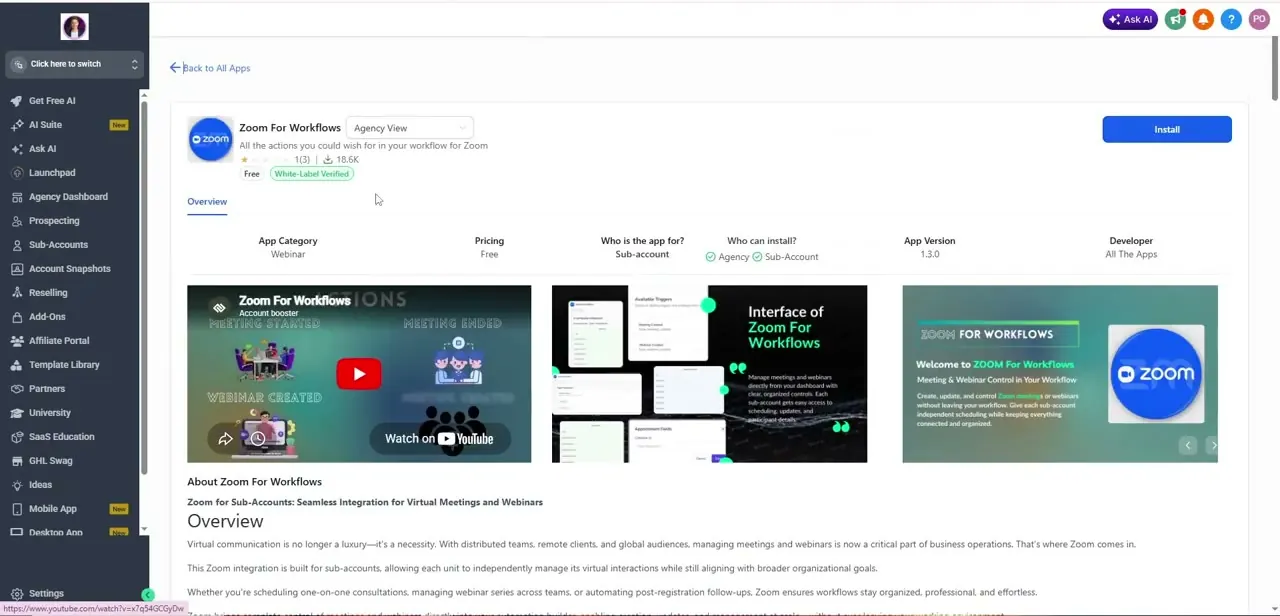
03Install the app to your sub-account
Click Install on the app page. Since it needs access to your Zoom account to create and manage meetings on your behalf, you'll be sent through Zoom's own authorization screen to approve the connection — a standard OAuth handoff, not something GoHighLevel controls directly. Once approved, the app's actions become available inside your workflow builder.
04Review the actions it unlocks
Scrolling down the app's listing lays out exactly what you get: Create Meeting, Get Meeting, Update Meeting, Add a Meeting Registrant, Update Meeting Registrant Status, Get Meeting Registrant, Format Date, plus a parallel set of webinar actions — Create Webinar, Delete Webinar, and Add Webinar Registrant. Each is meant to be dropped into a workflow rather than triggered manually, which is the core difference between this and a simple calendar-level Zoom link toggle.
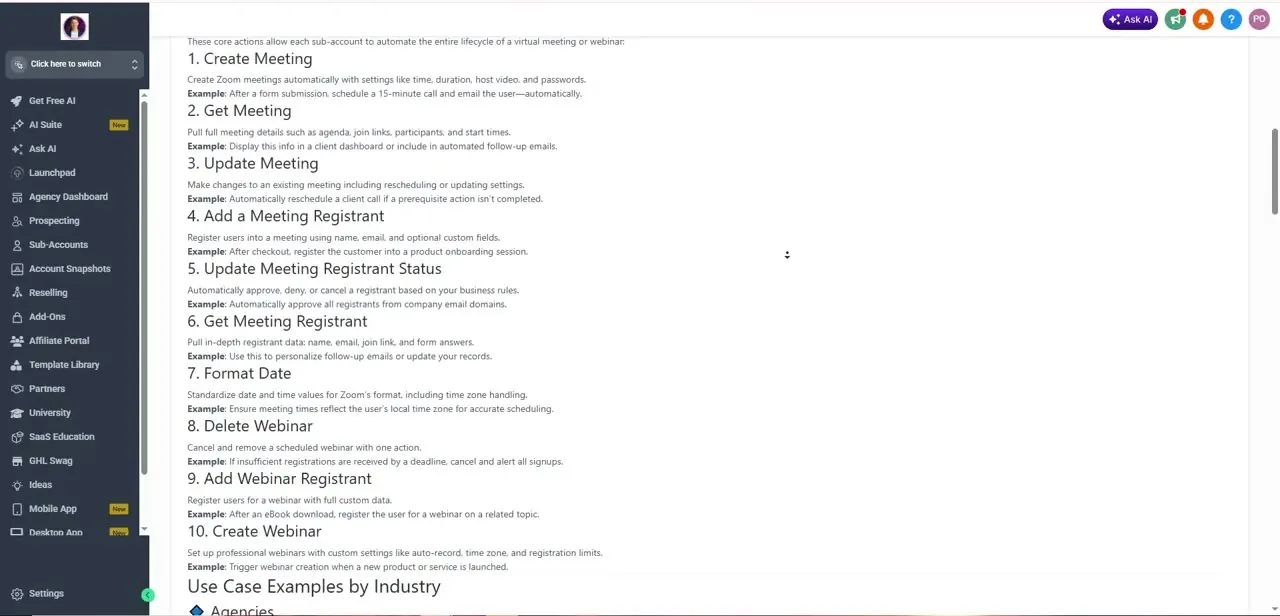
05Add a Create Meeting action to a workflow
Open Automation, either build a new workflow or edit one tied to your booking or contact-creation trigger, and add the Create Meeting action. Configure the fields it exposes — time, duration, host, and password — so the meeting details match how you actually run calls. The app's own examples suggest triggering this right after a form submission, so a lead who books a call gets a Zoom meeting generated automatically as part of the same automation.
06Pull meeting details into follow-up messages
Once a meeting exists, the Get Meeting action retrieves its join link, agenda, and participant list, which you can then insert into a confirmation email or SMS later in the same workflow. This is how you get a Zoom link into a reminder without manually copying it — the workflow fetches it and inserts it wherever you reference that action's output.
07Test the full automation before relying on it
Run a test contact through the entire workflow — trigger, Create Meeting, and the follow-up message — and confirm the Zoom link that arrives actually opens a live meeting with the settings you configured. Because this app version was listed at 1.3.0 with a modest install base and a low review count at the time of this recording, it's worth testing thoroughly rather than assuming it behaves identically to a more established native integration.
Frequently asked questions
Is Zoom a built-in integration in GoHighLevel?
No. It's added through the App Marketplace as a separate app called Zoom For Workflows, which connects your Zoom account and adds meeting and webinar actions to the workflow builder.
Is the Zoom For Workflows app free?
Yes, the app is listed as free on the Marketplace, though your own Zoom plan's meeting and webinar limits still apply.
Can this automatically add a Zoom link to appointment reminders?
Yes, indirectly — a workflow can create the meeting, use Get Meeting to pull the join link, and insert that link into a reminder message sent later in the same automation.
Does it support webinars as well as regular meetings?
Yes. Alongside meeting actions, it includes Create Webinar, Delete Webinar, and Add Webinar Registrant actions.
Who can install Zoom For Workflows?
The listing shows it's available at both the agency and sub-account level, so either an agency admin or an individual sub-account can add it.
Watch the full walkthrough
The same steps, demonstrated on screen from start to finish.