Easy Tech Tuts
How to Zoom In and Out in Microsoft Outlook Easily 2026
By Impran M N
Squinting at small email text shouldn't be part of your daily routine, and Outlook gives you more than one way to fix it depending on whether you want a quick temporary bump or a setting that sticks every time you open the app. This guide covers the fast Ctrl plus scroll wheel shortcut for reading an individual message, where the ribbon's dedicated Zoom command actually lives under the View tab, and how to lock in a permanent zoom level so you're not readjusting it every session.
01Zoom with your scroll wheel for a quick fix
The fastest option needs no menus at all: click into a message's reading pane, hold Ctrl, and scroll your mouse wheel up to zoom in or down to zoom out. It applies instantly and is ideal for a one-off moment where a screenshot or dense paragraph inside a single email is too small to read comfortably. The tradeoff is that it's temporary — move to the next message in your inbox and the zoom level reverts, since this shortcut affects only the currently active view rather than the app as a whole.
02Find the Zoom command on the View tab
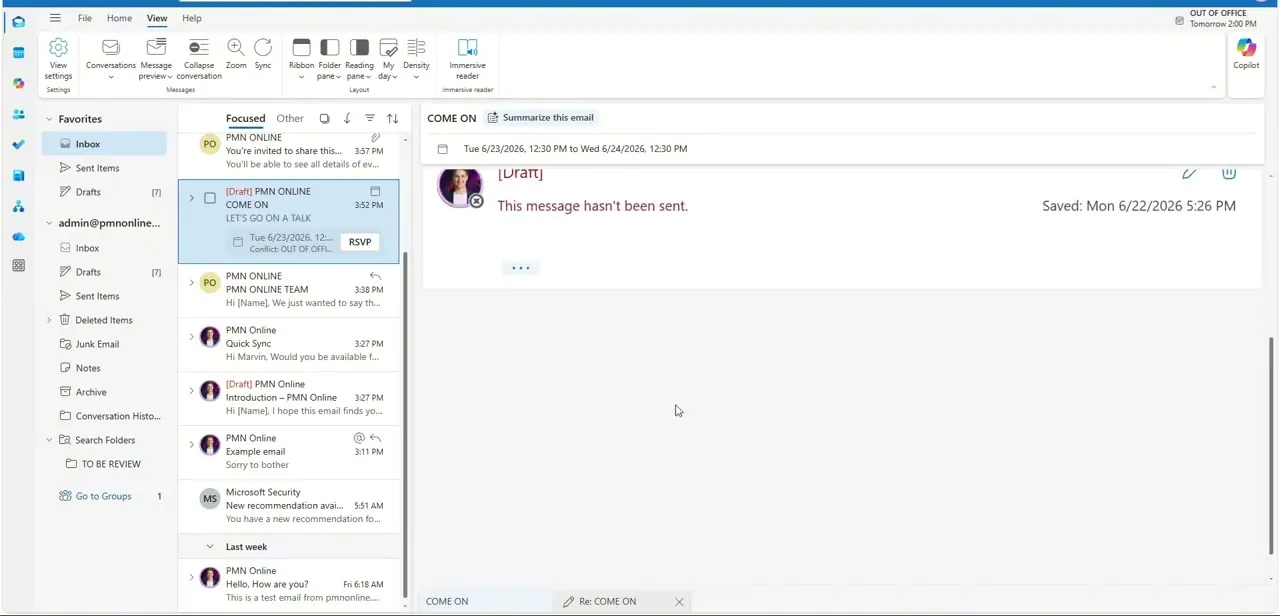
For a setting that actually persists, the tool you want lives on the View tab, in the ribbon's Layout section, sitting alongside Ribbon, Folder pane, Reading pane, and Density controls. It's easy to overlook if you're used to looking on the Home or Message tab instead, since Zoom isn't part of the default Home ribbon in the inbox view. Once you know where it is, though, it's a one-click path to the actual percentage control rather than guessing at scroll gestures.
03Open a message in its own window for message-level zoom
Double-clicking an email opens it in a separate window rather than the shared reading pane, and that separate window carries its own Message tab with a Zoom button positioned in its own group on the right side of the ribbon. This is a distinct control from the inbox-level Zoom on the View tab — adjusting one doesn't automatically change the other, so if you compose and read in separate windows, expect to set the zoom level in both places at least once.
04Pick a percentage from the Zoom dialog
Clicking Zoom, from either location, opens a small dialog with a handful of preset percentages plus a field for typing a custom value. Select whichever feels right, or type an exact number if you already know what works for your monitor, then click OK to apply it. There's no universally correct setting here — it depends on your screen resolution and how far you typically sit from it, so treat the first choice as a starting point you can revisit.
05Lock in a permanent global zoom
To stop the setting from resetting, return to the View tab's Zoom dialog and look for the option to remember your preference — checking that box before clicking OK is what turns a one-time adjustment into a persistent one across app restarts. Without checking it, even a change made through the proper Zoom dialog can behave more like the temporary scroll-wheel shortcut than a lasting setting, so it's worth double-checking that box is ticked if messages keep reverting to a smaller size.
06Verify the change across multiple messages
After locking in a zoom level, open a few different unread messages, and ideally close and reopen Outlook once, to confirm the setting is genuinely holding rather than reverting on the next session. Because the inbox-level Zoom and the separate-window Message Zoom are two distinct controls, check both if you regularly switch between reading in the shared pane and opening messages in their own window — a fix in one won't necessarily carry over to the other.
Frequently asked questions
Why does my Outlook zoom reset every time I open a new email?
If you haven't checked the option to remember your preference in the View tab's Zoom dialog, your change may only be applying to the current session or the current message rather than persisting.
Is there a keyboard shortcut for zooming instead of using the menu?
The Ctrl plus scroll wheel combination is the fastest built-in shortcut for a quick, temporary adjustment, though the View tab's Zoom command is what gives you an exact, persistent percentage.
Does zooming affect how my emails print?
Zoom settings control your on-screen reading view and don't change the print layout or formatting of your emails.
Can I set a different zoom level for composing versus reading?
Yes — a message opened in its own window has a separate Message tab Zoom control from the inbox-level View tab Zoom, so composing and reading can end up at different percentages unless you set both.
Where exactly is the Zoom button in the ribbon?
It's on the View tab, inside the Layout section, next to Reading pane and Density — not on the Home tab, which is a common place people look first.
Watch the full walkthrough
The same steps, demonstrated on screen from start to finish.