Easy Tech Tuts
How to Connect ZoomInfo to HubSpot, Integrate Easily 2026
By Impran M N
Connecting ZoomInfo to HubSpot lets enriched B2B contact data, like direct phone numbers and job titles, flow straight into your CRM instead of being exported and imported manually. This guide covers authorizing the connection from ZoomInfo's Admin Portal, mapping data fields to matching HubSpot properties, and setting overwrite rules for record ownership. It ends with running a test export to confirm the sync works.
01Open the ZoomInfo Admin Portal
Log into your ZoomInfo Admin Portal and navigate to the Integrations tab.
02Find the HubSpot connector
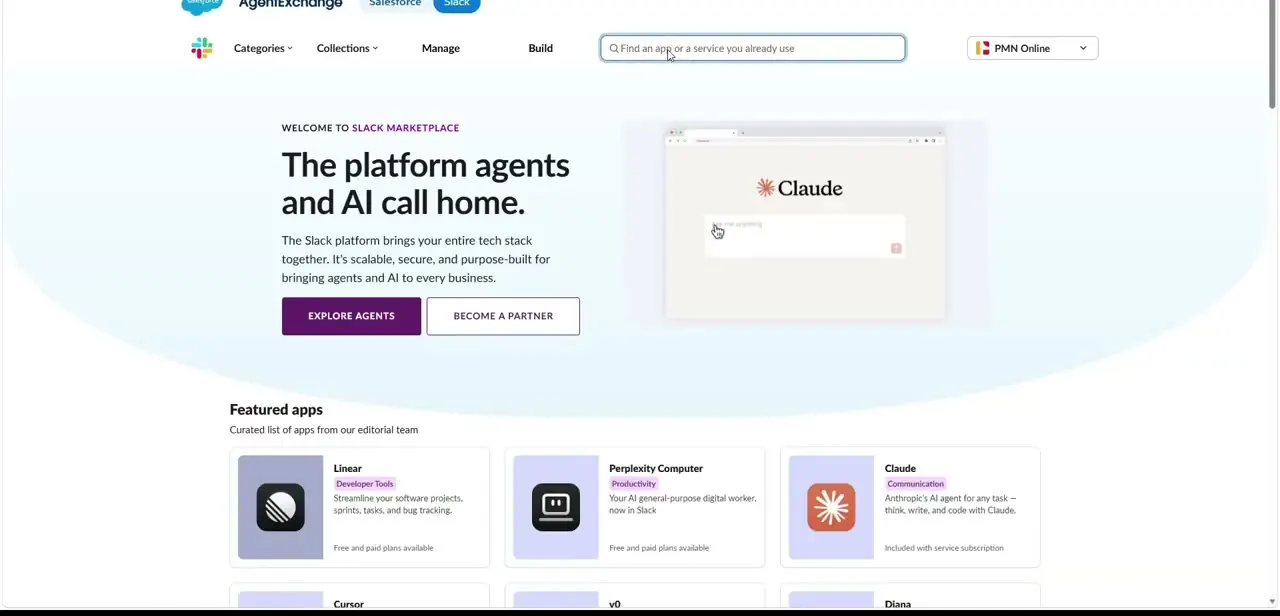
Locate the native HubSpot app card and click Connect.
03Authorize the connection
Complete the HubSpot OAuth gateway and log in to grant profile permissions.
04Select your target portal
Choose your HubSpot accounts portal and confirm the handshake connection.
05Map your data fields
Match ZoomInfo fields like phone numbers and job titles to your HubSpot contact properties.
06Set overwrite rules and test
Define overwrite preferences, save your settings, and run a live search export to verify the sync.
Frequently asked questions
Does ZoomInfo push data into HubSpot automatically?
Once mapped and configured, you can set up automatic export triggers to push newly discovered leads into HubSpot.
What data fields can I sync from ZoomInfo?
You can map fields like direct phone numbers, funding data, and job titles to matching HubSpot properties.
Can I control which records get overwritten?
Yes, overwrite preferences let you define master record ownership rules during setup.
How do I confirm the ZoomInfo integration is working?
Running a live search export test after saving your settings will verify the contact sync is functioning.
Watch the full walkthrough
The same steps, demonstrated on screen from start to finish.