Easy Tech Tuts
Fluent Forms & Fluent CRM Tutorial for How to Add Subscribe Newsletter & Signup Form for free in WP
By Impran M N
Building a working newsletter signup form usually means paying for a form plugin, an email tool, or both — but Fluent Forms and FluentCRM cover the entire pipeline for free: the form itself, the automatic tagging of new subscribers, and the email list they land in. This guide walks through installing both plugins, picking a ready-made subscribe form, wiring it to FluentCRM so submissions don't just sit in a database, and dropping it onto a page. It's aimed at bloggers and small business sites that want real list-building without a monthly plugin bill.
01Install Fluent Forms and FluentCRM
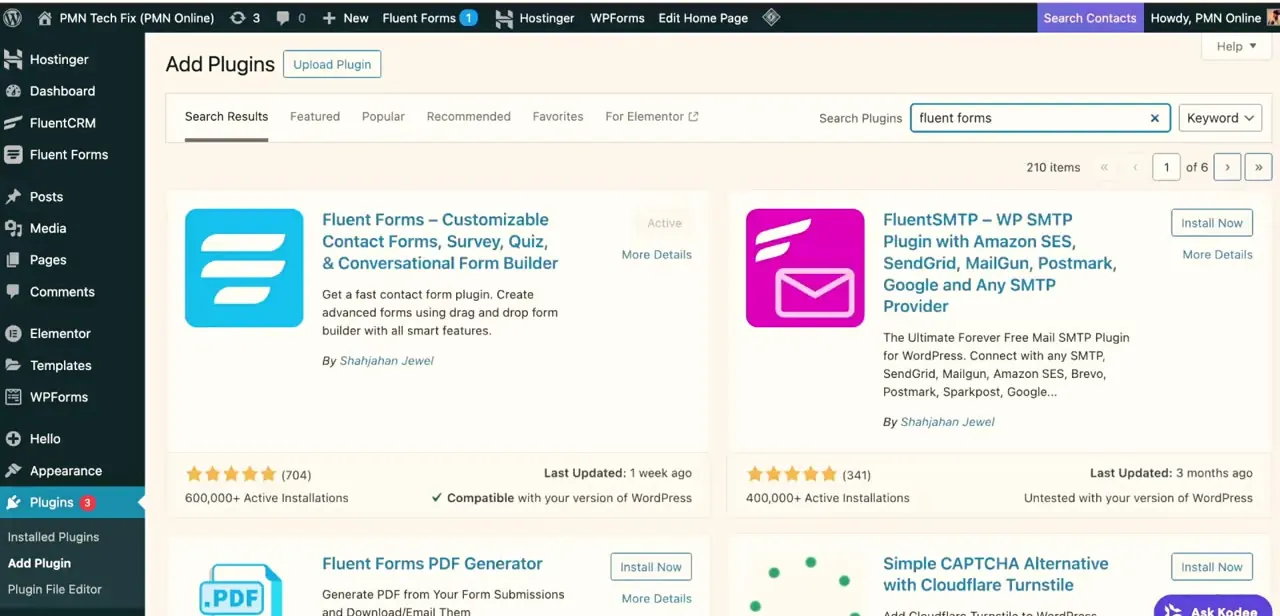
From Plugins → Add New in your WordPress admin, search for "fluent forms" and install the free Fluent Forms plugin — it's the one from Shahjahan Jewel with hundreds of thousands of active installs, not to be confused with paid form builders in the same results list. Do the same search for FluentCRM and install it separately; the two are companion plugins from the same team but ship as independent installs. Activate both before moving on, since Fluent Forms won't show a CRM integration option until FluentCRM is active too.
02Start from a newsletter form template
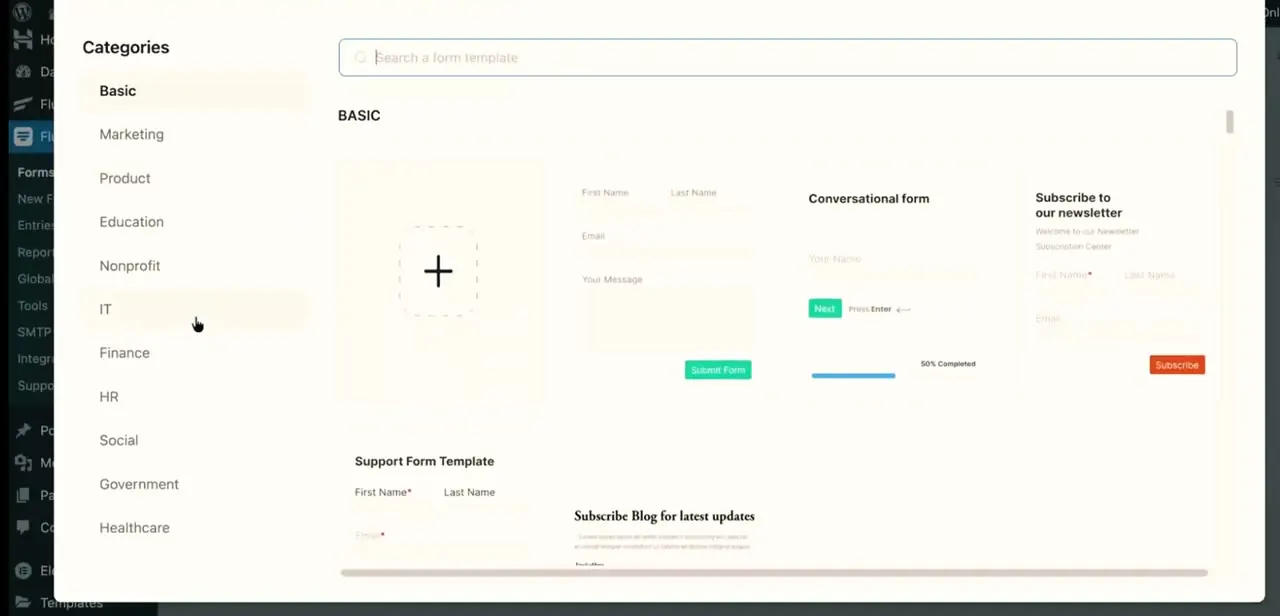
Inside Fluent Forms, choose to create a new form and you'll land on a template gallery organized by category — Basic, Marketing, Product, Education, and more. Rather than building a signup form field by field, look under Basic or Marketing for a template already shaped like a newsletter signup, such as a "Subscribe to our newsletter" layout with just a name and email field. Starting from a template saves you from manually configuring field types and gets you to a working form in under a minute, which you can still rename and restyle afterward.
03Trim the form to just what you need
A newsletter signup converts best when it asks for as little as possible — in most cases, email only, or email plus first name if you want to personalize campaigns later. Open the template in the form editor and delete any field beyond that, since every additional required field measurably lowers signup rates. Rename the Subscribe button to something specific to your list rather than the generic default, and adjust the confirmation message shown after submission so it tells the person what happens next.
04Connect the form to FluentCRM
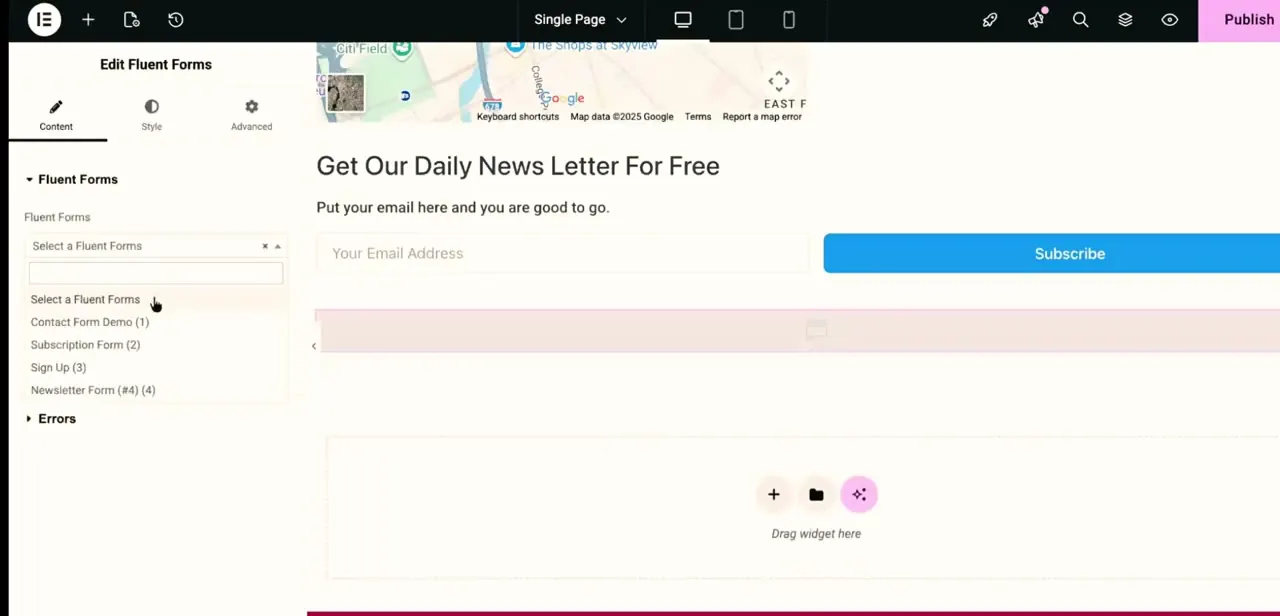
Inside the form's settings, look for the FluentCRM integration section rather than a general email notification setting — this is what actually moves a submission into your subscriber list instead of just sitting in the Entries tab. Under Contact Tags, assign a tag like "signup" so every person who submits this specific form gets tagged consistently, which lets you later build a targeted email sequence just for newsletter subscribers rather than everyone in your CRM. You can also enable double opt-in here if you want a confirmation email before someone counts as fully subscribed, which is worth turning on if you plan to send regular campaigns and want to protect your sender reputation.
05Embed the form on your site
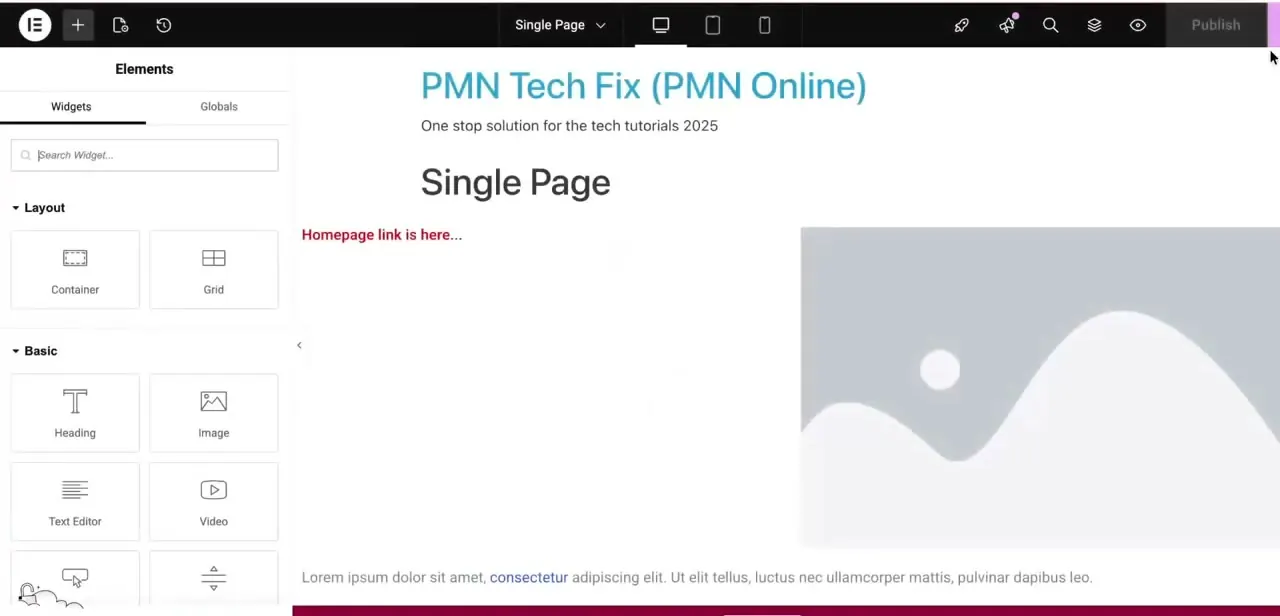
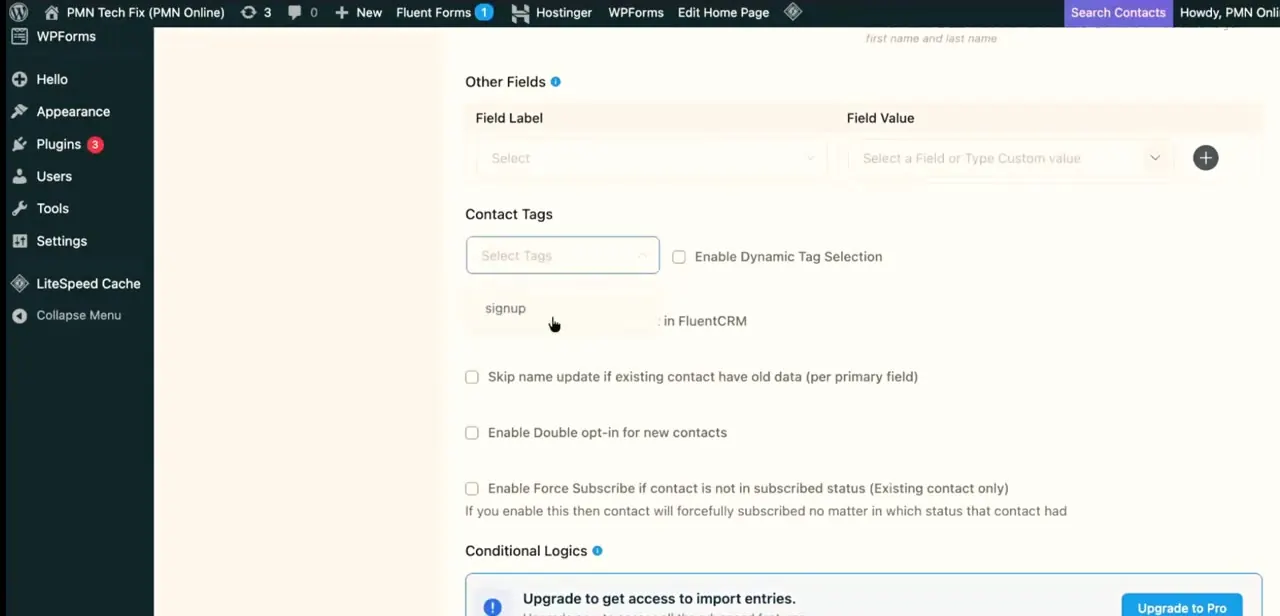
Fluent Forms works with any page builder or the standard block editor, since it provides both a shortcode and a dedicated widget/block. In Elementor, search the widgets panel for Fluent Forms, drag it onto the page, and pick your newsletter form from the dropdown list of forms you've created.
If you're using the block editor instead, the Fluent Forms block does the same job — search for it, insert it, and select the form. Either way, no code or shortcode-pasting is required for a standard embed.
06Test the signup before promoting it
Submit a real test entry using an email address you can check, then go to FluentCRM's contact list and confirm the entry landed there with the correct tag attached — not just in Fluent Forms' own Entries tab, which only proves the form itself works, not the CRM connection. If double opt-in is enabled, verify the confirmation email actually arrives and isn't landing in spam. Only after seeing a clean, correctly tagged contact appear should you put the form live on a public page or link to it from an email campaign.
Frequently asked questions
Is Fluent Forms really free to use?
Yes, Fluent Forms has a free version available in the WordPress plugin repository that covers basic form building, templates, and CRM integrations — no paid add-on is required for a newsletter signup form.
Do I need Elementor Pro to use this setup?
No, Fluent Forms can be embedded on any WordPress page using its own widget, block, or shortcode, so it works on Elementor Free, the block editor, or any other page builder.
What does FluentCRM do with the collected emails?
FluentCRM stores and tags your subscribers so you can segment them and send email campaigns or automations directly from WordPress, without exporting the list to a separate email tool.
Why isn't my newsletter signup form working?
Check two things separately: that the Fluent Forms to FluentCRM integration is set up with a tag under the form's settings, and that a test submission actually appears in FluentCRM's contact list, not just in Fluent Forms' own Entries tab.
What's the difference between a contact tag and a subscriber list?
A tag marks which form or source a contact came from — useful for segmenting campaigns to just your newsletter subscribers — while the contact itself lives in FluentCRM's single unified list regardless of how many forms feed into it.
Watch the full walkthrough
The same steps, demonstrated on screen from start to finish.