Easy Tech Tuts
How To Make Dark Mode in Smartsheet Easily 2026
By Impran M N
Long hours in bright spreadsheet grids can wear on your eyes. This guide covers switching Smartsheet to a darker, high-contrast theme through the Desktop App's native settings, as well as browser-based alternatives if you're working in a web tab.
01Check your account preferences
Open your personal account settings to find interface preference options for theme modifications.
02Enable dark theme in the Desktop App
Activate light, dark, or system-synchronized appearance preferences natively inside the standalone Smartsheet Desktop App.
03Use browser dark mode as a fallback
If you're working in a browser tab, popular dark theme toggles or developer flags can force high-contrast dark mode.
04Check how your grid renders
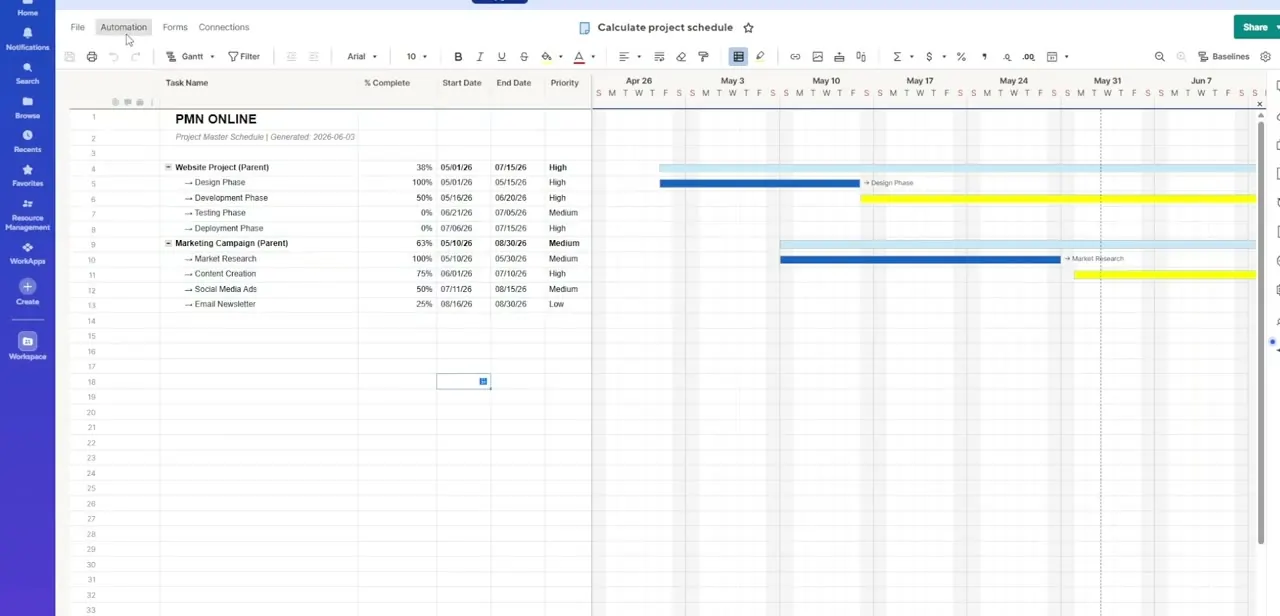
Review how row colors, Gantt bars, and status cards look after switching, since some colors may need adjusting for contrast.
05Fix text visibility issues
Adjust font contrast levels if any text becomes hard to read in the new theme.
Frequently asked questions
Does Smartsheet have a native dark mode?
Yes, the standalone Smartsheet Desktop App includes light, dark, and system-synchronized appearance options.
Can I get dark mode in the web browser version?
Browser-based dark theme toggles and developer settings can force a dark appearance, though it's not a native in-app browser toggle.
Will my Gantt bars and status colors still be visible in dark mode?
Most render fine, but it's worth reviewing your grid rows and cards after switching to check contrast.
Is dark mode better for long work sessions?
Many people find a dark, low-glare theme easier on the eyes during long stretches of spreadsheet work.
Watch the full walkthrough
The same steps, demonstrated on screen from start to finish.