Easy Tech Tuts
How To Create Smartsheet in Excel Easily 2026
By Impran M N
Migrating from static Excel spreadsheets to a dynamic Smartsheet workspace is mostly a matter of cleaning up your file and running the import wizard. This guide covers preparing your Excel data, mapping columns during import, and activating interactive views once your data lands in Smartsheet.
01Clean up your Excel file first
Establish a clean header row and remove merged cells to ensure a flawless import.
02Open the Import Excel tool
Navigate to the Smartsheet Solution Center and select the native Import Excel function.
03Upload and configure your file
Upload your .xlsx or .xls file and use the configuration step to designate your primary task columns.
04Map your column types
Assign fields like Dropdown lists, Text/Number, Dates, and Contact Lists inside the import preview.
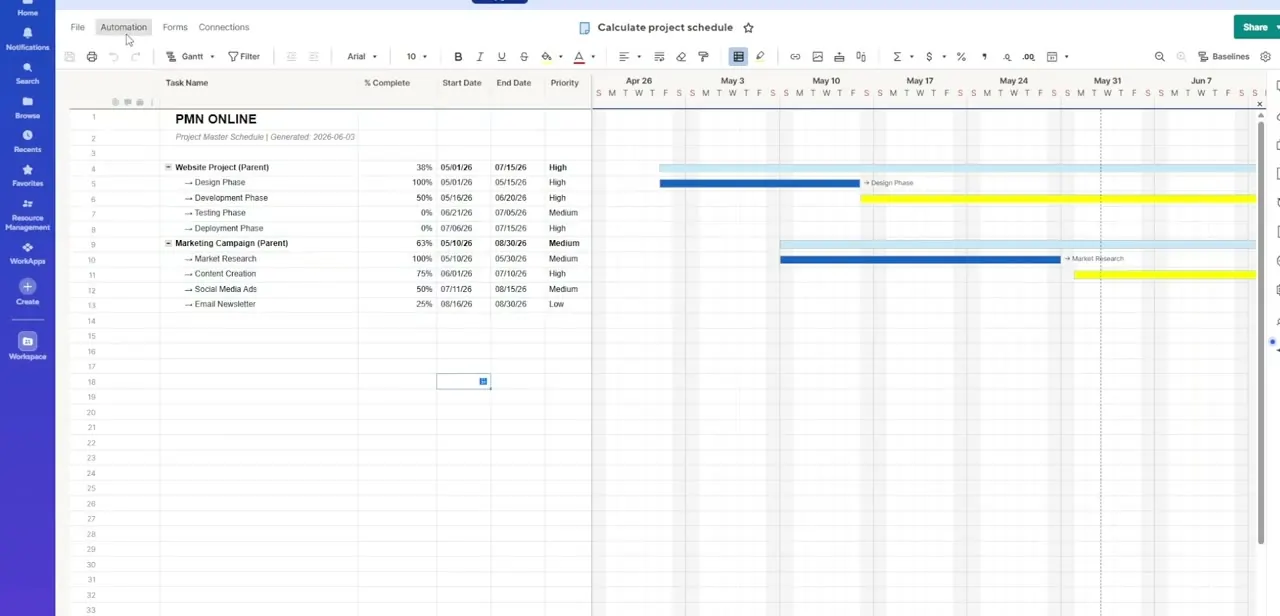
05Activate interactive views
Turn on Gantt Charts, Card Views, or Calendar Views instantly from your newly imported data.
Frequently asked questions
Why should I clean up my Excel file before importing?
Establishing a clean header row and removing merged cells helps ensure the import maps correctly without errors.
What Excel formats can I import?
Smartsheet's Import Excel tool accepts both .xlsx and .xls file formats.
Can I set column types like dropdowns during import?
Yes, the import preview lets you map fields to Dropdown lists, Text/Number, Dates, and Contact List columns.
Do I get Gantt charts automatically after importing?
Once imported, you can activate Gantt Charts, Card Views, or Calendar Views instantly from the same data.
Watch the full walkthrough
The same steps, demonstrated on screen from start to finish.