Easy Tech Tuts
How to Connect Smartsheet to Power BI (Step-by-Step Setup) Easily 2026
By Impran M N
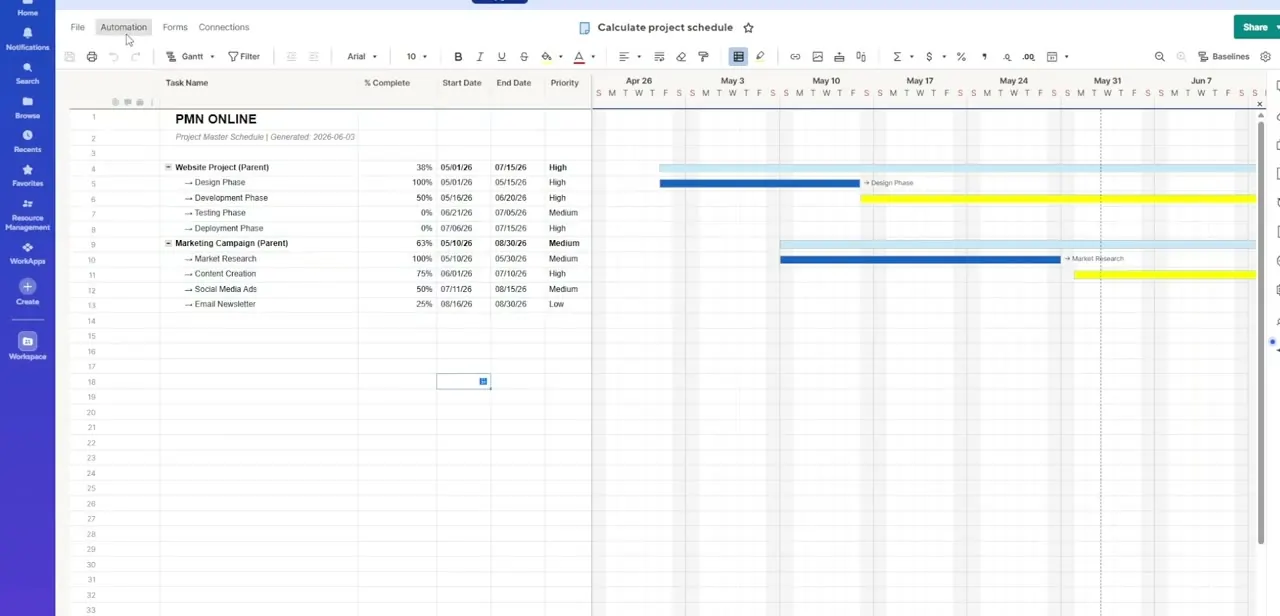
Smartsheet is where a lot of teams actually run their projects, but it isn't built for deep analysis — that's Power BI's job. Connecting the two means your project data can flow straight into dashboards and reports without anyone re-typing numbers between tools.
The setup itself is quick, but the sign-in step trips people up more than anything else, since Power BI hands you off to a separate Smartsheet authorization window that behaves a little differently from other connectors. This guide walks through getting data into Power BI, working through that authorization screen, and what to do if the connection reports it can't sign you in.
01Start the Smartsheet connector inside Power BI
From an open Power BI Desktop report, use Get Data and search for Smartsheet rather than digging through the Online Services category by hand — it's faster to find that way. Selecting it opens a small dialog asking for the specific content you want to pull in, addressed by name rather than by browsing a file picker. This is different from connectors like Excel or SharePoint, where you navigate a folder structure; Smartsheet expects you to reference a workspace or sheet directly, so it helps to have the sheet name or URL handy before you start.
02Point the connector at your Smartsheet content
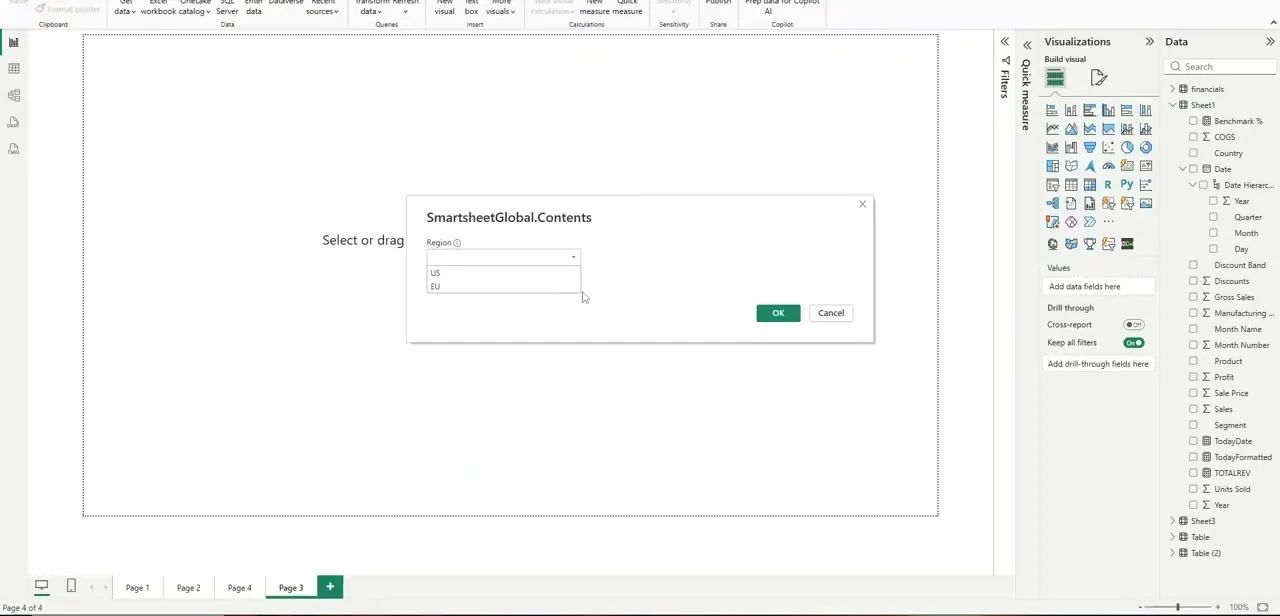
The dialog that opens next asks for the Contents you want to load, with a Region field where you choose the data center your account is provisioned in — typically US or EU. Get this wrong and the connection will fail even with correct credentials, since Smartsheet enforces regional data residency behind the scenes. Pick the region that matches where your organization's Smartsheet account was created, not necessarily where you're physically sitting, then continue to sign in.
03Sign in through the Smartsheet authorization window
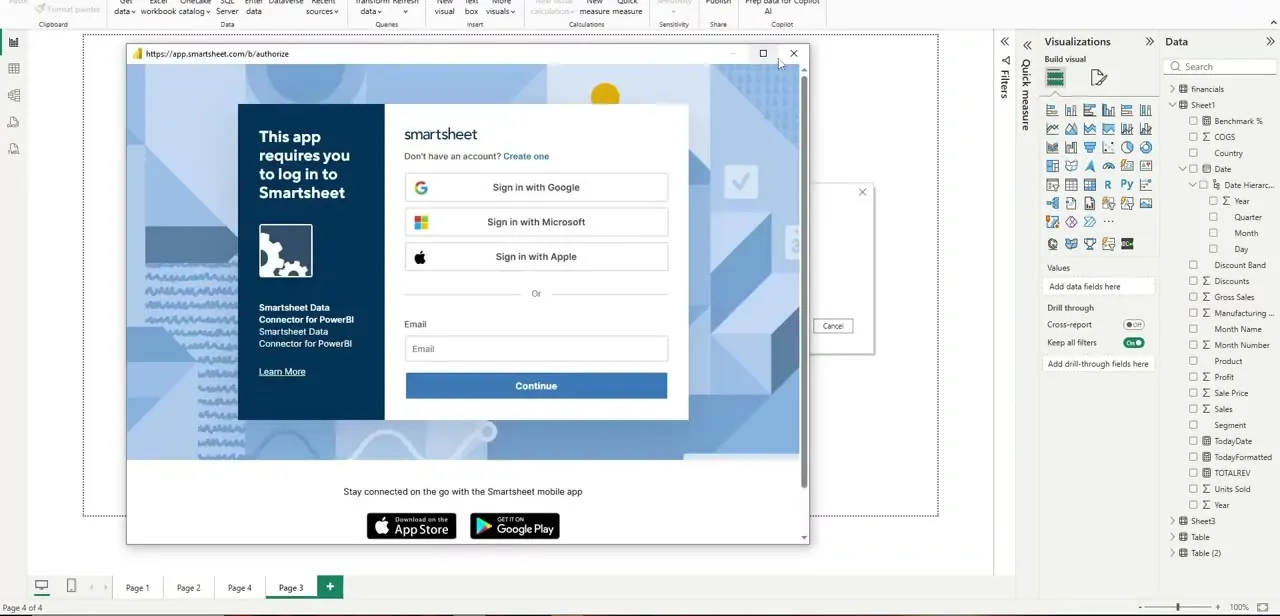
Power BI opens a separate browser-style window hosted at smartsheet.com to handle the actual login, and this is the step most people stall on because it looks like it belongs to a different application. You can sign in with Google, Microsoft, Apple, or a Smartsheet email and password — pick whichever one matches how your Smartsheet account was originally created, since mismatched sign-in methods are a common cause of failed connections. Once you authenticate, this window closes on its own and control returns to the Power BI connector dialog.
04Troubleshoot a failed sign-in before retrying
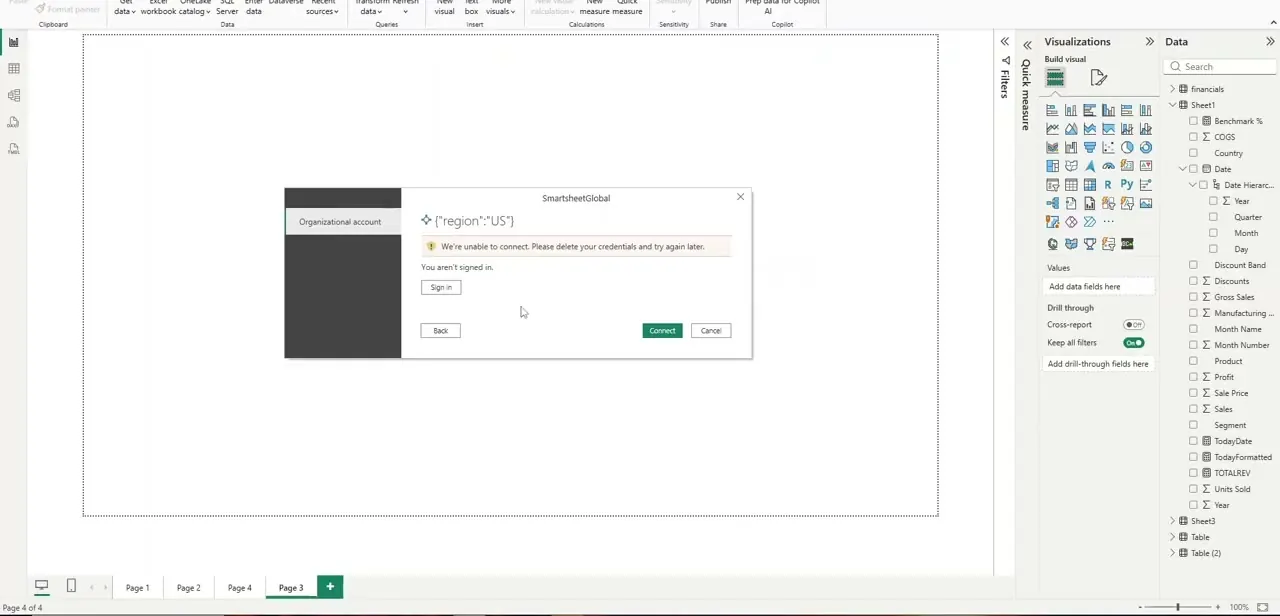
If Power BI comes back with a message like "We're unable to connect. Please delete your credentials and try again later," don't just hammer Connect again — it usually means a stale or partial credential got cached from an earlier attempt.
Go to File → Options and Settings → Data source settings inside Power BI, find the Smartsheet entry, and clear it before reopening the connector from scratch. This forces a completely fresh authorization window instead of reusing whatever broke the first time, which resolves the vast majority of these errors.
05Bring your sheets into the report
Once authentication succeeds, Power BI presents the sheets and reports available in that workspace through the Navigator, where you tick the specific sheets you actually need rather than importing everything by default. Selecting fewer, well-chosen sheets keeps your data model lean and your refreshes fast, especially if a workspace contains dozens of sheets you don't use for reporting. Load the data, and it appears in your Fields pane just like any other source, ready to build visuals against.
06Set a refresh schedule so the data stays current
A one-time import is only useful until the underlying Smartsheet changes, so publish the report to the Power BI service and configure a scheduled refresh from the dataset's settings page. Smartsheet data can typically refresh multiple times a day on a Pro or Premium capacity, which matters if your team updates project status sheets constantly. Without this step, your dashboard quietly goes stale while everyone assumes it's live — worth double-checking the refresh history after the first scheduled run to confirm it actually fired.
Frequently asked questions
Do I need a paid Smartsheet plan to connect to Power BI?
The Smartsheet connector itself works with standard accounts, but scheduled refresh frequency and some enterprise data controls can depend on your Smartsheet and Power BI license tiers, so check your account's specific integration permissions if refreshes seem limited.
Why does Power BI say it can't connect even though my Smartsheet password is correct?
This is almost always a stale cached credential rather than a wrong password. Clear the Smartsheet entry under Data source settings in Power BI and reopen the connector to get a fresh authorization window.
What does the Region field in the connector actually control?
It tells Power BI which Smartsheet data center to authenticate against — US or EU. It needs to match where your organization's Smartsheet account is provisioned, not your physical location, or the connection will fail.
Will updates in Smartsheet automatically appear in Power BI?
Yes, once you publish the report and set up a scheduled refresh in the Power BI service, changes made in Smartsheet will flow into your report according to your chosen refresh frequency.
Can I connect multiple Smartsheet workspaces to one Power BI report?
Yes, Power BI can pull in data from multiple Smartsheet sources and combine them within the same report, each added through its own Get Data step.
Watch the full walkthrough
The same steps, demonstrated on screen from start to finish.