Easy Tech Tuts
How to Turn Off Grammarly on Google Docs Easily 2026
By Impran M N
Grammarly's real-time suggestions are helpful, but sometimes you just want an uninterrupted writing session, or you're troubleshooting why it won't stop flagging text you've already decided to keep. This guide covers pausing it on the document you're currently in, checking the connected-apps settings in your Grammarly account, and disabling the browser extension outright if you want it gone until you turn it back on.
01Find the widget in your document
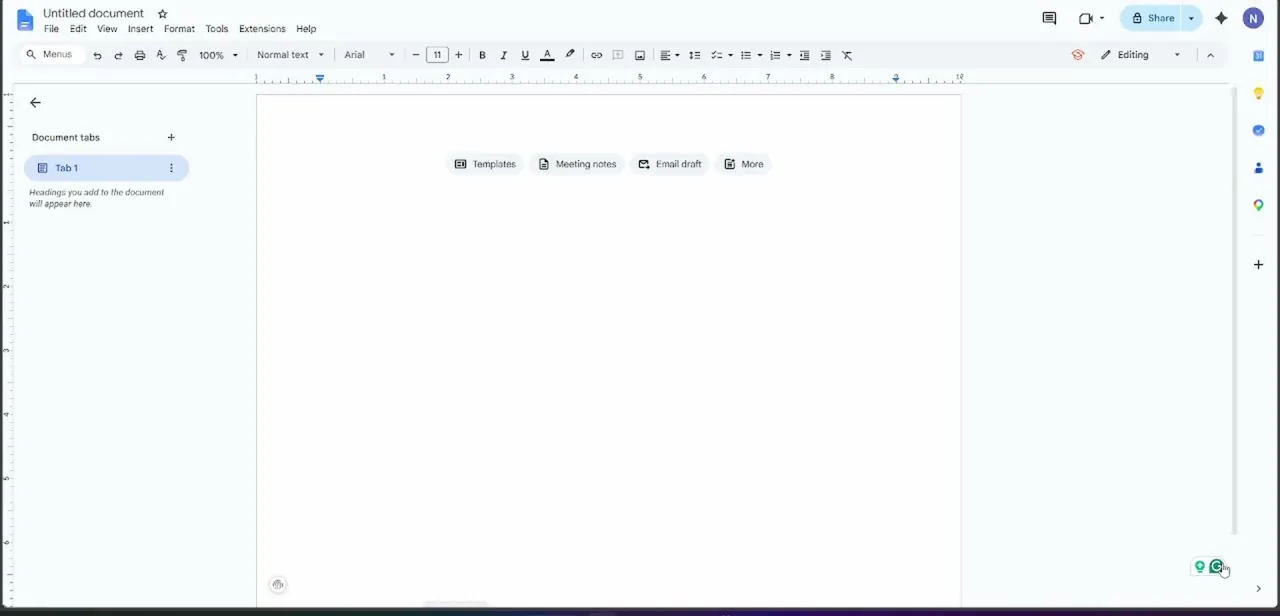
Open the Google Doc you're working in and look at the bottom-right corner of the page. That's where Grammarly's floating icons sit — typically a small lightbulb-style suggestion counter next to the round Grammarly logo. Click the Grammarly icon itself, not the suggestion counter, to open its quick settings for the current page.
02Pause suggestions for this document only
The pop-up that opens from the widget includes a toggle to stop checking specifically on the page you're viewing. This is the fastest option when you just want a distraction-free session on one document without touching anything else, since it leaves Grammarly fully active everywhere else you use it.
03Check your account's connected apps
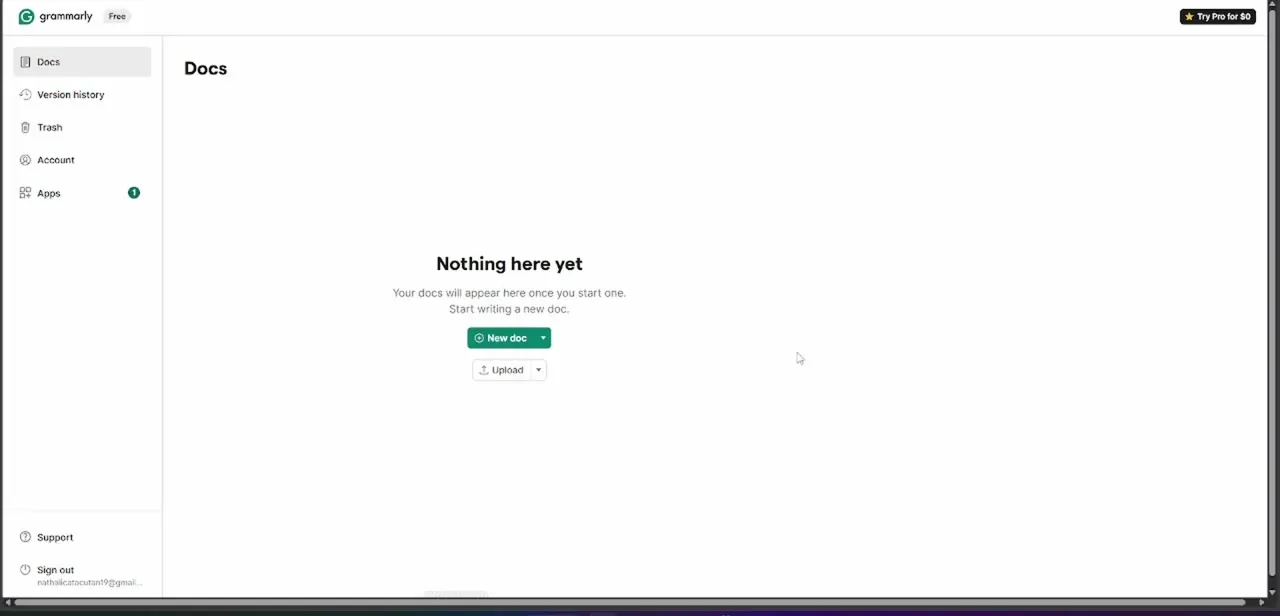
Log into your Grammarly account through a browser and you'll land on the Docs section of your dashboard, with Account and Apps listed in the left-hand navigation alongside Version history and Trash. The Apps entry is where Grammarly tracks which integrations and platforms it's connected to, including your browser extension, and shows a badge count when something needs your attention. It's worth a look if suggestions are behaving unexpectedly across every document rather than just one.
04Open your browser's extensions toolbar
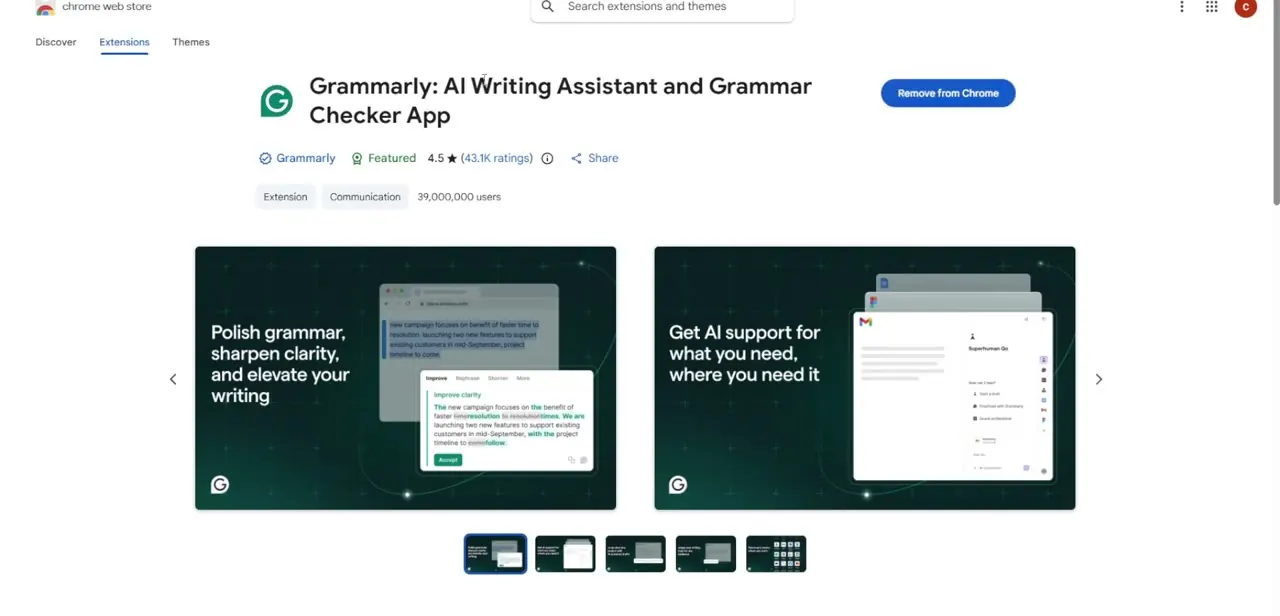
For a more complete pause, go to your browser's extensions page directly rather than working through Grammarly's own settings. Every major browser lists installed extensions in a dedicated menu, usually reachable from a puzzle-piece or three-dot icon near the address bar.
05Disable the extension globally or by site
From the extensions page, toggle Grammarly off entirely if you want it silent everywhere, or use its site-access settings to restrict it to specific domains if you only want it disabled on certain sites while staying active on others. This is the setting to use if pausing from inside a single document isn't sticking, since it overrides the in-document toggle.
06Check the desktop app if you use one
If you also run the standalone Grammarly desktop application for typing assistance outside the browser, its settings have a separate pause toggle. Turning off the browser extension doesn't touch the desktop app, so check both if you're trying to go fully quiet across your whole system.
07Re-enable before your final pass
Whichever toggle you used, flip it back before you consider a document finished. A last Grammarly pass right before sharing or submitting is usually where it catches the most, so treat turning it off as temporary rather than a permanent setting.
Frequently asked questions
Can I turn off Grammarly for just one document?
Yes, the floating widget's pop-up toggle lets you pause suggestions specifically for the document you're currently working in, without affecting any other document.
Does disabling the extension delete my Grammarly account?
No, disabling or uninstalling the extension only stops it from running in your browser; your account, saved settings, and writing history remain intact.
Why is Grammarly still active after I closed the widget?
Closing the widget window doesn't always fully disable checking. Use the browser's extension toggle for a complete pause if the in-document setting isn't sticking.
Do I need to restart my browser after disabling Grammarly?
Usually not, though refreshing the current document tab helps ensure the change takes effect immediately.
Watch the full walkthrough
The same steps, demonstrated on screen from start to finish.