Easy Tech Tuts
How to Add Grammarly to Google Docs Easily 2026
By Impran M N
Catching grammar mistakes and awkward phrasing is faster with Grammarly running right inside Google Docs, instead of copying paragraphs into a separate tab and pasting corrected text back. The extension installs once at the browser level and then quietly attaches itself to every Google Doc you open afterward. This guide covers installing it from the Chrome Web Store, signing in, and using both the underline-based suggestions and the newer AI assistant panel once it's live in your document.
01Find Grammarly in the Chrome Web Store
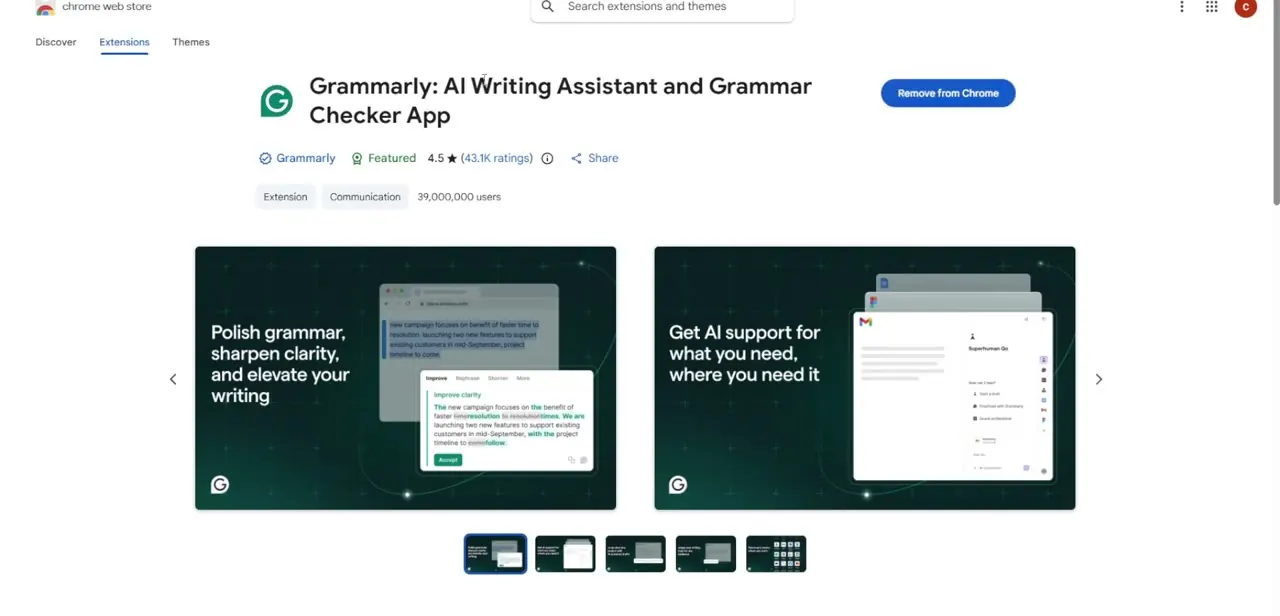
Open the Chrome Web Store and search for Grammarly. The official listing — Grammarly: AI Writing Assistant and Grammar Checker App — is easy to confirm as legitimate: it carries a Featured badge, a 4.5-star rating from over 43,000 reviews, and a user count in the tens of millions. The store listing itself previews what you're installing, showing screenshots of inline clarity suggestions and AI support embedded directly into a document.
02Install and sign in
Click Add to Chrome, confirm the permissions prompt, and the extension installs immediately. You're then redirected to log into an existing Grammarly account or create a new one — this sign-in matters because Grammarly ties its suggestions and any saved writing goals to your account rather than to the browser alone, so switching computers just means signing in again rather than reconfiguring anything.
03Open a Google Doc and look for the floating icon
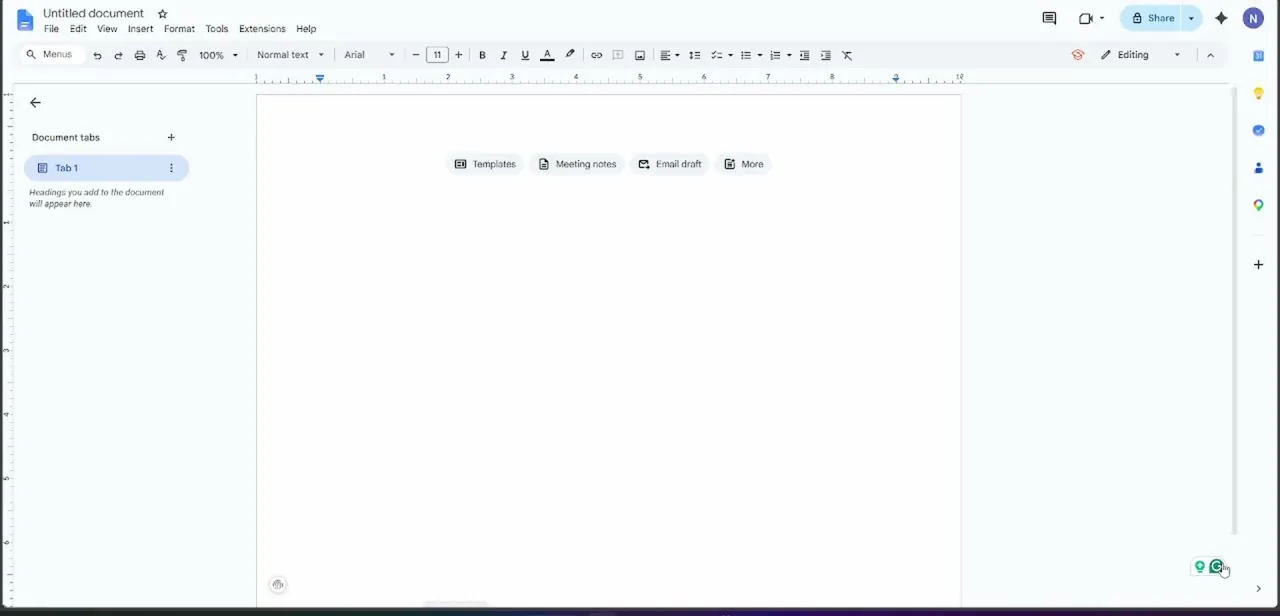
Open any document, and Grammarly attaches to it automatically — no separate step needed inside Docs itself. As you place your cursor or start typing, a small green icon appears near the text, which is your entry point into everything Grammarly offers on that page, from quick grammar fixes to its broader writing assistant.
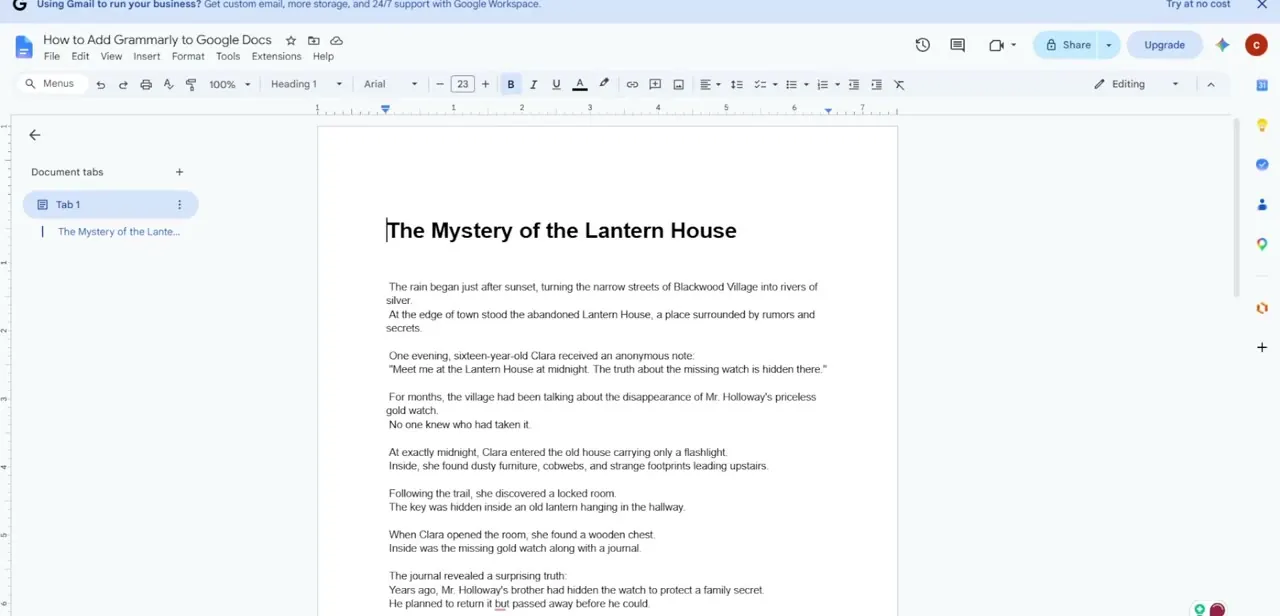
04Review inline grammar and spelling suggestions
As Grammarly scans your text, it underlines words and phrases it has suggestions for. Clicking an underlined section pops up the specific issue — a misspelling, a punctuation error, or an awkward phrasing — along with one-click fixes you can accept or dismiss individually, so you stay in control of every change rather than accepting a blanket correction pass.
05Open the full assistant panel for deeper edits
Click the floating icon to expand Grammarly's full panel, which goes well beyond simple corrections. It offers a Set your voice option for calibrating how your generated or edited text should sound, plus a "What do you want to do?" section with shortcuts like Improve it, Identify any gaps, and More ideas, alongside a free-text box where you can type a specific instruction for how you want a passage rewritten.
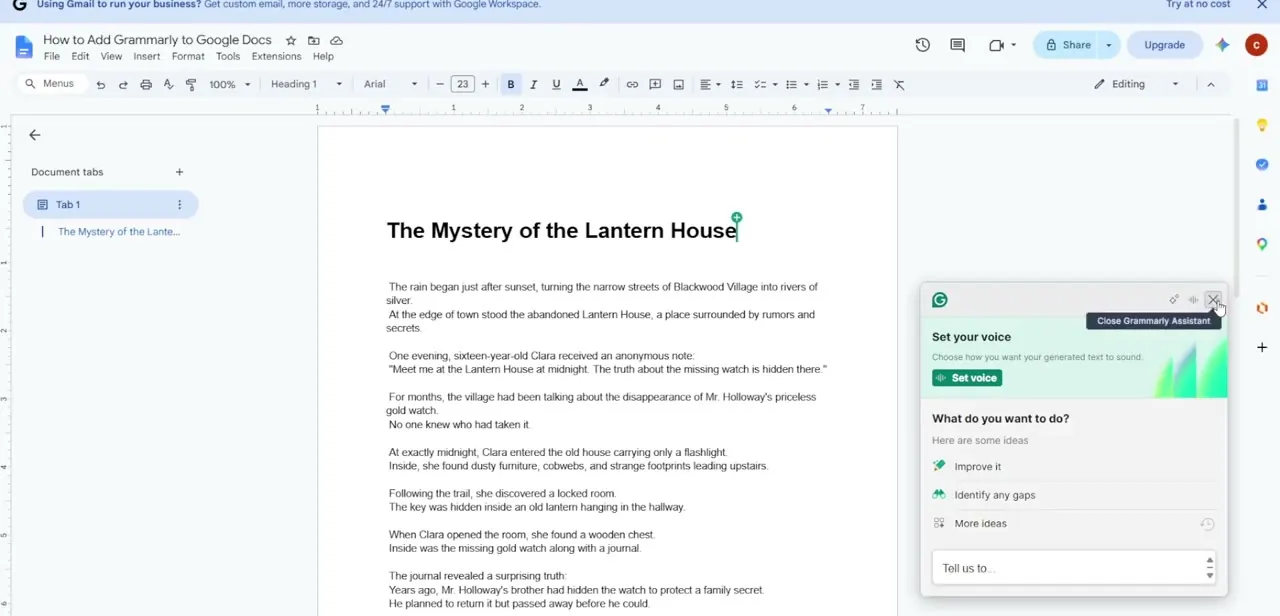
06Adjust goals for the specific document you're writing
Not every document needs the same voice — a school essay and a marketing brochure call for different levels of formality. Use the panel's voice and goal settings to tell Grammarly what you're writing and who it's for, and its suggestions shift accordingly, flagging casual phrasing in a formal document or overly stiff wording in something meant to sound conversational.
Frequently asked questions
Is Grammarly free to use with Google Docs?
A free plan covers basic grammar and spelling checks, while advanced tone, clarity, and AI rewriting features require a paid subscription.
Does Grammarly work on Google Docs mobile?
The browser extension only works on desktop; Grammarly offers a separate mobile keyboard app for phone and tablet use.
Can I adjust the writing tone Grammarly checks for?
Yes, the assistant panel's Set your voice option and goal settings let you tailor suggestions to a specific audience and formality level.
Will Grammarly slow down my document?
It shouldn't noticeably affect performance for typical documents, though very large files may see a slight lag while suggestions load.
How do I know I'm installing the real Grammarly extension?
Check for the Featured badge, the verified Grammarly publisher name, and a large, established rating count on the Chrome Web Store listing before installing.
Watch the full walkthrough
The same steps, demonstrated on screen from start to finish.