Easy Tech Tuts
How to Add Grammarly to Google Docs Easily 2026
By Impran M N
Adding Grammarly to Google Docs gives you real-time grammar and style feedback as you write, without leaving your document. This guide covers creating a Grammarly account, downloading the official installer, and confirming it's actually working once you're back in a Google Doc. It's a short one-time setup, and the payoff shows up on every document you write in afterward — including ones with the kind of small verb-tense and agreement slips that are easy to miss on your own.
01Create a free Grammarly account
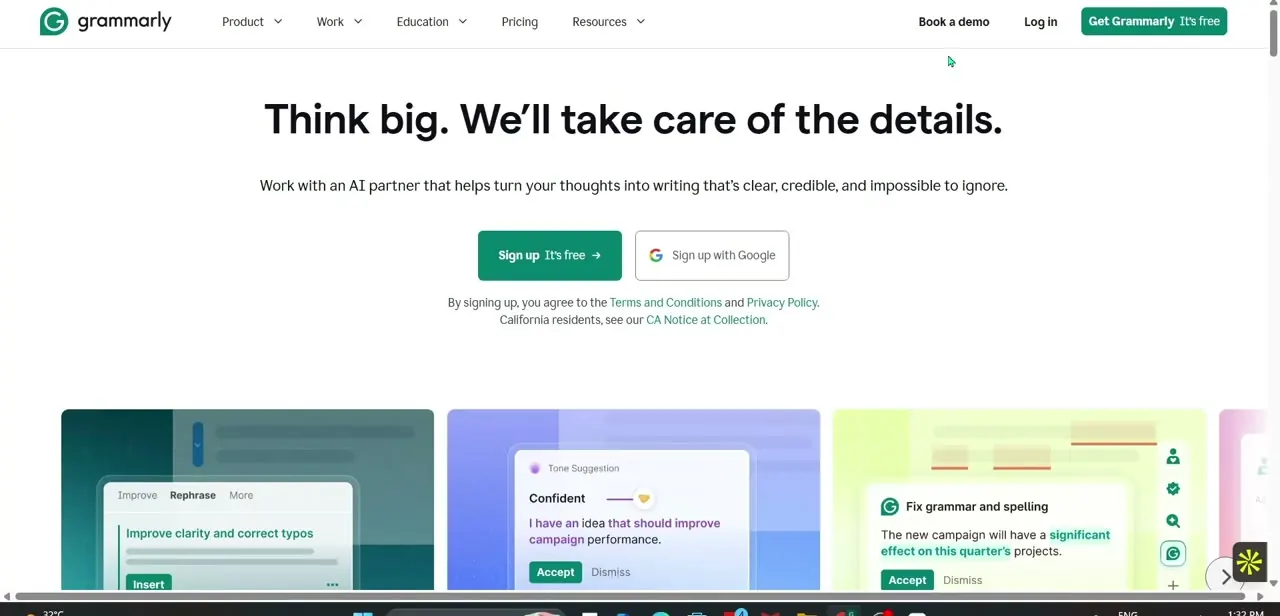
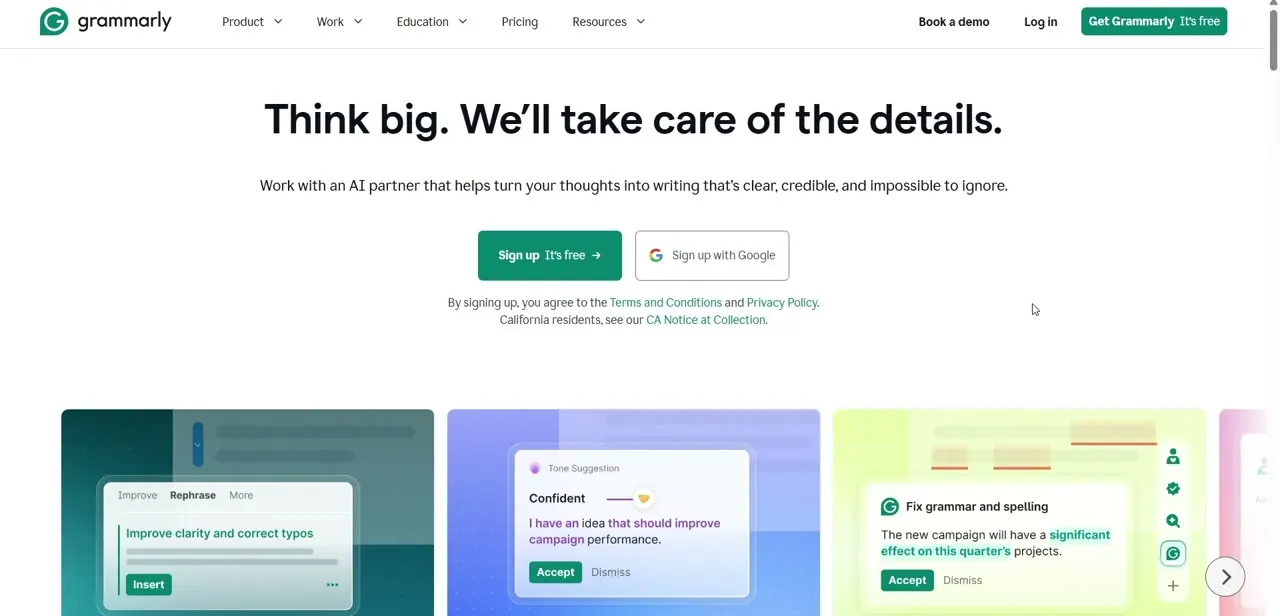
Go to grammarly.com and choose Sign up — either with an email address or the faster Sign up with Google option. The homepage also shows a preview of what the assistant actually does once it's running: inline suggestion cards for clarity, tone, and grammar that appear right next to your text. You don't need to pay anything to get started; core grammar and spelling checks are included on the free plan.
02Download and run the installer
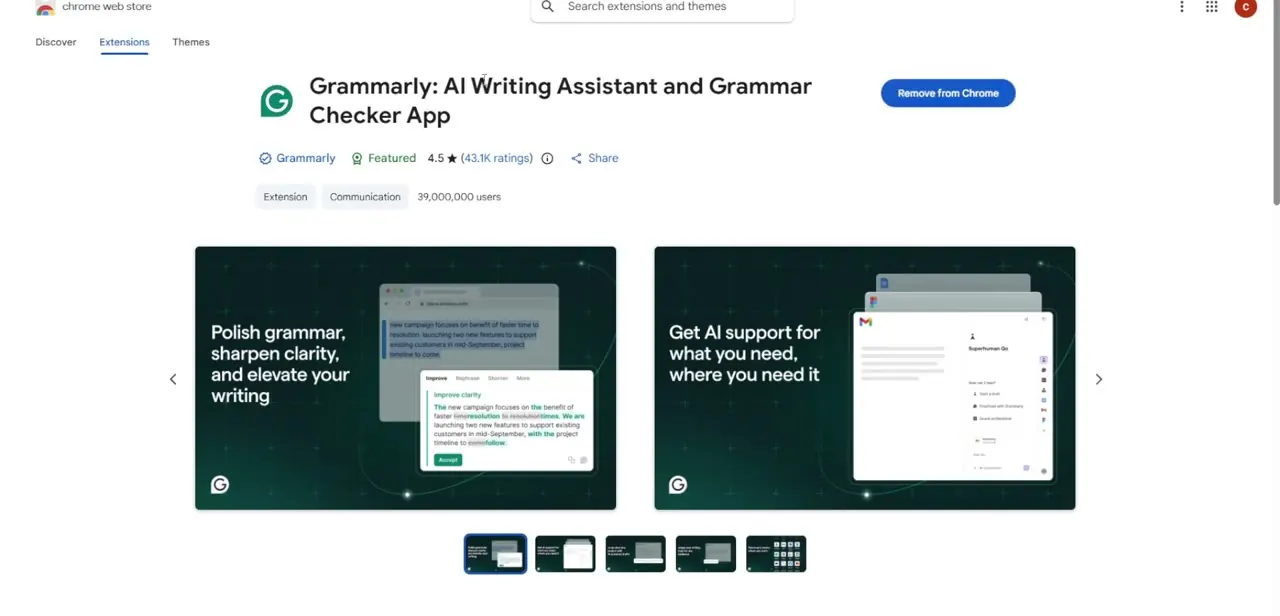
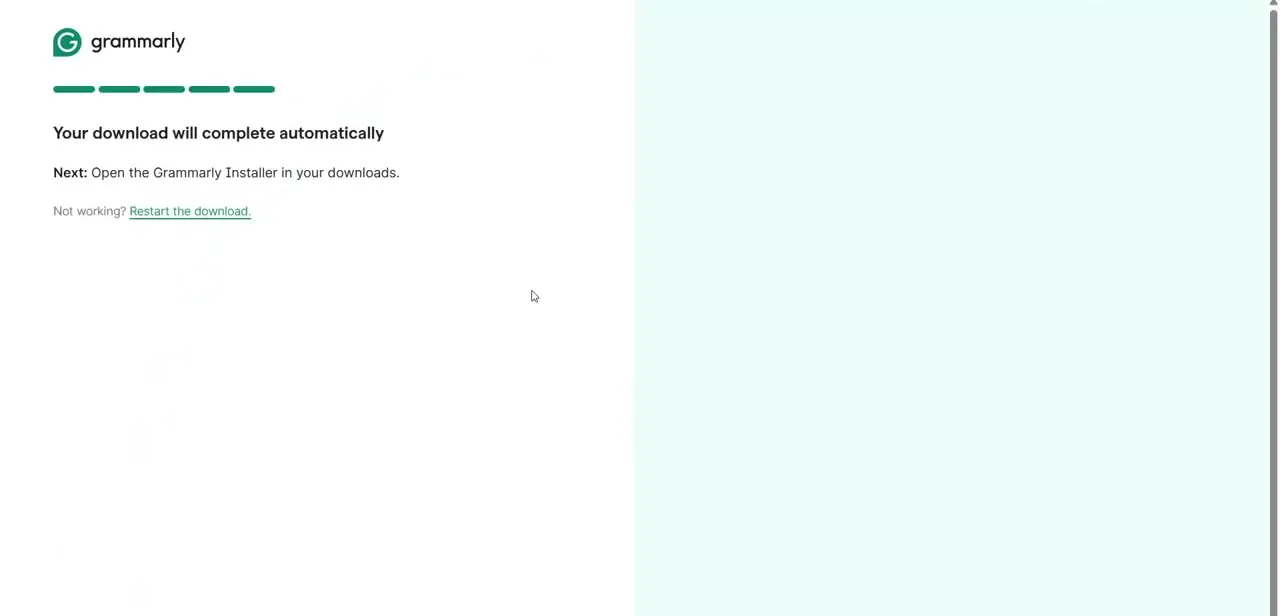
After signing up, Grammarly kicks off a download automatically and shows a progress page confirming the file is on its way, with a note to open the Grammarly Installer from your downloads once it finishes. If nothing happens after a minute, the same page has a "Restart the download" link rather than making you go hunting for the file again. Once the installer finishes, it adds the Grammarly extension to your browser and pins its icon to the toolbar.
03Open a Google Doc and refresh the tab
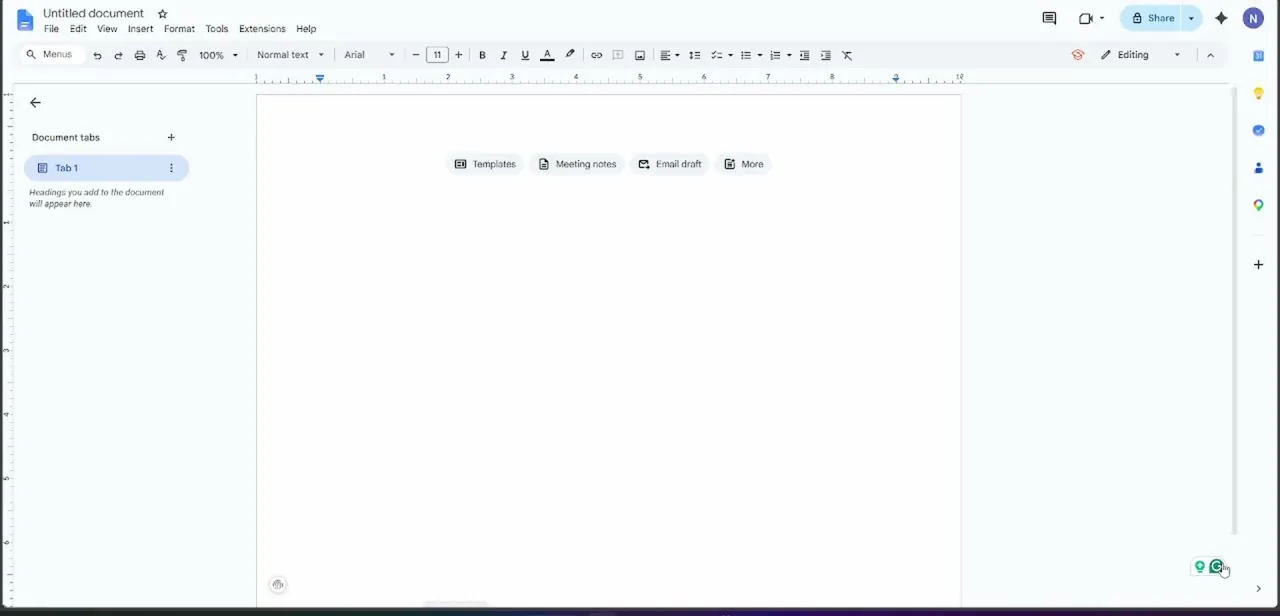
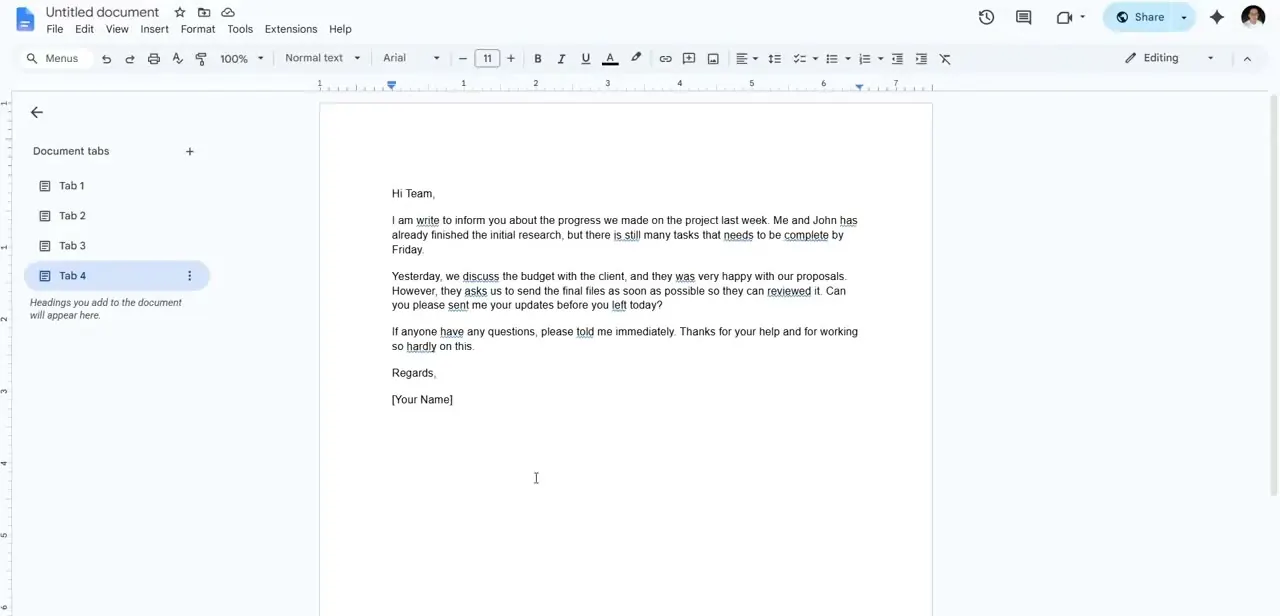
If you already had Google Docs open during installation, close and reopen the tab, or hit refresh, so the extension can attach to the page. Open any existing document — a plain untitled doc works fine for testing. If your text has grammar issues sitting in it, like subject-verb agreement errors or the wrong verb tense, you should start seeing them flagged shortly after the page loads with Grammarly active.
04Grant the extension's permissions
The first time Grammarly runs on Google Docs, your browser may prompt you to confirm it can access the page content — this is required for it to read your text and generate suggestions, so accept it. You can review or revoke this access later from your browser's extension settings if you ever want to restrict where Grammarly runs.
05Review inline suggestion cards
As Grammarly scans your document, it underlines problem spots and shows a suggestion card when you click on one, explaining the issue and offering a one-click fix. Work through them the same way you'd review a colleague's track-changes edits: accept the ones that are clearly right, and dismiss anything that's a stylistic choice rather than an actual error. This is faster than a manual re-read for catching small mechanical mistakes, though it's not a substitute for checking that the overall argument or structure of the document makes sense.
06Set tone and audience, then manage visibility
Open the extended sidebar to set the tone you're going for, such as formal, casual, or persuasive, so suggestions actually fit the document instead of defaulting to generic corrections. When the overlay gets in the way of other Workspace tools or you just want a distraction-free view, toggle it off from the widget or the extension's toolbar icon, then turn it back on before your final read-through.
Frequently asked questions
Do I need a Grammarly account to use it in Google Docs?
Yes, you'll need to sign up and log into a Grammarly account before or right after installing the extension for it to actively scan your documents.
Why isn't Grammarly showing up in my document?
Check that the extension finished installing and that you've refreshed the Google Docs tab afterward; the extension needs a fresh page load to attach and start checking.
Can I use Grammarly alongside Google Docs' own spelling checker?
Yes, both can run at the same time, and combining Grammarly's suggestions with Google's native spellcheck gives a more thorough pass than either alone.
Is adding Grammarly to Google Docs free?
The signup, installer, and core grammar and spelling checks are free. Advanced tone, clarity, and rewrite suggestions are part of the paid Pro plan.
Watch the full walkthrough
The same steps, demonstrated on screen from start to finish.