Easy Tech Tuts
How to Cancel & Delete Google Workspace Subscription & Account in 2026 Without Charges & Losing Data
By Impran M N
Canceling a Google Workspace subscription without accidentally getting charged again or losing important data takes a bit of care, especially since the cancellation control sits a few clicks deep in the Admin Console rather than on the main dashboard. This guide follows that path exactly — from the Admin Console home, into Billing, and to the menu where Cancel subscription actually lives — plus what to sort out with your data before you click it.
01Start from the Admin Console home
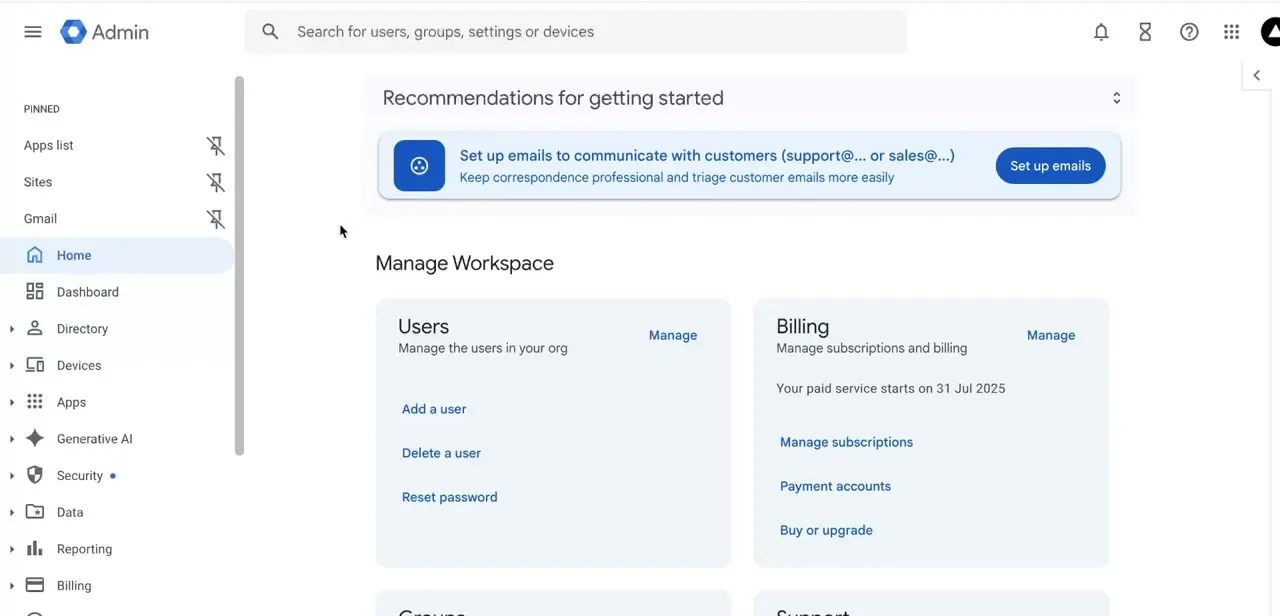
Sign in to admin.google.com with your administrator account. The home screen's "Manage Workspace" section shows two cards relevant here: Users, for managing accounts, and Billing, which displays your paid service start date and links for Manage subscriptions, Payment accounts, and Buy or upgrade. This is also where Google surfaces "Recommendations for getting started" prompts, which are safe to ignore if you're here specifically to wind the account down rather than set it up further.
02Open Manage subscriptions under Billing
Click Manage subscriptions from the Billing card, or navigate to Billing in the left sidebar and select Subscriptions directly. This lands you on the page listing your active Google Workspace plan along with its billing history — the same place you'd go to check what you were charged and when your current cycle ends, which is worth reviewing before canceling so you know exactly what date matters for the rest of this process.
03Open the subscription's action menu
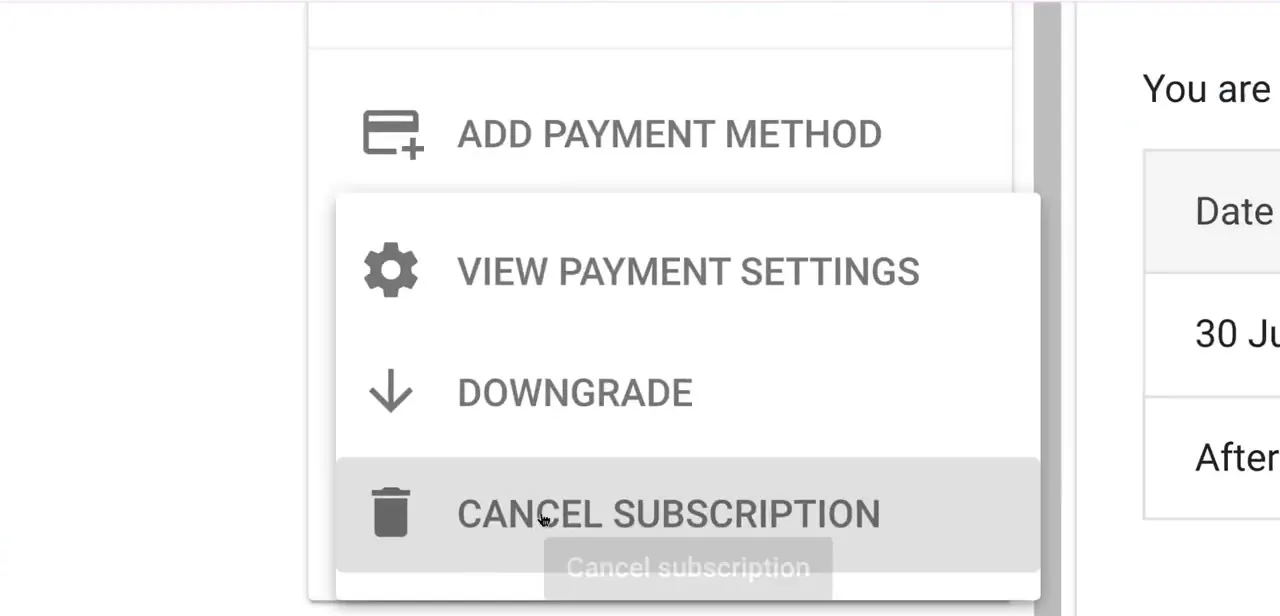
On the subscription itself, a menu (usually reached via a kebab or options icon next to the plan) expands into four choices: Add payment method, View payment settings, Downgrade, and Cancel subscription, each with its own icon. Downgrade sits directly above Cancel subscription, which is worth noticing — if your actual goal is fewer features or lower cost rather than shutting everything down, Downgrade is the less drastic option one click above the one you might have come here for.
04Export your data before you confirm cancellation
Once a Workspace subscription is canceled, access to the account's Gmail, Drive files, Calendar, and Contacts isn't guaranteed to continue — so this is the point to stop and export anything you need, not after. Google Takeout, at takeout.google.com, is the standard tool for downloading an archive of Gmail, Drive, Calendar, and other Google service data tied to an account, and it's worth running for every user on the Workspace before their access is cut off, not just the administrator's own account.
05Confirm the cancellation and check for lingering costs
Selecting Cancel subscription from the menu opens a confirmation flow where Google states what happens next — commonly that the plan remains active through the end of the current billing period rather than stopping immediately. After confirming, go back to Billing → Payment accounts and check that no other add-ons or third-party subscriptions billed through your Workspace account are still active, since those don't automatically cancel alongside the core Workspace plan and can keep charging you after you think everything is shut down.
06Decide what happens to the domain and remaining users
If a custom domain was purchased or managed through Google Workspace, canceling the subscription doesn't automatically release or transfer it — that needs handling separately, either by transferring the domain elsewhere or confirming its own renewal status independently of the Workspace plan. Similarly, check for any locked user accounts or extra licenses still counted against your billing before you consider the cancellation fully wrapped up, since an overlooked license is one of the more common ways people end up surprised by a final invoice.
Frequently asked questions
Will I be charged again if I cancel my subscription?
Canceling through Billing → Manage subscriptions stops future renewal, but the plan commonly stays active through the end of the current billing period rather than ending instantly — check the confirmation screen for the exact date.
Can I get my emails back after canceling Google Workspace?
Generally no once access ends, which is why exporting emails, Drive files, and other data through Google Takeout before finalizing cancellation matters.
Does canceling during a free trial still require these steps?
Yes — ending a trial still goes through the same Billing → Manage subscriptions path in the Admin Console to make sure billing doesn't start automatically once the trial period ends.
What's the difference between Downgrade and Cancel subscription?
Downgrade moves you to a lower-cost or lower-feature plan while keeping the subscription active; Cancel subscription ends it. Both options sit in the same menu, so it's worth checking Downgrade first if you only need to reduce cost.
What happens to my custom domain after canceling?
It isn't automatically released or transferred — you'll need to handle the domain's renewal or transfer separately from the Workspace subscription itself.
Watch the full walkthrough
The same steps, demonstrated on screen from start to finish.