Easy Tech Tuts
How to Associate Google Account With a Device in Laptop, PC, Android, Windows, iPhone, Macbook 2026
By Impran M N
"This Google Account is not yet associated with a device" is a confusing error because it doesn't point you anywhere specific to fix it — it just blocks whatever you were trying to do, usually in the Play Store. The underlying issue is that Google hasn't registered a confirmed device session for your account, which tends to happen after a fresh setup, an account switch, or a sign-out that didn't fully complete.
The most reliable way to sort it out, regardless of whether you're on Android, iPhone, Windows, or macOS, is to check what Google's own account system thinks is connected and fix the mismatch from there. This guide walks through finding and managing that device list.
01Understand what the error actually means
The message shows up when the app or service you're using — most often Play Store — can't find a device session on record for your Google Account. It's not a ban or a security lock; it's closer to Google not yet having confirmed which physical device you're signing in from. A recent factory reset, a new phone, or switching which Google Account is active on a device are the usual triggers, and the fix in every case is the same: make sure your account shows a proper, current device association.
02Find your account's device list in Security settings
The device list lives in your Google Account itself, not inside any single app. Go to your Google Account page, open Security, and look for the "Your devices" panel, then select Manage all devices. This shows every computer, phone, or tablet that's currently signed into your account — it's the same list whether you're troubleshooting from a laptop, a PC, or a phone, which makes it the one place worth checking first no matter what platform you're actually on.
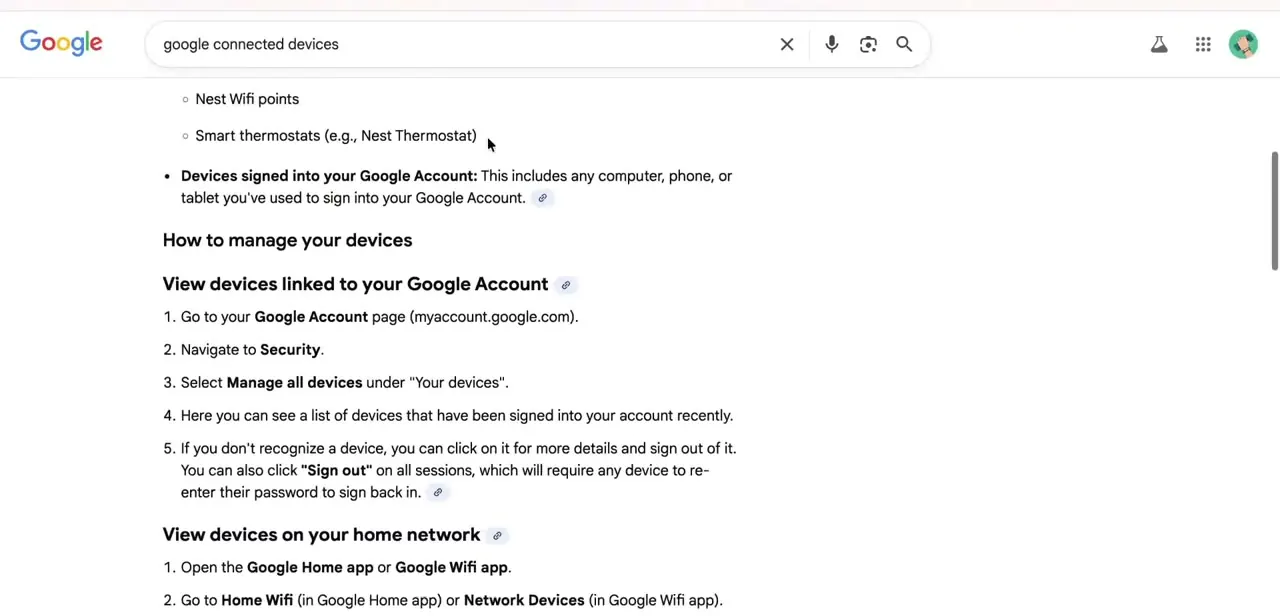
03Review what Google currently sees as connected
Once you're in the devices panel, you'll see a summary like active sessions on specific machines — for example, multiple sessions on a Mac, each one a separate sign-in Google is currently tracking. If the device throwing the "not associated" error doesn't appear anywhere in this list, that confirms the diagnosis: as far as your Google Account is concerned, that device was never properly registered, which is exactly what causes Play Store and other services to reject it.
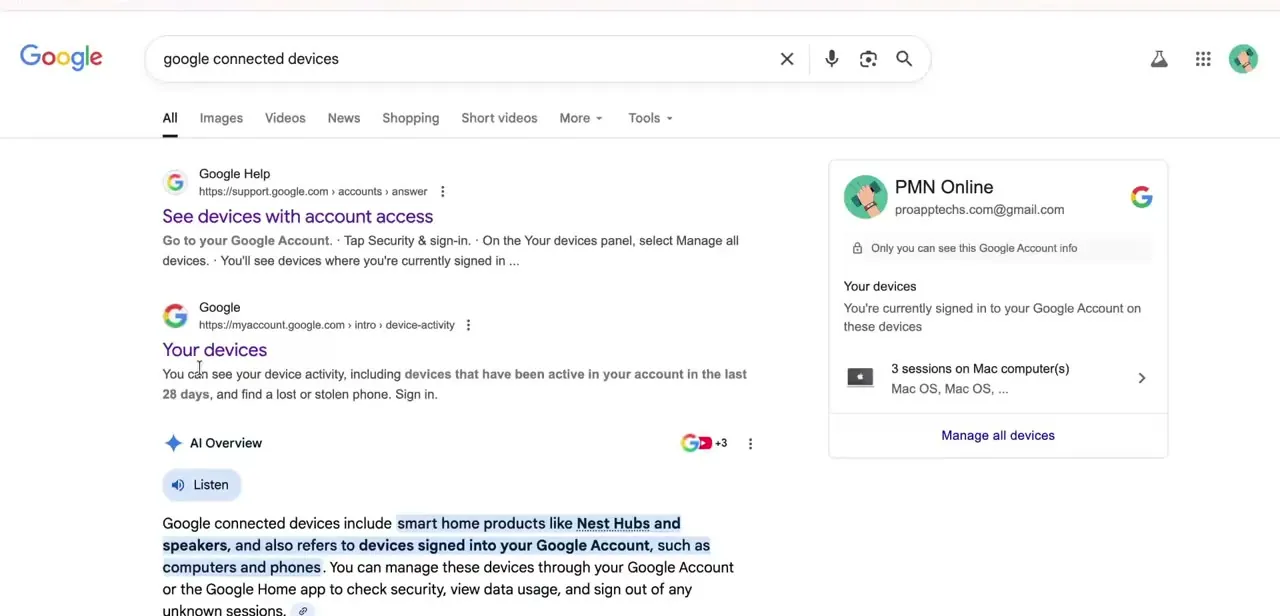
04Sign out completely and sign back in on the affected device
If the device is missing from the list, a partial sign-in is almost always the cause — being signed into one Google app without the device-level account being fully set up. On Android or iPhone, remove the account from the device's system-level Settings (not just from within an individual app) and add it back from scratch. On Windows or macOS, do the same with the system or browser-level Google account, not just a signed-in web tab, since a browser session alone doesn't register as a device association the way a full account sign-in does.
05Clean up any unrecognized or stale sessions
While you're in the devices panel, it's worth clicking into any session you don't recognize and signing it out — old sessions cluttering the list won't cause the association error directly, but they make it harder to tell whether your current device actually registered correctly. If you're not sure a listed device is yours, the panel lets you sign it out individually, which forces that device to re-enter the password next time it's used.
06Confirm the fix in Play Store or the app that errored
After the device shows up correctly in your account's device list, go back to whatever service originally showed the error and try again — reopening the Play Store or restarting the app is usually enough to pick up the newly confirmed association. If it still fails immediately after signing back in, give it a few minutes; Google's account services don't always propagate a fresh device registration to every app instantly.
Frequently asked questions
Why does Google say my account isn't associated with a device?
This typically happens after a new device setup, account switch, or incomplete sign-out where Google hasn't registered a confirmed device session for your account — check the "Your devices" panel in Google Account Security to confirm.
Does this error happen on both Android and iPhone?
Yes, and on Windows and macOS too, since it's tied to your Google Account's device records rather than any one platform. The fix is the same everywhere: remove and fully re-add the account at the system level, not just inside one app.
Will fixing this affect my other Google apps?
No — properly associating the device just confirms the session Google was missing. Other apps and data already signed into that account aren't affected.
Do I need to be connected to the internet to fix this?
Yes. Checking your account's device list and re-registering the device both require an active connection to reach Google's account services.
Can this issue affect Google Workspace accounts too?
Yes — the same device list and association process applies to Workspace accounts, though a Workspace admin's policies can also affect which devices are allowed to register.
Watch the full walkthrough
The same steps, demonstrated on screen from start to finish.