Easy Tech Tuts
How to Block a Domain Using Google Workspace, Block Sender in Gmail Easily 2026
By Impran M N
Unwanted emails from a spam domain or a persistent sender can clutter an inbox and, worse, pose a real phishing risk if left unchecked. Gmail gives individual users a quick way to block one sender, but that only protects their own inbox — stopping a domain for an entire organization means going into the Google Workspace Admin Console instead. This guide covers both paths: the personal block any user can do in seconds, and the admin-level route where domain-wide filtering rules actually live.
01Decide whether you need a personal block or an admin-level block
Before touching any settings, work out the scope of the problem. If it's one annoying sender emailing just you, Gmail's own block-and-filter tools handle it without any admin involvement. If it's a spam or phishing domain hitting multiple people across the company, that needs to be handled centrally by a super admin through the Workspace Admin Console, since a personal block in one inbox does nothing to protect anyone else's.
02Block a sender directly in Gmail
Open the message from the unwanted sender, click the three-dot menu in the top right of the email, and choose "Block [sender]." Gmail moves future messages from that address straight to spam. This is the fastest fix for a one-off nuisance sender, but it's scoped to your account only — it won't stop the same sender from reaching a colleague, and it won't catch that sender if they simply switch to a different address at the same domain.
03Set up a filter for more control
For anything beyond a simple block, Gmail's filter system is more flexible: from the search bar, use the dropdown arrow to create a filter matching the sender's address or entire domain, then choose to skip the inbox, delete automatically, or apply a label. Filtering by domain (using an asterisk wildcard like *@spamdomain.com) catches senders who rotate addresses within the same domain, which a simple one-off block won't.
04Open the Admin Console's Gmail settings for org-wide control
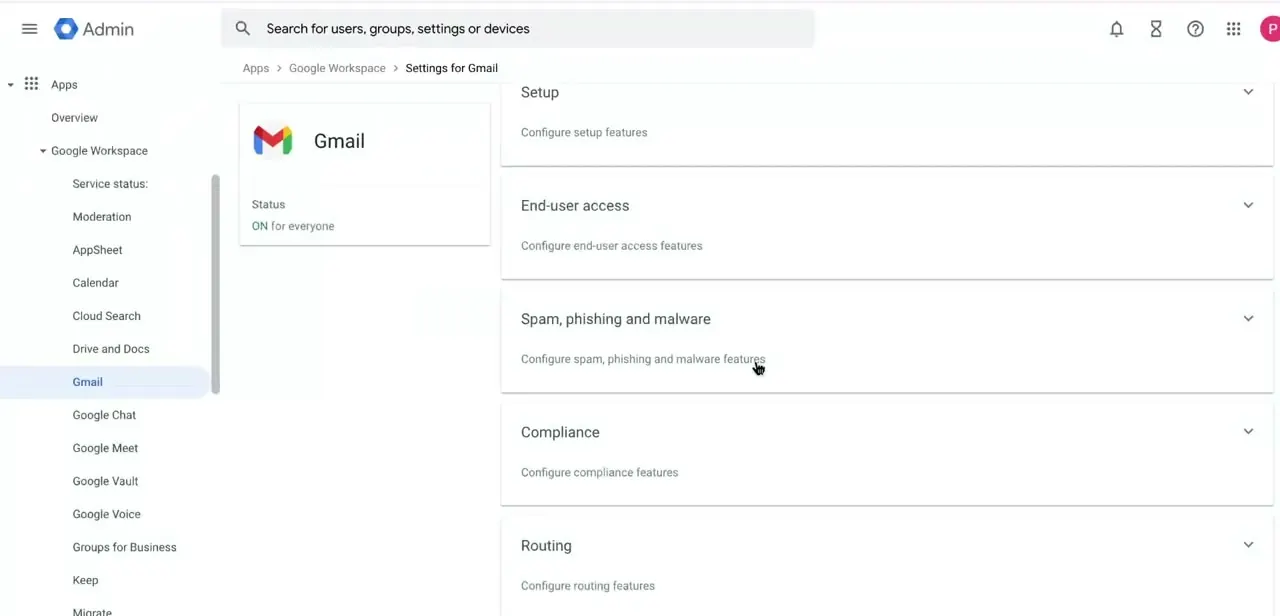
For a domain that's targeting the whole organization, a super admin needs to go into the Admin Console, then Apps → Google Workspace → Gmail, which opens a settings page broken into sections: Setup, End-user access, Spam, phishing and malware, Compliance, and Routing. The "Spam, phishing and malware" section specifically is where domain-level blocking and safe/blocked sender lists are configured for everyone in the domain at once, rather than one inbox at a time.
05Add the domain to a blocked senders list
Inside the Spam, phishing and malware section, admins can maintain an explicit blocked-senders list scoped by domain or organizational unit, so the rule can apply to the whole company or just a specific team if that's all that's affected. Save the change and give it a few minutes to propagate — Workspace settings changes aren't always instant across every user's mail flow, so don't assume it failed if the first test email still lands within the first minute or two.
06Review and confirm the block is working
Whichever route you used, check back afterward: personal users should look at their filter list or blocked-address settings in Gmail to confirm the rule is active, and admins should spot-check with a colleague or a test account to make sure mail from the blocked domain is actually landing in spam or being rejected rather than slipping through. If phishing was the original concern, it's also worth reporting the domain so Google's own spam filters get better at catching it for other Workspace customers too.
Frequently asked questions
Can I block an entire domain in Gmail without admin access?
As an individual user you can filter out a domain using a wildcard filter, but a true organization-wide block usually requires admin-level access through the Workspace Admin Console.
Will blocking a sender delete their previous emails too?
No, blocking only affects future emails — messages already in your inbox stay unless you delete them separately.
Can a blocked sender still email other people in my organization?
Yes, unless the block is applied organization-wide by an admin through the Spam, phishing and malware settings, a personal block only affects your own inbox.
How do I unblock a domain or sender later?
You can remove the filter or blocked-sender entry from Gmail settings, or have an admin remove the entry from the blocked senders list in the Admin Console.
Watch the full walkthrough
The same steps, demonstrated on screen from start to finish.