Easy Tech Tuts
How to Edit Your GoDaddy Website for Beginners with AI 2026 Easily
By Impran M N
GoDaddy's website builder now includes AI features that can rewrite text, suggest headlines, and adjust layouts without requiring any coding knowledge. This guide is aimed at beginners who want to make fast, polished edits to a personal blog or small business site. You'll learn how to open the website editor and put the built-in AI tools to work on your content and design.
01Log in and open the website editor
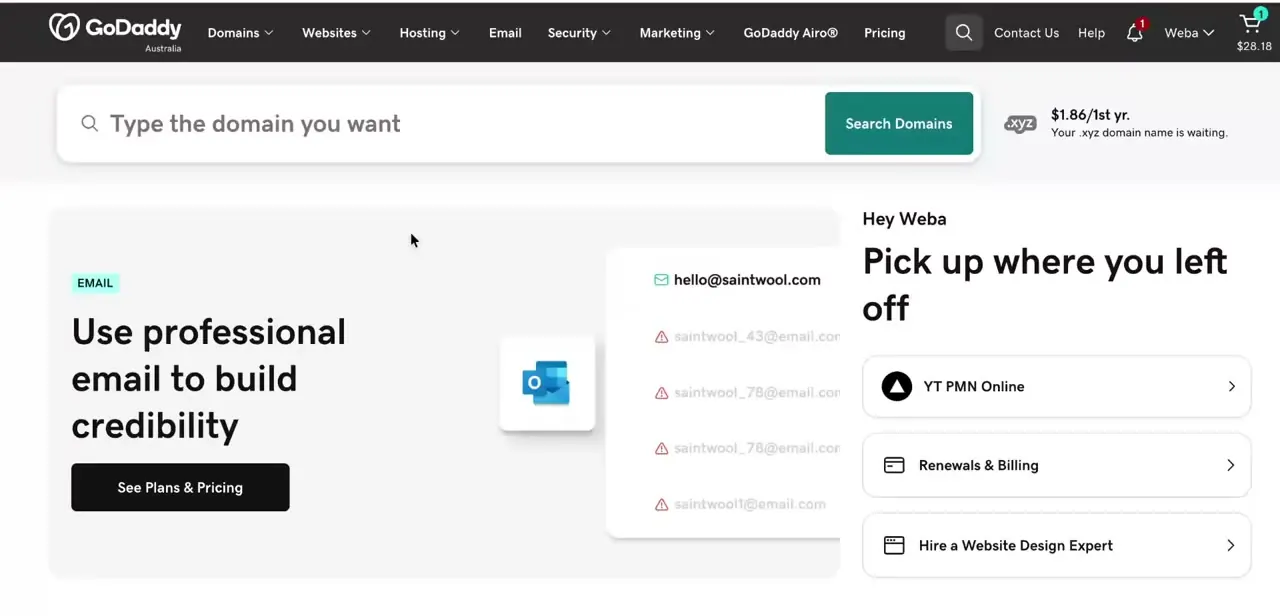
Sign in to your GoDaddy account and open your site in the website builder to access the editing tools.
02Use AI to rewrite or generate text
Select a text section and use the AI writing tool to rewrite copy or auto-generate headlines for your pages.
03Adjust layout and color schemes
Use the builder's AI-assisted suggestions to update your site's layout and color palette to match your brand.
04Customize individual site sections
Go section by section, applying AI content suggestions where they fit and adjusting manually where you want more control.
05Preview and publish your changes
Review how the edited site looks before publishing so your visitors see the polished, updated version.
Frequently asked questions
Do I need coding skills to use GoDaddy's AI editing tools?
No, the AI features are built into the website builder specifically so beginners can make edits without touching any code.
Can GoDaddy's AI write all my website content for me?
It can generate and rewrite text and headlines as a starting point, but most site owners still review and adjust the AI's suggestions to match their voice.
Is the AI website editor included in all GoDaddy plans?
AI editing features are part of GoDaddy's website builder, so availability depends on which builder plan your site is using.
Can I undo changes made with GoDaddy's AI tools?
Yes, you can revise or replace any AI-generated text or layout change the same way you would edit content manually.
Watch the full walkthrough
The same steps, demonstrated on screen from start to finish.