Easy Tech Tuts
How to Connect Godaddy Domain to Gohighlevel 2026 Easily
By Impran M N
If you're building funnels, websites, or automations in GoHighLevel but bought your domain through GoDaddy, the two platforms need to be introduced to each other through DNS before anything goes live. That means taking the exact record values GoHighLevel generates for your domain and typing them into GoDaddy's DNS editor, then waiting for GHL to confirm the connection and issue SSL. It sounds simple, but a mistyped value or a record added to the wrong host is the single most common reason a funnel domain sits stuck on "not connected." This guide walks the process screen by screen, from your GoDaddy dashboard through to a verified, secure domain in GoHighLevel.
01Start from your GoDaddy account
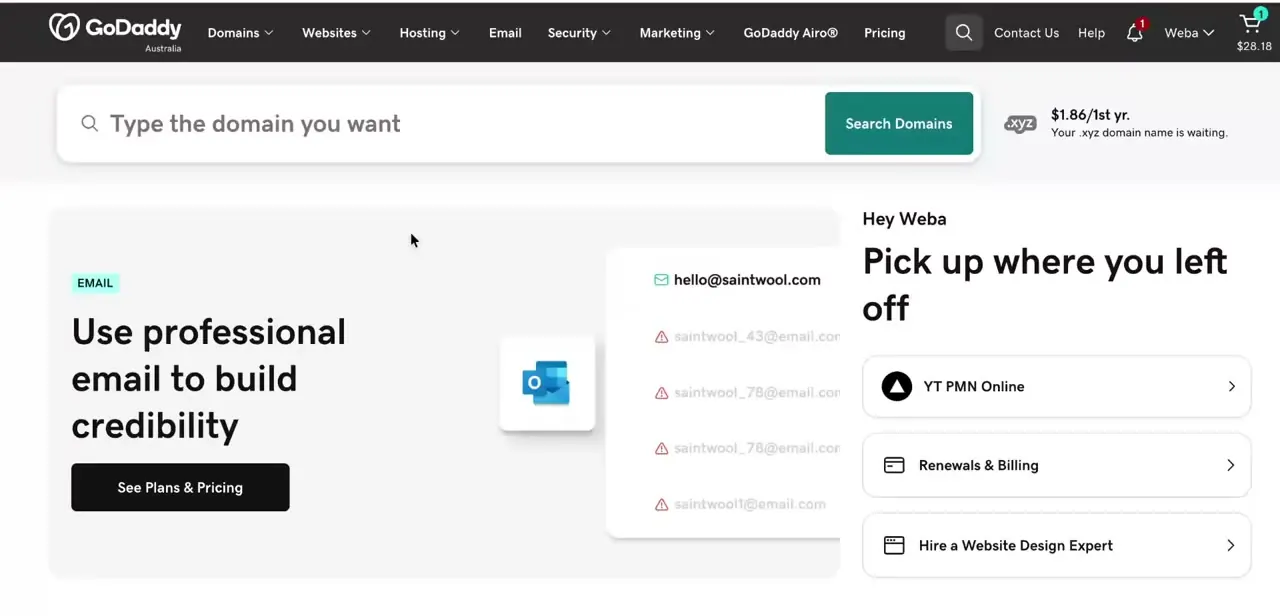
Log in to GoDaddy and land on the account dashboard, where you'll see quick links to Domains, Websites, Hosting, and Email along with any renewal or setup prompts. You don't need to touch any of the marketing tiles here — the piece you actually need is a few clicks away, under your domain's DNS management screen. It's worth confirming at this point that you're logged into the account that actually owns the domain, especially if you manage multiple GoDaddy accounts for different clients or projects, since DNS changes made on the wrong account won't do anything for your GoHighLevel site.
02Open the right sub-account in GoHighLevel
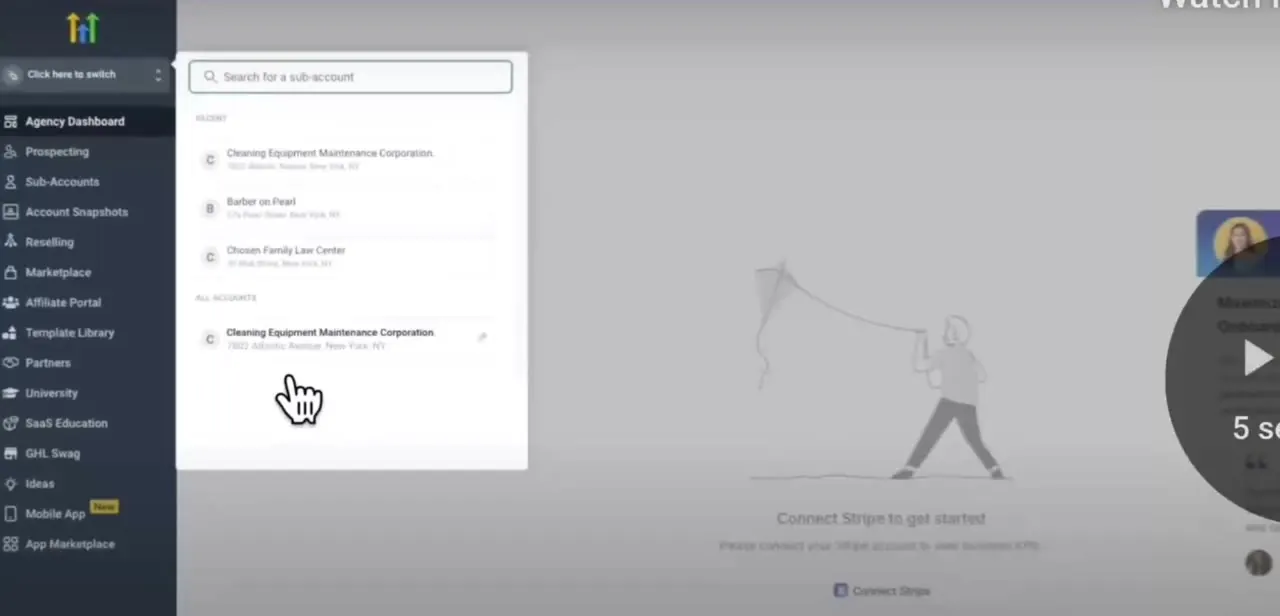
GoHighLevel is agency software, so if you manage multiple client accounts, the first real step inside GHL is picking the correct sub-account — the one whose domain settings you're about to edit. The account switcher lists your recent sub-accounts along with a search box, since agencies running dozens of client accounts can't scroll to find the right one. Get this wrong and you'll add DNS records that point at the wrong site, so it's worth pausing on this screen and double-checking the business name before moving into Settings.
03Add the domain and copy GoHighLevel's DNS values
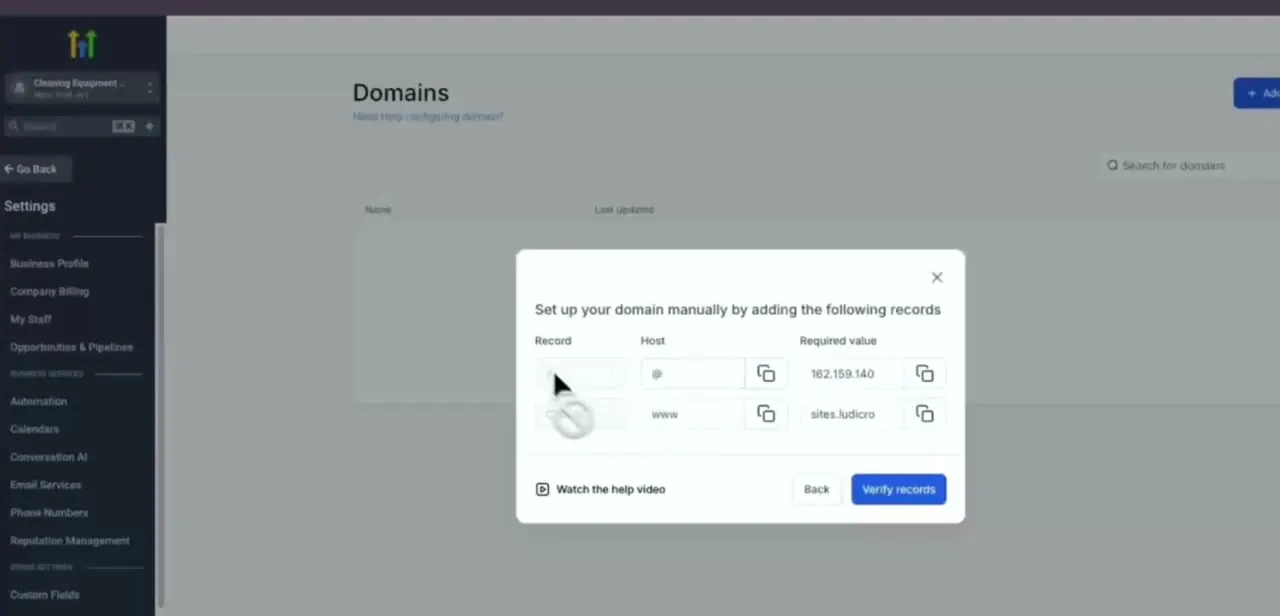
Inside the sub-account, go to Settings → Domains and add your GoDaddy domain. GoHighLevel responds with a "Set up your domain manually" panel listing the exact records it needs: an A record on the root host (@) pointing to an IP address, and a CNAME on the www host pointing to a GHL-managed hostname.
Each value has a copy icon next to it — use it rather than retyping, since a single wrong digit in the IP address is enough to keep the domain from resolving. Leave this panel open, or copy both values somewhere handy, because you'll need them in the very next step.
04Enter the A record in GoDaddy's DNS editor
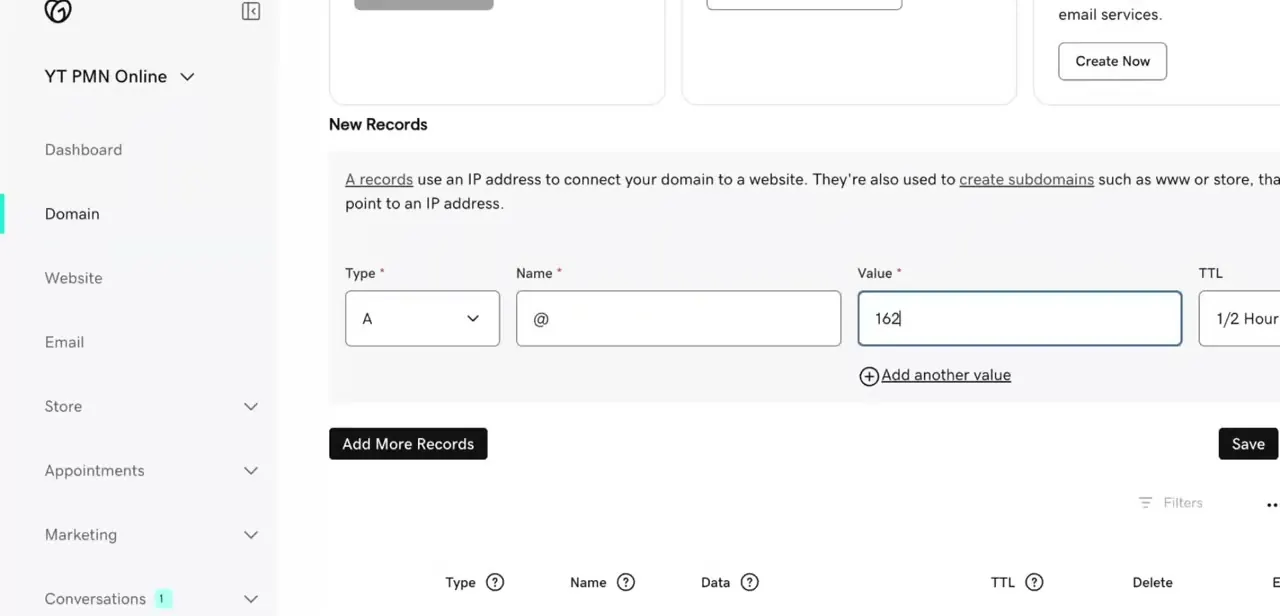
Back in GoDaddy, open the domain's DNS management page and add a new record. Set the Type to A, the Name to @ (the root domain), and paste the IP address GoHighLevel gave you into Value — GoDaddy's form even lets you add a second value if GHL provided more than one.
Leave TTL on its default unless you have a specific reason to change it. Save this record, then repeat the process for the CNAME: Type CNAME, Name www, Value the GHL hostname from the previous step. These two records together are what actually point your domain at GoHighLevel's servers.
05Verify the connection in GoHighLevel
Once both records are saved in GoDaddy, return to the same panel in GoHighLevel and click Verify records. DNS changes don't apply instantly — GoDaddy itself warns that updates can take a little while to propagate, and GHL's verification will simply retry and fail until the records are visible from its side. If verification doesn't succeed right away, wait a few minutes and try again rather than re-adding the records, since duplicate entries are a common self-inflicted problem at this stage.
06Fix a stuck "domain not connected" error
If GoHighLevel still shows the domain as unconnected after propagation should have finished, go back through the values one more time: check that the A record's Name is exactly @ and not a typo like www or blank, confirm the CNAME's target host matches what GHL displayed character for character, and make sure you didn't leave a leftover A or CNAME record from a previous host still active on the same name — conflicting records on the same host are a frequent cause of failed verification. Once the records are clean and verification succeeds, GoHighLevel issues SSL automatically, and your funnel or website is live on your own domain.
Frequently asked questions
How long does it take for the domain to connect after updating DNS?
DNS changes need time to propagate across the internet, so the domain may not show as connected in GoHighLevel immediately after you save the A and CNAME records in GoDaddy — retry verification after a few minutes rather than re-adding records.
Why does GoHighLevel say my domain is not connected?
This usually means the DNS records in GoDaddy don't yet match what GoHighLevel expects, propagation hasn't finished, or there's a leftover conflicting record on the same host — recheck the exact values in GHL's setup panel first.
Do I get SSL automatically after connecting my domain?
Yes — once the domain connection is verified inside GoHighLevel, SSL is issued automatically so your site or funnel loads securely with no separate certificate step.
Can I use this method for both funnels and full websites?
Yes, the same domain connection process — add the domain in GHL, enter the A and CNAME records in GoDaddy, then verify — applies whether you're pointing your domain at a GoHighLevel funnel or a full website.
What if I manage the domain on a different GoDaddy account than my GHL sub-account?
Make sure you're logged into the GoDaddy account that actually owns the domain before editing DNS, and the correct GoHighLevel sub-account before adding it — records saved on the wrong account won't affect the live site.
Watch the full walkthrough
The same steps, demonstrated on screen from start to finish.