Easy Tech Tuts
How to Connect Godaddy Domain to Netlify Easily 2026
By Impran M N
If your domain is registered at GoDaddy and your site is deployed on Netlify, the cleanest way to connect them is to hand DNS management over to Netlify entirely, rather than editing individual records one at a time. Netlify's onboarding wizard walks you through choosing the domain, generating the DNS records it needs, and activating Netlify DNS — but the piece that actually makes it live happens back at GoDaddy, where you point the domain's nameservers at Netlify instead of GoDaddy's own. This guide follows that flow screen by screen: starting the setup in Netlify, finding the domain in your GoDaddy account, and switching its nameservers so the change can take effect.
01Start the domain setup inside Netlify
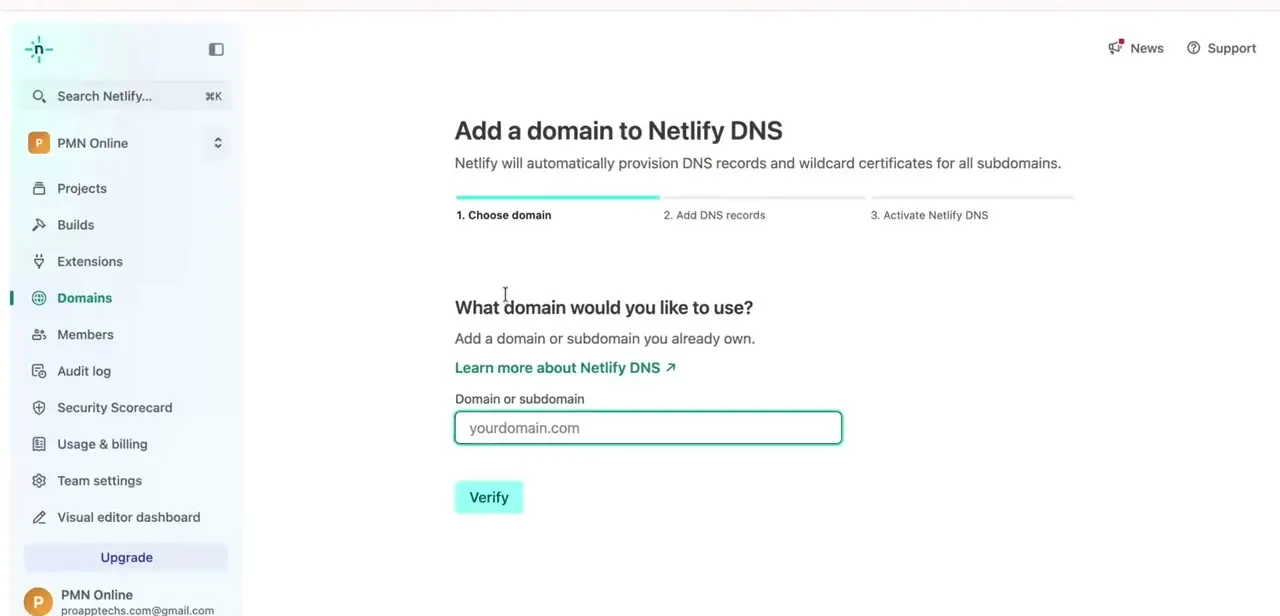
From your Netlify team dashboard, open Domains and choose to add a domain to Netlify DNS. The wizard lays out three stages up front — Choose domain, Add DNS records, and Activate Netlify DNS — so you always know where you are in the process. Type the domain you registered at GoDaddy into the "Domain or subdomain" field and click Verify; Netlify checks that the domain exists and isn't already managed somewhere else before letting you continue.
02Find the domain in your GoDaddy account
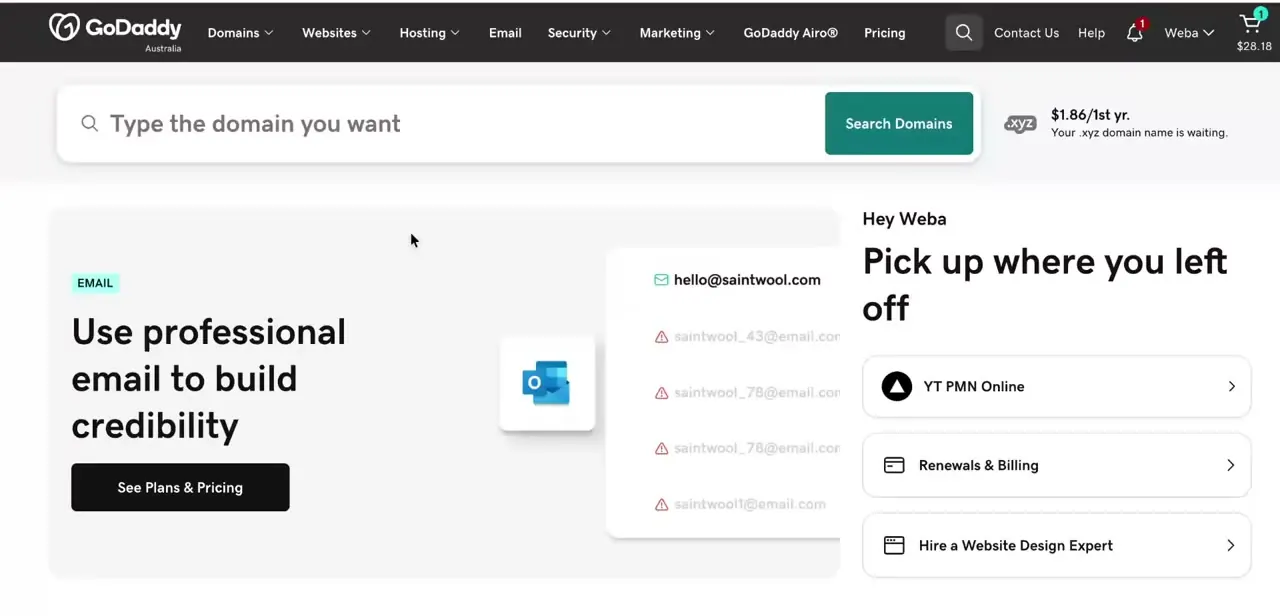
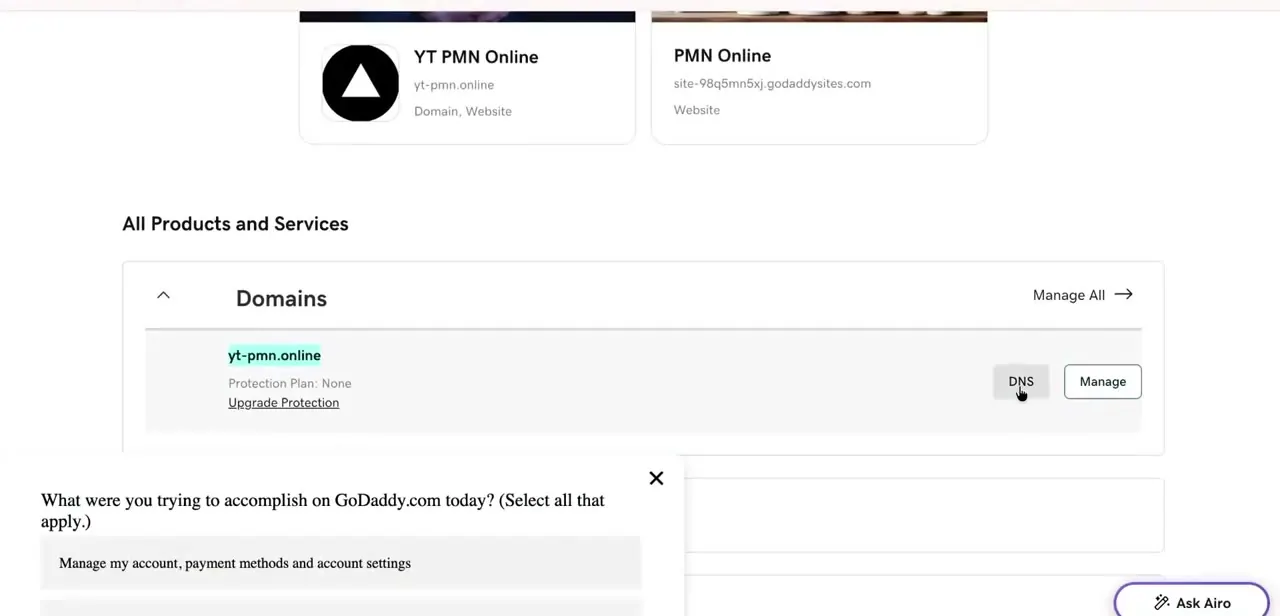
Switch over to GoDaddy and open your account overview, where each domain and website you own is listed as its own card along with quick DNS and Manage buttons. Locate the domain you just added in Netlify — in a multi-domain account it's easy to click into the wrong one, so match the exact domain name before continuing. Clicking DNS on that domain's card is what takes you into the settings you actually need to change.
03Switch the domain's nameservers to Netlify
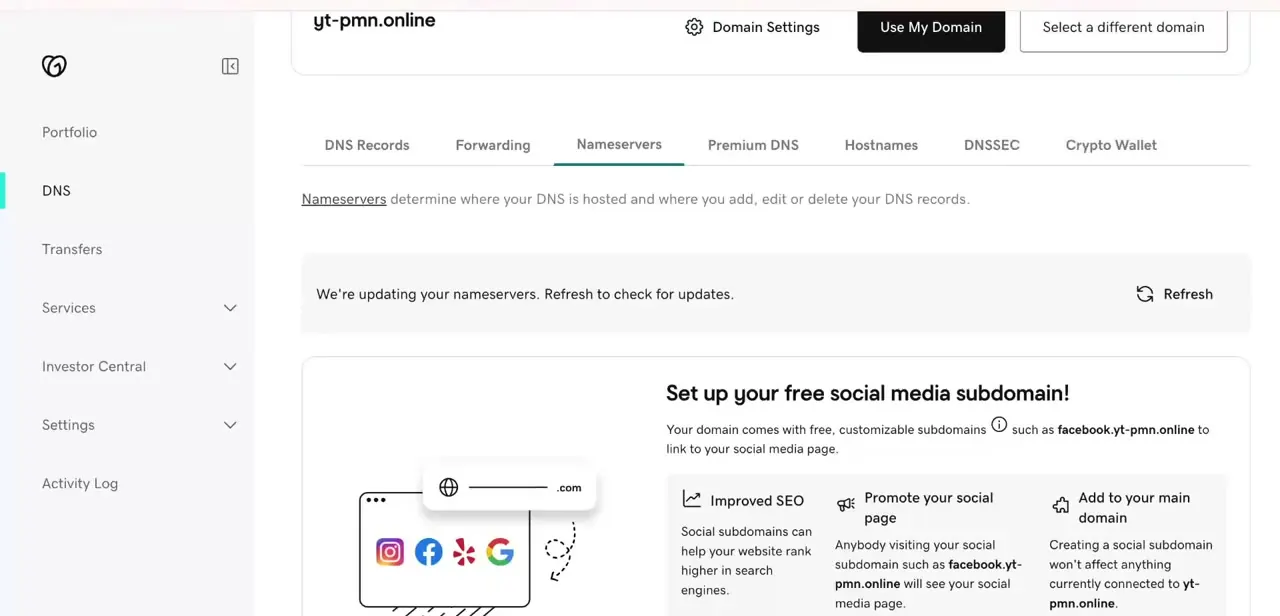
Inside DNS Management, go to the Nameservers tab rather than DNS Records — this is the key difference from editing individual CNAME and A records yourself. Choose to use custom nameservers and enter the ones Netlify provided during setup. Once you save the change, GoDaddy shows a status message confirming it's updating your nameservers, since this isn't an instant swap; GoDaddy has to register the new nameserver assignment with the domain's registry record before Netlify can start answering DNS queries for it.
04Wait out the propagation window
Nameserver changes propagate more slowly than a single DNS record edit, because every resolver on the internet has to notice the domain now points to a different set of nameservers entirely, not just a changed value. This can take anywhere from a few minutes to several hours depending on caching, so refreshing GoDaddy's status message repeatedly won't speed it up — it's genuinely a waiting game at this stage.
05Activate Netlify DNS and confirm your site is live
Back in Netlify, the wizard's third stage — Activate Netlify DNS — becomes available once it detects the nameservers have switched over. Netlify then provisions DNS records and SSL certificates automatically, including for any subdomains, so you don't need to add a certificate step separately. Once activation completes, load your domain in a browser to confirm it's serving your Netlify site rather than a GoDaddy parking page.
06Troubleshoot a domain that still isn't working
If the domain shows as unverified in Netlify well after you'd expect propagation to finish, go back to GoDaddy's Nameservers tab and confirm the values actually saved — a page refresh right after saving can make it look like nothing changed even though it did. Also check that you didn't leave the domain on GoDaddy's default nameservers by mistake, since choosing custom nameservers and then not saving is a common way this step silently fails.
Frequently asked questions
Do I need to change my domain registrar to use Netlify?
No — you can keep the domain registered at GoDaddy and simply point its nameservers at Netlify, which is what lets Netlify manage DNS for the domain without transferring the registration itself.
How long does it take for the nameserver change to work?
It varies, from a few minutes to several hours, because a nameserver change has to propagate across every DNS resolver that has the domain cached, not just update one record.
What DNS records do I need to update at GoDaddy?
With the Netlify DNS approach, you don't edit individual CNAME or A records at GoDaddy at all — you switch the domain's Nameservers tab to Netlify's nameservers, and Netlify provisions the actual DNS records on its side.
Does this work for React or other static site frameworks?
Yes — the domain connection process is the same regardless of what the site is built with, since it happens at the DNS layer, above whatever framework generated the deployed site.
Why does my domain still show a GoDaddy parking page after I switched nameservers?
The switch likely hasn't propagated yet, or the nameserver change didn't actually save — recheck the Nameservers tab in GoDaddy to confirm it lists Netlify's nameservers before assuming something else is wrong.
Watch the full walkthrough
The same steps, demonstrated on screen from start to finish.