 Easy Tech Tuts
How to Change the Font in Freshdesk
By Impran M N
The font setting most people are looking for in Freshdesk isn't a customer-facing portal theme option — it's the Agent portal default font preference, tucked inside Helpdesk Settings, which controls the font your support agents see and type in while composing replies to customers. It's a small setting, but it affects legibility for your whole team every time they open a ticket, and Freshdesk also lets you decide whether agents can override the default themselves. This guide shows exactly where that setting lives and what each option controls.
01Start from the ticket dashboard you already know
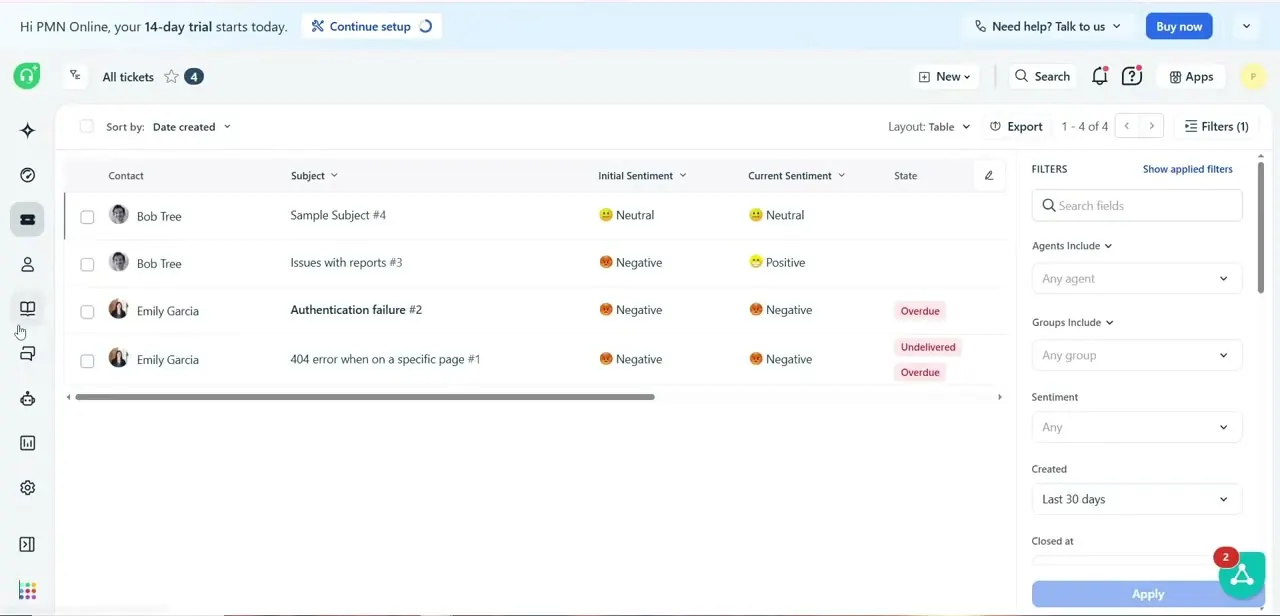
Everything begins from Freshdesk's main view, All tickets, where every conversation is listed with columns for Contact, Subject, Initial Sentiment, Current Sentiment, and State. This is the screen agents live in day to day, and it's also the one that makes font legibility matter — a compose font that's too small or the wrong style shows up here across every reply an agent writes. There's no font control on this screen itself; it's just useful context for why the setting you're about to change matters.
02Open the Admin panel
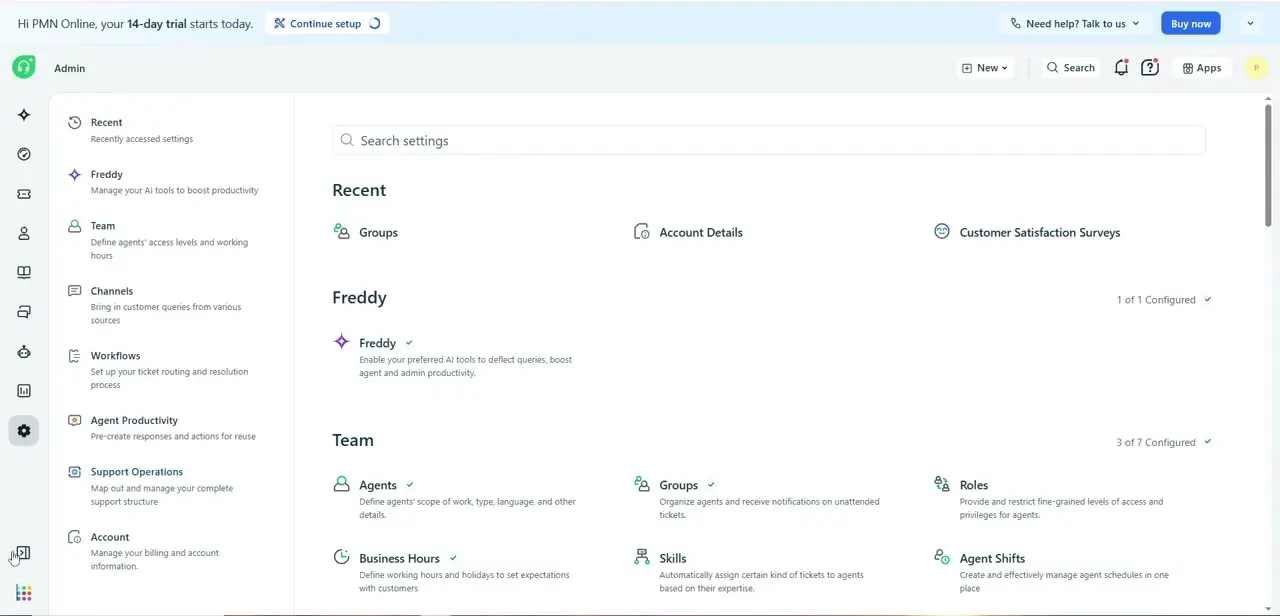
Click the gear icon in the left sidebar to open Admin. This is the control center for the whole helpdesk, grouped into sections like Freddy (AI tools), Team (agents, groups, roles, business hours), Channels, Workflows, Agent Productivity, Support Operations, and Account. Font preferences live under a general settings area rather than inside Team or Channels, so if you're scanning this page for the first time, look past the AI and team-management sections toward the broader helpdesk configuration options.
03Navigate to Helpdesk Settings
From Admin, the breadcrumb changes to Admin > Helpdesk Settings once you're in the right place — this is a longer settings page you'll need to scroll through rather than a single small panel, since it also covers things like hiding first-response-due times and chat widget access for admins. Give the page a second to fully render before scrolling; on a slower connection it can briefly show as a mostly blank page before the toggles and dropdowns load in.
04Set the Agent portal default font preference
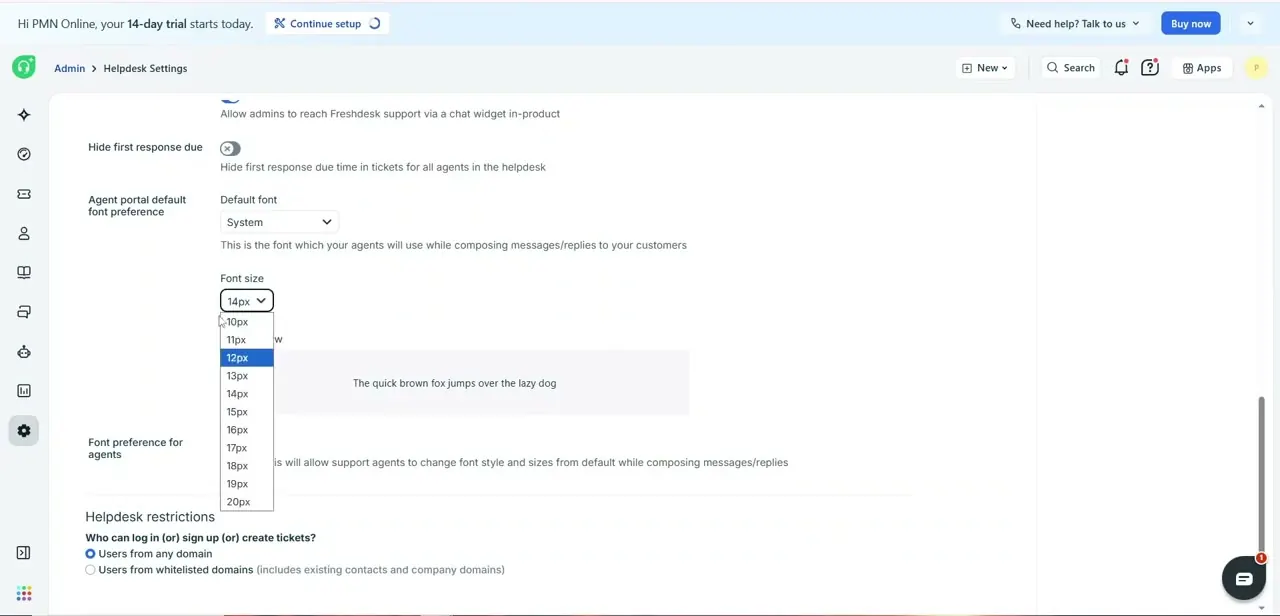
Scroll to "Agent portal default font preference," where a Default font dropdown (set to System by default) controls which typeface your agents use while composing messages and replies to customers — Freshdesk states this plainly under the dropdown. Right below it, a separate Font size control opens a list running from 10px up to 20px, with a live sample line, "The quick brown fox jumps over the lazy dog," rendered in the size you're hovering so you can judge readability before committing. Pick a size that's comfortable for a full shift of ticket replies — most teams land somewhere between 13px and 16px, since anything smaller strains the eyes over a long day and anything larger wastes vertical space in the reply box.
05Decide whether agents can override the default
Just below the size picker is "Font preference for agents," a separate toggle that, when enabled, lets individual agents change their own font style and size away from the account-wide default while composing. Turn this on if your team has a mix of preferences or visual needs and you'd rather not force one setting on everyone; leave it off if you want every agent's replies to render consistently regardless of who's typing, which can matter for a support team practicing strict brand consistency.
06Save and confirm the change sticks
Freshdesk settings pages typically save immediately when you select a new value from these dropdowns, but it's worth refreshing the page afterward to confirm the font and size you picked are still selected rather than reverted. Have an agent open a ticket and start a reply to visually confirm the new default is actually showing up in the compose box — that's the real test, since the settings page preview and the live compose experience are two different renders.
Frequently asked questions
Where exactly is the font setting in Freshdesk?
Open Admin (the gear icon), go to Helpdesk Settings, and scroll to "Agent portal default font preference." It's not under Team or Channels — it's part of the general Helpdesk Settings page.
Does this font setting change what customers see on the support portal?
No. This particular setting controls the font agents see and type in while composing replies inside the agent portal, not the customer-facing help center's site theme or fonts.
What font sizes can I choose from?
The Font size dropdown offers a range from 10px up to 20px, with a live sample sentence shown for each size so you can judge readability before selecting one.
Can individual agents use a different font than the account default?
Only if you enable "Font preference for agents," a separate toggle below the default font settings that lets agents override the account-wide default for their own compose window.
Do I need admin access to change the agent font settings?
Yes. Helpdesk Settings, including the agent portal font preference, is inside the Admin panel and restricted to admin-level accounts.
Watch the full walkthrough
The same steps, demonstrated on screen from start to finish.



