 Easy Tech Tuts
How to Share Editable Draw.io Diagrams With People Outside Confluence Easily 2026
By Impran M N
A draw.io diagram embedded in a Confluence page is easy for your team to edit, but a client, freelancer, or outside stakeholder without a Confluence login can't touch it at all — they'll only ever see a flattened image if you just take a screenshot. draw.io's own export options solve this: instead of a picture of the diagram, you can hand over a file that opens fully editable in any free draw.io editor, no Confluence account required. This guide covers editing the diagram inside Confluence, then exporting it in a format an outsider can actually open and modify.
01Open the diagram in the full editor
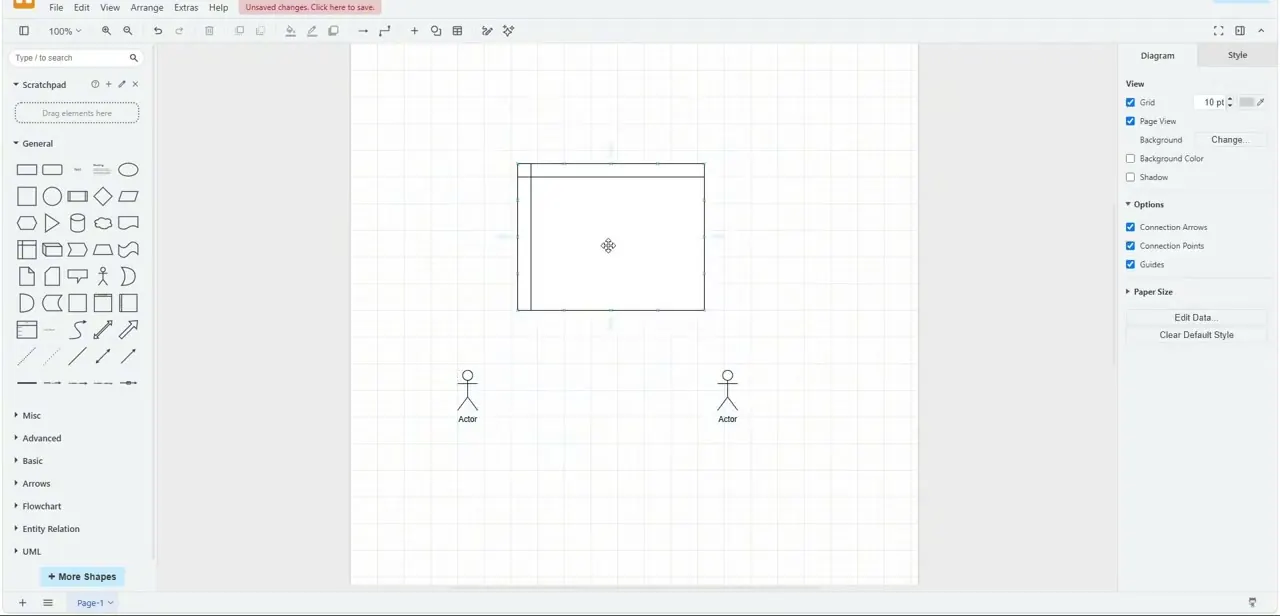
From inside your Confluence page, click into the embedded draw.io diagram to launch the full editing workspace — the same interface you'd get on diagrams.net directly, with a shape library down the left side (General, Misc, Advanced, Flowchart, Entity Relation, UML) and diagram properties on the right. In this example the canvas holds a simple structure: a large rectangle and two actor figures, the kind of skeleton you'd build out into a flowchart or UML diagram.
02Finish the diagram before exporting
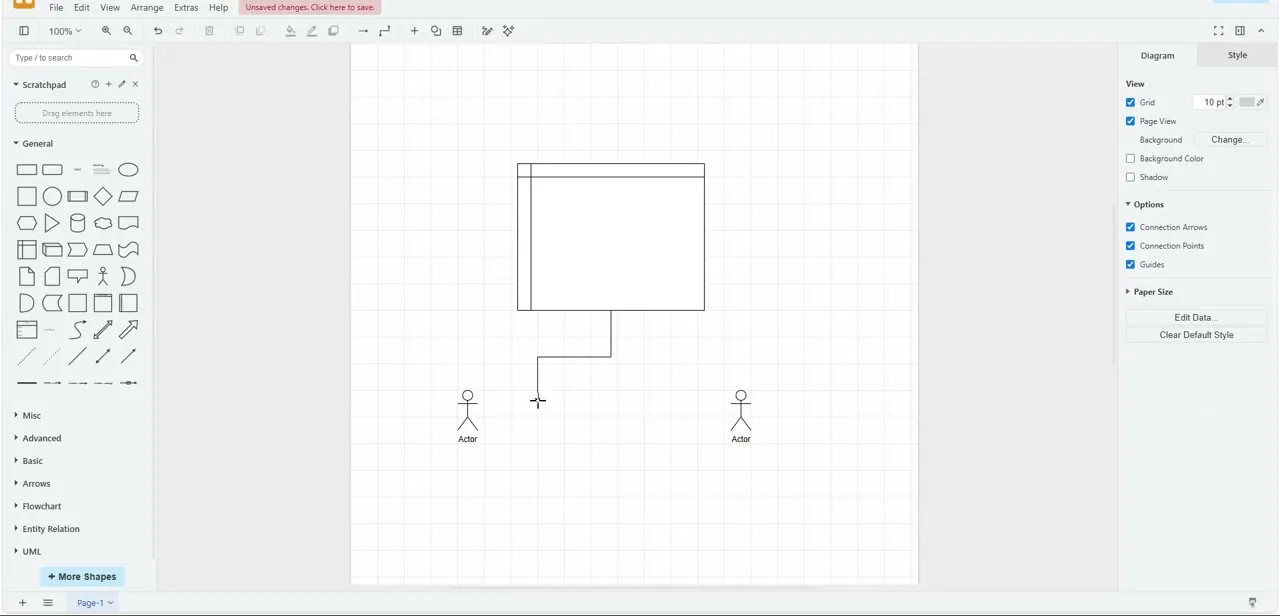
Make whatever edits the diagram still needs — connecting shapes, adding labels, adjusting layout — before you export, since some export formats (like a flattened PDF or image) won't be editable after the fact even though the file itself opens elsewhere. Here a connector line has been drawn from the rectangle down to one of the actor figures, tying the two shapes together. The "Unsaved changes" banner at the top is a useful check: save inside Confluence first so the version you're about to export matches what's actually stored on the page.
03Open File and choose Export As
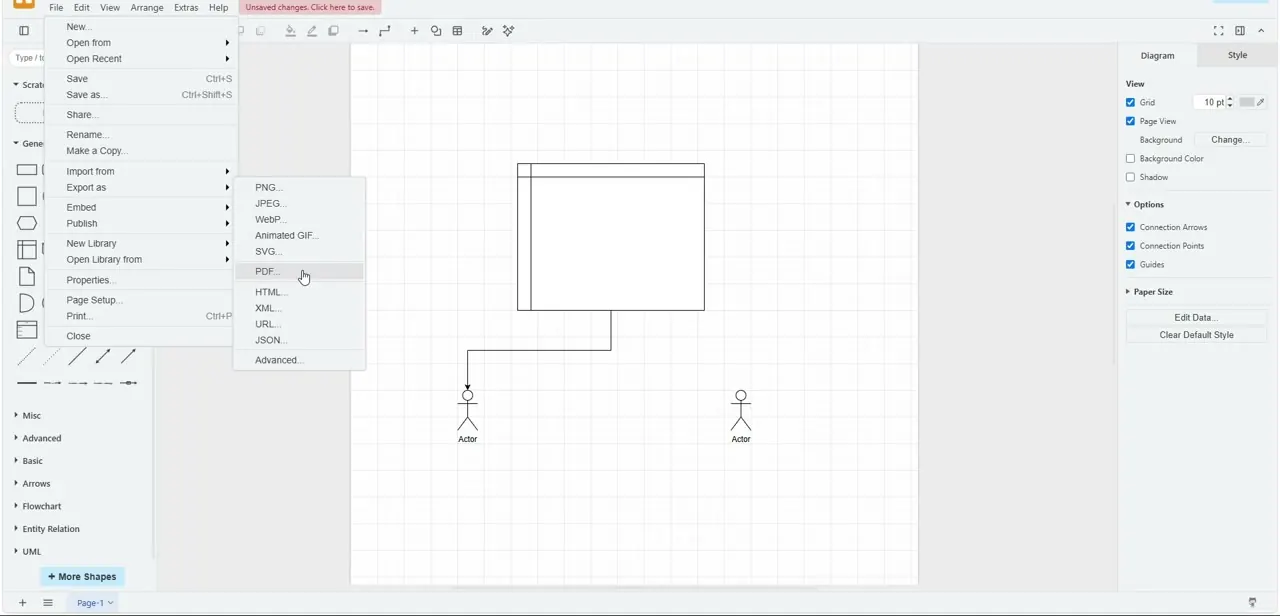
From the top File menu, hover Export as to open the format submenu: PNG, JPEG, WebP, Animated GIF, SVG, PDF, HTML, XML, URL, and JSON. For sending something editable to someone outside Confluence, PDF and XML are the two that matter — PDF because most people can open it without installing anything, and XML because it's draw.io's native format and reopens with zero loss of editability in any draw.io-compatible editor.
04Export as an editable PDF
Choose PDF, and look for the option to include a copy of the diagram data inside the file itself — this is what separates an editable PDF from a normal flattened one. With that box checked, the exported PDF isn't just a picture of your diagram; a recipient can open it in the free draw.io desktop app or at app.diagrams.net, and the shapes, connectors, and text remain fully editable rather than being baked into a static image.
05Export as XML for a lighter, native file
If your recipient is comfortable opening a file directly in a draw.io editor rather than through a PDF viewer, export as XML instead. It's draw.io's own file format, so nothing is lost in translation — every shape, style, and connector comes back exactly as you left it. It's also a much smaller file than a PDF, which matters if you're emailing it rather than sharing a link.
06Point recipients to a free editor
Once the file is exported, save it locally and send it along with a quick note pointing the recipient to app.diagrams.net, the free web-based draw.io editor — no account or paid license required to open and edit the file you send them. It's worth asking them to open it once and confirm the shapes and connectors line up correctly on their end before you consider the handoff done, since font substitutions or missing custom shape libraries can occasionally shift a layout slightly between systems.
Frequently asked questions
Can someone without a Confluence account edit a draw.io diagram I share?
Yes, if you export it as an editable PDF (with the diagram data included) or as XML. They can open either file in the free draw.io editor at app.diagrams.net without needing Confluence access.
What's the difference between exporting as PDF and as XML?
An editable PDF is easier for most people to open since PDF viewers are everywhere, but it needs the "include diagram data" option checked to stay editable. XML is draw.io's native format — smaller, and it preserves everything with no conversion step.
Will a plain PDF export be editable?
Not unless you include a copy of the diagram data in the export. Without that option, the PDF is just a flattened image of your diagram, the same as exporting a PNG or JPEG.
Do I need to save my Confluence page before exporting the diagram?
Yes — if you see an "Unsaved changes" banner in the editor, save your edits first so the exported file matches what's actually stored on the page.
What free tool can recipients use to open the exported file?
app.diagrams.net, the free web version of draw.io. It opens both editable PDFs and XML files without requiring an account.
Watch the full walkthrough
The same steps, demonstrated on screen from start to finish.


