 Easy Tech Tuts
How to Create a Confluence Page in Jira
By Impran M N
When Jira and Confluence share the same Atlassian workspace, you don't have to leave a work item just to start writing documentation about it — an editor opens right there, lets you build out a page, and hands you a Publish button when it's ready. This guide walks through that flow starting from an open work item, through the Confluence editor that appears, to publishing the finished page.
01Open the Jira work item you want to document
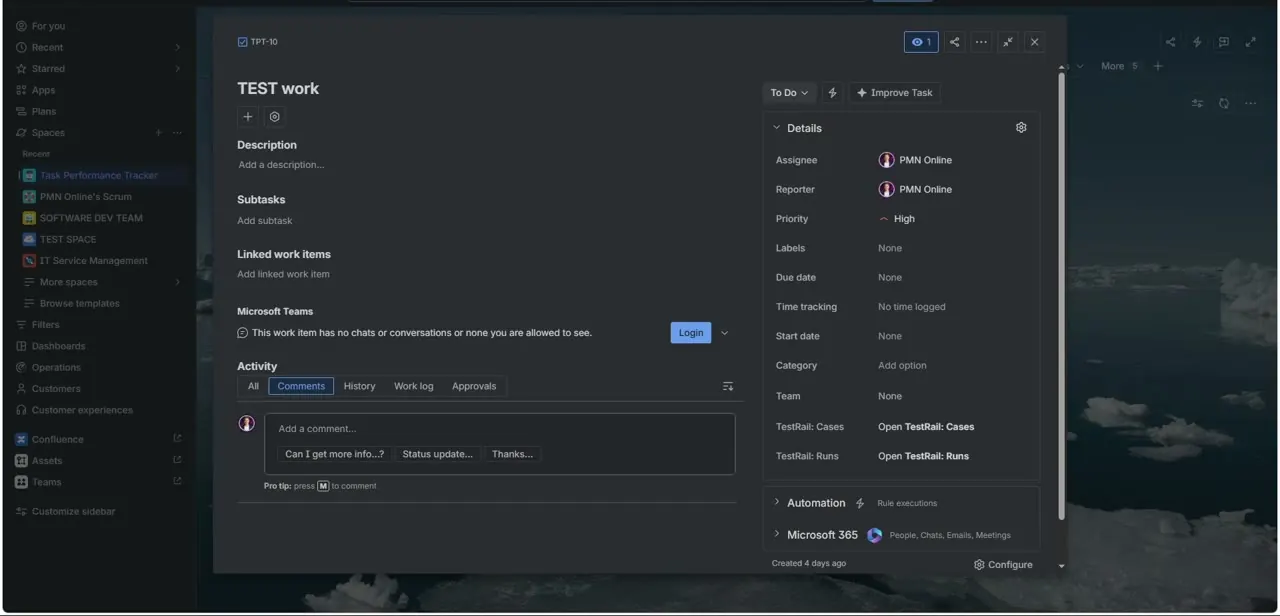
Click into the item — in this walkthrough, a task called "TEST work" (TPT-10) — which opens its full view with Description, Subtasks, Linked work items, and an Activity section on the left, and a Details panel on the right showing Assignee, Reporter, Priority, and similar metadata. This is the item whatever Confluence page you create will end up tied back to.
02Start creating Confluence content from the item
From the icons near the top of the item, next to the title, there's a create-content control that opens Confluence content creation directly inside Jira rather than sending you to a separate tab. This is the built-in link between the two products — it only works if your Jira and Confluence sites are part of the same Atlassian workspace.
03Work inside the Confluence editor that opens
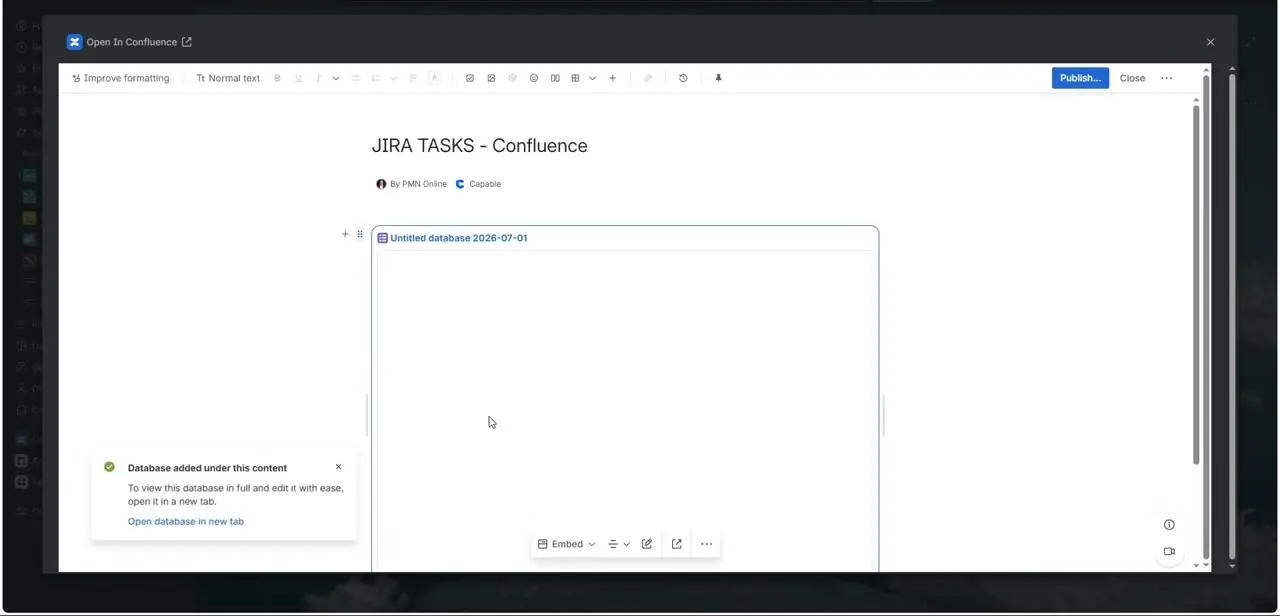
A panel titled "Open In Confluence" appears with a full rich-text toolbar — text styles, formatting, tables, emoji, and more — sitting above a live page draft. In this example the page is titled "JIRA TASKS - Confluence," attributed to the same user who owns the Jira item, giving you a real editor rather than a stripped-down preview.
04Add structured content, not just text
The editor supports more than paragraphs — the draft shown here has an embedded database block titled "Untitled database 2026-07-01" inserted directly into the page, with a confirmation toast noting "Database added under this content" and an option to open it in a new tab for easier editing. That's worth knowing if your documentation needs more structure than plain notes, such as tracking a table of related decisions or test cases alongside the issue.
05Write the actual documentation
Fill in whatever the issue actually needs recorded — meeting notes, a spec, acceptance criteria, or a summary of a decision made in the comments. Since the page lives in Confluence once published, treat it like any other Confluence page: give it a clear title people can find later, not just a name that only makes sense next to the Jira item it started from.
06Publish the page
Click Publish in the top right of the editor to finalize it. Once published, the page exists as a normal Confluence page in whatever space it was created under, and it stays referenced back to the Jira item it was created from — so anyone opening the issue later can find the documentation without having to search Confluence separately.
07Check visibility if teammates can't see it
A newly published page inherits the permissions of its Confluence space, which may be more restrictive than the Jira project it's linked from. If a teammate can open the Jira item but not the linked Confluence page, that's a space-permission issue, not a broken link — check the space's access settings rather than recreating the page.
Frequently asked questions
Do Jira and Confluence need to be connected first?
Yes, this only works when your Jira and Confluence sites are part of the same Atlassian workspace, which is how the create-content control ends up available directly inside a work item.
Can I add more than text to the Confluence page?
Yes. The editor supports rich formatting and structured content blocks — the example here embeds a database block directly into the page, not just plain paragraphs.
Will changes to the Jira issue update the linked Confluence page?
No. The two stay linked for reference, but content on each is independent — editing the Jira item afterward won't change anything already published on the Confluence page.
Who can see the newly created Confluence page?
Visibility depends on the permissions of the Confluence space the page is published into, which can be more restrictive than the Jira project — check space access if a teammate can't open it.
Do I have to publish immediately, or can I keep drafting?
The editor lets you keep working before hitting Publish — the page shown mid-draft here already had content and a database block added before the final publish step.
Watch the full walkthrough
The same steps, demonstrated on screen from start to finish.


