 Easy Tech Tuts
How to Add Sum Calculations in a Confluence Table Easily 2026
By Impran M N
A plain Confluence table can hold numbers, but it can't add them up on its own — there's no built-in formula bar on a standard table cell. The Elements Spreadsheets macro fixes that by embedding an actual Excel-like spreadsheet inside your page, complete with cell references, functions, and a formula bar. This guide walks through opening that macro from a Confluence page, entering a sum formula against a range of cells, and getting a live total that updates with your data, plus a note on Confluence's native Databases feature as a lighter alternative for simple running totals.
01Open the spreadsheet macro from your page
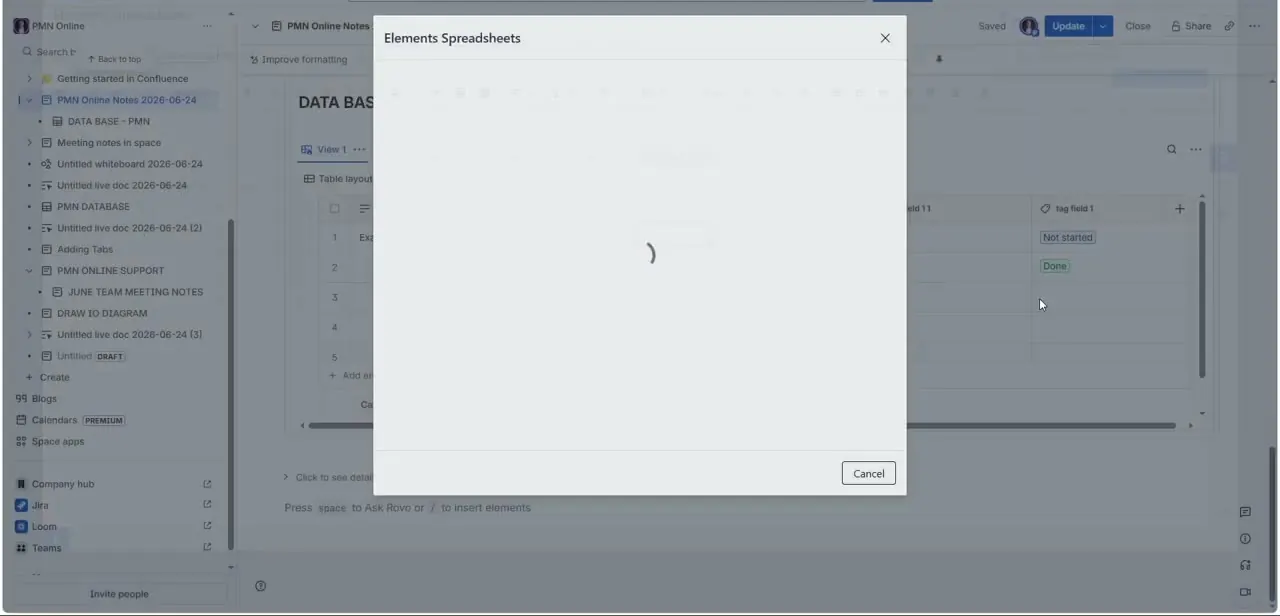
From an existing Confluence page — in this case one already containing a Databases-style table with fields and tags — insert or open the Elements Spreadsheets macro. Confluence shows a brief loading state while the macro initializes, with an Update and Cancel option in the modal header and the underlying page (with its own "DATA BASE" table and tag fields like "Not started" and "Done") still visible behind it. This confirms the macro lives inside your page rather than as a separate file — the totals you calculate stay attached to the document your team already reads.
02Lay out your columns
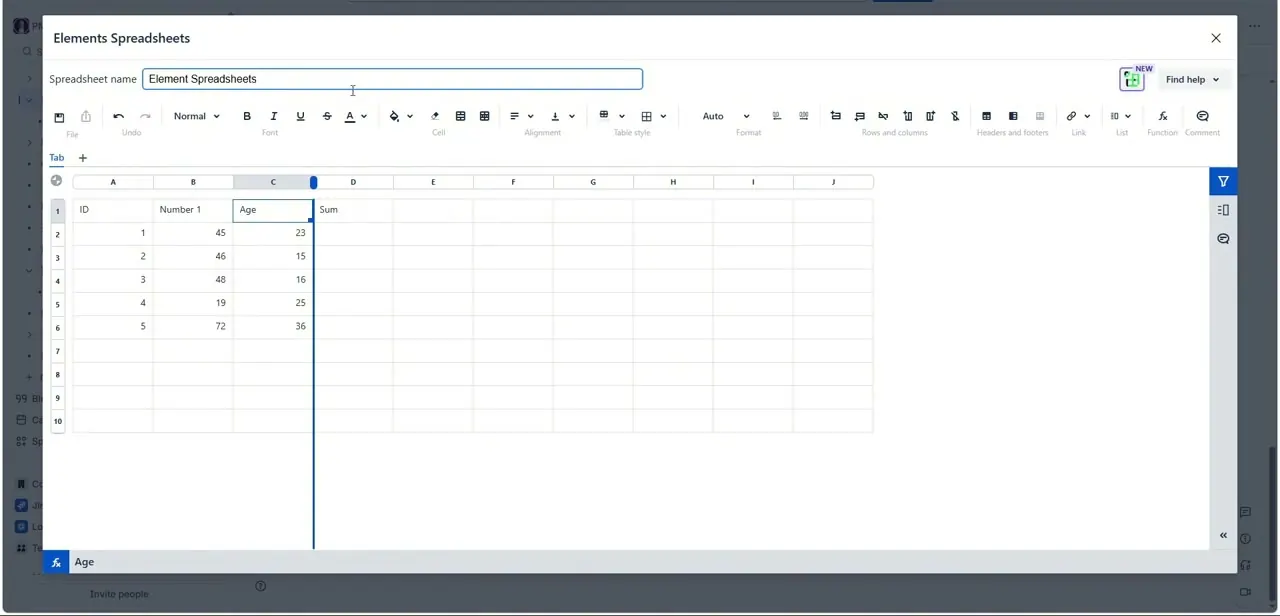
Once the macro opens, it behaves like a standard spreadsheet grid with lettered columns and numbered rows, plus its own toolbar for fonts, cell formatting, alignment, and functions. Set up your headers in row 1 — ID, Number 1, Age, Sum — and fill in the rows beneath with your actual values. Unlike a plain Confluence table, every cell here can hold either a value or a formula, which is what makes the sum calculation possible in the next step.
03Write a sum formula against the range
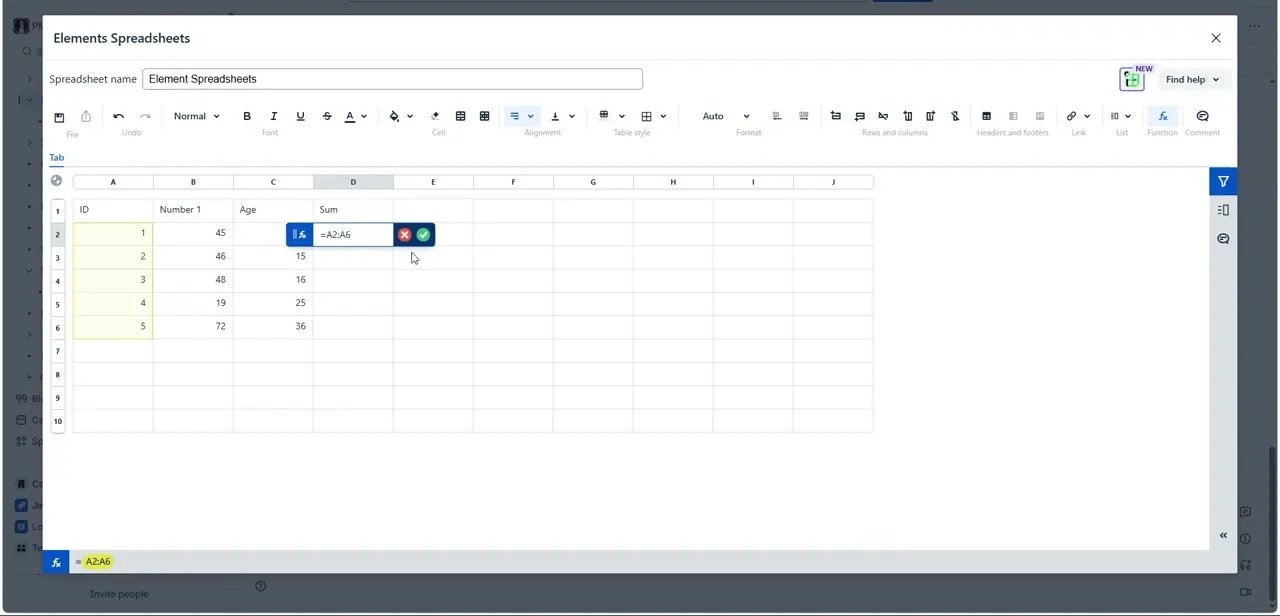
Click into the Sum cell for a row and type an equals sign to start a formula, referencing a range of cells you want added together — for example =A2:A6 to sum every value in that column from row 2 through row 6. The formula bar shows exactly what you've typed as you build it, with red and green buttons to cancel or confirm once the range looks right. This is the core difference from a static table: the total isn't typed in by hand, it's calculated live from the cells you point it at, so editing any number in the range updates the sum automatically.
04Confirm and check the result
Click the green checkmark to lock in the formula. The Sum cell then displays the calculated total instead of the formula text, and the underlying formula stays attached to the cell — click back into it later and you'll see =A2:A6 again rather than a hardcoded number. If you add a new row of data inside that range, the sum updates on its own the next time the sheet recalculates, which is the entire point of using a spreadsheet macro instead of manually retyping a total every time the numbers change.
05Update the page to save your changes
Once the formula and totals look correct, click Update in the macro's modal header (visible next to Cancel while the macro loads) to save the spreadsheet back into the page, then publish the page itself if you haven't already. The macro's data is stored as part of the page content, so anyone opening it afterward sees the same live totals without needing edit access to the spreadsheet themselves.
06Know the lighter, native alternative
If your needs are simpler — one running total on a small table rather than a full spreadsheet with multiple formulas — Confluence's native Databases feature has its own built-in Calculate option that can add a Sum to the bottom of a numeric column without embedding a separate macro at all. It's less powerful than Elements Spreadsheets (no arbitrary formulas, just aggregate functions like sum, average, and count), but it's faster to set up when a single column total is all you actually need.
Frequently asked questions
Can a regular Confluence table calculate a sum on its own?
No, a plain table has no formula support. To get a real sum you need either the Elements Spreadsheets macro, which embeds a full spreadsheet in the page, or Confluence's native Databases feature, which has a simpler built-in Calculate option for aggregate totals.
How do I write a sum formula in the Elements Spreadsheets macro?
Click into the target cell, type an equals sign followed by the cell range you want added — for example =A2:A6 — and confirm with the green checkmark in the formula bar.
Does the sum update automatically if I change the data?
Yes, as long as the changed cells fall inside the range referenced by the formula. The formula stays attached to the cell rather than being replaced by a static number.
Do I need to publish the page after editing the spreadsheet macro?
Yes. Click Update in the macro to save your changes back into the page content, then publish the page itself so the updated totals are visible to everyone with access.
What's the difference between Elements Spreadsheets and Confluence's native Databases Calculate option?
Elements Spreadsheets is a full Excel-like macro supporting arbitrary formulas and functions. The native Databases Calculate option is simpler and faster to use but limited to aggregate functions like sum, average, and count on a single column.
Watch the full walkthrough
The same steps, demonstrated on screen from start to finish.


