 Easy Tech Tuts
How to Add a Page in Confluence Easily 2026
By Impran M N
A Confluence space is only as useful as the pages inside it, and creating a new one is the single most common action you'll take in the app. This guide walks through the actual entry points for starting a page, what a blank page looks like before you've typed anything, and how the slash command turns an empty page into a structured document with tables, panels, and embedded widgets — without hunting through menus to find each block type.
01Start from the For you screen
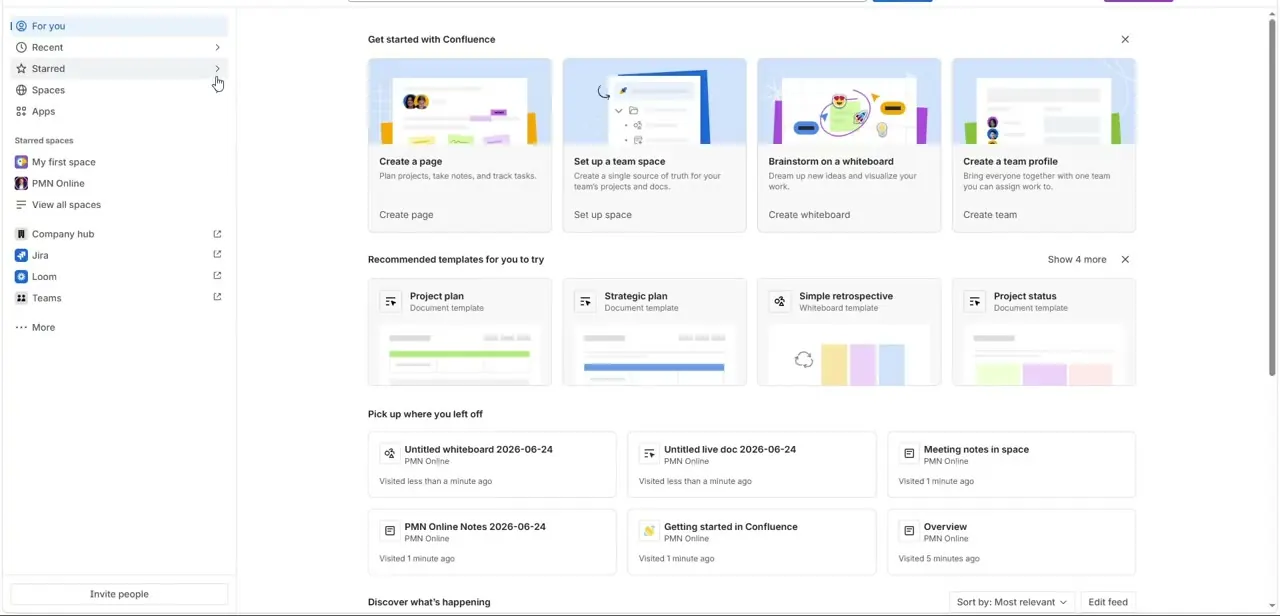
Confluence's "For you" landing page is built around getting you into something quickly: a row of large cards at the top offers Create a page, Set up a team space, Brainstorm on a whiteboard, and Create a team profile, and below that sits a row of recommended templates like Project plan, Strategic plan, and Simple retrospective. Clicking Create page from here skips the step of navigating into a specific space first — Confluence will prompt you for that as part of the creation flow.
02Land on a blank page
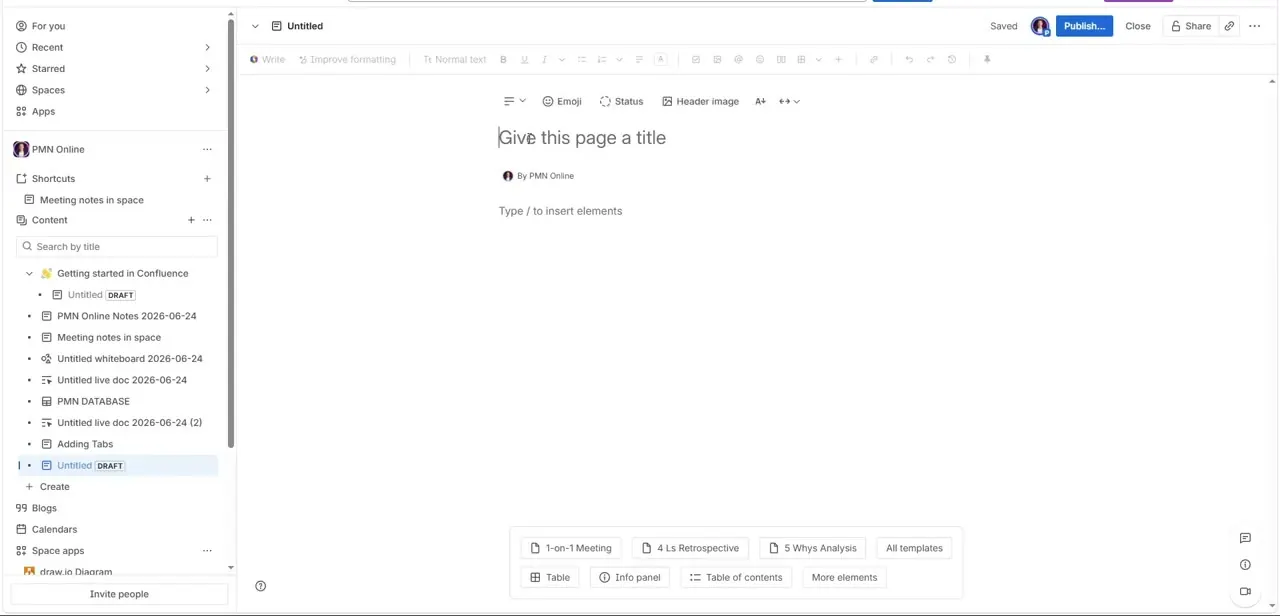
A freshly created page opens with just a placeholder title — "Give this page a title" — and a prompt below it reading "Type / to insert elements." A row of quick-start template buttons sits at the bottom of the editor (1-on-1 Meeting, 4 Ls Retrospective, 5 Whys Analysis, and a link to "All templates"), which is worth a glance before you start typing from scratch, since a lot of common page types already have a structured starting layout built for them.
03Give the page a real title
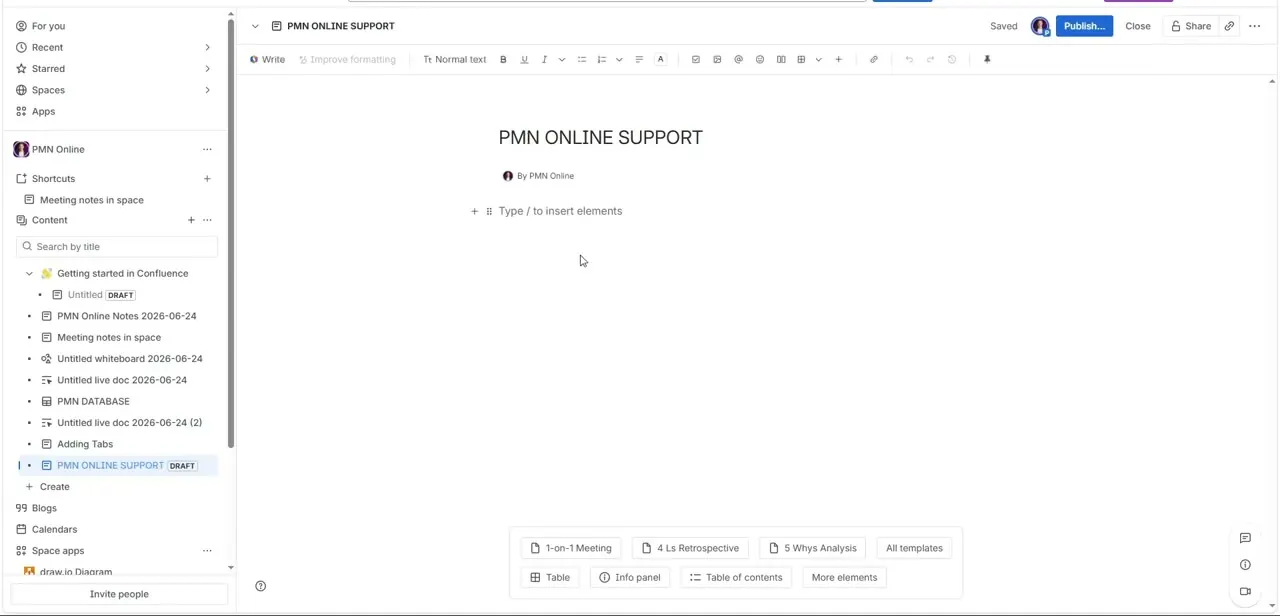
Click into the title field and replace the placeholder with something specific — vague titles like "Untitled" or "Notes" make a page nearly impossible to find later once a space has more than a handful of pages in it. In this example the page becomes "PMN Online Support," immediately telling anyone browsing the sidebar what they'll find inside without opening it. The page autosaves as you go, shown by the "Saved" indicator next to the Publish button in the top right.
04Insert content with the slash command
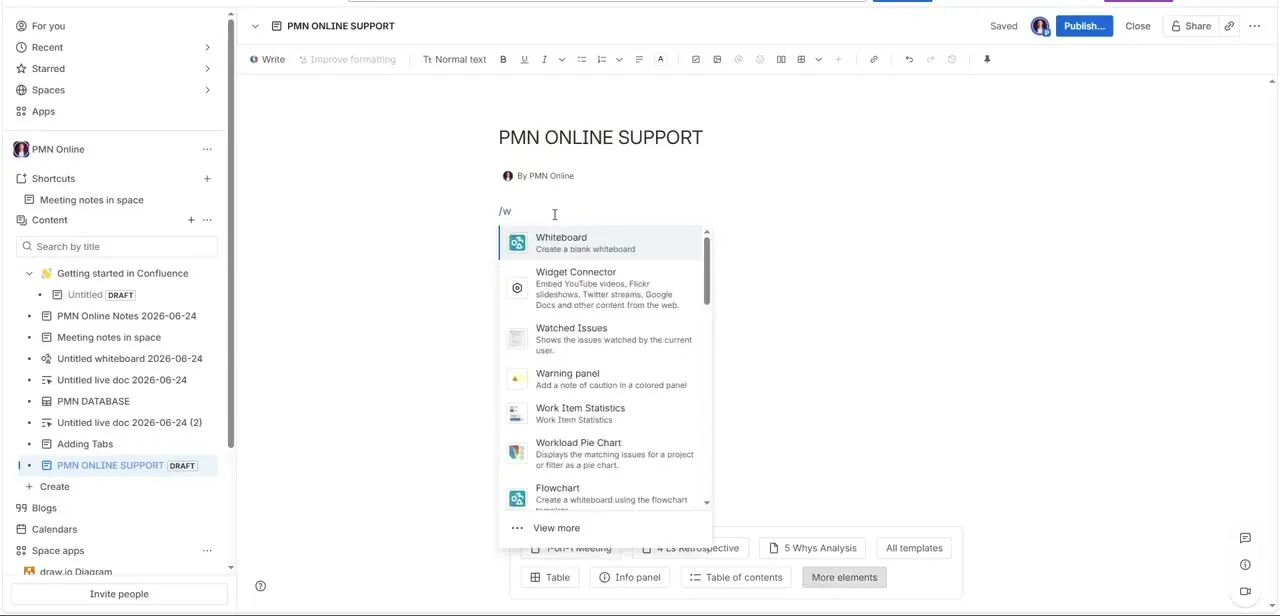
Type / anywhere in the body to open Confluence's element picker, then keep typing to filter it — typing /w, for instance, surfaces Whiteboard, Widget Connector, Watched Issues, Warning panel, Work Item Statistics, and Workload Pie Chart, each with a short description of what it does. This is the fastest way to build a page: rather than hunting through toolbar icons, you type a few letters of what you want and pick it from the filtered list, whether that's a table, an info panel, or an embedded widget pulling in content from another tool.
05Nest it under the right parent in the sidebar
Where a page sits in the sidebar hierarchy matters as much as its title — a support page buried three levels under an unrelated project folder won't get found by browsing. Drag the page under its intended parent in the Content tree, or create it directly from the "+" next to an existing page so it nests correctly from the start. Confluence shows the full hierarchy in the left sidebar, so you can confirm the placement at a glance before moving on.
06Publish when it's ready
New and edited pages sit in an unpublished, autosaved state — visible in the sidebar with a small DRAFT tag — until you click Publish in the top right. This gives you room to build out the structure, add a template, and insert your first few blocks without anyone else seeing a half-finished page. Once it looks right, publishing pushes it live to the space, at which point it becomes visible to everyone with access and searchable across the site.
Frequently asked questions
Where do I start creating a new page in Confluence?
From the "For you" home screen, click the Create a page card, or use the Create button inside any space. Both lead to the same blank-page editor.
How do I insert tables, panels, or widgets into a Confluence page?
Type / anywhere in the page body to open the element picker, then keep typing to filter — for example, /w surfaces Whiteboard, Widget Connector, and other elements starting with W.
Are Confluence pages saved automatically while I'm editing?
Yes, a "Saved" indicator appears near the Publish button as you work. The page stays in an unpublished draft state, marked DRAFT in the sidebar, until you click Publish.
Can I start a page from a template instead of a blank page?
Yes. The blank-page editor shows quick-start template buttons like 1-on-1 Meeting and 5 Whys Analysis, and the "All templates" link opens the full template library.
How do I control where a page sits in my space's page tree?
Drag it under the correct parent page in the sidebar's Content list, or create it directly from the "+" icon next to the page you want it nested under, so the hierarchy is right from the start.
Watch the full walkthrough
The same steps, demonstrated on screen from start to finish.


