Easy Tech Tuts
How to Fix Google Chrome Screen Shifts to the Right or Left (Display Fix) Easily 2026
By Impran M N
A Chrome window that suddenly shifts off-center — content pushed to one side, part of the page cut off, or the whole browser rendering slightly offset — is disruptive in the middle of a video call or research session, but it's rarely a hardware problem. Most of the time it traces back to a display setting, an appearance customization, an extension, or a zoom level that got changed without you noticing, and each has a different fix. This guide covers where to look inside Chrome's own settings, what a normal settings layout looks like for comparison, how a custom theme or new-tab setup can factor into the display looking off, and the reset option to fall back on if nothing else works.
01Rule out a system-level display issue first
Before touching Chrome, check whether other applications on your desktop show the same shift — if your entire screen or every open window looks offset, the problem is your operating system's display scaling or resolution, not Chrome. Only move on to Chrome-specific fixes once you've confirmed the shift is isolated to the browser window itself. On a multi-monitor setup, also check whether the issue follows the window when you drag it to a different display, since a single monitor's scaling settings can sometimes be the actual source even when Chrome looks like the obvious suspect.
02Open Chrome's Settings page
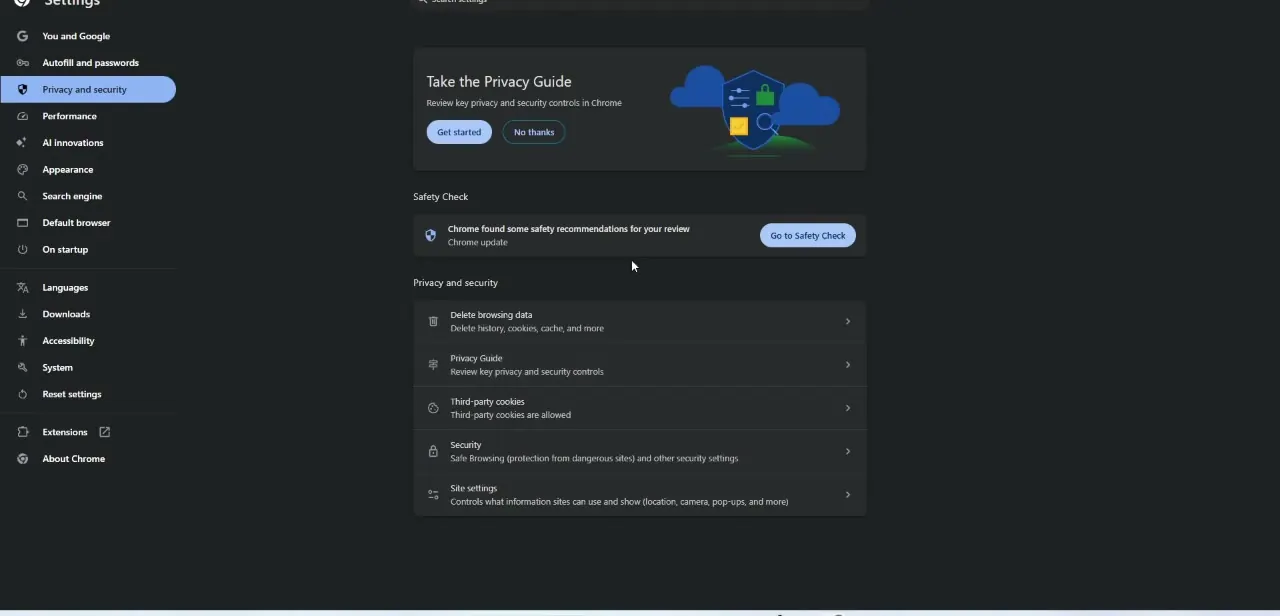
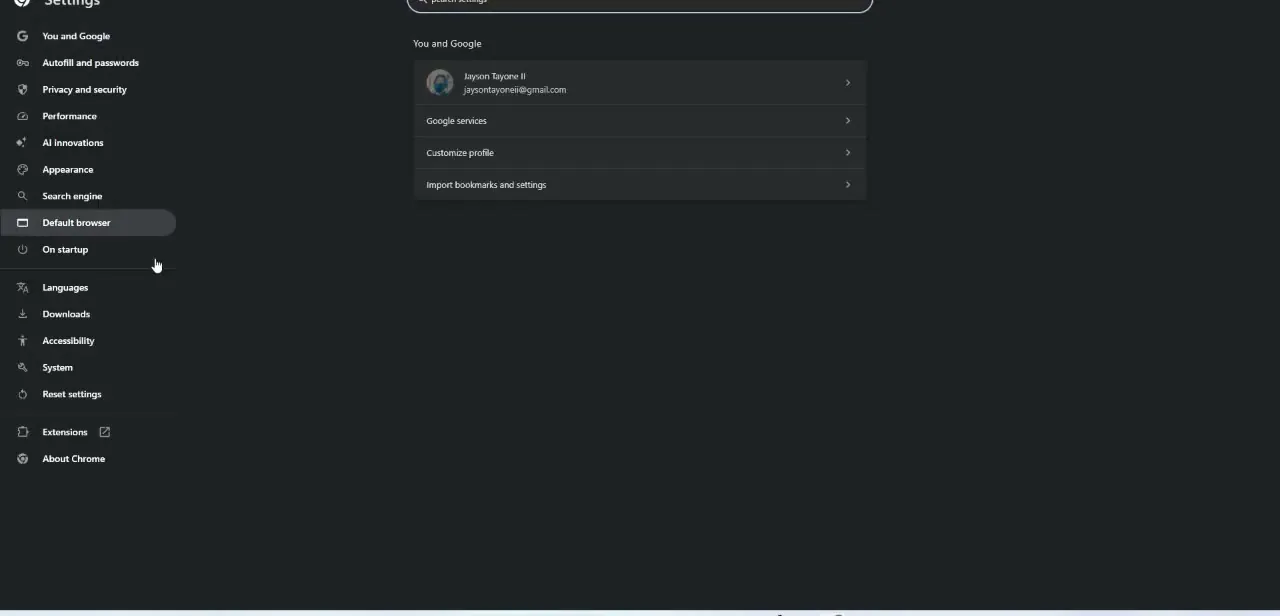
Click the three-dot menu in the top-right corner of Chrome and choose Settings, or type chrome://settings directly into the address bar. This opens the same settings interface with a left-hand navigation list covering You and Google, Autofill and passwords, Privacy and security, Performance, AI innovations, Appearance, Search engine, Default browser, and more further down.
Appearance and Default browser are the two sections most relevant to a display shift, so head there first rather than scrolling through every category. The System section, further down the same list, is also worth a glance if you suspect hardware acceleration might be involved, since toggling it off and on has resolved rendering glitches for some users.
03Check your zoom level and page layout settings
A page zoom stuck at something other than 100 percent is one of the simplest explanations for content that looks shifted or cropped. Press Ctrl+0 (or Cmd+0 on Mac) to reset zoom to default, and check the zoom control under the three-dot menu to confirm it's reading 100%.
This alone resolves a surprising number of reports that look like a display bug but are actually just a zoom setting left over from a previous session. Remember that Chrome can save a custom zoom level per site rather than globally, so a page that looks fine on one site and shifted on another is a strong sign this is exactly what's happening.
04Review your Appearance and theme settings
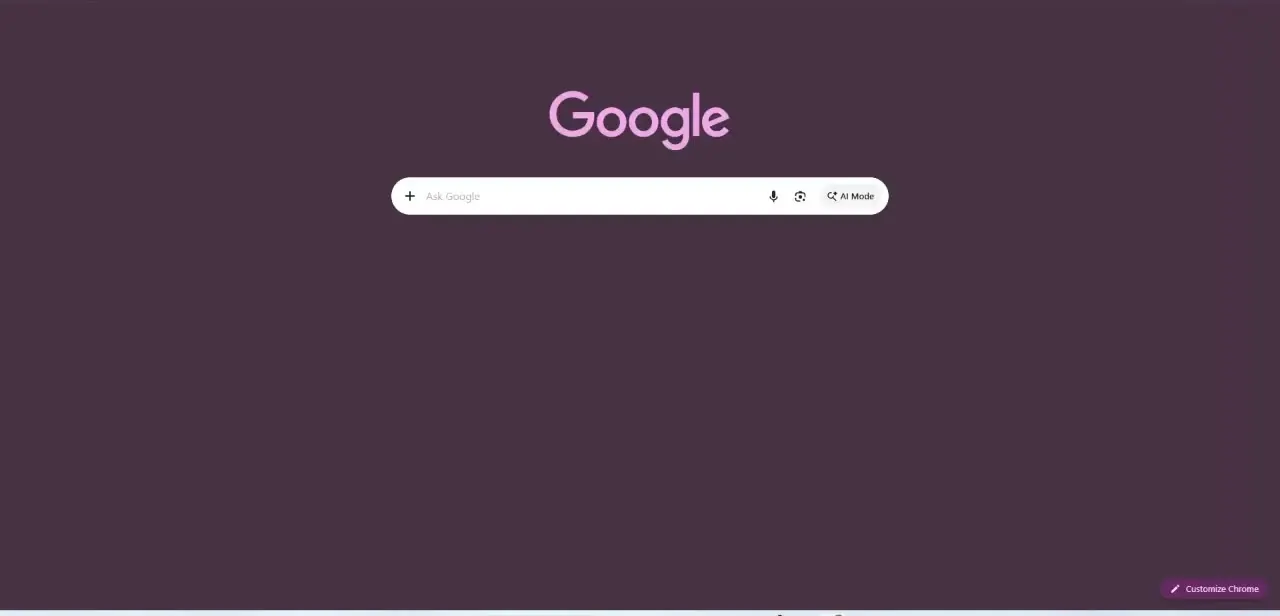
Under Settings > Appearance, check whether a custom theme or background image is applied to your new tab page, since a heavily customized layout can sometimes make normal page rendering look shifted by comparison, particularly on ultrawide or non-standard resolution monitors. A new tab page with a custom color scheme and a "Customize Chrome" option in the corner is normal Chrome behavior, not a bug — but it's worth ruling out as the source of confusion before assuming something is broken. If switching back to Chrome's default theme resolves the visual oddity, the theme itself — not a rendering bug — was the cause, and you can decide whether to keep it or pick a different one.
05Disable extensions that modify page layout
Some browser extensions — ones that resize windows, inject custom styling, or manage tab layouts — can shift how pages render without it being obvious which extension is responsible. Open chrome://extensions, disable them one at a time, and reload the affected page after each to isolate the culprit rather than disabling everything at once and losing track of what fixed it. Testing in an incognito window first is a faster way to confirm an extension is involved at all, since most extensions are disabled there by default unless you've specifically allowed them to run in incognito.
06Reset Chrome's settings if the shift persists
If none of the above resolves it, go to Settings > Reset settings and choose "Restore settings to their original defaults." This clears custom startup pages, disables extensions, and resets appearance customizations without touching your saved bookmarks or passwords, which makes it a safe last step before assuming something deeper, like a corrupted profile, is at play.
07Create a fresh Chrome profile as a last resort
If the shift survives a full settings reset, the issue may be specific to your Chrome profile rather than Chrome's settings. Create a new profile from the profile icon in the top-right corner, sign in, and see if the display looks normal there. If it does, your original profile likely has a corrupted preference file, and the practical fix is migrating your bookmarks and saved passwords over to the new profile rather than continuing to troubleshoot the old one.
Frequently asked questions
Does this fix work on both Windows and Mac?
Yes. The settings locations are the same in Chrome regardless of operating system, though the zoom reset shortcut differs slightly (Ctrl+0 on Windows, Cmd+0 on Mac).
Why does Chrome's display shift in the first place?
It's most often a leftover zoom level, a display extension modifying layout, or a system-level scaling issue rather than damage to Chrome itself.
Is this a common issue for remote workers?
Yes — a misaligned screen can disrupt productivity, especially during online meetings or extended research sessions, which makes it a relevant fix for anyone working from a laptop connected to an external monitor.
Will I need to restart Chrome after making changes?
Restarting Chrome after adjusting zoom, appearance, or extension settings is a good idea to make sure the changes take full effect, though most fixes apply immediately.
Watch the full walkthrough
The same steps, demonstrated on screen from start to finish.