Easy Tech Tuts
How to Use Vertical Tabs in Chrome (Tab Overload Fix) Easily 2026
By Impran M N
If your Chrome window is a wall of tiny, unreadable tabs, vertical tabs can bring order back to your browsing. Chrome doesn't yet ship this as a flip-a-switch built-in feature the way some Chromium-based browsers do, so the practical route today is a lightweight side-panel extension that turns your tab strip into a scrollable vertical list with room to actually read what each tab is. This guide covers how it works, how to open and navigate it, how to customize its behavior, and how to keep it from colliding with the automation and productivity extensions you probably already run alongside it.
01Understand why vertical tabs help
A horizontal tab strip only has the width of your screen to work with, so once you pass ten or fifteen tabs, each one shrinks down to a bare favicon with no readable title left at all. A vertical layout instead uses the height of your screen, which is almost always the more abundant dimension on a modern monitor, so tabs stay wide enough to show real titles even when you have dozens open at once. That single change is what makes switching between related tasks faster — you're scanning actual text, not guessing from a tiny, often-identical icon, which matters a lot when several tabs are from the same site.
02Install a vertical tabs extension from the Chrome Web Store
Search the Chrome Web Store for a vertical tabs or side-panel tabs extension and add it to your browser like you would any other extension. Once installed, it needs to be pinned to the toolbar before you can open it with a single click, so check the extensions puzzle-piece icon in the top-right corner of Chrome and pin it if it isn't already visible by default — an unpinned extension still works, but it adds an extra click every time you want to reach it.
03Open the vertical tab sidebar
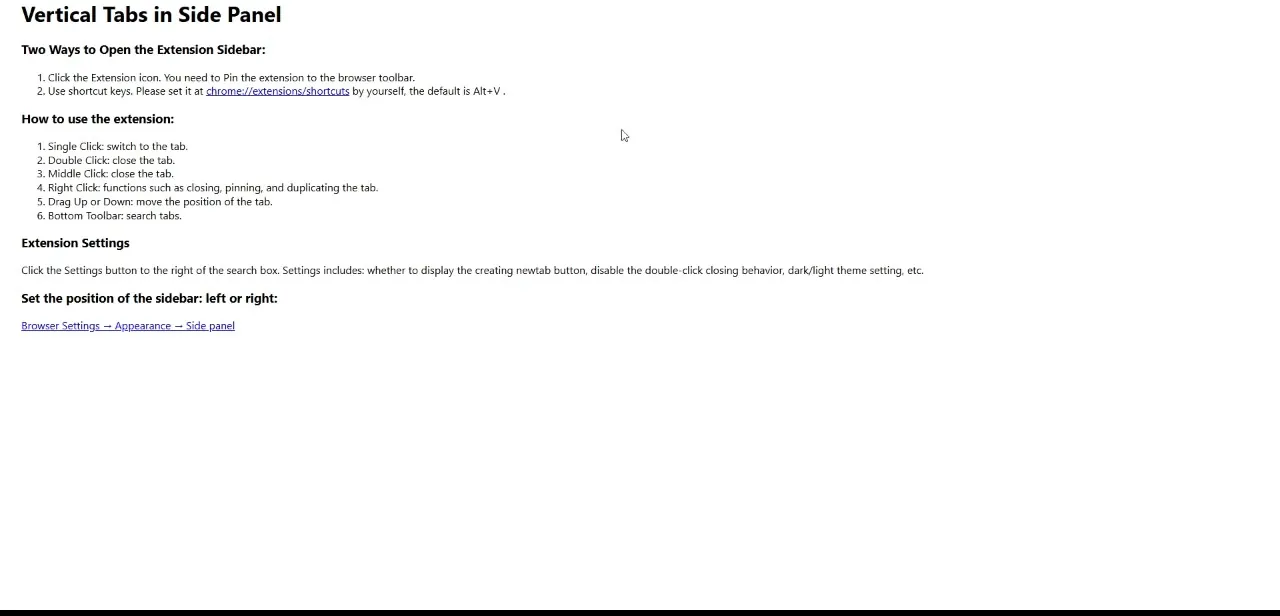
There are two ways in: click the extension's icon in the toolbar once it's pinned, or set a keyboard shortcut at chrome://extensions/shortcuts — a common default binding is Alt+V, though you can remap it to whatever's free on your system. The sidebar opens alongside your page content and lists every open tab vertically, with enough width to actually read each title instead of squinting at a favicon, and it updates live as you open and close tabs elsewhere in the browser.
04Learn the click behaviors and use the built-in search
Once the sidebar is open, a single click on any entry switches to that tab immediately, the same as clicking a tab in the normal horizontal strip. A double click or a middle click closes it, and a right click brings up a context menu with options like pinning and duplicating the tab, mirroring what you'd expect from Chrome's native tab context menu.
Dragging an entry up or down reorders it in the list, which is the fastest way to group related tabs together — all your research tabs near the top, communication tabs below them — without hunting through a crowded horizontal strip first to find where things ended up. A bottom search bar sits inside the sidebar itself, and it becomes genuinely useful once you're regularly juggling twenty or more tabs and need to jump straight to one by typing part of its title rather than scrolling and scanning — a clear advantage over the native horizontal strip, which has no search function of its own at all.
05Customize the sidebar to fit your workflow
Click the settings button next to the sidebar's search box to adjust behavior — options typically include whether a new-tab button is shown at the top of the list, whether double-click-to-close is enabled at all (worth turning off if you keep closing tabs by accident), and a dark or light theme toggle to match the rest of your browser's appearance rather than clashing with it.
06Choose which side the panel sits on
If you'd rather the vertical list sit on the right instead of the left, that's controlled separately from the extension, through Chrome's own Browser Settings, under Appearance, then Side panel. Setting it to match your reading habits — left if you scan left to right, right if you don't want it competing with a left-docked taskbar or a pinned Windows sidebar — makes the layout feel native rather than bolted on, and it's a setting worth revisiting if you ever change monitors or your desktop layout.
07Keep it working alongside your other extensions
If you rely on automation tools, ad blockers, or other extensions that also use Chrome's side panel, check for conflicts after installing a vertical tabs extension — two extensions competing for the same panel space can cause one to silently fail to open. Most vertical tabs extensions run independently without touching page content at all, so conflicts are uncommon, but it's worth a quick test with your usual toolkit active before you come to depend on the sidebar for daily work.
Frequently asked questions
Is the vertical tabs feature available in all versions of Chrome?
Chrome doesn't currently include a native vertical tabs toggle, so this guide covers using a side-panel extension instead, which works the same way across recent Chrome versions as long as you keep the browser updated.
Can I switch back to horizontal tabs after enabling vertical tabs?
Yes. Since vertical tabs run as a sidebar extension rather than replacing Chrome's tab strip, your normal horizontal tabs are still there — you can simply close the sidebar or unpin the extension whenever you want to go back.
Do vertical tabs work well with a large number of open tabs?
Yes, that's the main benefit. The sidebar gives each tab enough width to show a readable title, and the built-in search bar lets you jump straight to a specific tab instead of scrolling through a long list.
Will vertical tabs slow down my browser?
A well-built sidebar extension adds negligible overhead since it's just rendering a list of tabs you already have open — it's not duplicating pages or running extra background processes.
Can I use vertical tabs alongside other extensions?
Yes, a vertical tabs sidebar generally runs independently of other extensions like ad blockers or automation tools, though it's worth checking your extension's settings if you notice a conflict with another tool that also uses Chrome's side panel.
Watch the full walkthrough
The same steps, demonstrated on screen from start to finish.