Easy Tech Tuts
How to Block Gambling Sites in Google Chrome (Protect Your Browsing) Easily 2026
By Impran M N
Chrome doesn't have a built-in "block gambling sites" switch, which is why most people end up reaching for a dedicated blocking extension instead of digging through settings that don't actually cover this case. The good news is that a proper site-blocker treats gambling as a whole category rather than a list you maintain by hand, so you're not chasing down every new casino or betting domain that pops up. This guide follows the real setup: searching out the problem to understand what you're blocking, finding an extension built for it, turning on gambling-specific blocking rather than relying on a generic ad blocker to catch it, and locking the settings down so the block can't just be switched off later.
01Understand what you're actually blocking
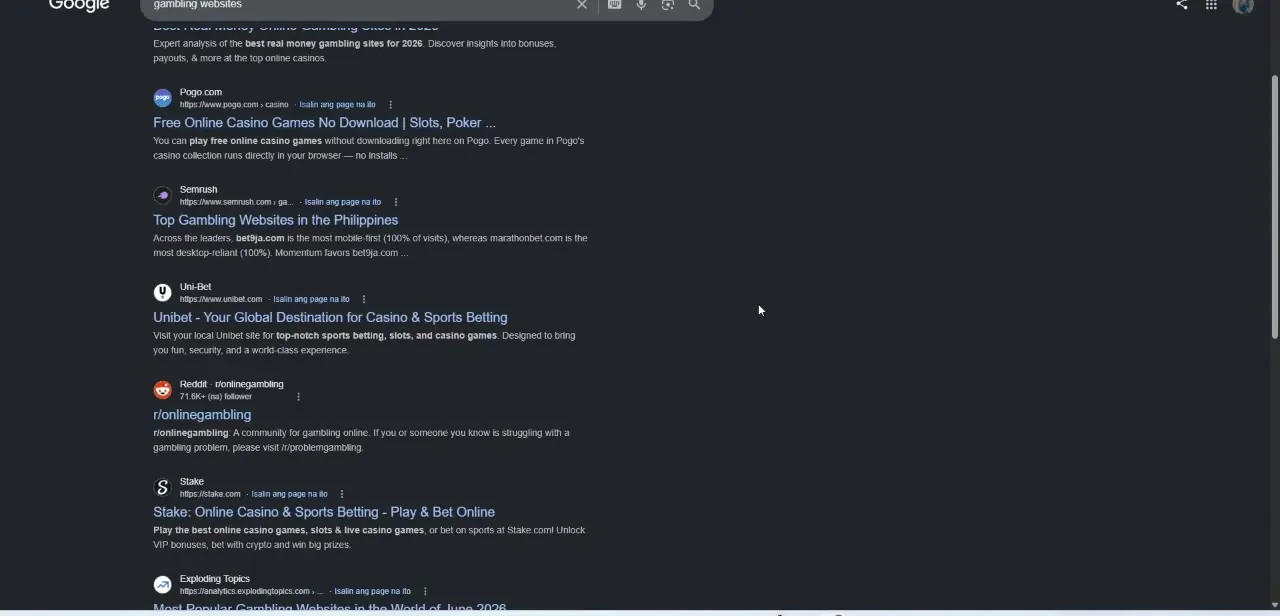
A quick search for "gambling websites" makes the scale of the problem obvious — casino platforms, sports betting sites, and community forums built entirely around online gambling show up by the dozen, and new ones appear constantly. This is worth seeing directly, because it explains why a static list of blocked URLs falls behind fast; you need something that blocks the category, not just today's list of offenders. It's also a reminder that gambling sites don't only mean obvious casino brands — betting-focused subreddits and affiliate review sites promoting them count too, and a category blocker is the only practical way to catch that whole ecosystem.
02Open the Chrome Web Store and search for a blocking extension
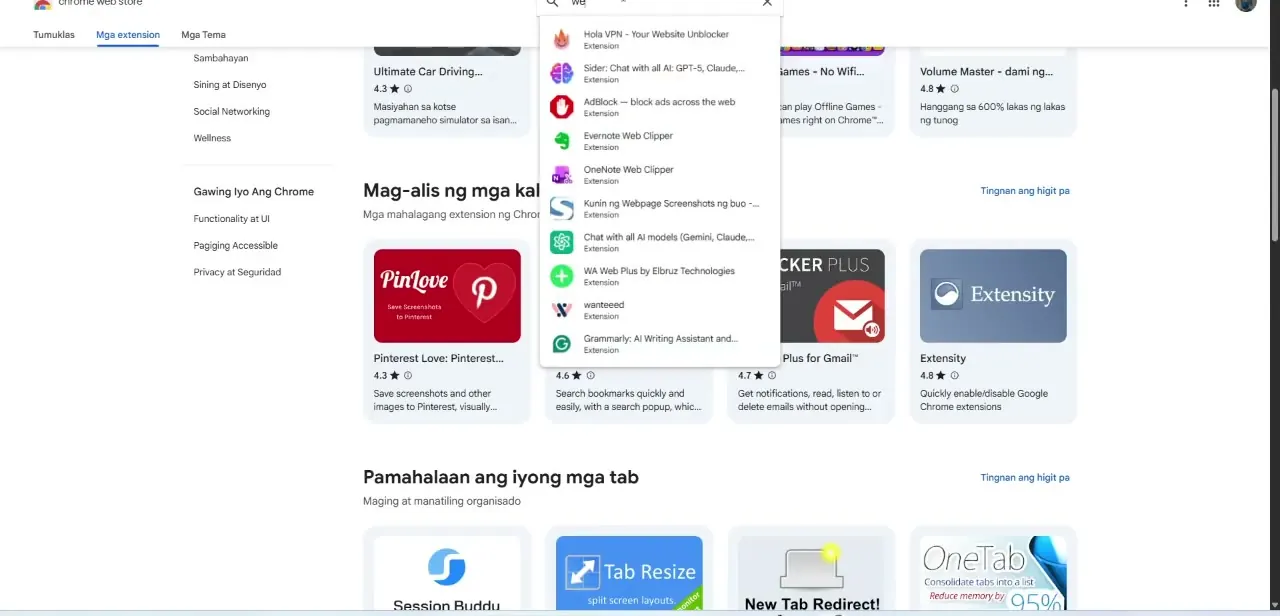
Go to the Chrome Web Store and search using a general term like "website blocker" rather than a specific brand name at first. Chrome's search suggestions will surface several relevant extensions as you type, including tools built specifically for blocking distracting or harmful categories of sites, alongside unrelated results like ad blockers and productivity tools — so it's worth scanning the list rather than clicking the first result. Pay attention to user counts and star ratings at this stage, since a blocking extension with a small install base is more likely to be abandoned or unreliable than one with a long track record.
03Install an extension built for category blocking
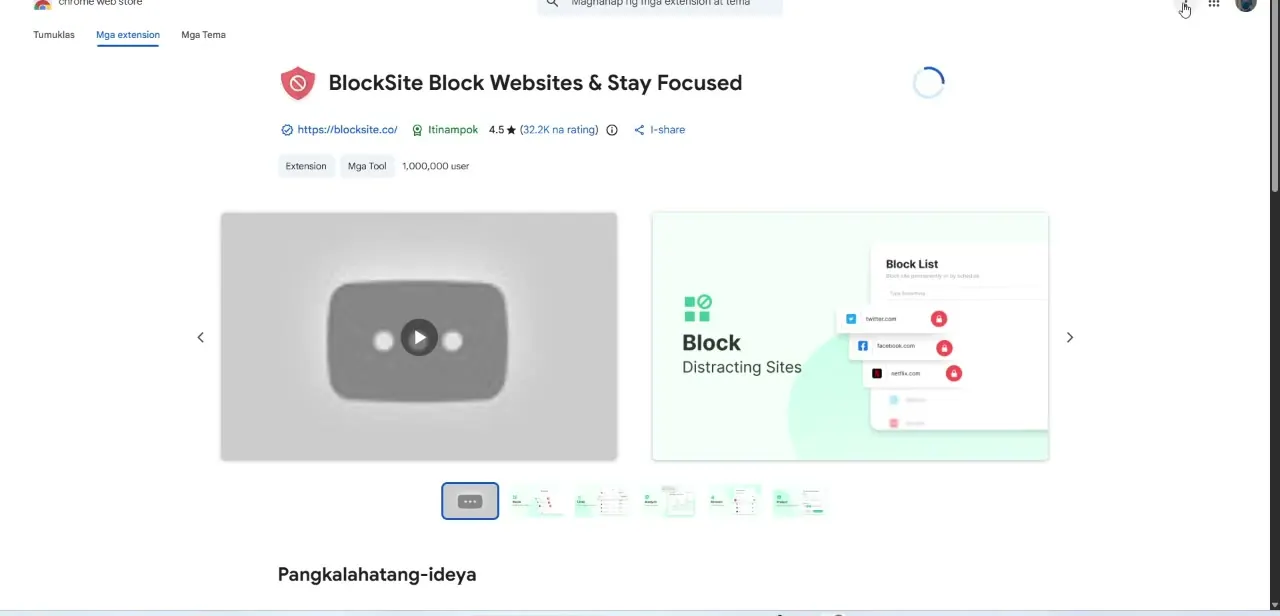
Look for an extension like BlockSite, which is built around blocking whole categories of distracting or harmful sites rather than one URL at a time — its Chrome Web Store listing shows over a million users and a 4.5-star rating, with screenshots demonstrating its block-list interface directly. Click Add to Chrome and confirm the permissions it requests; a site blocker needs to read the URLs you visit in order to function, which is normal for this category of extension. The listing's preview images are worth scrolling through before installing, since they typically show the actual block-list and category screens you'll be working with, giving you a preview of the setup before committing.
04Turn on the Gambling category in your block list
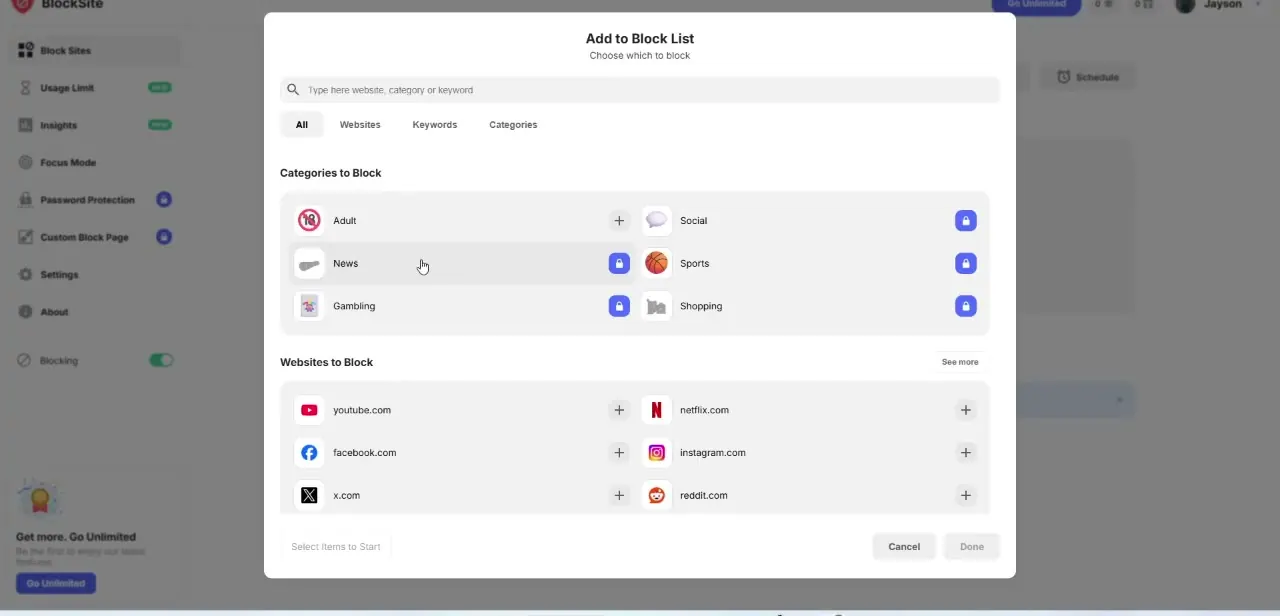
Open the extension after installing it and go to its Block Sites section, then choose "Add to Block List." Rather than typing individual URLs, switch to the Categories view, where Gambling appears alongside categories like Adult, Social, News, Sports, and Shopping — each with its own lock toggle. Turning on the lock for Gambling blocks the entire category at once, covering casino sites, betting platforms, and gambling forums without you needing to know their names in advance. You don't have to lock every category shown here — Sports and Shopping, for instance, can stay off if gambling is your only concern, keeping the rest of your browsing unaffected.
05Add specific sites for anything the category misses
Category blocking catches the vast majority of gambling traffic, but if there's a specific site you know is a problem and it's not being caught, add it individually under the Websites to Block section of the same screen. This combination — a broad category lock plus a short manual list for edge cases — covers more ground than either approach used alone. It also helps to add a couple of the well-known betting platforms you might already recognize by name, just as a backstop in case the category filter takes a little time to catch a very new domain.
06Set a password to protect your settings
Most blocking extensions, BlockSite included, offer a password-protection option under their settings so the block list can't be quietly turned off later. This step matters most if you're setting this up for a shared device or for a family member, since a blocker that can be disabled in ten seconds without a prompt isn't much of a safeguard. Choose a password that's different from ones the other person on the device might already know, and store it somewhere separate from the device itself if the whole point is limiting your own access.
07Check that mobile Chrome is covered too
A block list set up on desktop Chrome doesn't automatically extend to a phone unless you install the same extension's mobile app or a comparable mobile blocker, since Chrome extensions generally don't sync to Android or iOS versions of the browser. If gambling access from a phone is part of what you're trying to prevent, treat it as a separate setup step rather than assuming the desktop configuration has you fully covered.
Frequently asked questions
Is blocking gambling sites in Chrome free?
Yes, the core category-blocking feature in extensions like BlockSite is free to use, though some offer paid tiers with extra features like scheduling or advanced analytics.
Can this help with parental controls?
Yes, this approach is particularly useful for parents wanting to safeguard their children's internet usage, especially combined with the password-protection option so the block list can't be disabled without permission.
Is this also useful for workplace productivity?
Yes, companies can use the same category-blocking approach to restrict access to distracting websites, including gambling and social media, to help maintain focus.
Do I need to keep updating the block list manually?
No — blocking the Gambling category covers new sites automatically, so you only need to add individual URLs manually for edge cases the category doesn't catch.
Does Chrome have a built-in way to block gambling sites without an extension?
Not specifically. Chrome's native settings don't include a gambling-category filter, which is why a dedicated blocking extension is the practical way to cover this.
Watch the full walkthrough
The same steps, demonstrated on screen from start to finish.