 Easy Tech Tuts
How to Set Up Wix Payments Account Easily 2026
By Impran M N
Getting paid on a Wix site starts in one place: the Accept Payments settings hub, tucked inside Finance & payments. What you'll actually see there depends on your plan and region — Wix's own native processor, Wix Payments, requires a paid plan to activate, so a site still on the Free plan is steered toward alternatives like PayPal or manual offline payments instead. This guide walks through that settings hub as it really appears, including the PayPal and manual payment setup flows, so you know exactly what to expect before you commit to a plan upgrade.
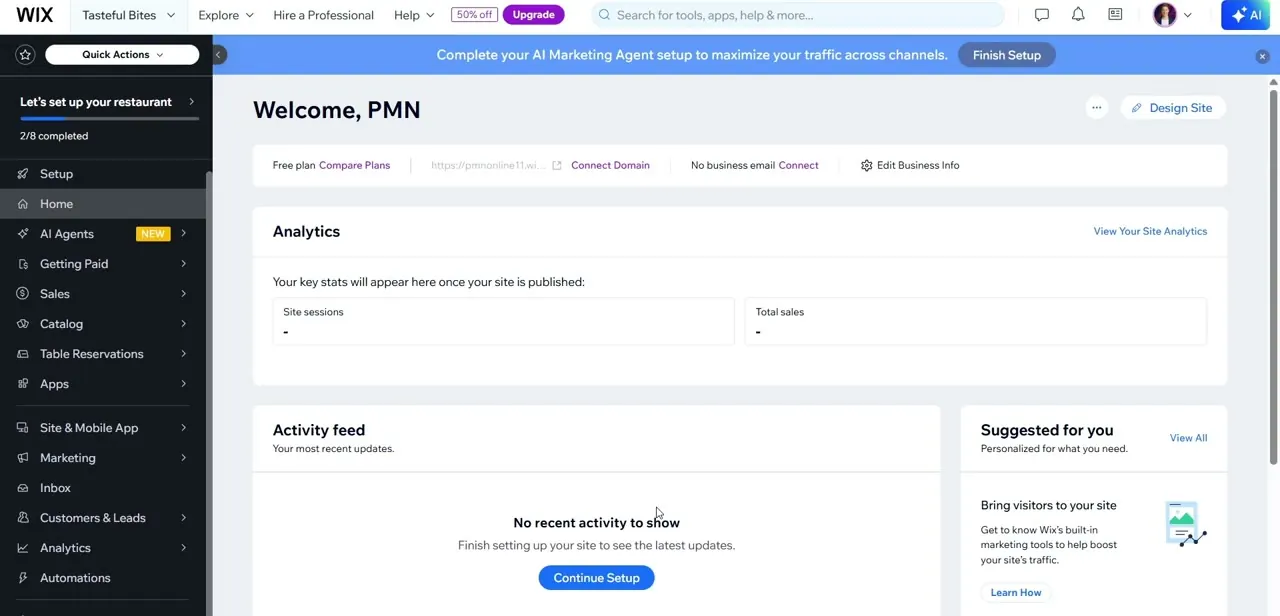
01Open your Wix dashboard
Log into your Wix account and land on the site's Home dashboard. The left sidebar is where every settings area lives, including Getting Paid, which sits a few rows below Home and AI Agents. If your site is still on the Free plan, you'll notice prompts throughout the dashboard nudging you toward a paid tier — worth keeping in mind, since some payment options are plan-gated.
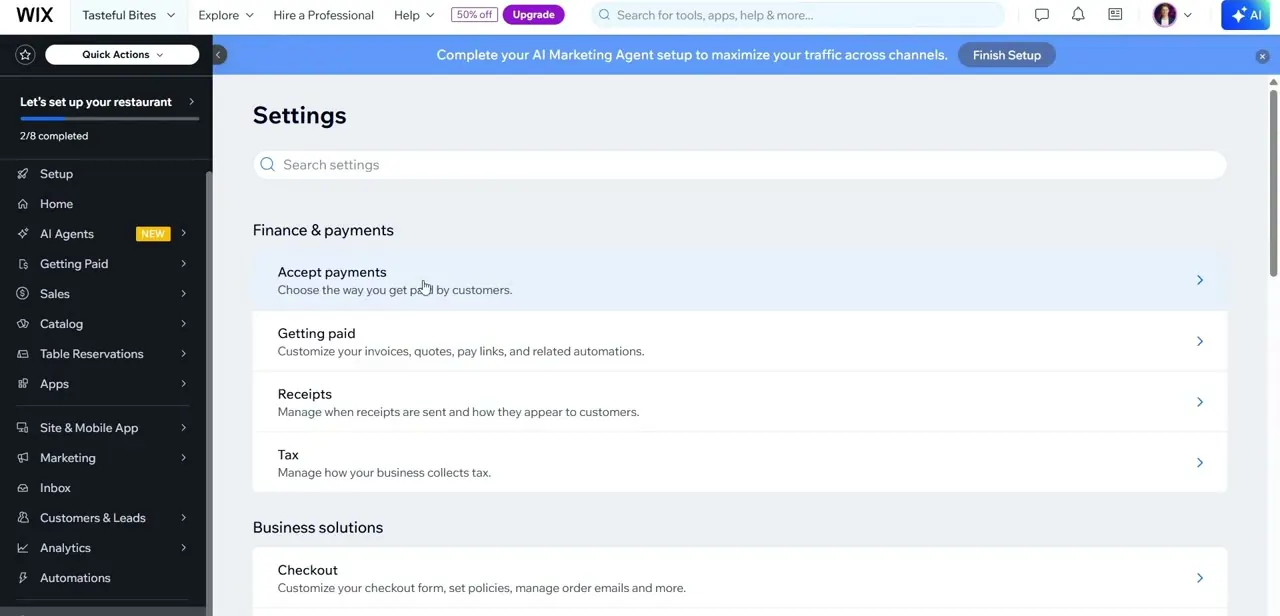
02Go to Settings and open Accept Payments
Click into Settings, then find the Finance & payments group near the top. Accept payments is the first item listed, described plainly as "Choose the way you get paid by customers." This is the real entry point for every payment method Wix supports on your site, whether that's Wix's own processor, a third-party gateway, or a manual offline option.
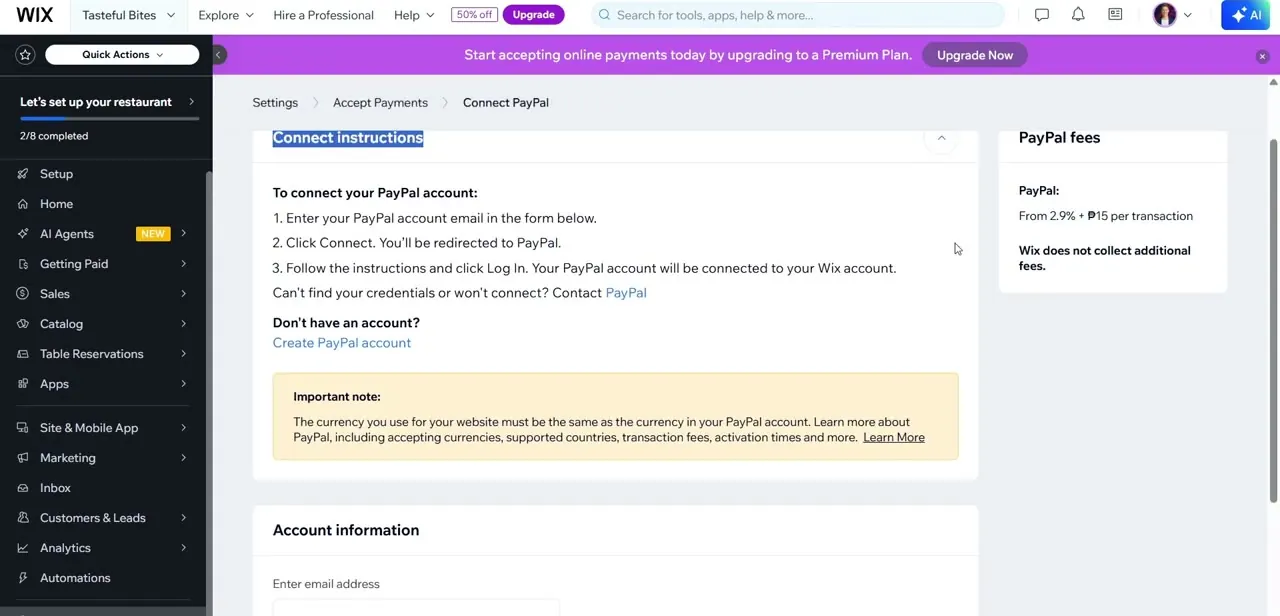
03Connect PayPal if you want a fast, no-upgrade option
PayPal is one of the gateways available without needing Wix's native processor. The Connect PayPal screen walks through three steps: enter your PayPal account email, click Connect, then log in on PayPal's site to finish linking the two accounts. Wix displays PayPal's fee structure right on the same page and flags an important detail — the currency your website uses must match the currency on your PayPal account, or transactions won't process correctly.
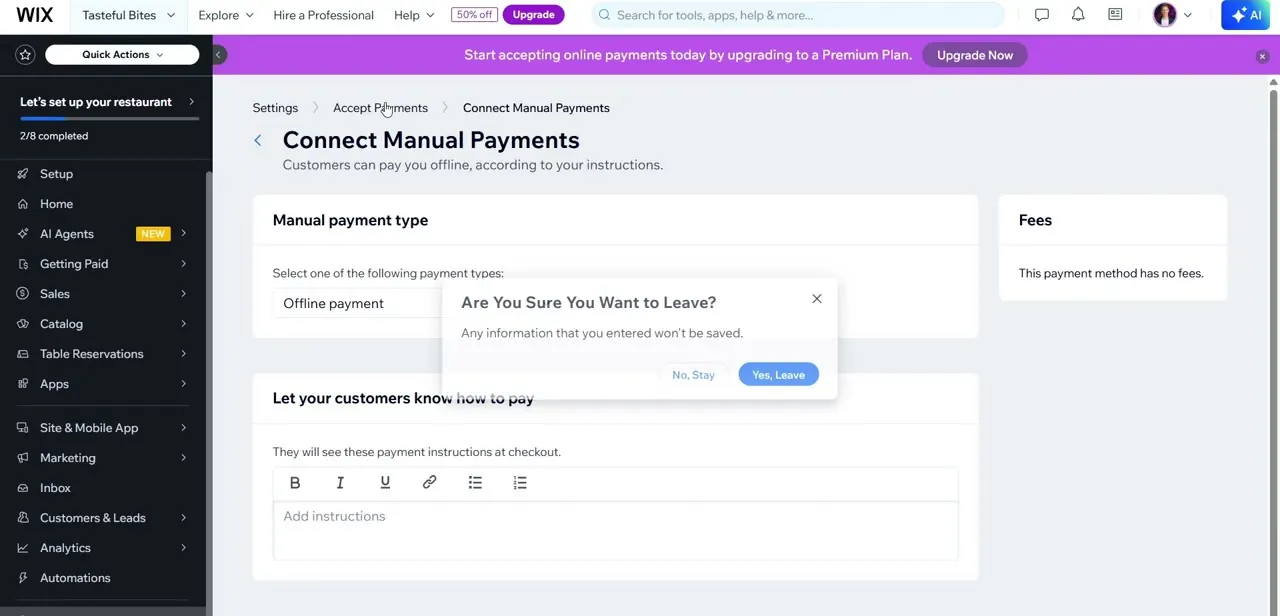
04Set up Manual Payments for offline orders
If you'd rather collect payment outside the checkout entirely — cash on delivery, bank transfer, or an in-person handoff — Connect Manual Payments is the option for that. You pick a payment type such as offline payment, then write the instructions customers see at checkout explaining how to actually pay you. Manual Payments carries no processing fees, which makes it a reasonable stopgap while you decide whether to commit to a paid plan for card processing.
05Know when Wix Payments itself requires an upgrade
Wix's own native processor — the one that lets you accept credit and debit cards directly without redirecting to PayPal — is gated behind a paid plan. The Free plan dashboard displays a persistent banner offering to upgrade specifically so you can "start accepting online payments today," which is the clearest signal that card processing through Wix's own system isn't available until you move off the Free tier.
06Match your payment method to your business, not just convenience
PayPal is the quickest to set up and works well if your customers already trust it, but it adds PayPal's own per-transaction fee on top of anything Wix charges. Manual Payments has no fees but shifts the collection burden onto you and your customer coordinating outside checkout. If you're planning to scale past a handful of orders, budget for the plan upgrade that unlocks Wix Payments directly, since a native card processor built into checkout converts better than routing shoppers off-site.
Frequently asked questions
Do I need a paid Wix plan to accept payments?
Not necessarily — PayPal and Manual Payments are available without upgrading, but Wix's own native processor, Wix Payments, requires a paid plan to activate.
Does PayPal charge extra fees on top of Wix?
Yes. PayPal's transaction fees appear directly on the Connect PayPal setup screen, and Wix notes it doesn't collect any additional fees on top of them.
What is Manual Payments for?
It lets customers pay you outside the normal checkout flow — cash, bank transfer, or another offline method — using instructions you write yourself, and it carries no processing fees.
Why does my PayPal connection fail even after I log in?
The most common cause is a currency mismatch — the currency set on your Wix website has to match the currency on your PayPal account for the connection to process transactions correctly.
Where do I find all the payment options Wix supports?
Go to Settings, then Finance & payments, then Accept payments — that hub lists every gateway and offline method available for your plan and region.
Watch the full walkthrough
The same steps, demonstrated on screen from start to finish.


