Easy Tech Tuts
How to Redesign Wix Website Easily 2026
By Impran M N
Redesigning a website you already rely on for traffic can feel risky, but Wix lets you clone your site as a staging copy so you can experiment safely. This guide covers duplicating your existing site, updating global design elements, and preserving critical integrations so your live traffic doesn't drop during the transition.
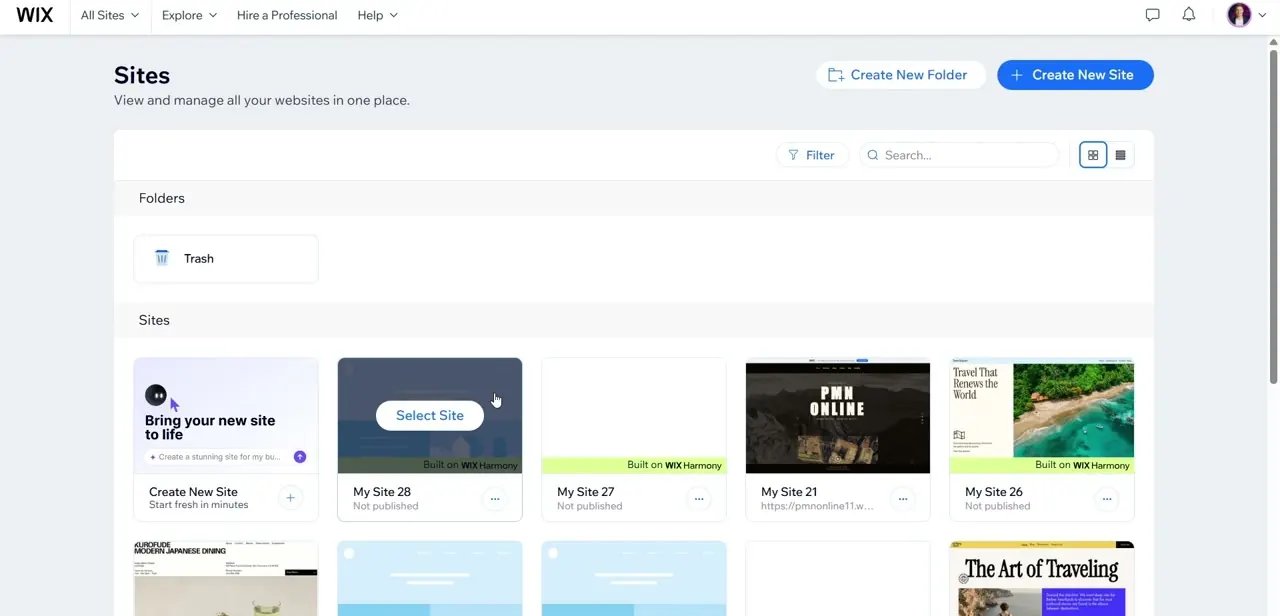
01Duplicate your site
Clone your existing website to create a staging sandbox you can safely redesign without affecting the live version.
02Open the Site Design panel
In your staging copy, open the global Site Design dashboard to update color themes and typography.
03Update colors and fonts
Refresh your color palette and re-map typography scales across the whole canvas.
04Clean up section layouts
Adjust structural section strips to fix spacing issues and realign old content blocks.
05Replace outdated media
Swap old images for fresh, high-resolution graphics throughout the site.
06Preserve integrations and go live
Double-check that forms, backend integrations, and SEO metadata carried over correctly, then route your domain to the updated site.
Frequently asked questions
Will redesigning my site hurt my SEO rankings?
It can if metadata or URLs aren't preserved carefully, so it's important to check your SEO settings survived the redesign before going live.
Can I test the new design before my visitors see it?
Yes, working from a duplicated staging site lets you build and preview the redesign privately before publishing.
Do my forms and backend integrations carry over automatically?
They typically carry over with a duplicated site, but it's still worth verifying each integration still works after the redesign.
How do I switch my domain to the redesigned site?
Once you're satisfied with the staging version, you route your active custom domain to point at the updated site structure.
Watch the full walkthrough
The same steps, demonstrated on screen from start to finish.