 Easy Tech Tuts
How to Build a Wix Website With Blank Template Easily 2026
By Impran M N
Starting from a blank Wix canvas means every section, every piece of navigation, and every page is something you place deliberately, instead of trimming down someone else's design. It's slower than picking a pre-built template, but it's the route to take when your layout doesn't fit any of Wix's presets. This guide walks through creating the site, dropping in your first section, and building out additional pages like an About page from nothing.
01Start from your Sites dashboard
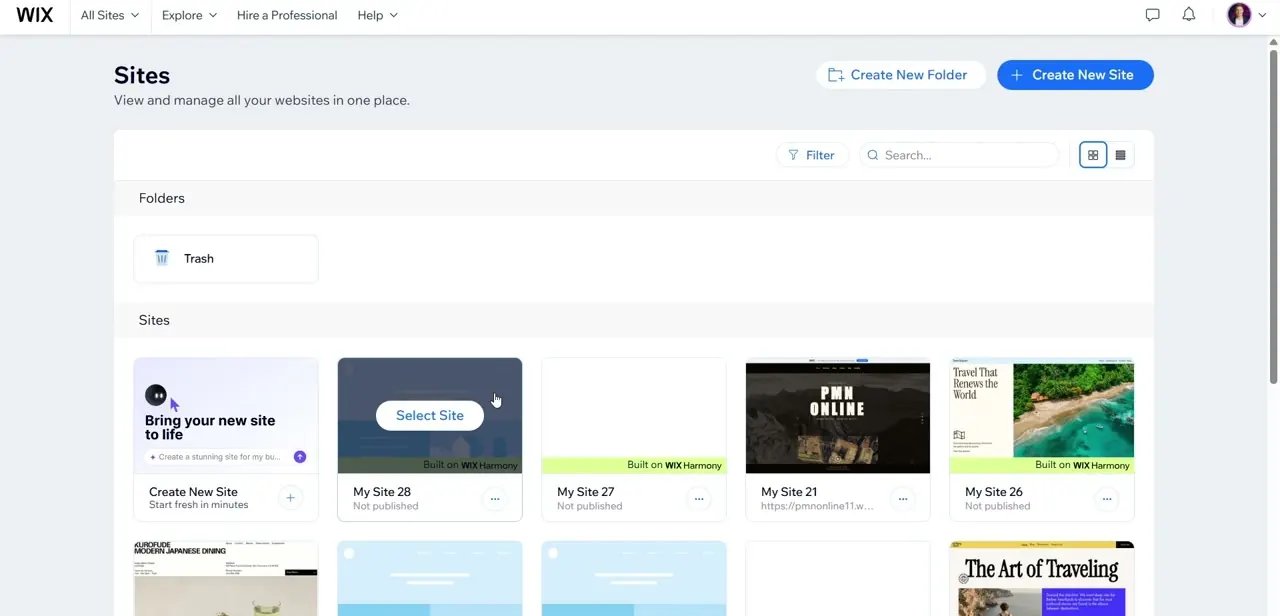
Every Wix site you own lives on the Sites page, reachable from All Sites in the top navigation. Click Create New Site to start fresh — this is also where you'll come back to manage folders, check which sites are published, and jump between multiple projects if you're building more than one site at a time.
02Open the editor and add your first section
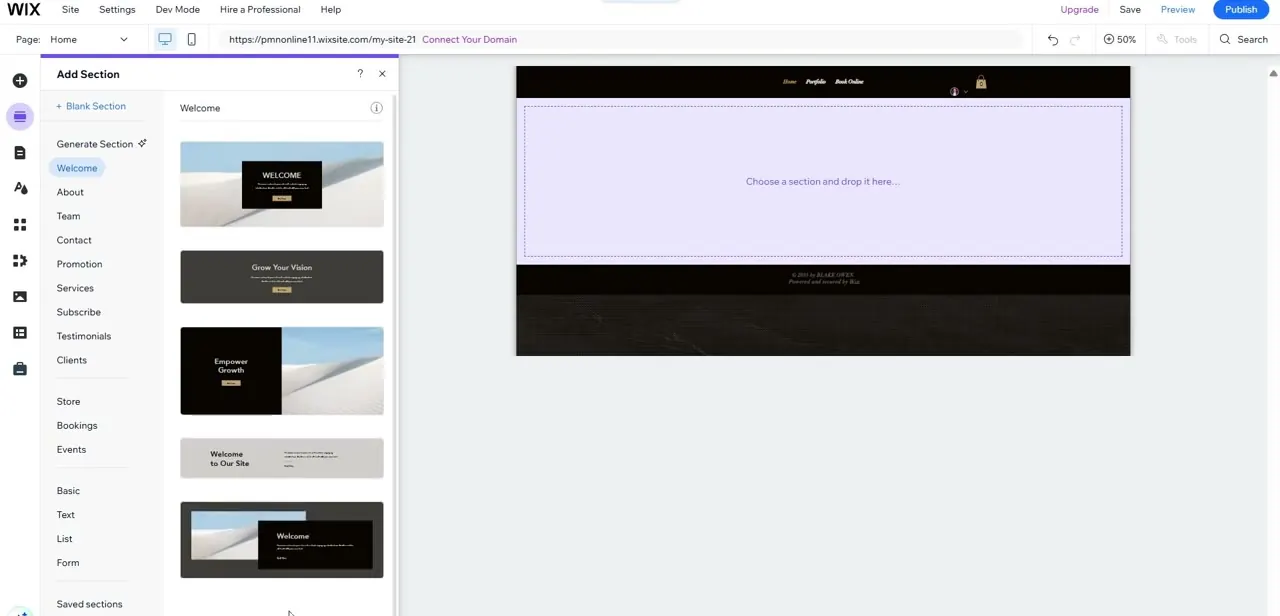
Once you're in the site editor with a blank page, click the plus icon to open Add Section. Rather than leaving you with a truly empty page, Wix organizes ready-made section layouts by purpose — Welcome, About, Team, Contact, Promotion, and more — so you're choosing a structural starting point for each part of the page instead of positioning every element by hand. Picking one of these still counts as building from scratch, since the page itself started with nothing.
03Drop the section onto the canvas and edit the content
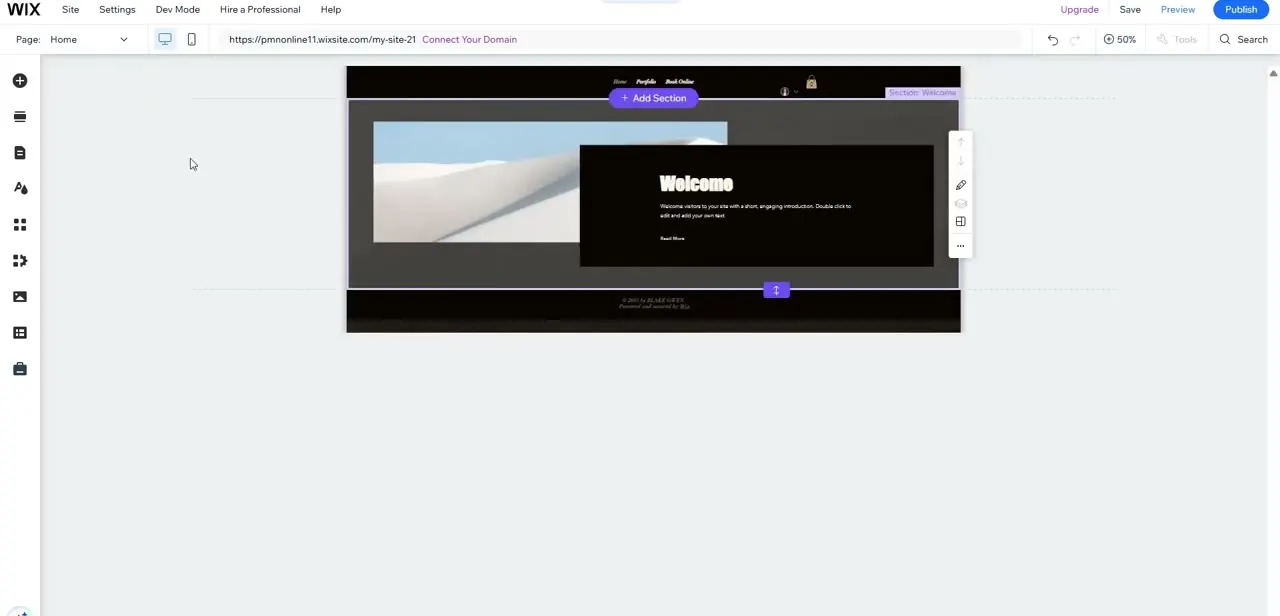
Once you pick a layout, it lands on your page immediately with placeholder text and imagery already in place — a heading like "Welcome," a short description, and a background image. Double-click any text box to edit it directly, and use the Add Section button that stays visible below your last section to keep stacking new ones as you build the page downward.
04Add and structure additional pages
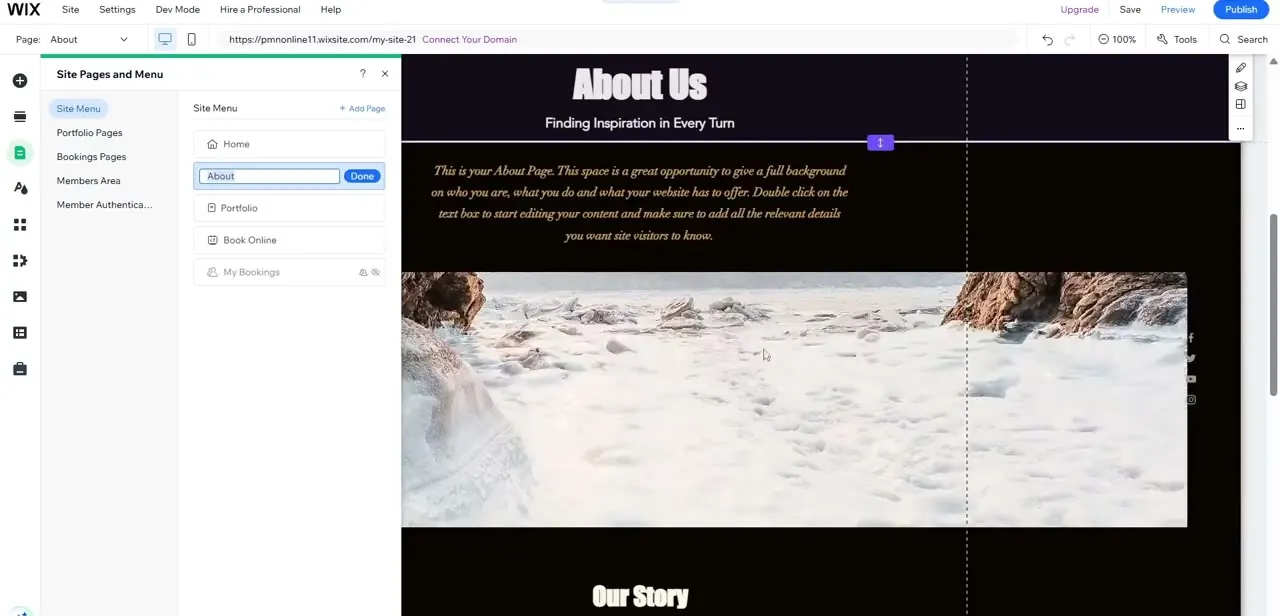
A single Home page rarely covers a real site, so open Site Pages and Menu to add more. From this panel you can create a new page, rename it in the Site Menu, and see every page's icon and position in your navigation at a glance. An About page, for instance, gets its own dedicated layout — you're not limited to reusing whatever sections you built on Home.
05Build out each page's sections the same way
Repeat the add-section-and-edit process on every new page. An About page typically wants an introductory heading, a paragraph of real background copy replacing the placeholder text, and supporting imagery — the same section-by-section approach you used on Home, just with content suited to that page's purpose. Consistency in spacing and typography between pages is what makes a hand-built site look intentional rather than assembled piecemeal.
06Check mobile view before publishing
Toggle the mobile view icon near the top of the editor to see how your sections reflow on a phone-sized screen. Because you built this layout section by section rather than inheriting a template's tested responsive behavior, it's worth reviewing every page in mobile view specifically — text that looks fine on desktop can crowd or overlap once the viewport narrows, and this is the fastest way to catch it before visitors do.
07Preview and publish
Click Preview to interact with the site as a visitor would, checking that navigation links move between pages correctly and that nothing feels unfinished. When it holds up, click Publish. Your site goes live at the domain shown in the address bar during editing, and you can always jump back into the editor from the Sites dashboard to keep adding pages or sections later.
Frequently asked questions
Is building from a blank template harder than using a pre-made one?
It takes more manual layout work since you're placing every section yourself, but Wix's Add Section panel still offers pre-structured layouts for common needs, so you're not positioning individual elements from zero.
Can I still use Wix's design tools on a blank canvas?
Yes, the full editor — Add Section, text tools, page management — works the same on a blank site as it does on a pre-made template; you're just starting with nothing already placed.
How do I make sure my blank layout looks good on mobile?
Toggle the mobile view icon in the editor and review every page individually, since a hand-built layout doesn't inherit tested responsive behavior the way a pre-made template does.
Can I add more pages beyond the Home page?
Yes. Open Site Pages and Menu, add a new page, and build its sections the same way you built Home — each page can have entirely different sections and content.
Do I need to build navigation manually on a blank site?
Adding pages through Site Pages and Menu automatically adds them to your Site Menu, so basic navigation is handled for you as you create pages.
Watch the full walkthrough
The same steps, demonstrated on screen from start to finish.


