 Easy Tech Tuts
How to Create a Landing Page on Existing Wix Website Easily 2026
By Impran M N
You don't need a second Wix account or a whole new build to run a focused campaign page — you can add one directly inside your existing site. Wix's Add Page dialog has a dedicated Landing Page category alongside About, Contact, and other page types, so you're choosing a purpose-built starting layout rather than repurposing a page meant for something else. This guide covers adding that page, watching Wix populate it with content, and editing the placeholder text and images into your actual campaign copy.
01Open your existing site in the editor
Go into the Wix editor for the site you already have live. You'll see your regular navigation across the top — Home, About, Contact, Blog, and whatever other pages you've built — which is exactly the navigation a standalone landing page is meant to sit apart from. Keeping this context in mind matters, since anything you add here starts life as part of the same site and menu structure by default.
02Open Add Page and pick a landing-page layout
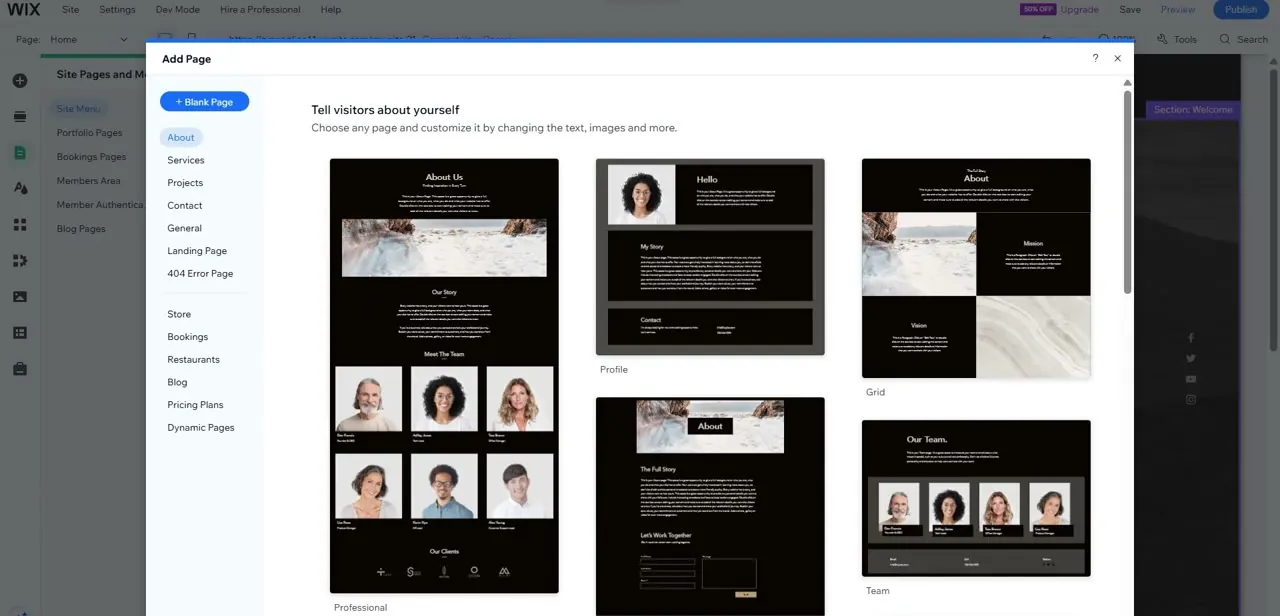
From the Pages panel, click Add Page to open the page-creation dialog. Down the left side, categories are organized by purpose — About, Services, Projects, Contact, and under General, a dedicated Landing Page category sits alongside options like 404 Error Page. Selecting a category filters the layout thumbnails on the right so you're picking a design built for that specific job rather than adapting an About or Team layout.
03Let Wix build the page and load its content
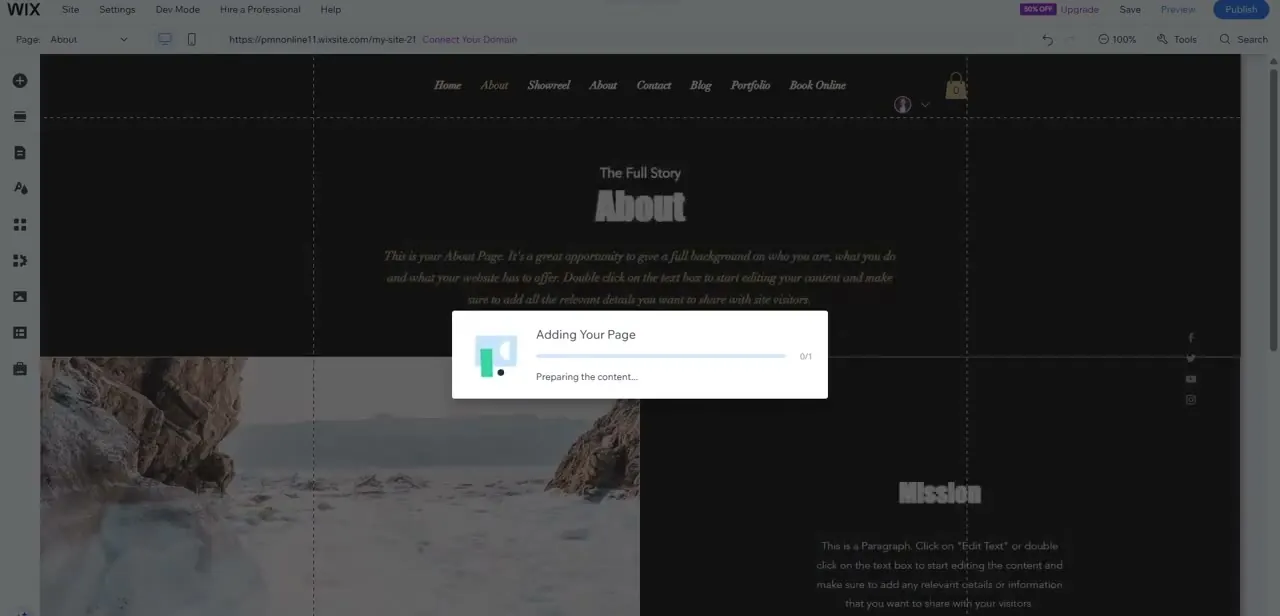
After picking a layout, Wix shows a short "Adding Your Page" progress dialog while it prepares the content behind the scenes. Once it finishes, you land on the new page fully populated with placeholder sections — headings, body paragraphs, and images already positioned — so you're editing existing structure rather than building sections one at a time from an empty canvas.
04Replace the placeholder copy with your campaign content
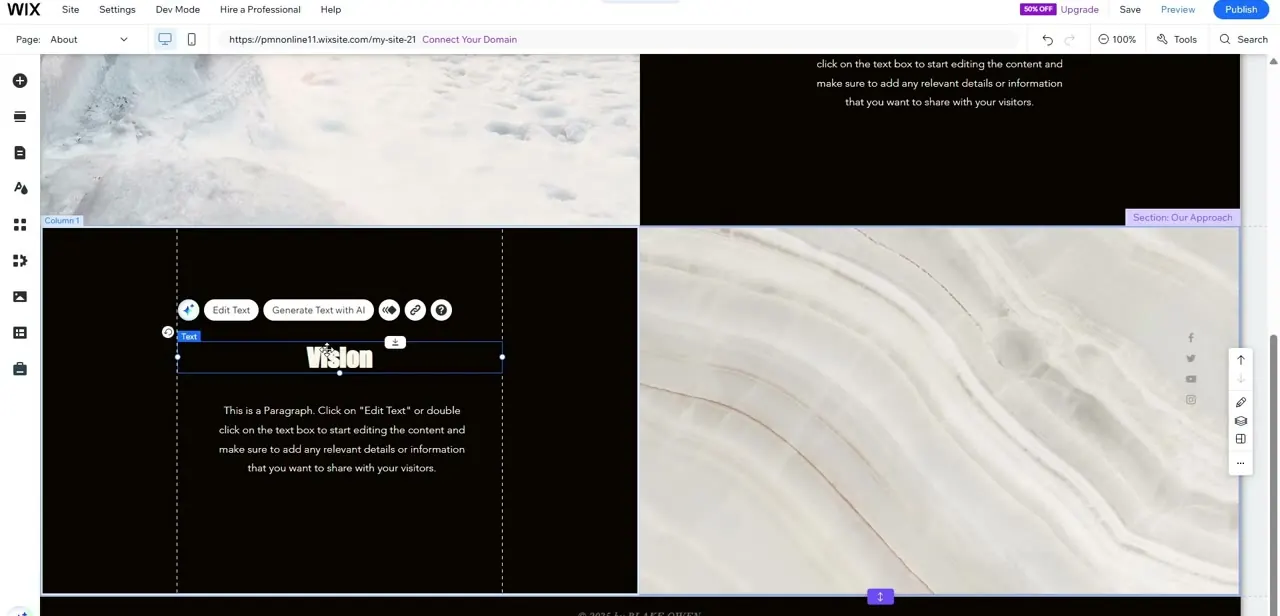
Click into any text element to edit it directly. Wix's editor surfaces an Edit Text option along with Generate Text with AI right in the same toolbar, which is a fast way to draft a first pass of headline or body copy if you're starting from a blank idea rather than a finished script. Work through each section replacing placeholder headings like "Vision" and their filler paragraphs with your actual offer, benefit statements, or campaign details.
05Decide whether to hide the site's global header and footer
A campaign page usually converts better without your full site menu pulling visitors away mid-funnel. In Page Settings for the new page, you can turn off the standard header and footer so it renders as an isolated, single-purpose destination instead of a page that still invites browsing elsewhere. Do this deliberately — it changes the page from "part of the site" to "a standalone landing experience," so make sure your call-to-action button is doing the job the header's navigation normally would.
06Set the URL and keep it out of your main menu
Rename the page's URL slug to something short and specific to the campaign, and remove it from the visible menu if you don't want it appearing in your regular navigation. This keeps the page discoverable only through the link you actually share — in an ad, an email, or a social post — rather than competing for attention next to Home and About in your site's main menu.
07Preview across devices, then publish
Toggle mobile view to confirm the sections you edited still read cleanly on a smaller screen, since a lot of ad and social traffic to a landing page arrives on mobile first. Run through Preview to click every link and button as a visitor would, then publish once it holds up — and keep the campaign URL handy since that's what you'll actually be sending traffic to.
Frequently asked questions
Will visitors see my site's regular navigation menu on this page?
Not if you turn off the global header and footer in that page's Page Settings — doing so isolates the page from your site's standard navigation.
Can I set a custom URL for the landing page?
Yes, you can rename the page's URL slug independently to match your campaign name or the link you're sharing in ads or emails.
Does Wix have a page layout built specifically for landing pages?
Yes. The Add Page dialog includes a dedicated Landing Page category under General, separate from About, Contact, and other page types.
Can I use AI to help write the landing page copy?
Yes, the text editing toolbar includes a Generate Text with AI option alongside the standard Edit Text option, useful for drafting a first pass of headline or body copy.
Should I add SEO metadata to a landing page?
Yes, setting distinct SEO metadata for the page helps you track and index the campaign separately from the rest of your site.
Watch the full walkthrough
The same steps, demonstrated on screen from start to finish.


