Easy Tech Tuts
How to Add WhatsApp Button on Canva Website with this Canva Tutorial Easily 2026
By Impran M N
Canva doesn't ship a built-in WhatsApp button, so if you've gone looking for one in Elements and come up empty, that's not you missing something. The workaround that actually works is quick: generate a WhatsApp chat widget with a free third-party tool, grab the shareable link it gives you, and attach that link to any button or text element already in your Canva design. The result looks and behaves exactly like a native WhatsApp button to a site visitor, and the whole setup takes a few minutes once you know where the pieces live.
01Create a WhatsApp chat widget with a link generator
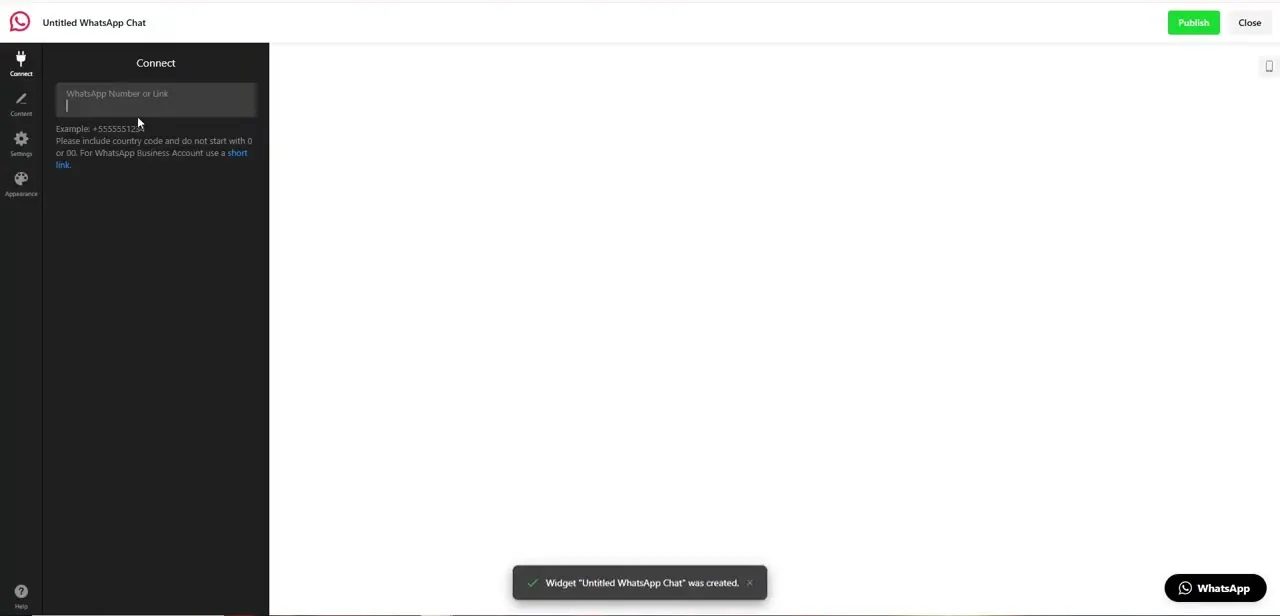
Since Canva has no built-in WhatsApp component, the first step happens outside Canva, on a widget service such as Elfsight's WhatsApp Chat builder. Open the Connect panel and enter the WhatsApp number you want messages sent to, including the country code and without a leading 0. This is also where you'd switch to Content or Appearance to change the greeting text or button color, but the number is the only field you strictly need before moving on.
02Grab the shareable link, not the embed code
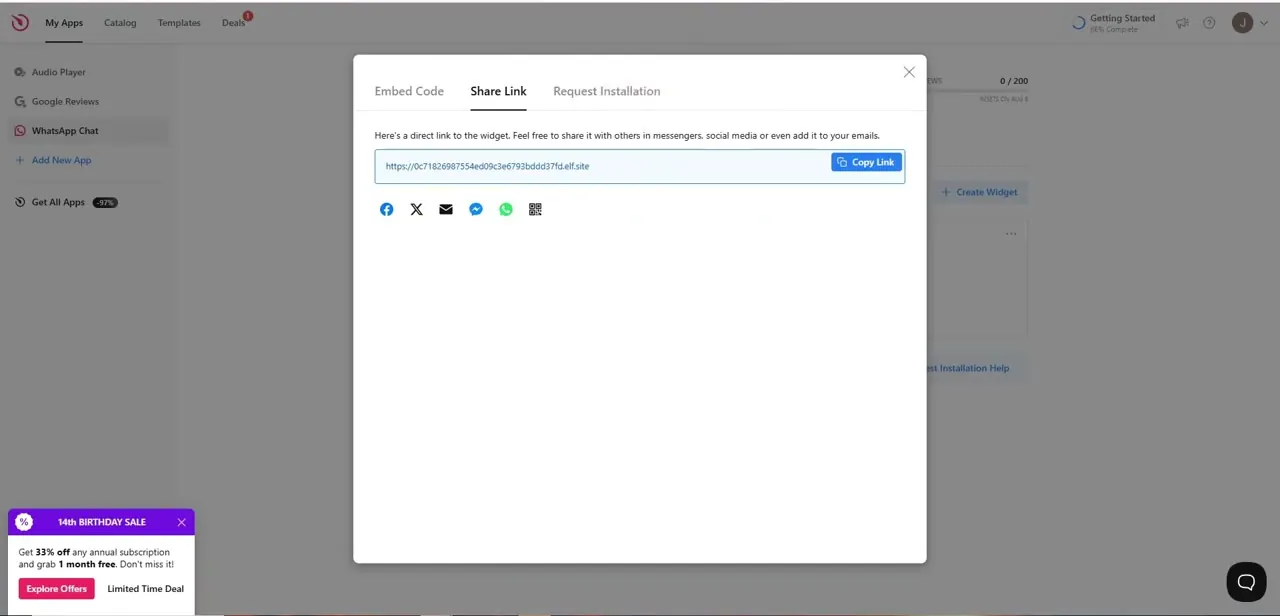
Once the widget is created, open its Share Link tab rather than the Embed Code tab. Canva websites don't accept raw HTML embeds the way a normal website builder does, but they do accept plain URLs on any clickable element, which is exactly what this tab hands you. Click Copy Link to put that URL on your clipboard — you'll paste it straight into Canva in the next step, so there's no need to save it anywhere else first.
03Select the element that will become your button
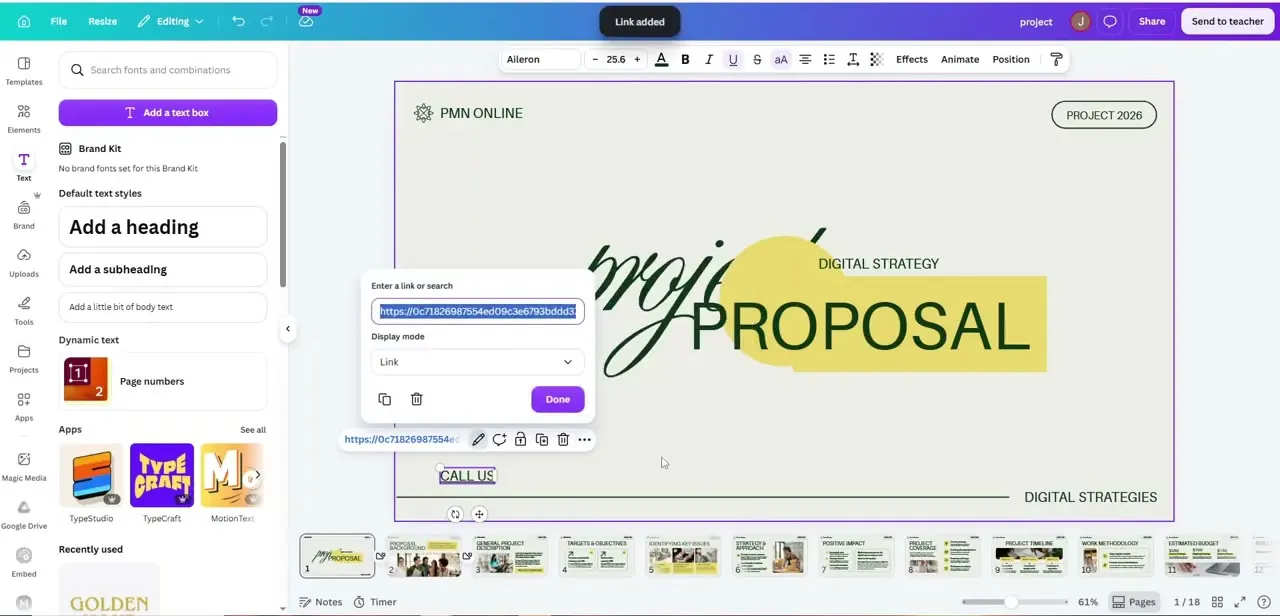
Back in your Canva website project, pick whatever you want visitors to click — a text box that says "Call Us" or "Chat With Us" works well, or an actual button element if your template has one. Select it so its toolbar appears above the canvas, then look for the link icon there. You don't need a dedicated WhatsApp graphic; any existing text or shape in your design can be turned into the trigger.
04Paste the widget link and set it to open as a link
Clicking the link icon opens a small "Enter a link or search" box directly on the canvas. Paste the URL you copied from the widget's Share Link tab, and leave the display mode set to Link so it opens like a normal outbound link rather than embedding inline.
Click Done to attach it. At this point the element you selected — in this example, the "Call Us" text sitting beneath the page's proposal heading — is wired to open a WhatsApp conversation the moment someone clicks it.
05Preview and publish your site
Use Canva's preview mode to click the linked element the way a visitor would. It should open a new tab straight into a WhatsApp chat pre-filled with your business number, either launching the WhatsApp app or WhatsApp Web depending on the visitor's device.
If that works, publish the site. Because the link lives on a widget service rather than inside Canva, you can update the underlying WhatsApp number or greeting message later from the widget dashboard without touching your Canva design at all.
06Style it so it reads as a real call-to-action
A working link is only useful if people notice it, so give the element real button styling — background fill, padding, and a short label like "Message Us on WhatsApp" rather than a plain text line. Placing it near your header or above the fold means it competes for attention with your main content instead of hiding at the bottom of a long page, which matters most on mobile where thumb reach and visibility drive click-through.
Frequently asked questions
Does Canva have a native WhatsApp button element?
No. Canva doesn't offer a built-in WhatsApp component, so the working approach is to generate a WhatsApp chat widget with a free tool like Elfsight and link its shareable URL to a text or button element in your Canva design.
Do visitors need WhatsApp installed for the button to work?
Yes. Clicking the linked element opens WhatsApp Web or the WhatsApp app, so the visitor needs an active WhatsApp account to actually send a message.
Why use the Share Link tab instead of the Embed Code tab?
Canva websites accept plain URLs on clickable elements but not raw HTML embeds, so the Share Link tab is the one that produces something you can actually paste into a Canva link field.
Can I change the WhatsApp number later without redoing the Canva design?
Yes. The number lives in the widget's settings, not in Canva, so updating it on the widget dashboard automatically updates where the link goes — no need to re-link the element in Canva.
Can I use this same trick for other messaging apps?
Yes. Any service that gives you a direct chat link — Messenger, Telegram, SMS — can be attached to a Canva element the same way, by pasting its link into the element's link field.
Watch the full walkthrough
The same steps, demonstrated on screen from start to finish.