Easy Tech Tuts
How to Use Trello for Team Management Easily 2026
By Impran M N
Managing a team's daily handoffs and bottlenecks shouldn't require endless status emails. This guide covers configuring Trello for team management, including inviting collaborators, distributing ownership, and reviewing progress in real time.
01Invite your team
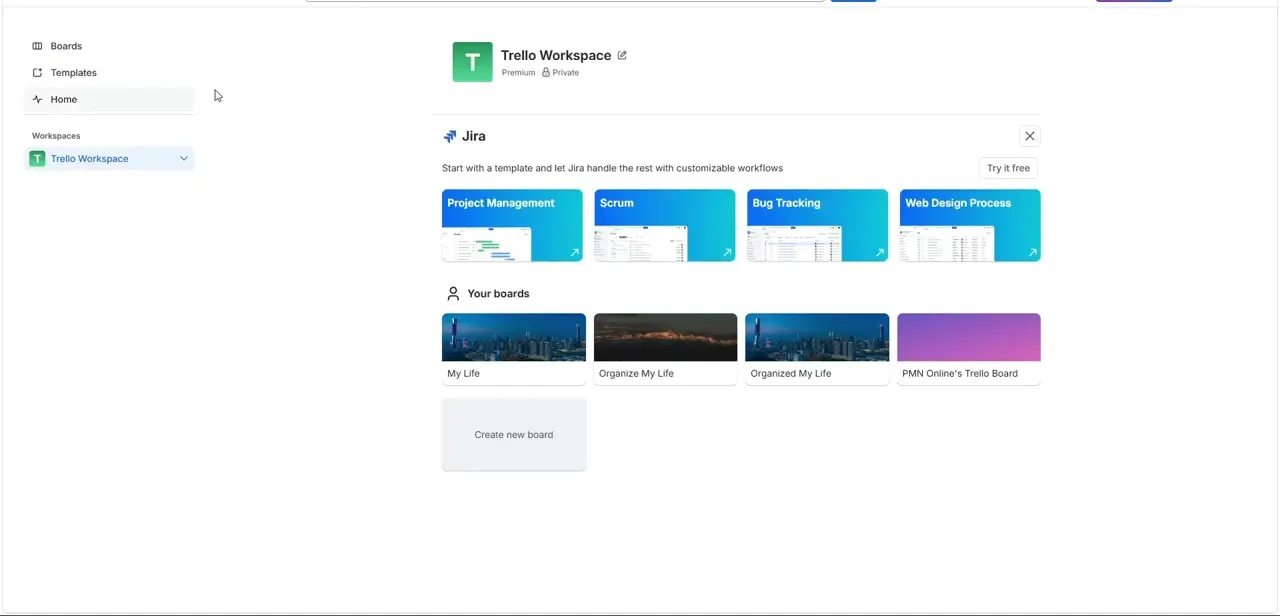
Use the administrative dashboard controls to securely invite collaborators to your workspace.
02Assign permission tiers
Set appropriate permission levels for each team member based on their role.
03Structure your board layout
Set up clear progress tracking columns so everyone understands the workflow at a glance.
04Distribute task ownership
Map multiple members and color-coded labels to distribute ownership clearly across your roster.
05Build shared checklists
Add action checklists to card backs to establish clear process requirements the whole team follows.
06Use comments to centralize feedback
Encourage your team to use the comments feed for real-time feedback instead of scattered side conversations.
Frequently asked questions
How do I control what each team member can access?
Use the administrative dashboard controls to assign specific permission tiers as you invite collaborators.
What's a good way to keep track record of decisions?
Using the comments feed on cards helps centralize real-time feedback and keeps a record tied directly to the relevant task.
Can multiple people own the same task?
Yes, you can assign multiple members to a single card when a task needs cross-functional collaboration.
How do I make sure the team follows the same process?
Shared action checklists on card backs help establish consistent process requirements across the team.
Watch the full walkthrough
The same steps, demonstrated on screen from start to finish.