Easy Tech Tuts
How to Use Timeline View in Trello Easily 2026
By Impran M N
A standard Trello board is great for tracking what state something is in, but it doesn't tell you much about when things are actually happening. Switching to the board's date-grid view fixes that: instead of columns for stages, you get a calendar laid out by day, with each list's cards shown against the dates they're scheduled for. This guide walks through what that view looks like on a real board, how to move through different time periods, and how to get an unscheduled card onto the calendar in the first place.
01Start from the regular board
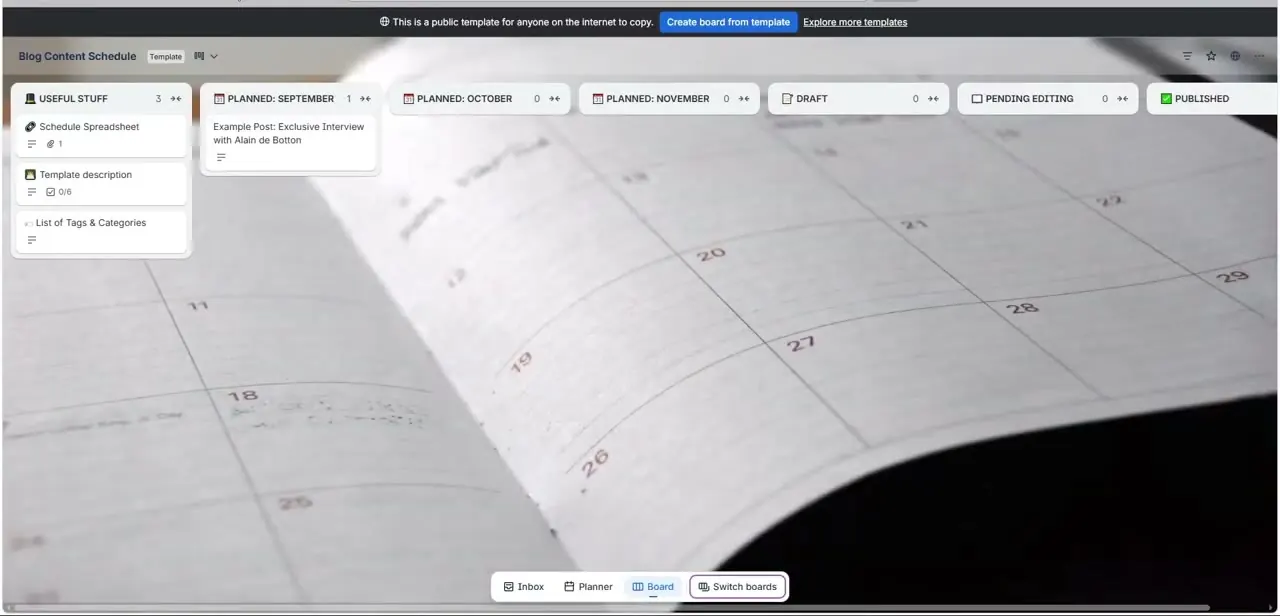
Before switching views, it helps to know what you're working from — a normal Kanban board with lists like Useful Stuff, Planned: September, Draft, Pending Editing, and Published, each holding a handful of cards. The view switcher and the calendar-style layout sit alongside this same board, so nothing about your lists or cards changes when you switch; you're just looking at the same data laid out differently.
02Switch to the date-grid view
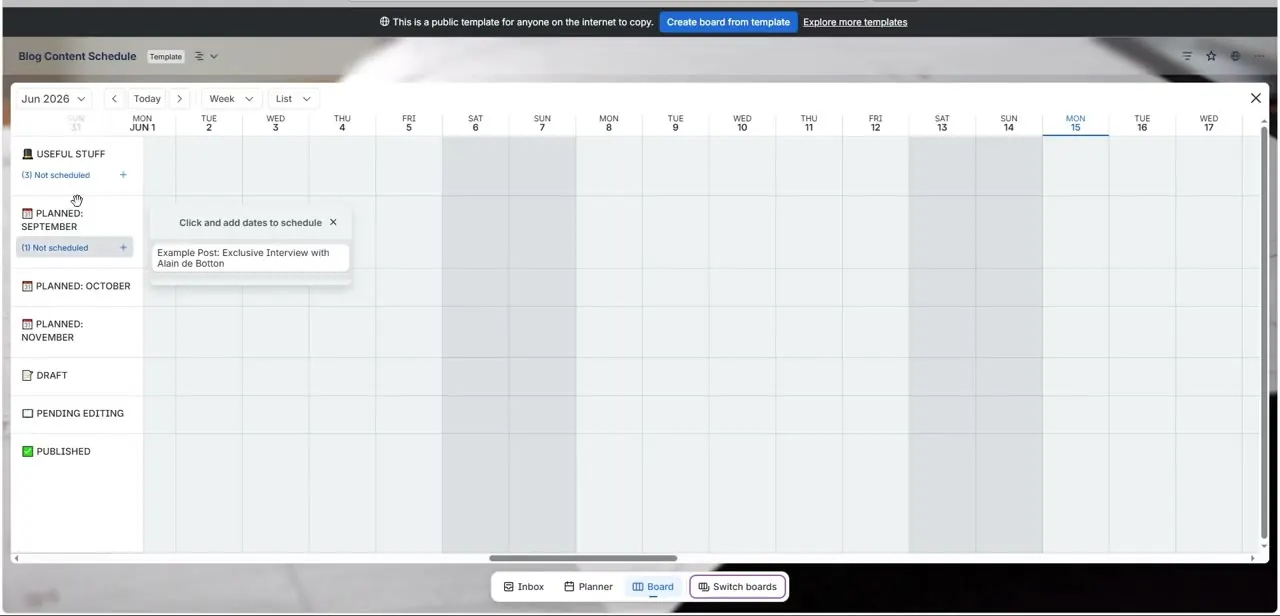
From the board, open the view switcher to bring up the calendar-style layout. At the top you'll see the current month and year, Today and arrow buttons for moving between periods, and two dropdowns — one controlling the time range shown (Week, in this case) and one controlling how cards are grouped, set here to List. Down the left side, each of your board's lists appears as its own row, with a count of how many of its cards aren't yet scheduled.
03Read the grid and the unscheduled counts
Every row is a list from your board; every column is a day. A card with a start and due date would show up as a bar spanning the days it covers, but a fresh board or template — like the one shown here — mostly has cards sitting in "Not scheduled" until you actively place them, which is exactly what a small blue count next to each list name is telling you. That count is worth checking before you assume the calendar is complete; an empty-looking grid usually just means nothing has a date yet, not that nothing is planned.
04Click an empty date to schedule a card
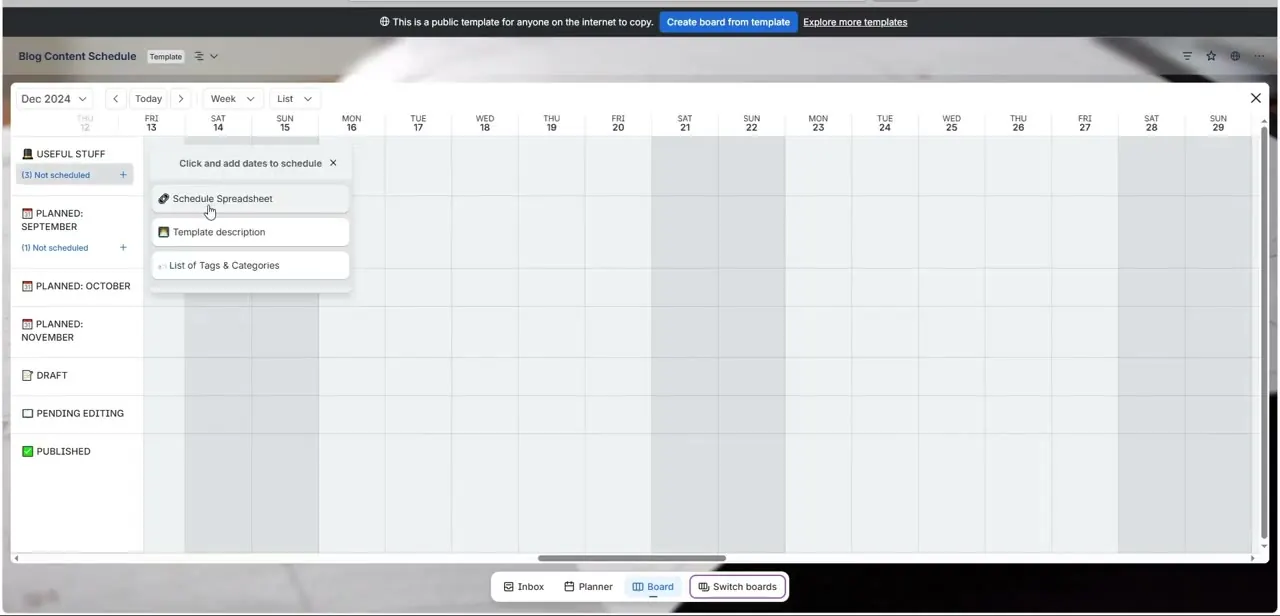
Click into an open cell on the grid and Trello opens a small "Click and add dates to schedule" panel listing the unscheduled cards from that list, so you can assign one to that date without leaving the calendar. This is the fastest way to move a backlog of undated cards onto a real schedule — work through the list a few cards at a time rather than trying to plan the whole board in one sitting.
05Move between months to see further out
The arrow buttons next to Today step you forward and back one period at a time, and the label at top-left updates to match — the same board can show June 2026 one moment and December 2024 the next, which is useful for checking whether older due dates were ever set correctly or for planning several months ahead in one pass.
06Switch the grouping or time range as needed
The dropdown currently set to List can typically be changed to group by another field if your board supports it, and the Week dropdown controls how much time each column represents. Try a wider range first to get a sense of the overall spread of dated versus undated cards, then narrow to Week once you're scheduling specific cards, since a tight day-by-day view makes it easier to avoid double-booking a date by accident.
Frequently asked questions
Do I need a paid plan to use this view?
Calendar and timeline-style views are generally part of Trello's paid plans rather than the free tier, so check your Workspace's plan if the option isn't in your view switcher.
What does the count next to each list mean?
It shows how many cards in that list don't have a scheduled date yet. A board can look empty on the calendar simply because most cards haven't been dated.
How do I put an undated card onto the calendar?
Click an empty date cell in the row for that card's list. A panel opens listing the unscheduled cards so you can assign one to that date directly.
Can I look at past months, not just upcoming ones?
Yes. The arrow buttons next to Today move the view backward and forward through any month, and Today jumps straight back to the current date.
Why are all my cards grouped under their list instead of by person?
The grouping dropdown controls this — it's set to List by default in this view, but switching it changes how rows are organized if your board has other grouping options available.
Watch the full walkthrough
The same steps, demonstrated on screen from start to finish.