Easy Tech Tuts
How to Enable Atlassian Intelligence for Your Trello Workspace Easily 2026
By Impran M N
Atlassian Intelligence in Trello isn't something each person switches on for themselves — it's a single control at the Workspace level, and only someone with admin access to that Workspace can flip it. That design makes sense for a shared tool that touches every card, but it also means the setting is buried a couple of clicks deeper than a personal preference would be. This guide shows exactly where that control lives, what it looks like in both its on and off states, and how to confirm the change actually took effect before you go looking for AI features on a card.
01Start from your Workspace, not a single board
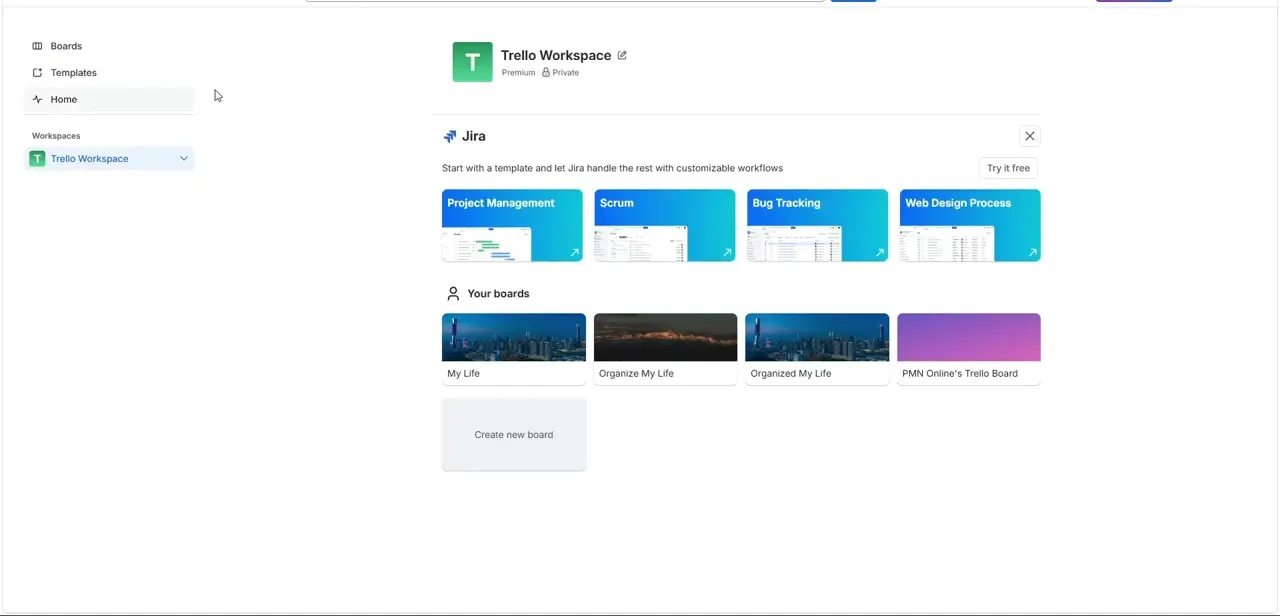
Open Trello and make sure you're looking at the Workspace that needs AI turned on — the sidebar under Workspaces shows Boards, Members, Settings, and Billing for whichever one is selected. If your account belongs to more than one Workspace, double-check you're in the right one before going further, since the AI setting doesn't carry over between them.
02Open the account menu to reach Settings
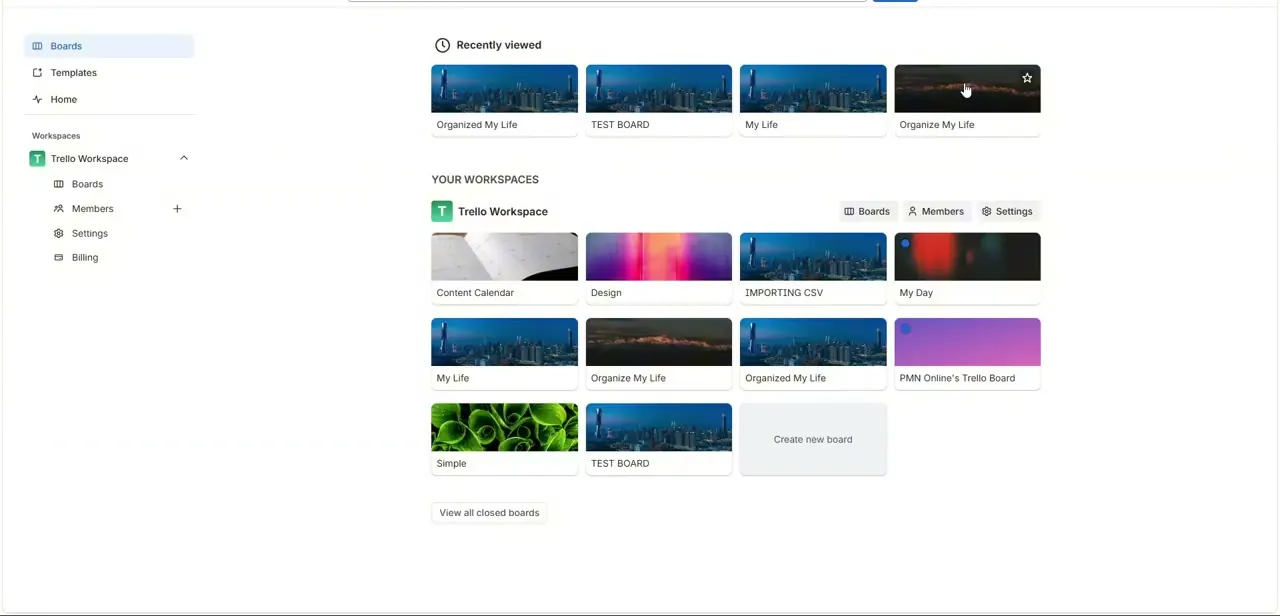
Click your avatar in the top-right corner to open the account menu. Underneath your profile info you'll see a Trello section with Profile and visibility, Activity, Cards, Settings, and Labs — Settings here is where the personal-versus-workspace split starts to matter, so this is a useful checkpoint before you go looking for the AI toggle specifically.
03Go to Workspace settings specifically
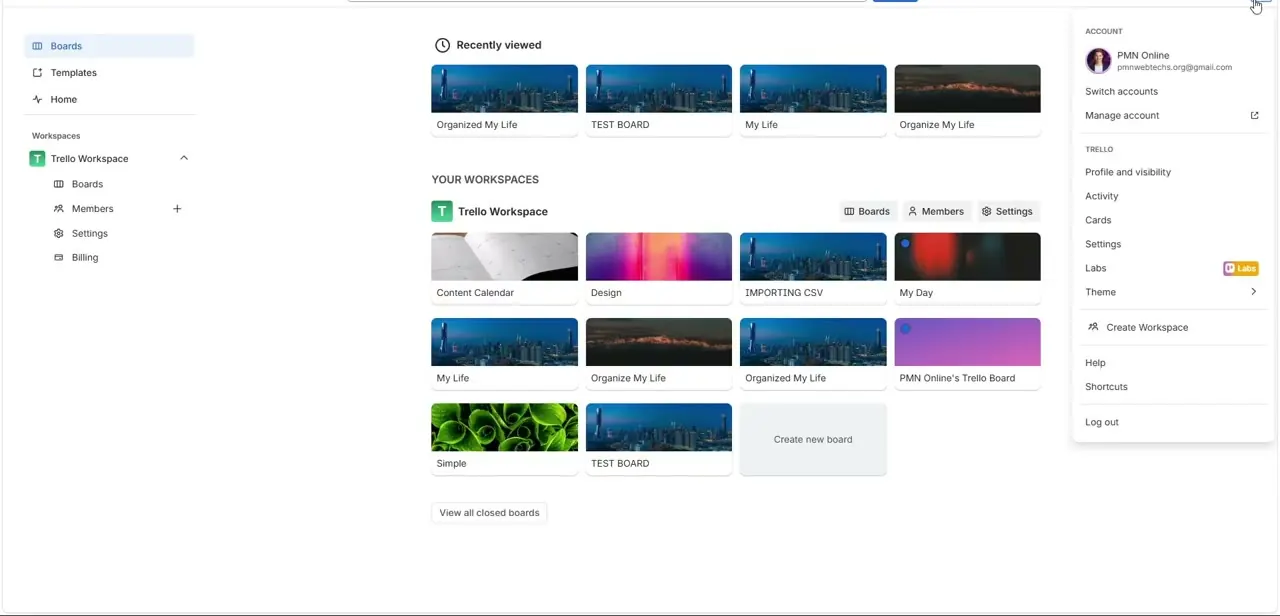
From the Settings panel, switch to the Workspace tab rather than staying on your personal settings — personal settings covers things like email notification frequency, while the AI toggle lives under the Workspace's own settings page, alongside visibility and membership restrictions. It's an easy page to land on by accident since both are reached from the same gear icon.
04Find the AI section and check its current state
On Workspace settings, the AI section sits near the top, tagged Premium, with a short line explaining it as an artificial intelligence tool that helps generate, improve, and summarize content while writing on Trello. Next to it is the status — deactivated or active — and the slider that controls it.
05Flip the toggle and watch for the confirmation
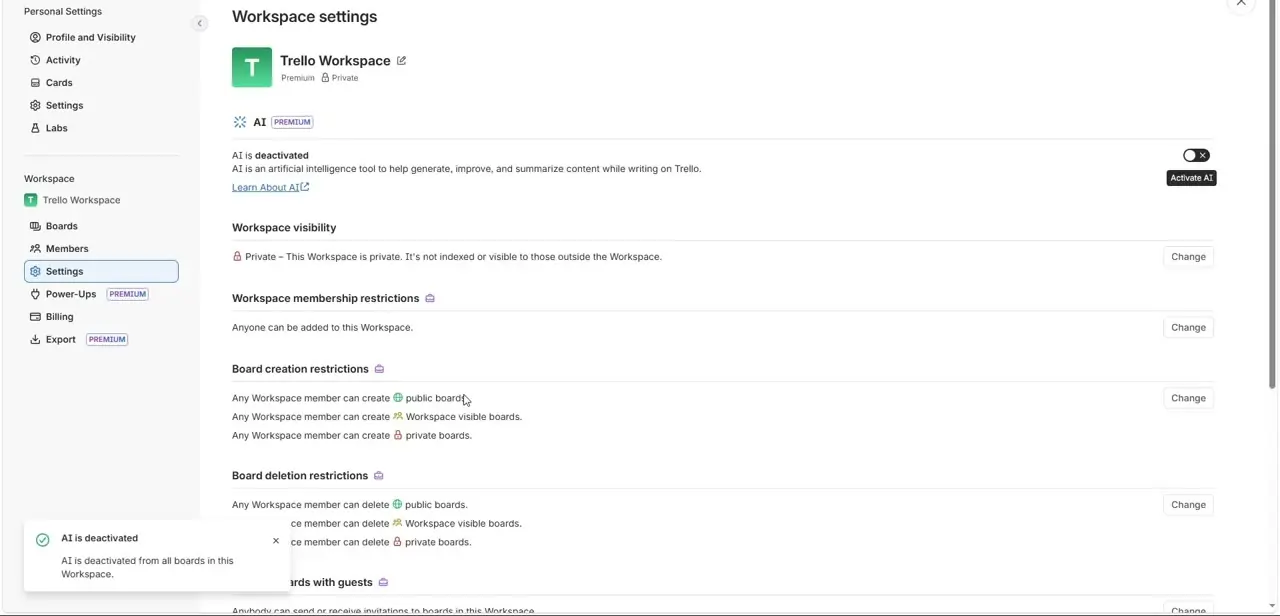
Click the slider to switch it on. Trello confirms the change with a small toast notification in the corner of the screen — the same confirmation pattern appears whether you're turning the feature on or off, so read the message itself rather than assuming based on which direction you clicked. If you don't see the toggle at all, your Workspace's plan may not include it, since it's marked as a Premium feature on the settings page.
06Test it from a card
Once active, open any card on a board in that Workspace and look for the AI option near the description or comment box. Try it on something low-stakes first, like summarizing a card description you already wrote, so you know how it behaves before relying on it for real work. If teammates don't see it yet, have them refresh or reopen the board — the setting is Workspace-wide, but a browser tab that was already open won't always pick up the change instantly.
Frequently asked questions
Does everyone on my team need to enable this separately?
No. It's a single Workspace-level setting — once an admin turns it on, AI tools become available to everyone with access to that Workspace.
What subscription do I need for Atlassian Intelligence in Trello?
The AI section in Workspace settings is marked as a Premium feature, so your Workspace needs to be on a paid plan that includes it.
Where exactly is the AI toggle located?
In Workspace settings — not personal settings — near the top of the page, in a section labeled AI with a Premium tag next to it.
How do I know if I successfully turned it on?
Trello shows a toast notification confirming the new state right after you click the toggle. Check that message rather than assuming, since the same style of confirmation appears for both activating and deactivating.
Why can't I see the AI toggle in my Workspace settings?
You likely don't have Workspace admin permissions, or the Workspace's current plan doesn't include the Premium AI feature.
Watch the full walkthrough
The same steps, demonstrated on screen from start to finish.