Easy Tech Tuts
How to Create a Content Calendar Using a Trello Template Easily 2026
By Impran M N
Building a content calendar from scratch takes time you'd rather spend writing. This guide covers using Trello's pre-built editorial template to instantly set up a content pipeline, then customizing labels and dates to match your publishing schedule.
01Open the Templates hub
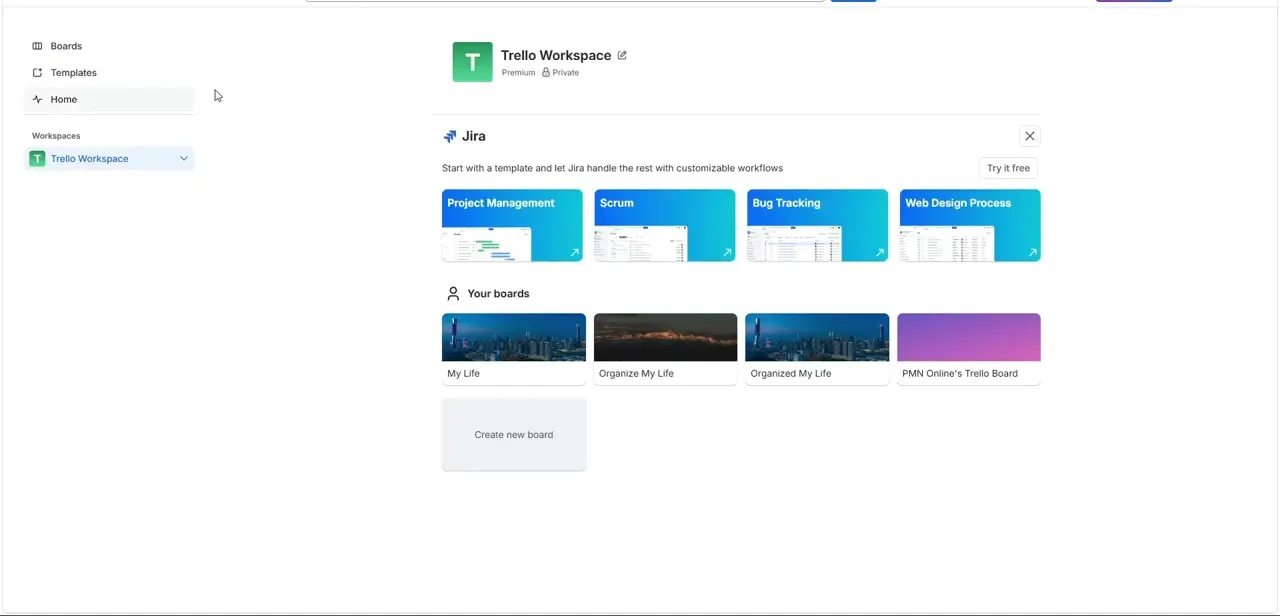
In the left sidebar, click Templates and select the Marketing category.
02Choose an editorial template
Look for the Editorial Calendar or Blog Content Schedule template in the marketing library.
03Create your board from the template
Click Use Template, name your board, choose your workspace, and keep checklists enabled.
04Review the pre-built pipeline
Check the default lanes, typically Ideas, Writing, Editing, Scheduled, and Published.
05Customize cards and labels
Open a sample card to fill in details like SEO keywords or draft text, and assign colors to labels for channels like Instagram or your blog.
06Set dates and switch to Calendar view
Add publish dates to your cards, then switch to the Calendar view from the header to see your monthly schedule at a glance.
Frequently asked questions
Do I have to build a content calendar from scratch?
No, Trello's Marketing template library includes pre-built editorial calendar templates you can duplicate and customize.
What are the default stages in the editorial template?
The default lanes typically include Ideas, Writing, Editing, Scheduled, and Published.
How do I track which channel a piece of content is for?
Use color-coded labels to represent different channels, like Instagram, YouTube, or your blog.
Can I see my content schedule on a monthly calendar?
Yes, switching to the Calendar view lets you see publish dates laid out across the month.
Watch the full walkthrough
The same steps, demonstrated on screen from start to finish.