Easy Tech Tuts
How to Add Guest to a Trello Board Easily 2026
By Impran M N
Bringing an outside collaborator into Trello usually means one specific project, not a look at every board your team has running. The Share dialog on any board is where that boundary gets set: you can invite someone by username, hand out a shareable link, and choose exactly how much they're allowed to do once they're in. This guide walks through that dialog screen by screen, including the permission-level dropdown that decides whether a guest can edit cards or only view them, and the board members list where you confirm who actually has access afterward.
01Open the board and find Share
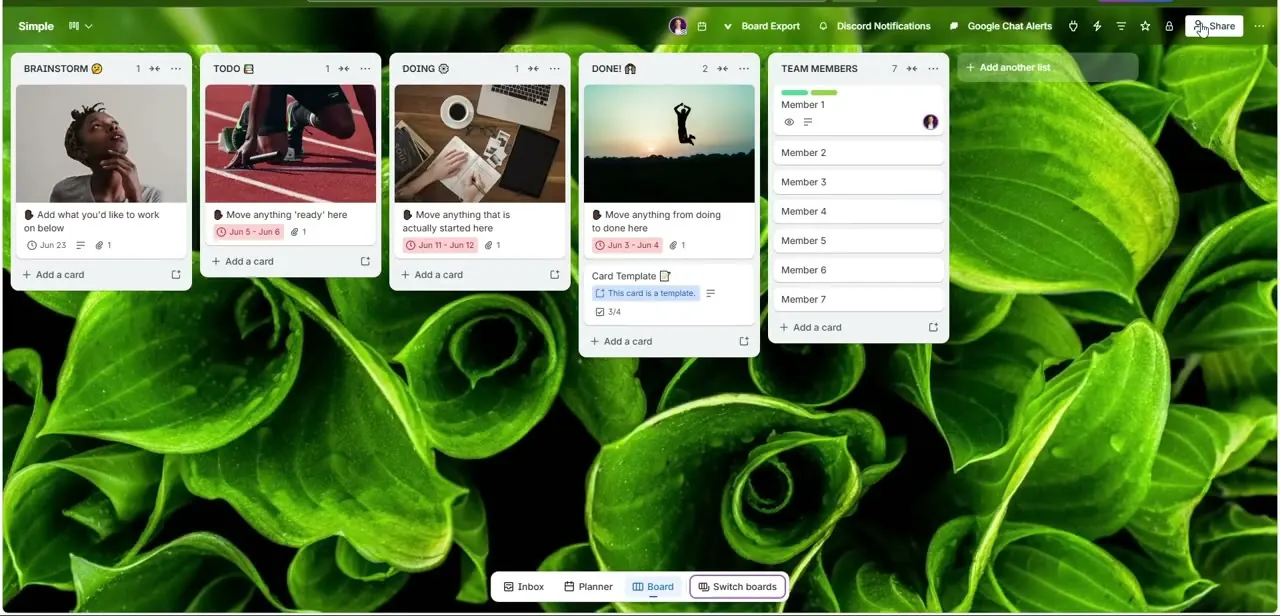
From inside the specific board you want to open up, look to the top-right header for the Share button, next to the row of member avatars. This is deliberately a board-level control rather than a workspace one — clicking Share here only ever affects this board, which is what makes it safe to use for an outside collaborator without touching anything else your team is working on.
02Type their username or email into the Share dialog
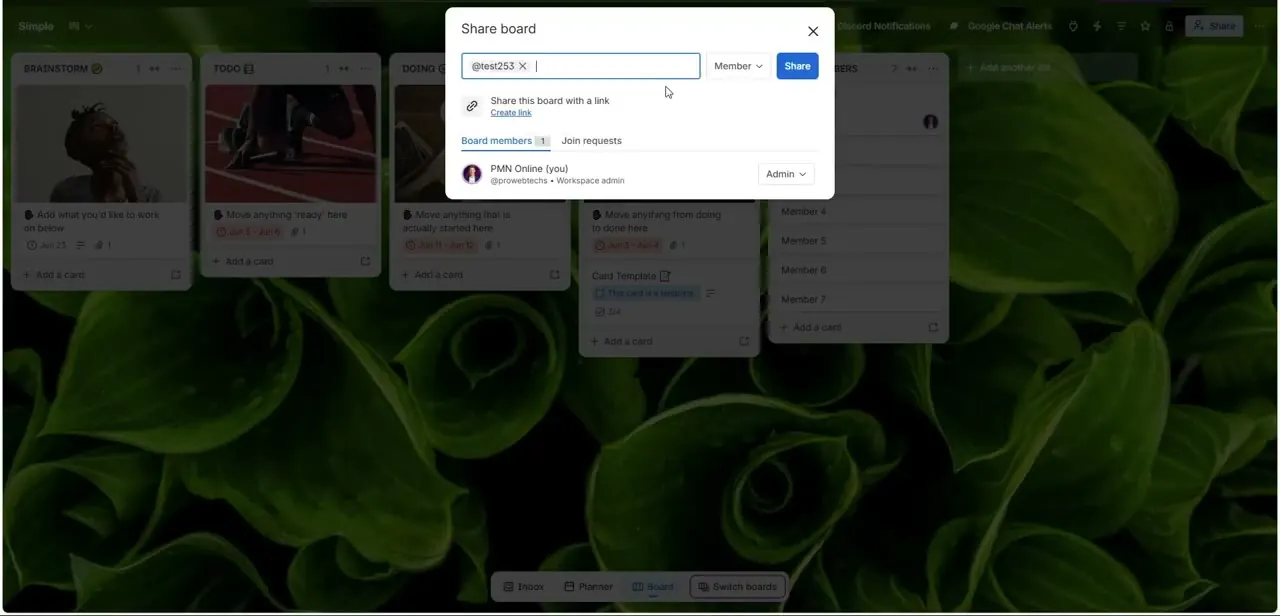
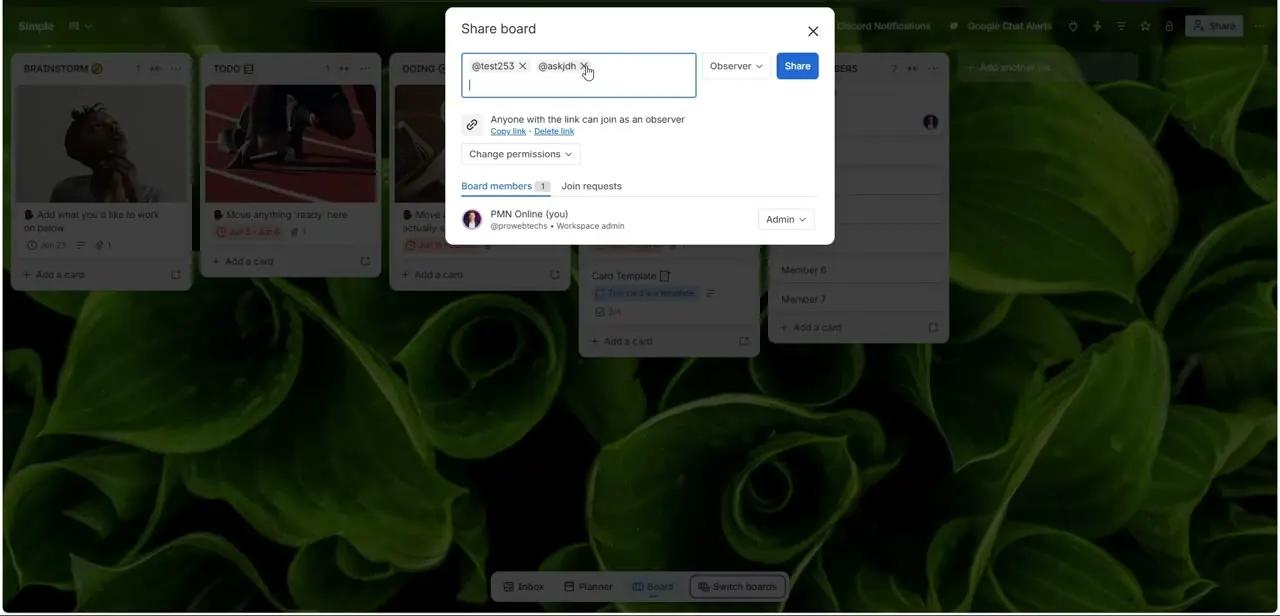
Clicking Share opens a dialog with a text field at the top and a permission dropdown next to it. Type the person's exact Trello username or email — Trello will match it to an existing account if they have one — and set the dropdown before you send anything, since it's easier to get the access level right the first time than to fix it after they've already joined. The board members list underneath shows who currently has access, starting with you as the workspace admin.
03Or share a link instead of inviting by name
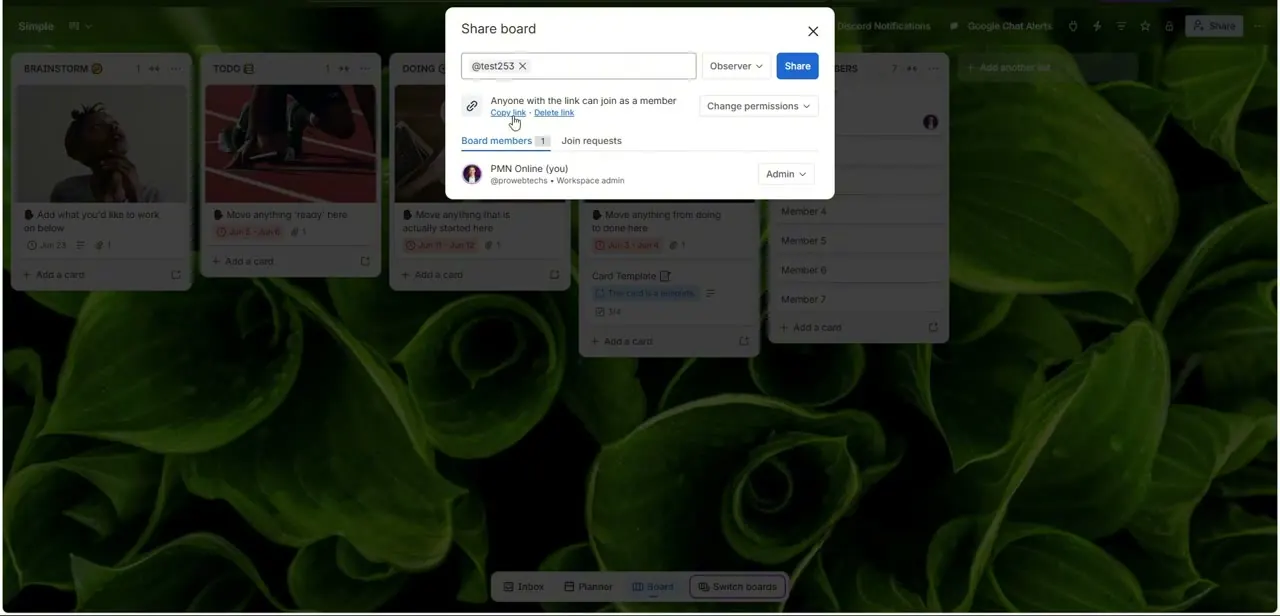
If you'd rather not type out individual invites, the same dialog has a "Copy link" option below the input field, with text confirming that anyone who has the link can join at whatever permission level you've set. This is the faster option when you're onboarding a few people at once, but it's also the one to be careful with — anyone who gets hold of the link can join, so use Delete link once your collaborators are in if you don't want it staying active.
04Set them to Observer for read-only access
For a client or reviewer who only needs to see progress, not edit it, set their role to Observer rather than Member before sending the invite. Observers can view cards, comments, and attachments but can't move cards or change details, which is usually exactly the right amount of access for someone outside your team. You can queue up multiple invitees at once in the same field before hitting Share.
05Confirm who has access after inviting
Once you've sent the invite, the board members list in the same dialog is your record of who's in and at what level. It's worth checking this list a day or two after a big invite round, especially if you used a shareable link — it's the only place that shows you, at a glance, whether everyone who joined actually has the access level you intended rather than something a link default assigned them.
06Change or remove access later
To adjust or revoke someone's access, click their avatar in the same members list and choose a new permission level or remove them from the board entirely. This only removes them from the one board — it doesn't touch anything else in your workspace, which is the whole point of keeping outside collaborators scoped to board-level sharing instead of full workspace membership in the first place.
Frequently asked questions
Will a guest see my other private boards?
No. Someone invited through a board's Share dialog only gets access to that board — they won't see your other boards or the rest of the workspace.
What's the difference between Member and Observer permissions?
Members can edit cards, move them between lists, and make changes. Observers can view everything on the board — cards, comments, attachments — but can't edit anything, which is the safer default for clients or reviewers.
Can I invite someone using a link instead of typing their email?
Yes. The Share dialog has a "Copy link" option that lets anyone with the link join at the permission level you've set, which is faster for onboarding several people at once.
Can I remove someone's access later?
Yes. Click their avatar in the Share dialog's members list and choose to change their permission level or remove them from the board.
Is it safe to leave a shareable invite link active indefinitely?
It works, but anyone who gets the link can join at that permission level. Use Delete link in the Share dialog once your collaborators are in if you don't want it staying open.
Watch the full walkthrough
The same steps, demonstrated on screen from start to finish.