Easy Tech Tuts
How to Get Your Shopify API Key | Quick Guide | Easily 2026
By Impran M N
Getting a Shopify API key is the starting point for any custom integration, whether you're connecting a CRM, automating inventory updates, or building a custom app. The key itself lives a few clicks deep in your admin, behind Settings and then a dedicated developer dashboard, which trips up people expecting it under Apps directly.
This guide walks through that exact path, from your admin home to the Client ID and Secret you'll actually paste into your integration, plus the security habits worth building around it once you have them. It's written for store owners, developers, and anyone looking to automate parts of their Shopify operations without exposing more of their store's data than the integration actually needs, and it covers the naming and scoping decisions worth making up front so your setup stays manageable as you add more integrations later.
01Start from your Shopify admin dashboard
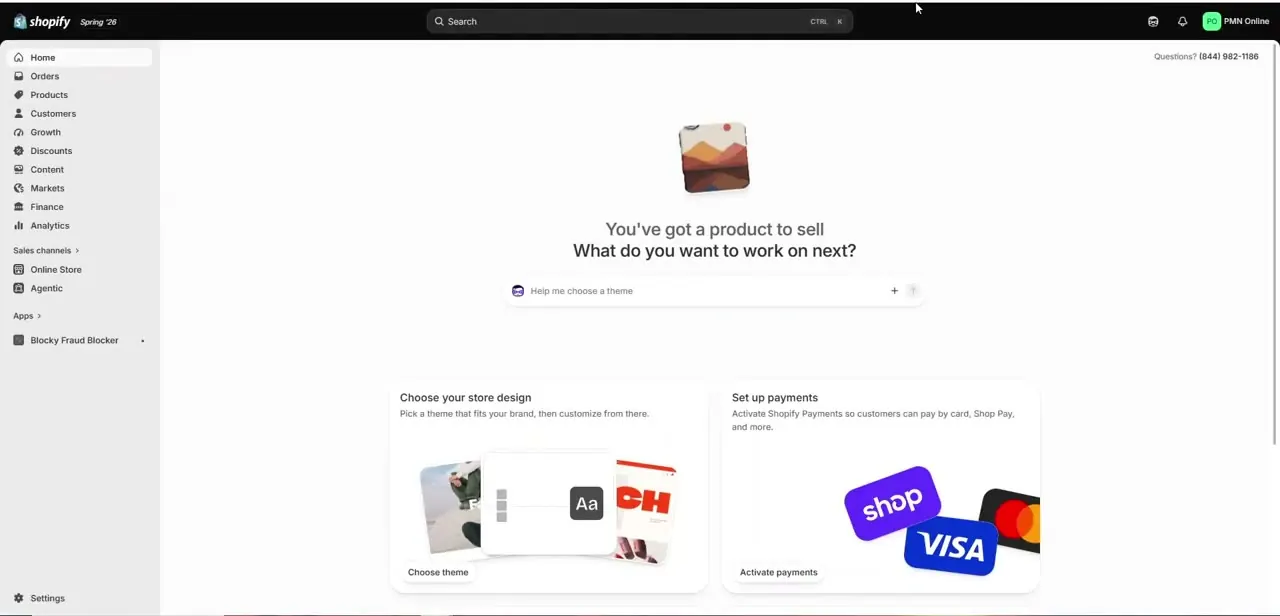
Log into your store and land on the admin home, the same screen where you manage orders, products, and any apps you've already installed. If you've added tools like a fraud blocker or another integration before, you'll see them listed in the left-hand Apps section — that's a useful landmark, since API key generation lives one level deeper than this everyday view and it's easy to go looking in the wrong place first.
02Open Settings and find Apps
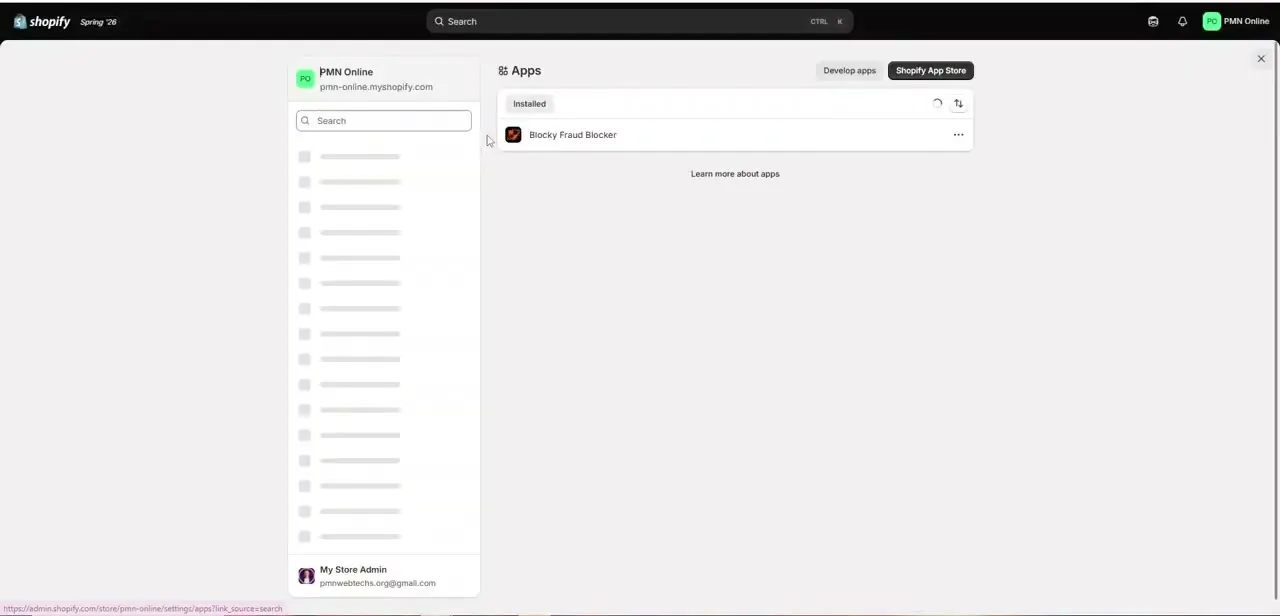
Scroll to the bottom of the left-hand menu and click Settings, then choose Apps from the settings list. This page shows every app currently installed on your store, plus two buttons in the top-right corner: Develop apps and Shopify App Store. The Shopify App Store button is for browsing and installing apps built by others; Develop apps is the one you actually want, since that's the door into building your own integration and generating credentials for it rather than installing something someone else already built.
03Enter the Dev Dashboard
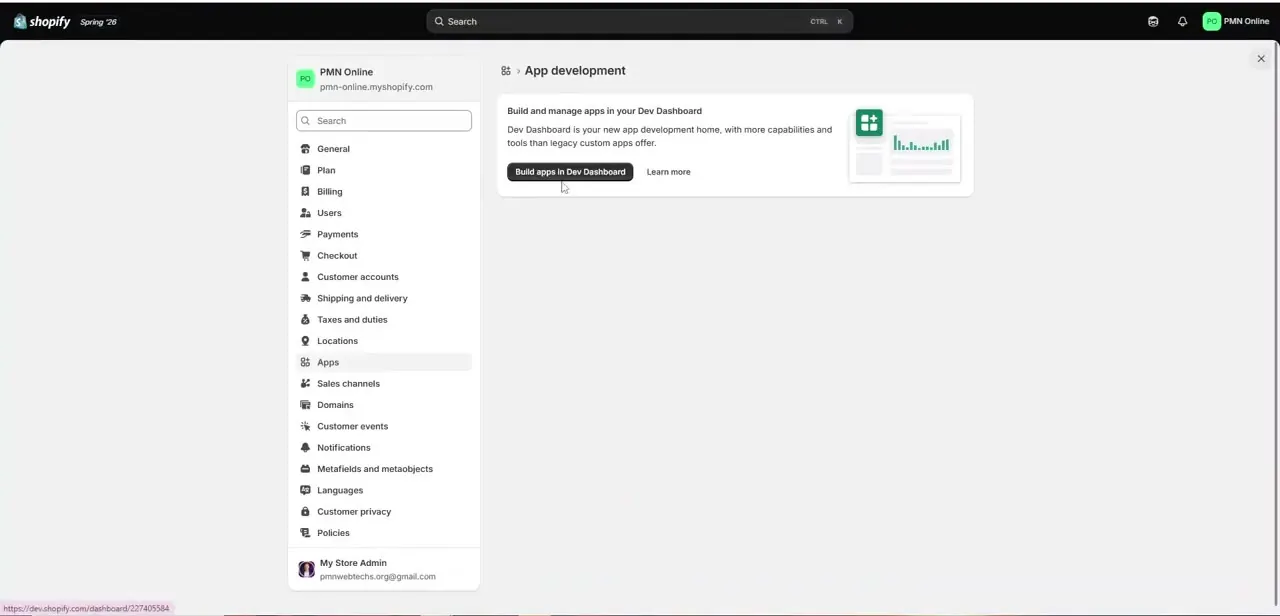
Clicking Develop apps takes you to an App development screen that, on most current Shopify stores, redirects app-building into a separate Dev Dashboard — a more capable home for managing custom apps than the legacy in-admin flow it replaced. Click through to build in the Dev Dashboard, which opens a new interface with its own navigation for monitoring, logs, versions, and settings, all scoped to the app you're about to create. It's worth naming your app something specific to its purpose from the start, since you'll likely accumulate more than one integration over time and a vague name makes them hard to tell apart later.
04Generate and copy your credentials
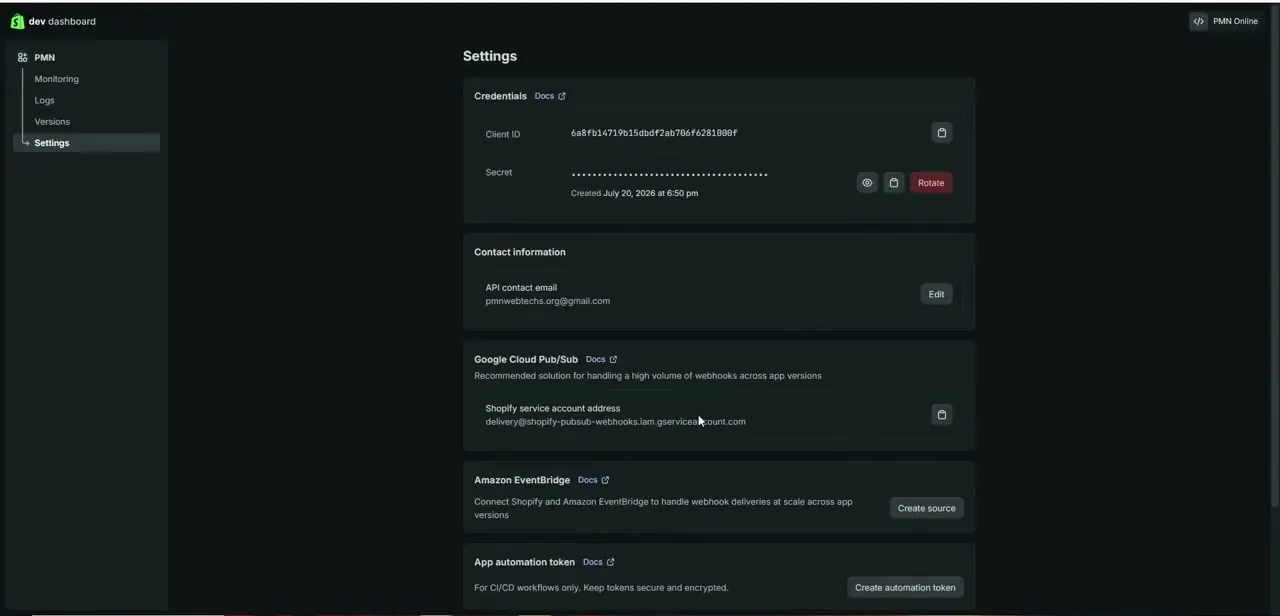
Inside the Dev Dashboard, open your app's Settings tab to find the Credentials section, which lists a Client ID and a Secret — together, these are what most integrations mean by an "API key." The Client ID is safe to reference in configuration, but the Secret is masked by default and should be treated like a password: copy it once into whatever integration or CRM you're connecting, and use the Rotate option if you ever suspect it's been exposed. The panel also notes exactly when the credential was created, which is a handy reference if you're ever auditing which integrations are active and when they were set up.
05Understand common use cases
API keys are commonly used for tasks like syncing customer data with a CRM, automating inventory management across multiple sales channels, or processing orders through third-party software. Before you build anything elaborate, decide which specific data your integration needs to read or write — Shopify's app permissions let you scope access narrowly, and starting narrow is easier than walking back overly broad access later once other systems already depend on it. A marketing automation tool, for instance, usually only needs read access to customer and order data, while an inventory sync tool needs write access to product stock levels but has no real reason to touch customer records at all.
06Follow best practices for security
Treat your API key like a sensitive credential, since exposing it can give unauthorized access to your store's orders, customer data, or inventory. Never commit it to a public code repository, never share it over unencrypted channels, and store it in an environment variable or secrets manager rather than hardcoding it into a script.
If a key does leak, rotate it from the Credentials panel immediately rather than waiting to see if it gets misused, and check your app's recent activity logs afterward to confirm nothing unexpected happened while the exposed key was still valid. It's also worth setting a calendar reminder to rotate credentials on a regular schedule even without a known leak, the same way you'd periodically change a password on any other important account.
07Connect your store and monitor the integration
Once you have your Client ID and Secret, use them in the integration or platform you're connecting — most CRMs and automation tools have a dedicated Shopify connector that asks for exactly these two values. Test the connection with a low-stakes action first, like pulling a single order or product, before wiring up anything that writes data back into your store, so a misconfigured scope or field mapping surfaces on a harmless test rather than on live customer or inventory data. Once it's live, the Dev Dashboard's Monitoring and Logs sections, in the same left-hand navigation as Settings, are worth checking periodically, since a sudden spike in failed requests is often the first sign something changed on the other end of your integration — a renamed field, a shifted permission, or an expired token elsewhere in the chain.
Frequently asked questions
Where do I find my Shopify API key?
Go to Settings > Apps > Develop apps in your admin, which leads into the Dev Dashboard where your app's Credentials panel shows the Client ID and Secret.
Is a Shopify API key free to generate?
Generating a key itself is part of your existing Shopify account at no extra cost, though what you build with it may involve separate costs depending on the tools you connect.
What can I do with a Shopify API key?
Common uses include connecting your store to CRMs, automating inventory management, and syncing order or customer data with other business software.
What's the difference between the Client ID and the Secret?
The Client ID identifies your app and is safe to reference in configuration; the Secret authenticates it and should be handled like a password, kept out of public code and shared channels.
How do I keep my Shopify API key secure?
Avoid hardcoding it into unsecured files or sharing it publicly, store it in an environment variable or secrets manager, and rotate it from the Credentials panel if you ever suspect exposure.
Watch the full walkthrough
The same steps, demonstrated on screen from start to finish.