 Easy Tech Tuts
How to Set the Correct Outlook SMTP Settings to Send Emails Easily 2026
By Impran M N
Outbound mail failures from third-party apps, website contact forms, or a device like a scanner usually come down to a mismatched SMTP configuration rather than anything wrong with your Outlook account itself. These settings don't live inside Outlook's own interface — they're values you type into the other application's connection screen so it can send mail through Microsoft's servers on your behalf. This guide covers the exact server hostname, port, and encryption settings needed, plus how Microsoft's 2026 move away from Basic Authentication changes what credentials that external app needs to use.
01Understand what SMTP settings are for
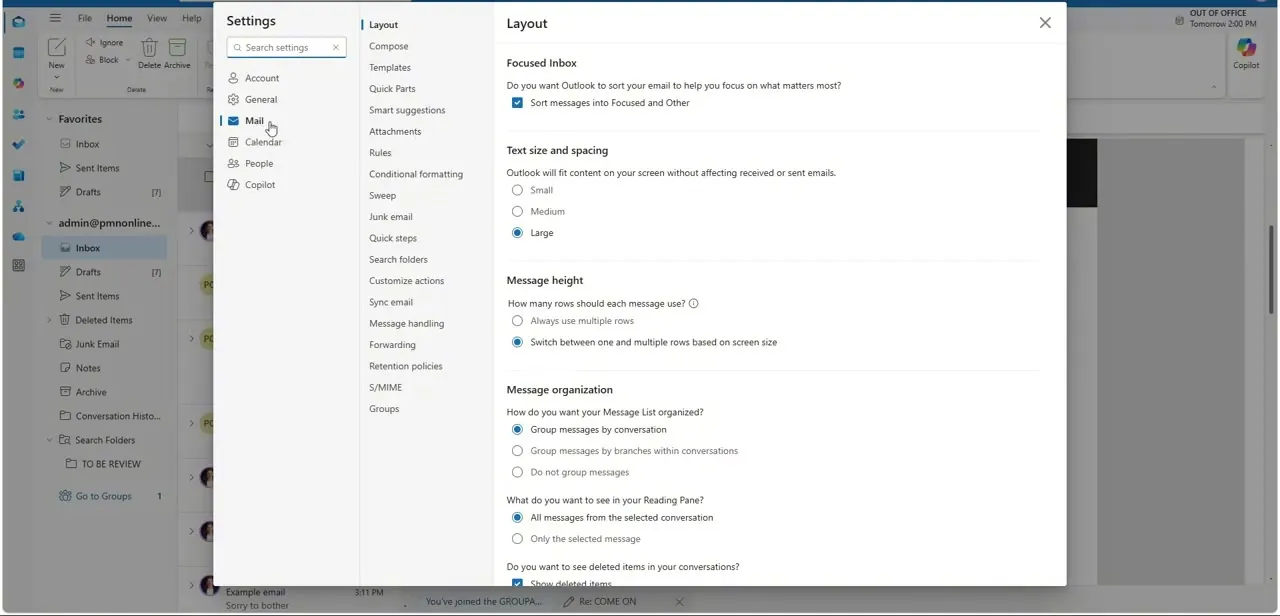
SMTP stands for Simple Mail Transfer Protocol, and it's the standard a mail client, plugin, or device uses to hand off a message for delivery. You won't find an "SMTP settings" screen inside Outlook.com or the desktop app itself — instead, you're feeding these values into the outgoing mail configuration of whatever external tool you're connecting, whether that's a legacy email client, a WordPress contact form plugin, or an office scanner set up to email scanned documents. Outlook's own account settings, reached through the gear icon, cover things like layout and message handling rather than outbound server details.
02Identify your account type
The correct server hostname depends on whether you have a free personal account or a business account tied to a company domain. Free personal outlook.com or hotmail.com accounts use smtp-mail.outlook.com, while corporate Microsoft 365 profiles typically require smtp.office365.com instead. Using the wrong one is one of the most common reasons a connection fails outright before it even reaches an authentication error.
03Enter the server hostname and port
Open the external application's connection or account setup dashboard, locate the Outgoing Mail (SMTP) section, and paste in the correct server address for your account type. Directly below that, set the connection port to 587 — this is the standard submission port for authenticated outgoing mail and is what Microsoft's servers expect, as opposed to older ports still used by some legacy or self-hosted mail systems.
04Enable STARTTLS encryption
With the hostname and port set, find the encryption dropdown and select STARTTLS, or check the equivalent TLS/SSL upgrade box if your application phrases it differently. This step encrypts the connection between the app and Microsoft's mail server, and skipping it is a common cause of connections that seem correctly configured but still get silently rejected.
05Turn on outgoing authentication
Most mail clients have a separate checkbox, often labeled something like "My outgoing server (SMTP) requires authentication," that has to be explicitly enabled. Toggling this on is what tells the application to actually send your credentials along with the message rather than attempting an anonymous relay, which Microsoft's servers will reject regardless of how correct the hostname and port are.
06Choose the right credential method
This is the step most likely to trip people up in 2026: Microsoft has retired legacy Basic Authentication for SMTP client submissions, so a plain username-and-password combination often won't work anymore. Where the application supports it, select OAuth 2.0 as the authentication method and sign in with your full email address.
For older tools that can't handle modern tokens, log into your Microsoft account's Advanced Security settings and generate a dedicated App Password to paste into the password field instead — it functions like a password but is scoped specifically for that one app. For a business account, also confirm your administrator has enabled SMTP AUTH client submissions at the tenant level, since it's often disabled by default. Once everything is set, send a test email from the application to confirm it clears the handshake.
Frequently asked questions
Can I still use a regular password for SMTP?
Microsoft has retired legacy Basic Authentication for SMTP client submissions, so most setups now require OAuth 2.0 or a generated App Password instead of your normal account password.
What port should I use for outgoing mail?
Port 587 with STARTTLS encryption is the standard configuration for sending through Outlook's outgoing servers.
Why does my business account fail even with correct settings?
Your organization's administrator may need to enable SMTP AUTH client submissions at the tenant level for the connection to succeed, even when the hostname, port, and encryption are all correct.
Where do I actually enter these SMTP settings?
Not inside Outlook itself — you enter them into the outgoing mail configuration of the external app, plugin, or device you're connecting, such as a legacy email client or a website's contact form.
How do I know if my configuration actually works?
Send a test email from your third-party application and confirm it arrives without a server handshake or authentication error being reported back.
Watch the full walkthrough
The same steps, demonstrated on screen from start to finish.


