 Easy Tech Tuts
How to Embed a PDF File in an Outlook Email Body Easily 2026
By Impran M N
A standard attachment sitting up in the header can easily get overlooked by a busy recipient, especially in a long email thread. Outlook's Object insertion tool lets you place a PDF directly inside your message text as an interactive icon instead, right at the point in the paragraph where it's actually relevant. This guide covers starting from a fresh compose window, confirming your message format supports it, and walking through the Insert tab's Object wizard to drop the file inline.
01Start a new message
Click New mail to open a fresh compose window, which uses the ribbon-based Message tab by default — the same tab that holds formatting controls, the address book, and a condensed Insert group for attaching files or pictures quickly. This condensed group is fine for a standard attachment, but it isn't where the full Object insertion tool lives; for that you need the dedicated Insert tab described in the next step, not the shortcut icons sitting on Message.
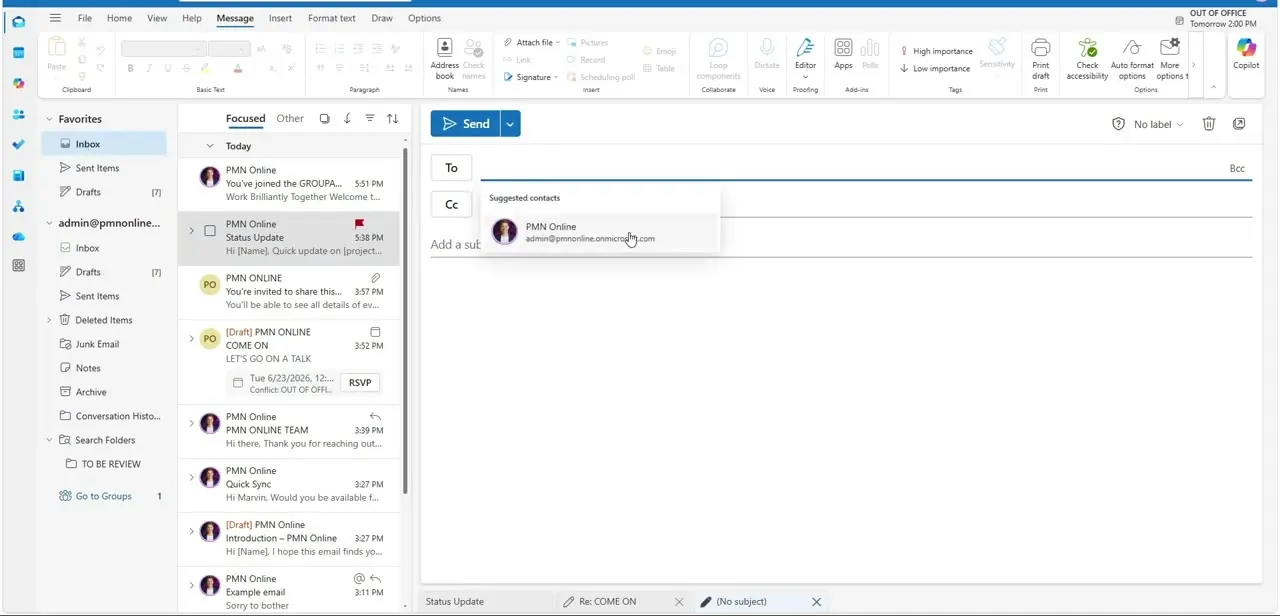
02Confirm your message format supports embedding
Object insertion only works when your email is composed in HTML or Rich Text format — Plain Text strips out anything beyond raw characters, including inline objects. Check this under the Format Text tab in the ribbon, where the current composition mode is shown on the far left of the Format group. If your account defaults to Plain Text for some reason, switch it before continuing, since the Object option will otherwise appear grayed out later and it's not obvious why.
03Position your cursor and open the Insert tab
Click into the body of the email at the exact line where you want the file to sit — this matters because whatever you insert next anchors to that cursor position, not to the top or bottom of the message automatically. With the cursor placed, switch from Message to the Insert tab along the top ribbon, which exposes a fuller set of insertion tools than the condensed group available from Message, including Pictures, Shapes, Charts, and further along, Object.
04Launch the Object wizard and choose your file
In the Text grouping toward the right side of the Insert tab, click the Object icon to open the insertion modal. Inside that modal, switch to the Create from File tab rather than the default Create New tab, since you're embedding an existing document rather than building one from scratch. Click Browse, navigate to your PDF on disk, and select it — the file path will populate a text field in the dialog confirming what's about to be embedded.
05Display it as a compact icon
Before confirming, check the Display as icon option on the right side of the Object dialog. Without it, Outlook may try to render a large preview of the file directly in the body, which can look awkward and bloat the message size; with it checked, the PDF appears as a small, clickable icon instead — closer to a normal attachment, but positioned exactly where your cursor was rather than stacked at the top of the message. An optional Change Icon button lets you customize the label shown underneath the icon if the default filename isn't descriptive enough.
06Finish and verify the layout
Click OK to drop the icon into your message, then click around it and confirm you can still type text immediately before and after it without the layout breaking. This is worth a quick check because inline objects occasionally interact oddly with existing formatting, especially inside bulleted lists or tables. Once it looks right, send yourself a test copy if this is the first time you've used the feature, so you can confirm the icon actually opens the PDF correctly on the receiving end rather than just trusting it locally.
Frequently asked questions
Why is the Object option grayed out?
Your message format needs to be set to HTML or Rich Text under the Format Text tab; Plain Text mode doesn't support object insertion at all.
Can I change the icon or label shown for the file?
Yes, the Change Icon option inside the Object dialog lets you customize the text label displayed underneath the document thumbnail before you confirm.
What happens when the recipient clicks the embedded icon?
They double-click the icon directly in the body text to open the file, rather than downloading it separately from a header attachment list.
Should I use this method for very large files?
For files over about 20 megabytes, a cloud storage link is generally a better option than embedding directly, since large embedded objects can bloat the message and trigger size limits.
Is the Object tool the same as just attaching a file normally?
No — a normal attachment sits in the header above the message body, while the Object tool anchors the file inline at your cursor position inside the text itself.
Watch the full walkthrough
The same steps, demonstrated on screen from start to finish.


