 Easy Tech Tuts
How to Change Outlook Zoom Settings Easily 2026
By Impran M N
Straining to read tiny email text shouldn't mean re-adjusting zoom every time you open a new message. Outlook offers both quick, temporary zoom controls for a single message and a global setting under the View tab that remembers your preference across the whole mailbox. This guide covers the fast keyboard shortcut, the ribbon-based Zoom command where the real control lives, and how to make a chosen percentage stick instead of resetting the next time you open a message.
01Use the quick keyboard shortcut for a single message
The fastest way to zoom is also the least permanent: open any message, hold Ctrl, and scroll your mouse wheel up to zoom in or down to zoom out. It works instantly inside the reading pane or an open message window, which makes it useful for a quick look at a dense email or a screenshot someone sent you. The catch is that this change doesn't carry over — close the message and reopen it, or move to the next email in your list, and the zoom level reverts to whatever it was before.
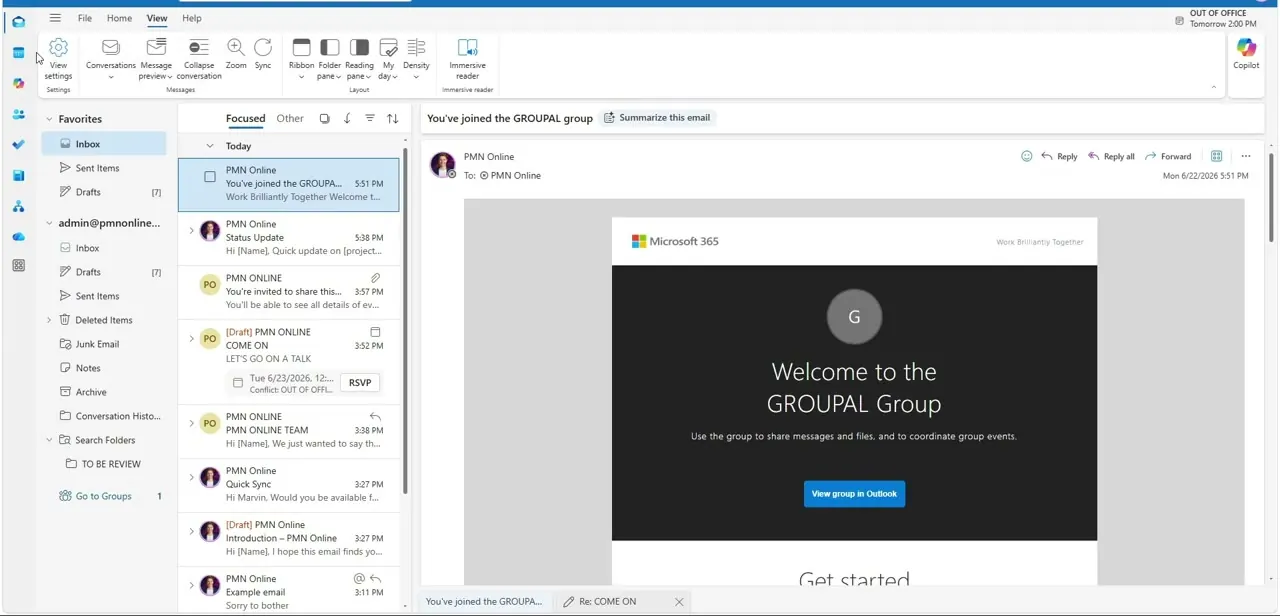
02Open the View tab and find the Zoom command
For a setting that actually sticks, the control lives on the View tab, not the Message tab you might expect. Along the ribbon's Layout section sits a magnifying-glass Zoom button, positioned next to view options like Reading pane, Immersive reader, and Density. Clicking it opens a small toolbar showing your current percentage next to a slider and a Reset button, letting you nudge the scale up or down and see the number change in real time before committing to it.
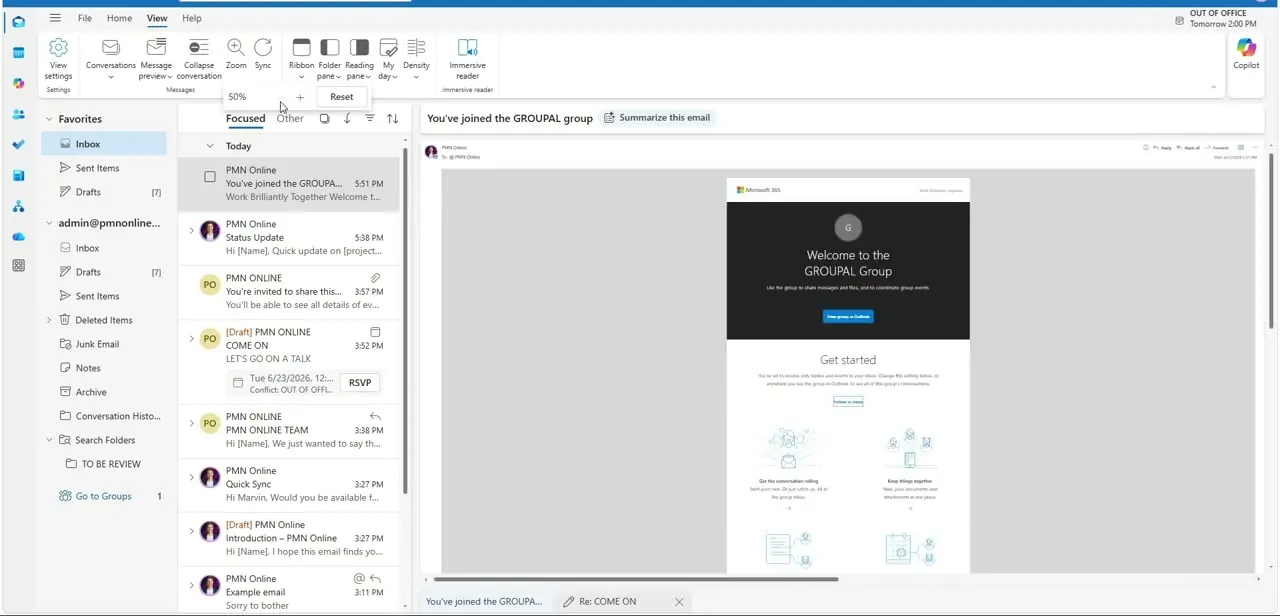
03Pick a percentage and preview the change
Clicking Zoom expands a compact control showing the active percentage — 50% in this case — with a plus and minus slider and a Reset button that returns it to the default in one click. The reading pane updates live as you adjust it, so you can watch the email's text and layout resize before deciding you've landed on something comfortable. This same control is what governs both the reading pane view and, separately, an email opened in its own window, so it's worth checking both if your reading habits vary.
04Decide between a subtle bump and a larger jump
Small adjustments in the 10-20% range are usually enough to fix genuinely tiny default text without making the layout feel cramped or forcing extra scrolling. If you're working from a high-resolution display where everything on screen reads small, a larger jump — well above 100% — may be more appropriate, but expect more scrolling per email as a tradeoff. There's no universally correct number here; the slider is meant to be adjusted while watching the live preview rather than typed in blind.
05Check whether the setting persists across messages
After adjusting the zoom level from the View tab, open a few other messages in your inbox to confirm the change is holding rather than resetting per email. Behavior here can vary depending on whether you're zooming the reading pane specifically versus a message opened in its own separate window — treat them as two settings that happen to share the same control, and verify each one independently rather than assuming a fix in one carries over to the other.
06Adjust the web version separately if you use it
If you sometimes read mail through Outlook in a browser rather than the desktop app, its zoom is controlled by the browser itself, not by Outlook's own settings. Holding Ctrl and pressing the plus or minus key scales the whole page, and that preference is remembered per browser rather than synced to your Outlook profile. Because of that, a zoom level you've dialed in on the desktop app won't carry over automatically when you switch to reading mail in a browser tab, so it's worth setting both if you regularly move between the two.
Frequently asked questions
Why does my zoom reset every time I open a different message?
The Ctrl-plus-scroll shortcut is a temporary, per-message adjustment. For a setting that holds across your inbox, use the Zoom control on the View tab and verify it against several messages afterward.
Where exactly is the Zoom button located?
It's on the View tab ribbon, inside the Layout section, next to controls like Reading pane, Density, and Immersive reader — not on the Message tab.
Does the web browser zoom setting sync with the desktop app?
No, browser zoom (Ctrl plus + or -) is controlled by the browser and persists only in that browser, separate from the desktop app's own Zoom control.
Can I set different zoom levels for different monitors?
Outlook's Zoom setting is one value at a time; if you regularly switch monitors with very different resolutions, you may need to readjust it manually after switching rather than relying on it to detect the display change.
What does the Reset button in the Zoom control do?
It snaps the percentage back to Outlook's default zoom level in a single click, which is a faster way to undo an experiment than dragging the slider back manually.
Watch the full walkthrough
The same steps, demonstrated on screen from start to finish.


