Easy Tech Tuts
How to Put Image in Table in Notion, Add Image to Table Database Easily 2025
By Impran M N
Text-only rows make a Notion database hard to scan fast, which matters for anything visual — a product catalog, a mood board, or a simple asset library where you need to recognize an item at a glance rather than read its name. The fix is a dedicated Files & Media property, a column type built specifically to hold an image (or several) per row. This guide walks through creating that property from a fresh database and attaching an image to a row, using the same setup screens you'd see building it yourself.
01Create a new database for your table
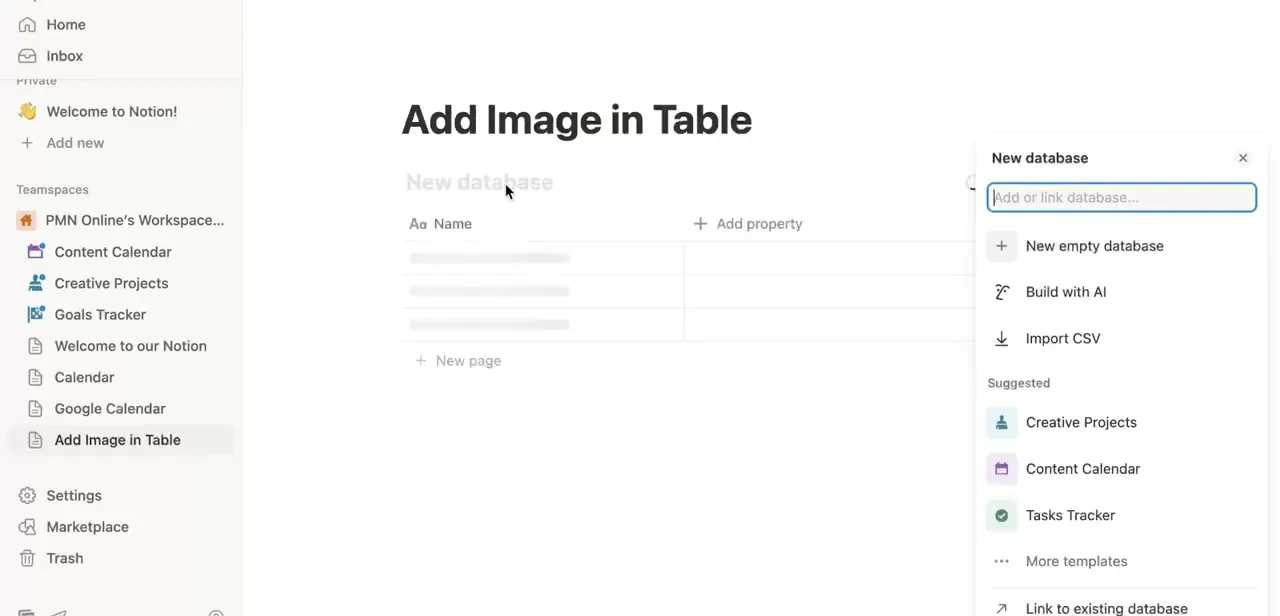
Add a page and title it for whatever you're cataloging, then insert a database block. The New database panel offers a New empty database, Build with AI, Import CSV, or linking to an existing database, plus suggested databases like Creative Projects or Tasks Tracker if one of those already fits. For a fresh image table, New empty database is the simplest starting point — it gives you a bare Name column and an Add property button to build out from there.
02Add a Files & Media property
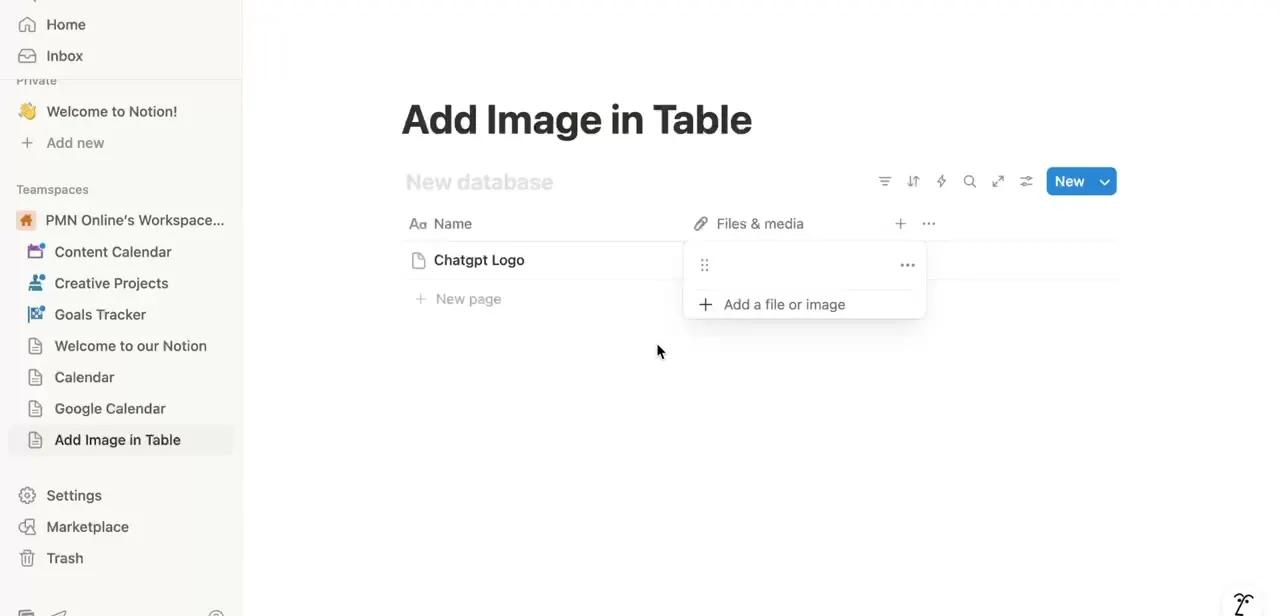
Click Add property next to your existing columns and choose the Files & Media type. This is the one property type in Notion actually built to hold attachments — images, PDFs, or other files — rather than plain text, a number, or a select tag, which is what makes it the right choice for a visual table instead of, say, pasting an image link into a text cell.
03Attach an image to a row
Click into the Files & media cell for a specific row — in a table row named "Chatgpt Logo," for instance — and Notion opens a small panel with an "Add a file or image" option. From there you can upload a file from your device or paste a direct image URL to link one instead, and the cell fills in with a thumbnail once the image attaches.
04Preview images inline versus opening them larger
In the table view, an attached image shows as a small thumbnail in its cell — enough to recognize at a glance, but not much more. Click the thumbnail and Notion opens the image at full size in an overlay, which is the better view when you actually need to inspect detail rather than just scan rows for the right item.
05Attach more than one image where it's useful
The Files & Media property isn't limited to a single attachment — click Add a file or image again in the same cell to stack a second or third image on the same row, useful for a product with multiple angles or a mood board entry with several references. Each attachment gets its own thumbnail in the cell, in the order you added them.
06Carry the same image into gallery and board views
Once a row has an image in its Files & Media property, add a Gallery or Board view of the same database and set that property as the card cover in the view's layout settings. The image that's just a small thumbnail in Table view becomes the actual card image in Gallery, which is usually the more natural way to browse a visual catalog once you've finished populating the table.
Frequently asked questions
Can I add more than one image per row?
Yes — the Files & Media property accepts multiple attachments in a single cell, so a row can hold several images, not just one.
Does adding images slow down my Notion database?
A database with many high-resolution images can feel slightly slower to load than a text-only one, so it helps to keep individual image file sizes reasonable as your table grows.
Can I use images from a URL instead of uploading?
Yes — the same "Add a file or image" option that lets you upload from your device also accepts a direct image link, which keeps your Notion storage usage lower.
Will the image show up in gallery or board views too?
Yes, once you set the Files & Media property as the card cover in a Gallery or Board view's layout settings, the same image attached in Table view displays as the card image there too.
What's the difference between Files & Media and just pasting a link in a text cell?
A text cell with a pasted link just shows text — you have to click through to see the image. Files & Media renders an actual thumbnail in the cell and can be set as a card cover, which a plain text property can't do.
Watch the full walkthrough
The same steps, demonstrated on screen from start to finish.