Easy Tech Tuts
How To Master Subitems in Monday.com Easily 2026
By Impran M N
A task like "Updata APK V2" often isn't one piece of work — it's a handful of smaller jobs that need their own owner, status, and deadline without turning the main board into a wall of near-duplicate rows. Monday.com's subitems solve exactly this by nesting a small, independent table underneath any parent task. This guide follows a real sprint board through adding a subitem, giving it its own tracking columns, and marking it complete, plus how that structure fits into automations and hierarchy management once it's set up.
01Open a parent task and add a subitem
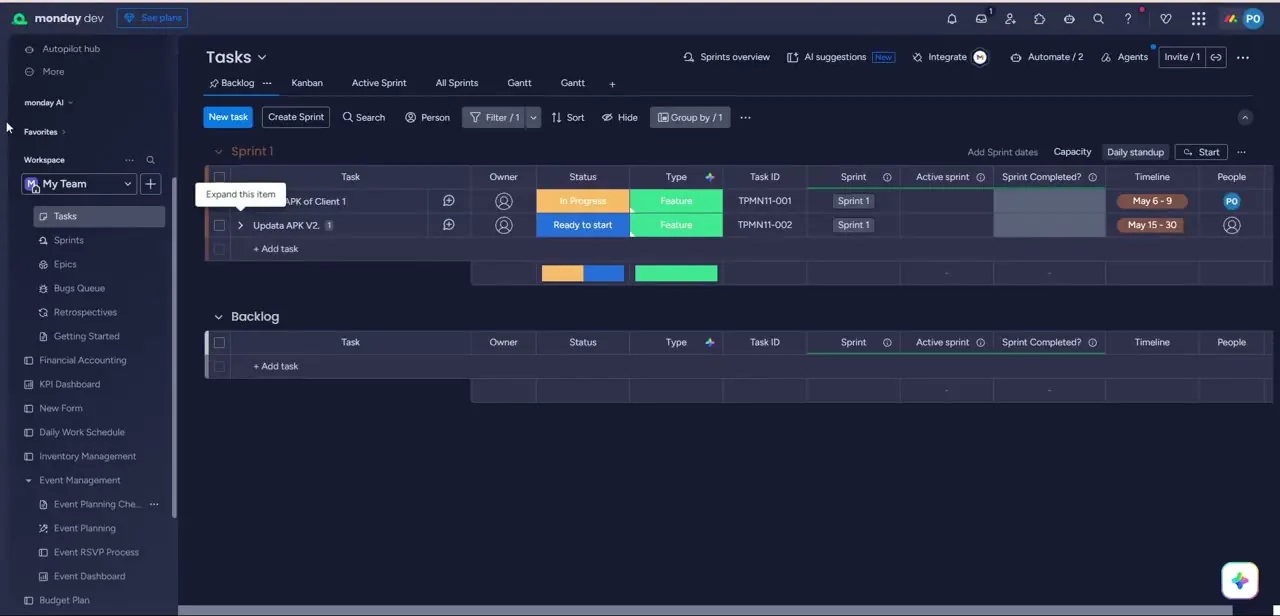
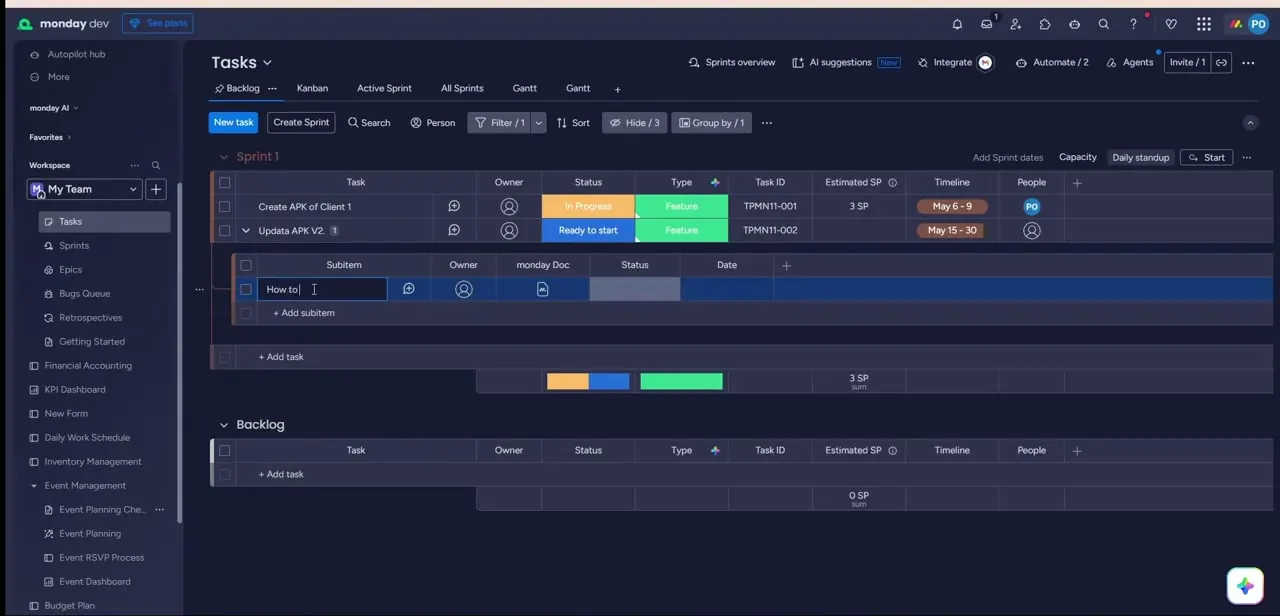
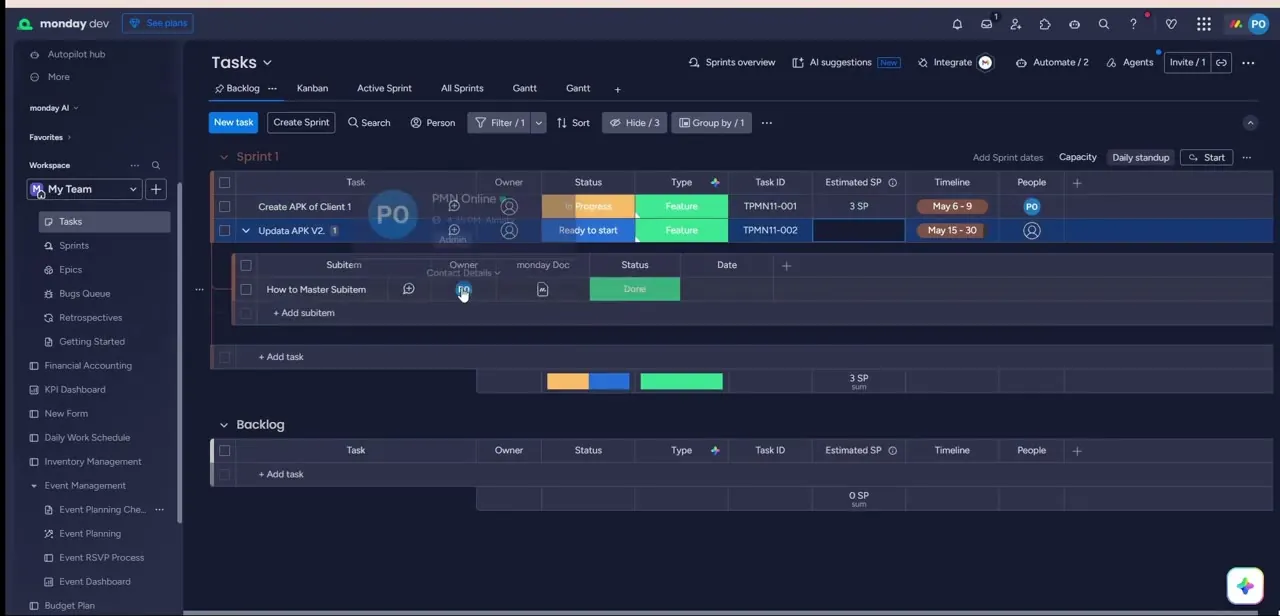
On a task row — here, "Updata APK V2" inside a sprint backlog — click the expand arrow to reveal the subitem area, then choose Add subitem. A new blank row appears with a text field ready for a name, sitting inside its own mini table beneath the parent. Typing a name and pressing enter locks it in as a subitem, nested visually and structurally under the task it belongs to.
02Give the subitem its own columns
The subitem table isn't limited to whatever columns the parent board uses — it has its own header row, which in this example includes Subitem, Owner, monday Doc, Status, and Date. You can add more independently, such as People, Files, or Timeline, without those columns appearing anywhere on the parent task's row. This separation is what makes subitems useful for genuinely different tracking needs — a parent task might track sprint dates while its subitems track individual completion status.
03Assign an owner and set the status
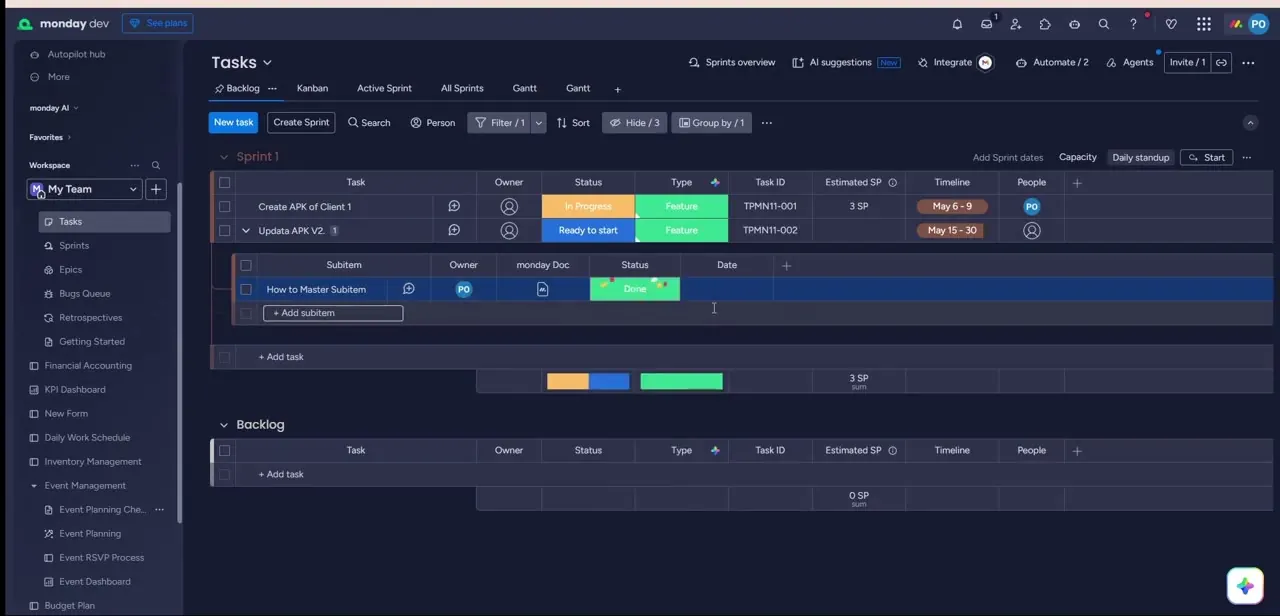
Click the Owner cell on a subitem row to assign a person, the same way you would on any board — clicking the avatar surfaces a contact card confirming who's assigned before you commit. Setting the Status column to Done marks that individual piece of work complete without touching the parent task's own Status column, which might still read "Ready to start" or "In Progress" depending on what else is outstanding underneath it.
04Mirror subitem progress back onto the parent
A subitem living in its own nested table is useful, but a parent row that reflects what's happening below it is more useful still. From the subitem column's settings, you can mirror fields like total cost, hours, or completion percentage directly onto the parent item row, so scanning the top-level board tells you the state of the work without expanding every task. This is the same mechanism that powers subitem rollups — mirrored columns and summary columns both pull live data up from subitems to parents.
05Automate what happens when subitems finish
Because subitem status is a trackable field, it can trigger automations the same way any column change can. A common recipe changes a parent task's own status to Done the moment every subitem underneath it reaches Done — useful for a task like "Updata APK V2" where the real work happens across several subitems and nobody wants to manually flip the parent status once the last one wraps up. Build this from the Automate menu, choosing a "when all subitems are marked Done" trigger and a "change status to" action on the parent.
06Keep the board readable as subitems pile up
Once several tasks have subitems attached, collapsing them back down keeps the board scannable — the count badge next to a task name still tells you subitems exist, without their rows taking up vertical space. Expand only the tasks you're actively reviewing, and lean on filters to surface just the subitems matching a particular owner or status when you need a cross-task view rather than paging through every parent one at a time.
Frequently asked questions
Can subitems have their own columns separate from the main board?
Yes. The subitem table has an independent header row — in practice this often includes Owner, Status, Date, and Files — separate from whatever columns the parent board uses.
Can a parent task auto-complete when all subitems are done?
Yes, using an automation recipe that triggers when every subitem under a task reaches Done and then updates the parent task's status automatically.
How do I keep my board from looking cluttered with subitems?
Collapse subitem tables you're not actively reviewing — the parent row still shows a count badge so you know subitems exist, without their rows taking up screen space.
Can I mirror subitem progress onto the parent row?
Yes. From the subitem column's settings, fields like cost, hours, or status can be mirrored or rolled up onto the parent item row so it reflects the subitems' current state.
Does changing a subitem's status affect the parent task's status?
Not automatically, unless you set up an automation for it. The parent's own Status column is independent of its subitems' statuses by default.
Watch the full walkthrough
The same steps, demonstrated on screen from start to finish.