Easy Tech Tuts
How to Integrate Monday.com with Google Calendar Easily 2026
By Impran M N
If your team plans work inside Monday.com but lives day-to-day in Google Calendar, keeping the two in sync manually wastes time and causes missed deadlines. This guide walks through connecting Monday.com's integration center to Google Calendar so board items appear as events automatically. By the end you'll know how to choose a sync direction, map columns to calendar fields, and control exactly which items sync.
01Open the integration center on your board
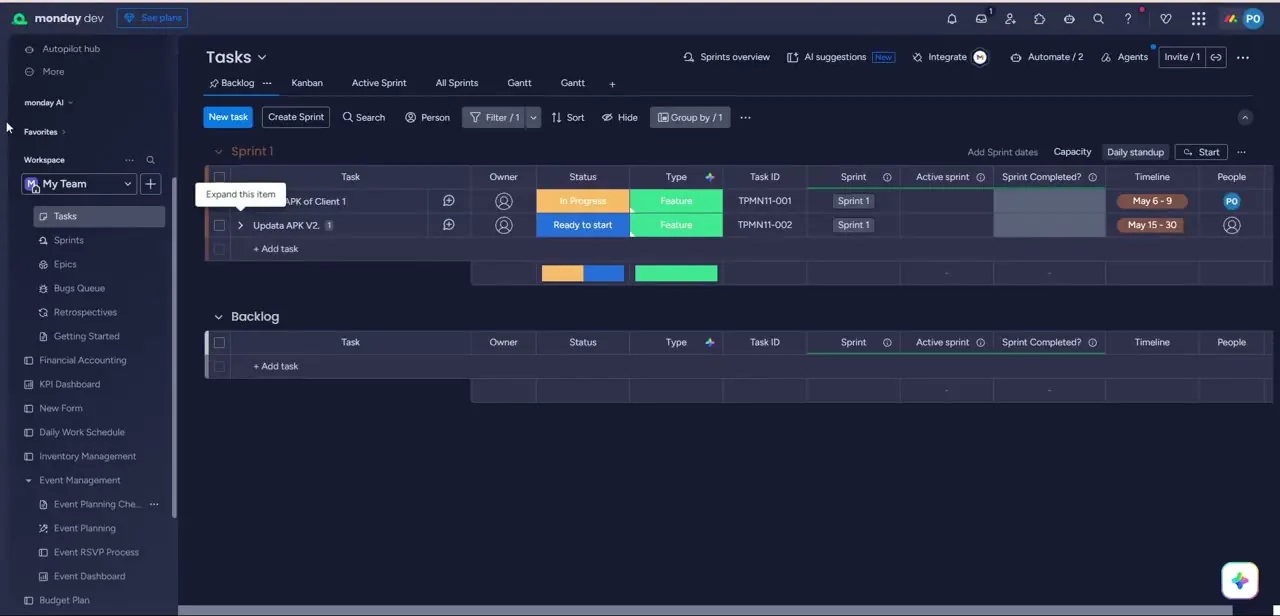
From your master Monday.com board, open the integration feature dashboard and locate the official Google Calendar integration card in the app directory.
02Choose a sync direction
Decide whether you want a one-way sync (Monday to Google Calendar) or a live two-way connection, depending on whether your team edits events directly in Google Calendar.
03Authenticate your Google account
Sign in and grant the integration permission to write to your calendar. Review the requested scopes before approving access.
04Map board columns to calendar fields
Match columns like Task Name, Date, Timeline, and People to Google Calendar's Event Title, Start/End Time, and Description fields.
05Add conditional triggers
Set up rules so only relevant items sync, such as when a status changes to "Working on it" or a specific team member is assigned, to avoid cluttering shared calendars.
06Test the live sync
Update an item on your board and confirm the corresponding event appears instantly in Google Calendar, checking time zone handling for recurring items.
Frequently asked questions
Can I sync only specific tasks instead of the whole board?
Yes. You can set conditional triggers so items only sync to Google Calendar when they meet criteria you define, like a particular status or assignee.
Does the sync update in real time?
With a two-way connection, changes on either side reflect close to real time; a one-way sync only pushes updates from Monday.com to the calendar.
Will this cause duplicate calendar entries?
If configured correctly with clear trigger rules and a consistent sync direction, you should avoid duplicates, but it's worth reviewing your filters after the first test run.
Can I control time zones for team members in different locations?
Yes, the integration lets you manage time zone handling so events display correctly for each calendar owner.
Watch the full walkthrough
The same steps, demonstrated on screen from start to finish.