Easy Tech Tuts
How to Find and Recover Deleted Messages in Microsoft Teams Easily 2026
By Impran M N
Accidentally deleting an important conversation or file in Teams doesn't have to mean permanent data loss, though the recovery path depends heavily on what exactly was deleted and how long ago. This guide covers catching the instant inline Undo option right after a delete, restoring a deleted channel as a team owner, recovering shared files from OneDrive or SharePoint recycle bins, and when to escalate to an IT admin for deeper recovery through Purview. It's written for anyone who's hit delete a little too fast and is now staring at a blank space where a message used to be.
01Catch the inline Undo option immediately
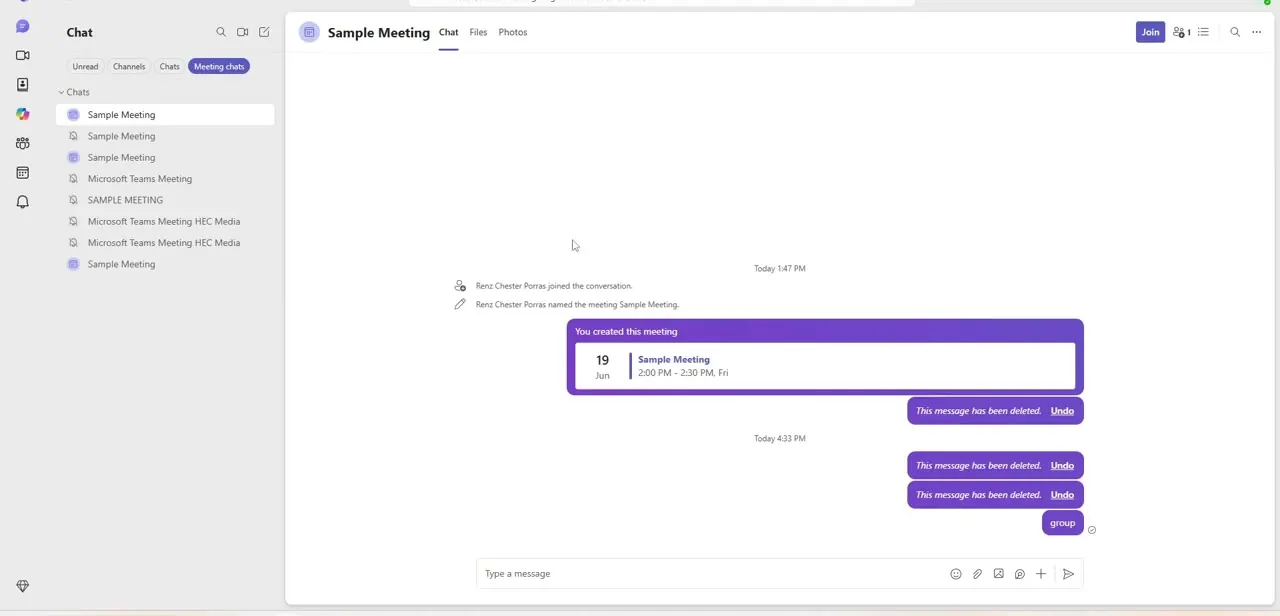
The moment you delete a message in a Teams chat, it doesn't just vanish — it's replaced in place by a line reading "This message has been deleted" with an Undo link sitting right next to it. This is your fastest and easiest recovery path, but the window doesn't stay open long, so the instinct to act fast matters more than anything else in this guide. Click Undo and the original text reappears exactly where it was, as if nothing happened.
02See how multiple deletions stack in a thread
If you've deleted more than one message in the same conversation, each one gets its own "This message has been deleted" line with its own separate Undo link — they don't get merged or cleared out together. That's worth knowing if you're scrolling back through a chat trying to figure out what's recoverable: every deleted message is still marked individually, so you can restore them one at a time rather than hunting for a single bulk-recovery option.
03Recover a channel a team owner deleted
For a deleted channel rather than a single message, the recovery lives in team management, not chat. Click the three-dot menu next to the team's name and select Manage Team, then open the Channels tab.
There's a Deleted channels section that's collapsed by default — expand it to see anything removed within roughly the last 30 days, find the one you need, and use the Restore action next to it. Only team owners can see and use this option, so if you're a regular member you'll need to ask one to do it for you.
04Open shared files in their real location
Files sent through Teams chat aren't actually stored inside the chat itself — they live in OneDrive or SharePoint behind the scenes, and a deleted attachment follows those apps' recovery rules, not Teams' own. Open the Files tab in the relevant chat, then click Open in SharePoint to jump to the underlying document library, where the file's real folder structure and recycle bin live.
05Restore from the Recycle Bin
Inside SharePoint, the sidebar has a Recycle Bin option. Deleted files sit there for a much longer window than a chat message does — often up to 93 days — which makes this the path to check if you deleted something days or weeks ago rather than seconds ago. Check the box next to the document you need and click Restore, and it reappears back in its original folder, still linked correctly from the chat where it was shared.
06See what a shared file looks like once it's back
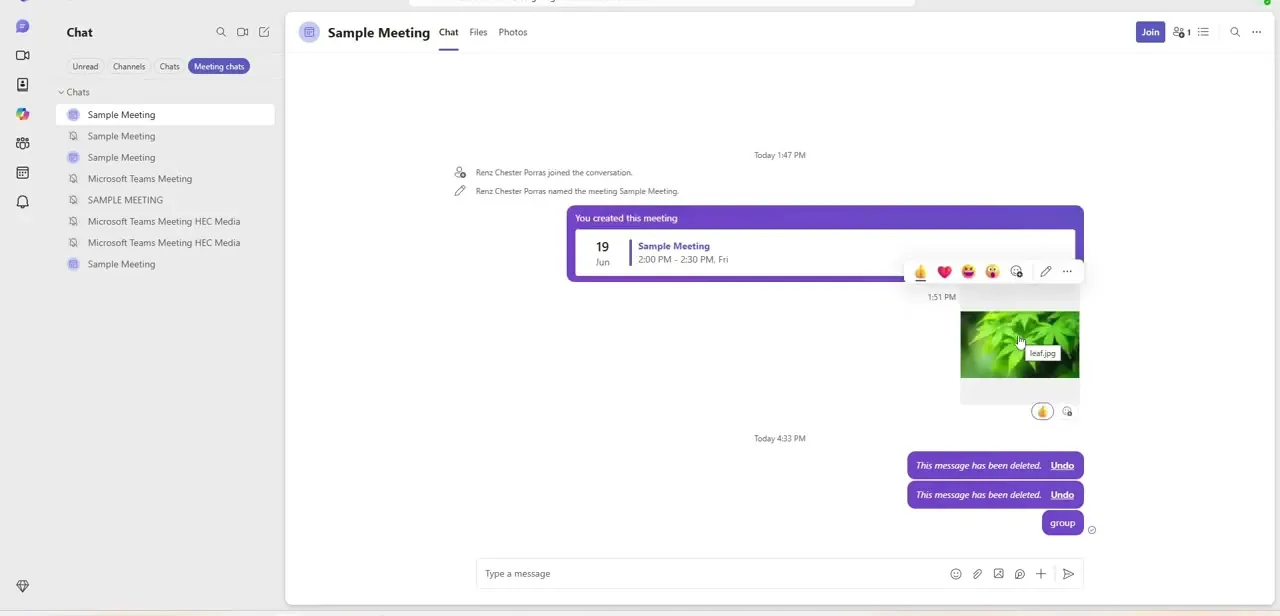
Once a file is restored, it behaves exactly like any other item shared in the conversation — hover over it and Teams shows the familiar reaction bar and options menu, and clicking it opens a preview right in the chat pane. That inline behavior is the same whether the file was just uploaded or just recovered, which is a useful sanity check that the restore actually worked and the file isn't a broken link.
07Escalate to IT for older or bulk recovery
If a message or file is past its recovery window, or you need to reconstruct a whole conversation history for compliance or audit reasons, the Undo link and Recycle Bin won't help — that requires administrator-level tools. Your IT department can run an eDiscovery search through the Microsoft Purview portal, which searches the underlying Exchange data that backs Teams chat and can pull deleted content well beyond what's visible to a regular user.
Frequently asked questions
How long do I have to undo a deleted message?
The inline Undo link next to a deleted message stays clickable for only a short window right after deletion, so it's worth clicking immediately rather than continuing to scroll or type.
Can I recover a deleted Teams channel?
Yes — team owners can restore a deleted channel within about 30 days by opening the three-dot menu on the team, selecting Manage Team, opening Channels, and expanding Deleted channels.
How long do deleted files stay recoverable?
Files shared through chat live in OneDrive or SharePoint behind the scenes and can typically be restored from that Recycle Bin for up to 93 days, far longer than the chat's own Undo window.
What if I need to recover a message older than the standard recovery window?
Your IT department can use eDiscovery tools inside the Microsoft Purview portal to search the underlying Exchange data and pull deleted chat content at the administrative level.
Do I need to be a team owner to restore a deleted channel?
Yes — the Deleted channels section under Manage Team is only visible and actionable for team owners, so a regular member will need to ask an owner to perform the restore.
Watch the full walkthrough
The same steps, demonstrated on screen from start to finish.