Easy Tech Tuts
How to Change Font in Microsoft Forms Easily 2026
By Impran M N
It's worth saying up front: Microsoft Forms doesn't give you a font-family or font-size picker for your questions the way a document editor would. The interface typeface is fixed across every form, by design, so it renders consistently on every device a respondent might open it on.
What you can control is the overall visual theme through the Style button, plus the structure and content of your form itself. This guide walks through the real levers available in the Forms builder, based on the actual toolbar and screens Forms shows you.
01Open your form in the builder
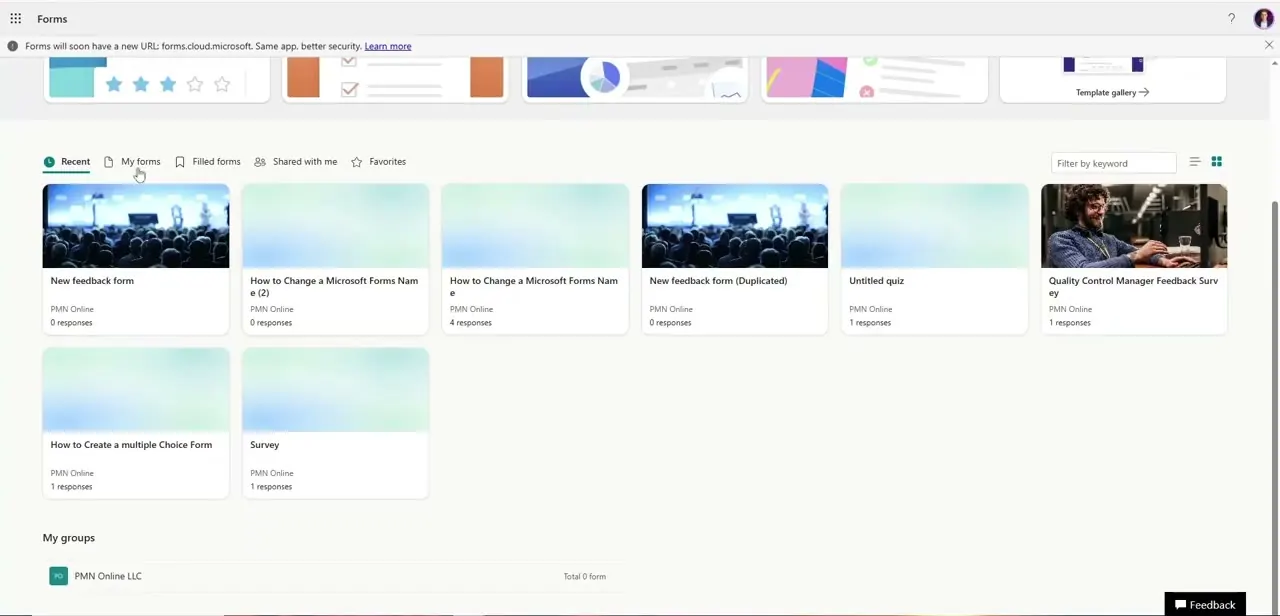
From forms.office.com, open My forms to see everything you've built, organized by Recent, My forms, Filled forms, and Shared with me, alongside a Favorites tab. Each card shows the form's title, owner, and response count, which is useful for finding an existing form you want to restyle rather than starting from scratch.
02Find the Style button
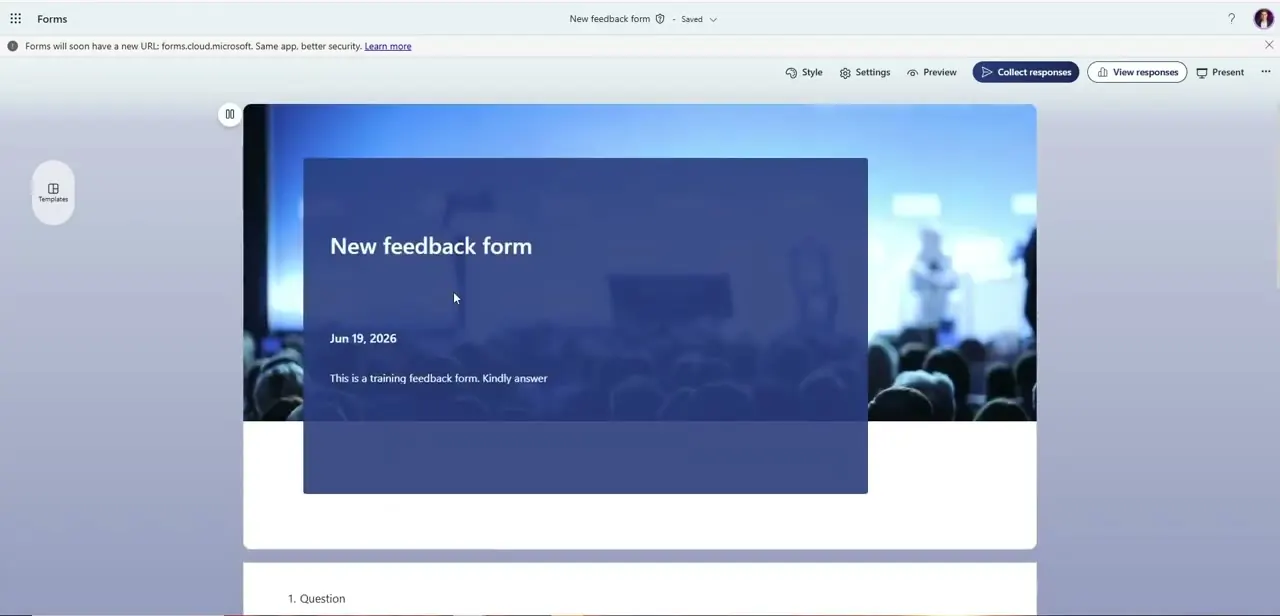
Inside any form, the top toolbar holds Style, Settings, Preview, and Collect responses, in that order, on every screen of the builder. Style is the closest thing Forms has to a visual customization panel — clicking it opens a set of preset themes and background images you can apply to the whole form's cover and background, not individual questions.
03Set your form's cover details
The cover section at the top of the form is where your title, a date, and a description live, layered over whatever background image or color the current theme applies. This is the part of the form respondents see first, so it's worth treating the title and description as your main opportunity to set tone, since you can't change their typeface directly.
04Use question types to create visual hierarchy instead
Since text styling is limited, the more reliable way to create emphasis in Forms is through structure: short, direct question titles, an occasional long-answer field for open feedback, and rating or multiple-choice fields where a scannable set of options does more work than bold text would. Each question also has a Required toggle and additional options under its "..." menu, which control behavior rather than appearance.
05Preview how questions actually render
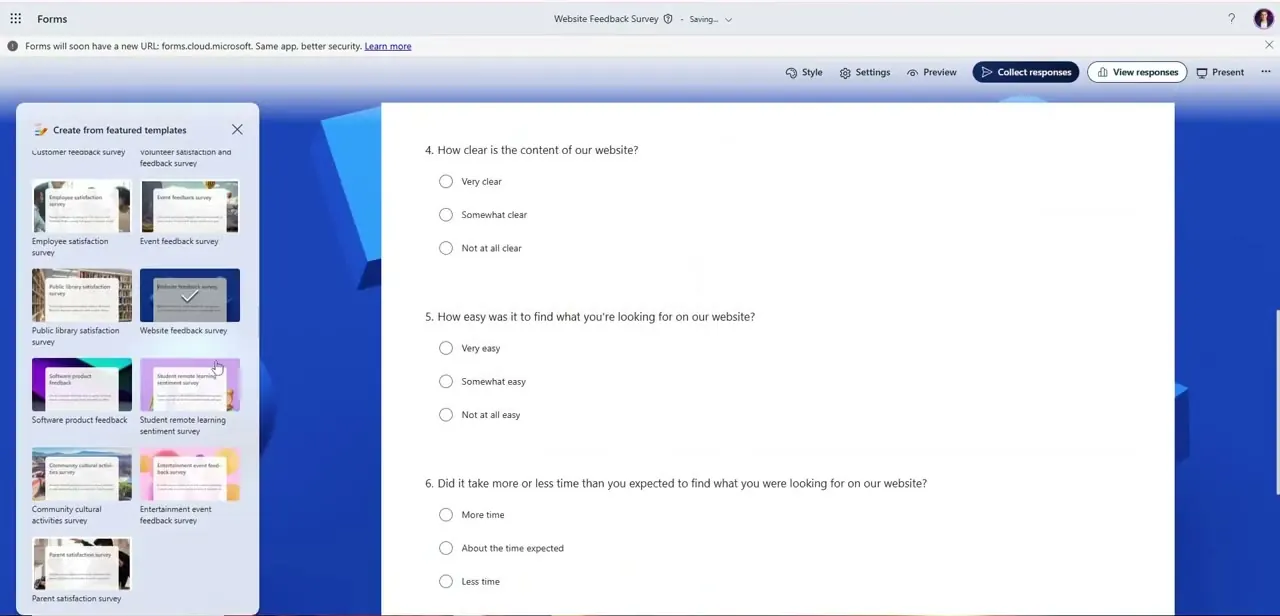
As you build out more questions, use the builder to check how multiple-choice options, ratings, and date fields line up and read together. Consistent spacing and clear option labels do more for readability than any font tweak would, since Forms renders every question with the same locked typography regardless of type.
06Preview and collect responses
Click Preview at the top of the canvas to see the form exactly as a respondent will, including how your chosen theme and cover details look together. Once you're satisfied, use Collect responses to generate the shareable link — this is also a good moment to double check the theme reads well against your organization's branding if the form is going out externally.
Frequently asked questions
Can I change the font family in Microsoft Forms?
No. Forms locks its interface typeface across every form for consistent, accessible rendering on any device. There is no font-family picker for question text.
What is the Style button actually for, if not fonts?
It opens a set of preset themes and background images that change the form's overall color scheme and cover background — not the typeface or size of your text.
How do I make an important question stand out if I can't bold or resize text?
Lean on structure instead: keep the question title short and direct, and use the right question type (multiple choice, rating, long answer) so the format itself draws attention rather than text styling.
Does Forms look the same on mobile and desktop?
Yes. Because the typography is fixed rather than custom-styled per form, it renders consistently whether a respondent opens the form on a phone or a desktop browser.
Where can I see how my form will actually look to respondents?
Click Preview in the top toolbar of the builder. It shows the form exactly as sent, including the selected theme and cover layout.
Watch the full walkthrough
The same steps, demonstrated on screen from start to finish.