Easy Tech Tuts
How to Download Jotform as PDF Easily 2026
By Impran M N
Whether you need a single signed contract or a batch of applicant records, Jotform's PDF Editor can convert form responses into clean downloadable documents. This guide covers opening the editor, customizing the layout, and downloading either individual entries or a full bulk export.
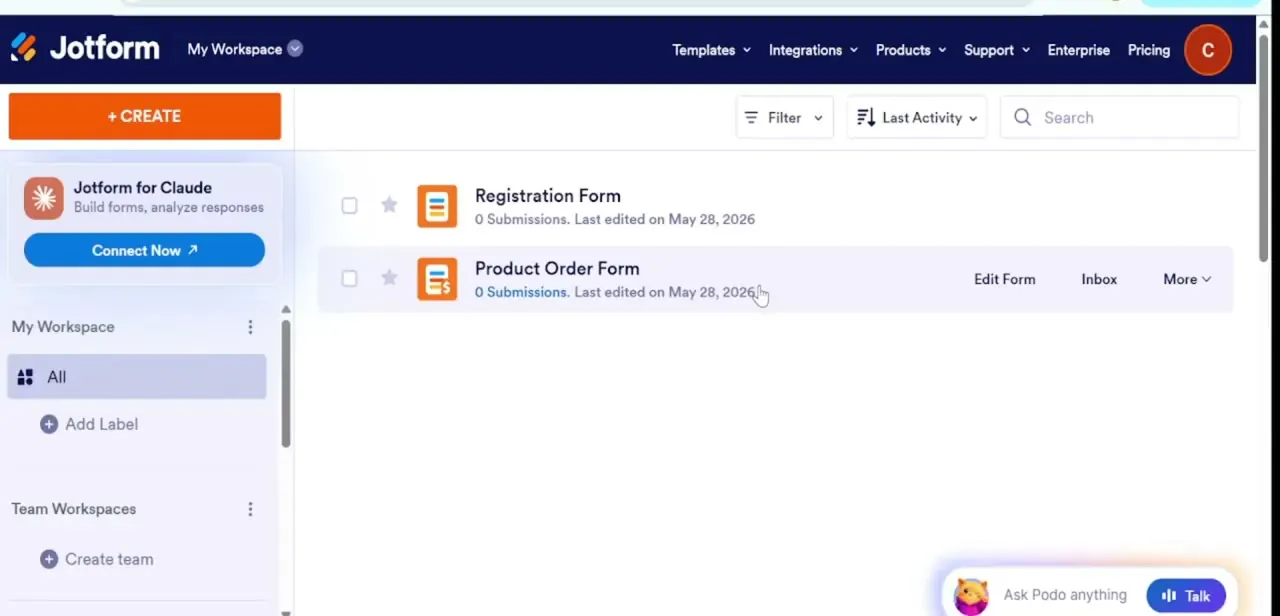
01Select your target form
Open your main form dashboard and select the project whose submissions you want to convert.
02Open the PDF Editor
Use the form dropdown menu to launch the PDF Editor panel.
03Customize the document layout
Adjust column margins and overall document layout formats to fit your submission data.
04Toggle visible fields and branding
Choose which submission fields display on the document and set up branding headers.
05Download individual or bulk files
Click the main download button to export a single entry as PDF, or process a bulk export as a ZIP archive of multiple submissions.
Frequently asked questions
Can I download all submissions at once instead of one at a time?
Yes, the PDF Editor supports bulk export, which downloads multiple entries together as a ZIP archive.
Will the PDF include every field from the original form?
Only the fields you've toggled to be visible in the layout will appear on the exported PDF, so review that setting before downloading.
Can I customize the header on my exported PDFs?
Yes, you can set up branding headers as part of the layout customization before exporting.
Do downloaded PDFs update automatically if the submission changes later?
No, a downloaded PDF is a static snapshot, so you'll need to re-export if the underlying submission data is edited afterward.
Watch the full walkthrough
The same steps, demonstrated on screen from start to finish.