Easy Tech Tuts
How to Get Data From Other Forms in Jotform Tables Easily 2026
By Impran M N
Cross-referencing customer profiles or inventory data across different forms usually means manual spreadsheet merging, but Jotform Tables can connect separate forms directly. This guide covers adding a new data view tab linked to another form, filtering which fields display, and setting up relational connection columns for real-time syncing.
01Open your primary Jotform Tables workspace
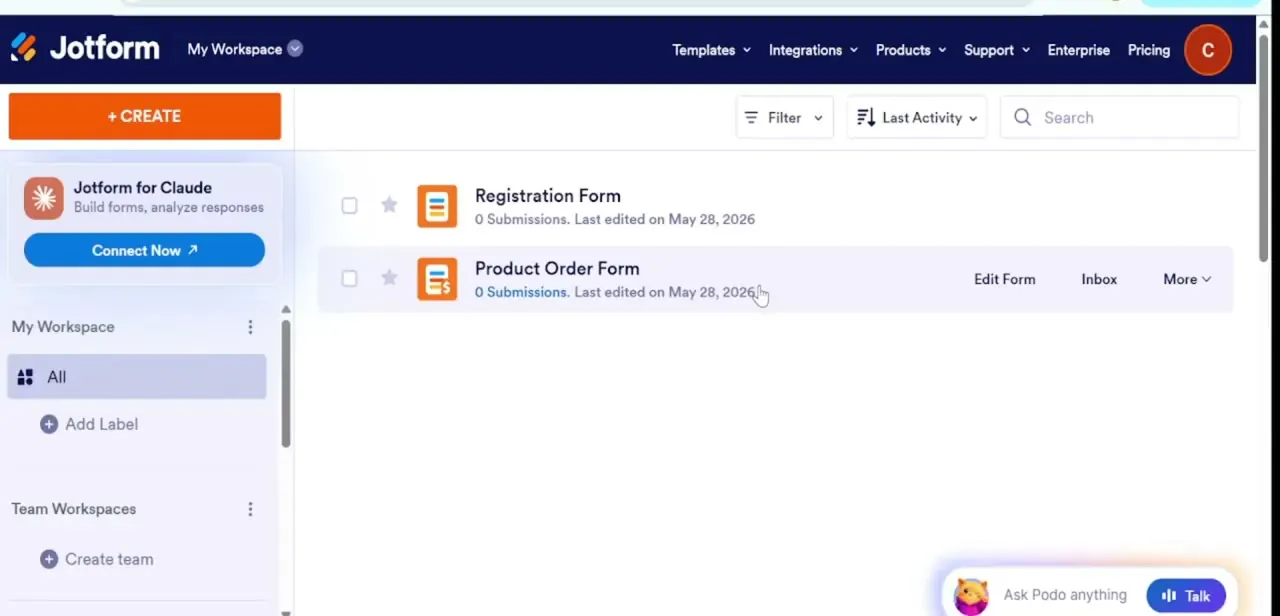
Open the primary form project and launch its Jotform Tables view.
02Add a new tab
Click Add Tab to generate a new consolidated workspace within your table.
03Connect to a secondary form
Select the Table View layout, choose Connect to Form, and search for and select the target secondary form base.
04Select specific fields
Mark the specific columns and fields you want populating the new tab view matrix.
05Create a relational connection column
Within an existing sheet, create a custom data connection column and select the Connect a Table option to link a specific row to another form.
Frequently asked questions
Does data stay synced in real time between connected forms?
Yes, the connection is designed so entry updates in the linked form reflect in near real-time within the connected view.
Can I connect more than two forms into one table?
Yes, you can add multiple tabs, each connected to a different form, within the same Jotform Tables workspace.
Do I need matching field names to connect two forms?
Field mapping is handled when selecting columns, so exact name matches aren't strictly required, but consistent naming makes it easier to track.
Can I filter which fields from the other form actually show up?
Yes, you can mark specific columns and fields to populate the tab view rather than pulling in every field from the source form.
Watch the full walkthrough
The same steps, demonstrated on screen from start to finish.