Easy Tech Tuts
How to Copy a Jotform From One Account to Another Easily 2026
By Impran M N
Rebuilding a form field-by-field every time you need it in a different Jotform account wastes time you don't have to spend. Jotform actually lets you clone a form from a public URL directly into a new workspace, keeping your layout, fields, and widgets intact. Here's how to move a form between accounts in just a few clicks.
01Grab the source form's share link
Open the form in its original account and copy the public sharing link from the Quick Share option.
02Log into the target account
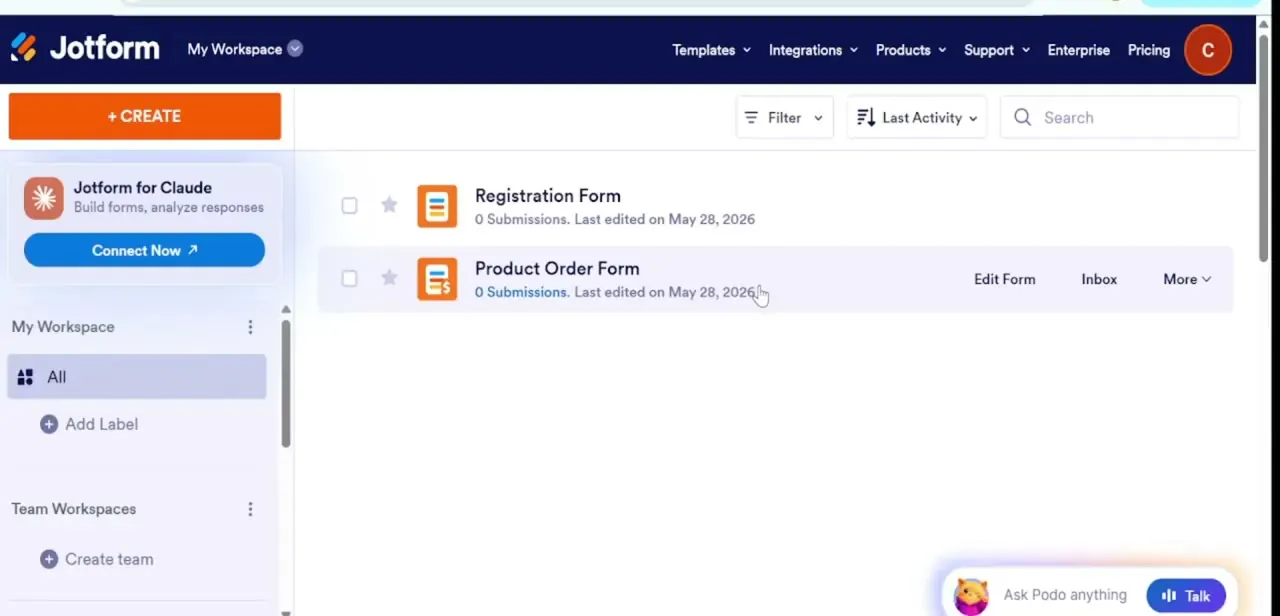
Sign into the Jotform account you want to copy the form into.
03Start a new form
Click Create Form from the sidebar to begin the setup wizard.
04Choose Import Form from a web page
Select the Import Form option, then pick the 'From a Web Page' tool inside the setup window.
05Paste the URL and create the clone
Paste the copied form link into the URL field and click Create Form to generate an independent duplicate.
06Verify the copied layout
Open the new form in Form Builder to check that fields, styling, and widgets carried over correctly.
Frequently asked questions
Do I need admin access to the original account?
No — as long as you have the form's public sharing link, you can import it into a new account without needing login access to the source account.
Will the copy include conditional logic or widgets?
The import process is designed to pull in the full layout, including fields and widgets, though it's worth reviewing the copied form to confirm everything transferred as expected.
Is the copied form linked to the original in any way?
No, once imported the new form is a completely independent copy — edits to one won't affect the other.
Can I do this on a free Jotform plan?
The Import Form feature is accessible from the standard form creation wizard, so it should be available regardless of plan, though usage limits still apply based on your account tier.
Watch the full walkthrough
The same steps, demonstrated on screen from start to finish.