 Easy Tech Tuts
How to Recover Old Photos From Gmail Account and Google Drive Easily 2026
By Impran M N
Photos that were emailed as attachments or backed up to Drive years ago tend to disappear from memory long before they disappear from your account, and the reflex when you can't find something is to assume it's gone. In most cases it isn't — it's sitting in Spam, Trash, or a folder you forgot existed, filed under a service you didn't even think to check. This guide walks through the actual places old photos hide across Gmail and Google Drive, including the two most overlooked spots: Drive's Trash and Google Photos' separate Trash, which don't share the same recovery window, plus what to do once you've found something so you're not repeating this search again next year.
01Search Gmail directly for the photo attachment
Start in Gmail's search bar with has:attachment filename:jpg (or png, depending on the file type) combined with a rough date range or sender name if you remember either. This catches photos that were sent to you as email attachments and never saved anywhere else, which is a more common scenario than people expect — plenty of photos live only in an old email thread and were never downloaded to Drive at all. If you're not sure of the file type, try filename:jpg first and then filename:png, since running both searches takes only a few extra seconds and covers the two most common formats people send as attachments.
02Check Google Drive's Spam folder, not just Trash
Open Google Drive and look at the left sidebar — alongside Home, My Drive, and Shared with me, there's a Spam section that's easy to overlook since most people only think to check Trash. Drive's app grid in the top-right corner, opened from the grid icon next to your profile photo, is also worth noting here since it's the fastest way to jump directly into Google Photos, Docs, or Sheets without navigating back through Gmail first. Files can land in Drive's Spam if they were shared with you by someone whose account got flagged, so it's worth a quick look even if you're fairly sure you never deleted anything yourself.
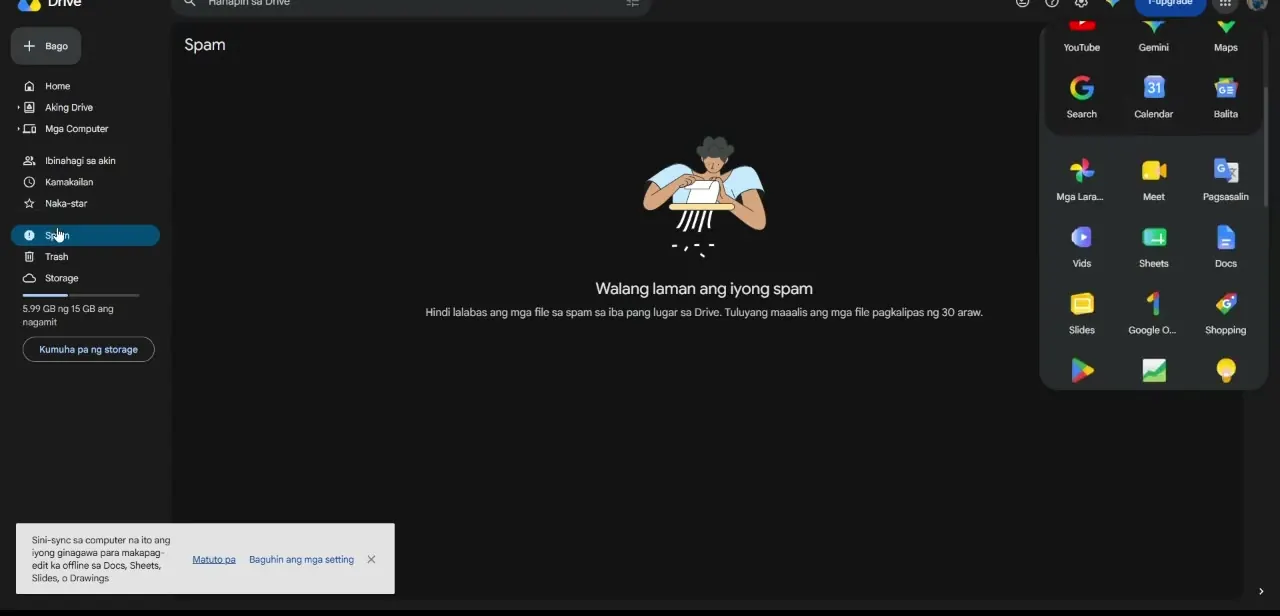
03Check Google Photos' own Trash separately from Drive
Google Photos maintains its own Trash that is completely separate from Google Drive's Trash, even though both services are part of the same Google account — a photo deleted from Photos won't show up in Drive's Trash and vice versa. Open Google Photos, go to Trash in the left sidebar, and look for anything deleted within roughly the last 60 days, since that's the window before items are automatically and permanently removed. Photos deleted directly from your phone's gallery with sync enabled often end up here too, which surprises people who assumed a phone-level delete was final and never checked their account at all.
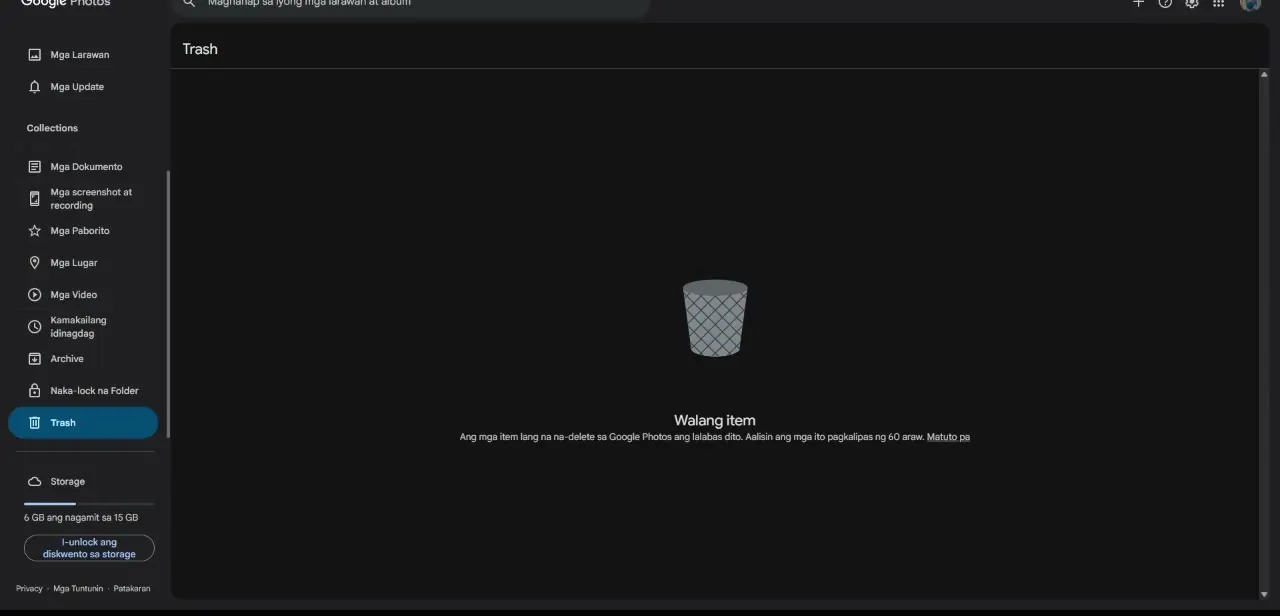
04Check Google Drive's Trash for anything deleted from Drive itself
Separately, open Google Drive's own Trash from the left sidebar to check for files deleted directly from Drive rather than from Photos — this includes any image files, scanned documents, or folders that were removed and might still be within Drive's roughly 30-day recovery window. Use the Type, Modified, and Source filters at the top of the Trash view to sort through a large trash folder faster if you're not sure exactly when something was deleted. If Trash shows "Walang laman ang trash" or an equivalent empty message in your account's display language, that confirms nothing is currently recoverable from Drive specifically, and any remaining photo is more likely sitting in Photos' Trash or an old Gmail attachment instead.
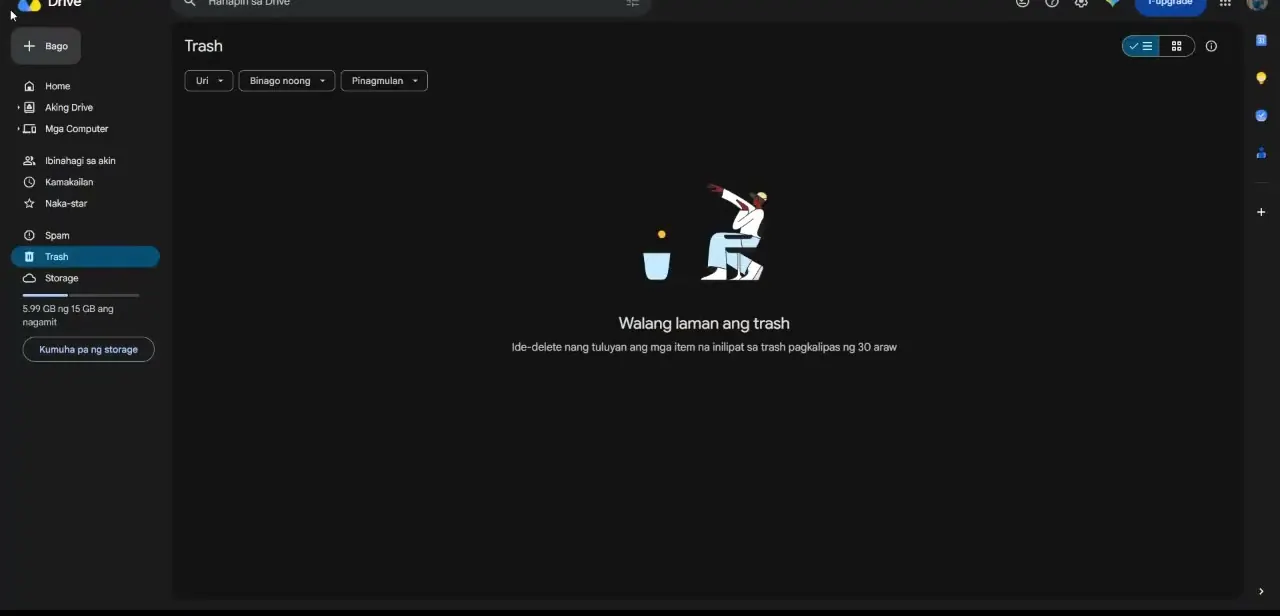
05Restore what you find and move it somewhere permanent
Once you locate a photo in either Trash, right-click it and choose Restore to move it back to its original location rather than leaving it sitting in Trash, where it remains vulnerable to the automatic deletion timer. If the photo came from an email attachment instead, download it directly from the message and save it into a proper Drive or Photos folder so it's not relying on Gmail's storage alone going forward. Do this restoration pass in one sitting if you're recovering multiple photos, since it's easy to find something, get distracted, and come back later only to discover the deletion window has closed on it.
06Set up a backup so this search doesn't repeat itself
Turn on Google Photos' backup setting for your phone if it isn't already active, and get in the habit of saving important email attachments into a dedicated Drive folder rather than leaving them buried in old threads. This one habit change is what actually prevents the next version of this same search six months from now.
07Check your Google Account storage if photos still won't restore
If Google Photos or Drive refuses to restore an item and flags a storage limit instead, check your account's overall storage under Settings, since a full account can quietly block restoration even when the file itself is still technically recoverable. Freeing up space by deleting something you no longer need, or upgrading your storage plan, resolves this far more often than people expect when a "can't restore" error shows up unexpectedly.
Frequently asked questions
Can I recover photos that were deleted a long time ago?
It depends on the recovery window — Google Photos' Trash holds items for about 60 days and Google Drive's Trash for about 30 days, so anything deleted longer ago than that is generally not recoverable through either Trash.
Is this useful for recovering business materials, not just personal photos?
Yes, this same process can help small businesses retrieve marketing images or visual content sent through Gmail or stored in Drive, since both follow the same Trash and Spam recovery logic.
Why isn't a photo I deleted from Google Photos showing up in Drive's Trash?
Google Photos and Google Drive maintain separate Trash folders even within the same account, so you need to check both individually rather than assuming one covers the other.
How can I avoid losing photos like this again?
Turn on automatic backup in Google Photos for your phone, and save important email attachments into a dedicated Drive folder instead of leaving them only inside old email threads.
Do I need any special tools to recover the photos?
No — the process relies entirely on Gmail's search, Google Drive's Spam and Trash sections, and Google Photos' Trash, without requiring any separate recovery software.
Watch the full walkthrough
The same steps, demonstrated on screen from start to finish.


