 Easy Tech Tuts
How to Find Old Emails in Gmail (Search Operators Trick) Easily 2026
By Impran M N
Scrolling back through years of Gmail for one specific message almost never works, and the built-in keyword search alone often surfaces too much noise to be useful, especially in an inbox with hundreds of promotional and automated emails mixed in with anything important. Gmail's search operators fix that by letting you filter on exactly what you remember — a rough time frame, a sender, an attachment — instead of hoping the right words appear in the subject line. This guide walks through typing an actual operator into the search bar, using Gmail's own suggestions to speed that up, combining operators so the search narrows fast instead of returning another wall of results, and turning a search you'll need again into something permanent.
01Open the Gmail search bar and start typing an operator
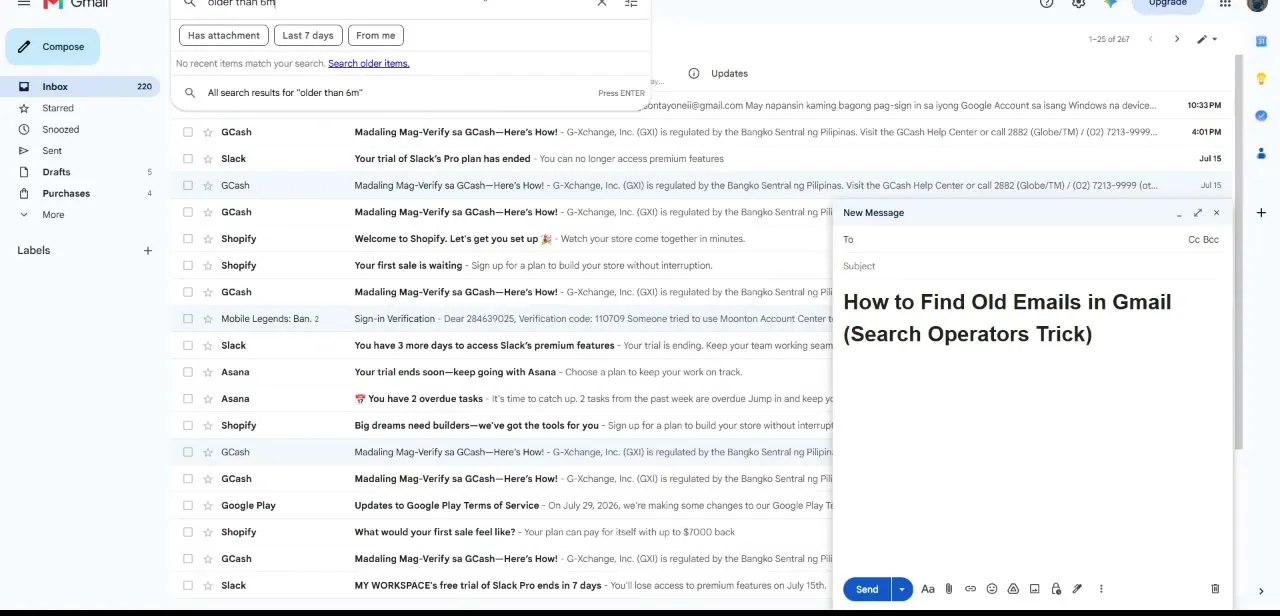
Click into the search bar at the top of Gmail and start with a time-based operator if you're not sure of the exact date — something like "older than 6m" narrows results to anything received more than six months ago. As you type, Gmail shows quick filter chips underneath for things like "Has attachment," "Last 7 days," and "From me," plus a fallback link to search older items if nothing recent matches.
This is the fastest way to eliminate everything in your last few weeks of mail in one move. If you genuinely have no idea how old the email might be, start broader than you think you need to — "older than 1y" is a safer first pass than guessing a specific month and getting zero results.
02Use your search history to speed up repeat lookups
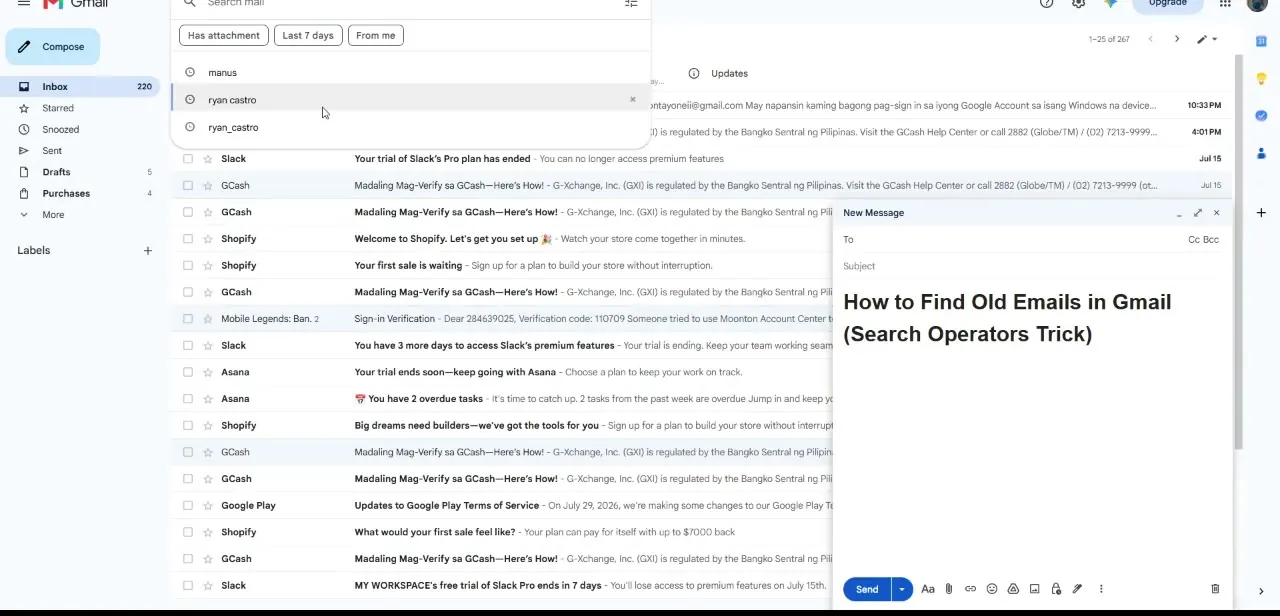
Click into an empty search bar and Gmail shows a dropdown of your recent searches — names, keywords, whatever you've searched before — which is worth checking before retyping something you've already looked for. If you're hunting for a specific person's emails, typing part of a name here will often surface the exact search you ran last time, saving you from rebuilding the same operator string from scratch. This history also quietly reveals slightly different spellings or usernames you've searched before, which is a useful nudge if the account or name you're chasing goes by more than one variant.
03Narrow by sender with the from: operator
Add from:name or from:email@domain.com to your search to restrict results to one sender. This is the single most useful operator for tracking down a forgotten client or vendor conversation, because it eliminates every unrelated email in your inbox in one step, regardless of how old the message is or what it was about. The same trick works in reverse with to:, which is handy when you're trying to find something you sent rather than received, particularly if your Sent folder itself has grown too large to scroll through.
04Combine operators to cut through large inboxes
Operators stack, so a query like from:vendor@company.com has:attachment older than:1y will only return old emails from that sender that included a file — exactly the kind of specific combination that turns a 15,000-message inbox into a two- or three-result search. Other useful operators include subject: for exact subject line text, before: and after: for precise date ranges, and is:starred if you have a habit of flagging things you'll need later. Wrapping an exact phrase in quotation marks also forces Gmail to match that phrase precisely instead of loosely matching individual words, which helps when the term you remember is common on its own but rare as an exact phrase.
05Search within labels and specific folders
If you already suspect the email is filed somewhere — Promotions, a custom label, or Trash — add in:label-name to your query to search that location specifically rather than your whole account. This matters most for business accounts with heavy filtering rules already in place, where an important email may have been auto-labeled out of the primary inbox entirely. It's also worth checking in:anywhere as a broader fallback, since it searches Spam and Trash too, which the default search does not.
06Fall back on size and read status when nothing else narrows it down
For the rare case where sender, date, and keyword all fail, two lesser-known operators can help: larger:10M for a suspiciously large attachment you vaguely remember, and is:unread if you're chasing something you know you never actually opened. Neither is commonly needed, but both have saved a search that otherwise seemed like a dead end.
07Turn a useful search into an ongoing filter
Once you've built a search string that reliably finds what you need, click the filter icon at the right edge of the search bar to turn it into a permanent filter — auto-labeling, archiving, or forwarding anything matching that pattern going forward. This is the difference between solving the problem once and never having to run the same manual search again for a recurring type of email, like invoices from a specific vendor.
Frequently asked questions
What are Gmail search operators?
They're specific terms and symbols you add to a Gmail search — like from:, has:attachment, or older_than: — to narrow results by sender, date, attachments, and more instead of relying on plain keywords.
Can I combine multiple search operators at once?
Yes. Stacking operators, such as a sender plus a date range plus an attachment filter, narrows results dramatically and is usually the fastest way to find one specific old email.
Is this useful for managing high volumes of business email?
Yes, professionals and businesses handling a lot of correspondence benefit the most, since operators cut through thousands of messages in a single search instead of scrolling.
Can search operators help with organizing emails going forward, not just finding old ones?
Yes. Any working search string can be converted into a permanent filter using the filter icon in the search bar, which automates labeling or archiving for future matching emails.
Watch the full walkthrough
The same steps, demonstrated on screen from start to finish.


