 Easy Tech Tuts
How to Connect Gmail to ChatGPT | Inbox Automation Setup | Easily 2026
By Impran M N
ChatGPT doesn't hook into Gmail natively — the connection happens through a browser extension that adds ChatGPT's drafting tools directly into the Gmail compose window. Once it's installed, you can generate subject lines, rewrite a rough draft into something more polished, and get a readability or spam score before you hit send, all without switching tabs or copying text back and forth between two apps.
That last part is the real win: the moment you have to alt-tab to a separate ChatGPT window mid-email, most people just abandon the idea and write the message by hand anyway. This guide walks through installing that extension, using it inside a real compose window, and where the time savings actually show up once it's part of your everyday routine rather than something you remember to use occasionally.
01Find the right extension in the Chrome Web Store
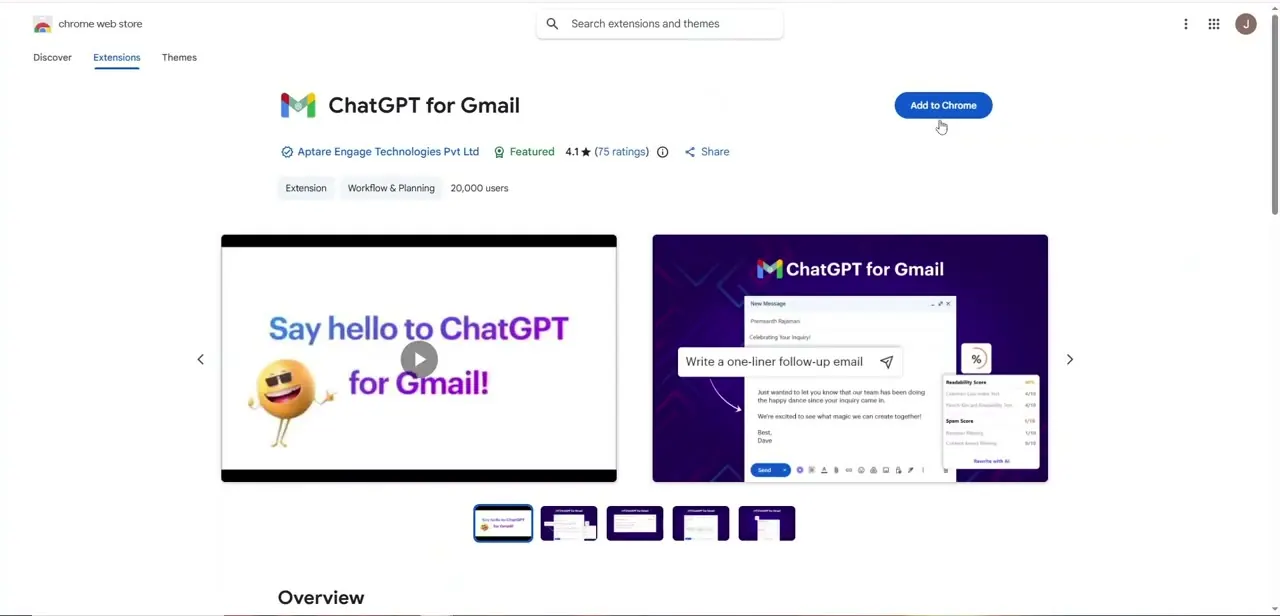
Search the Chrome Web Store for an extension that connects ChatGPT to Gmail — "ChatGPT for Gmail" is a well-rated option, with tens of thousands of users and a clear preview showing how it appears inside a compose window. Check the developer, rating, and user count before installing anything that will have access to your inbox, since this is a third-party extension rather than an official Google or OpenAI product. The listing itself is worth reading past the headline screenshots too — features like subject line generation and spam scoring are usually spelled out in the product description, which helps you confirm the extension actually covers what you're looking for before you commit to installing it and granting it permissions.
02Install it and grant Gmail permissions
Click Add to Chrome and confirm the permissions prompt that follows — browser extensions that work inside Gmail need permission to read and modify content on the page in order to insert their tools into the compose window. Once installed, refresh any open Gmail tabs so the extension actually loads, since extensions installed while Gmail is already open in a tab don't always activate until that tab reloads. Pin the extension to your toolbar as well, which makes it easy to check its settings or toggle it off later without digging through Chrome's extension manager.
03Open Gmail and start a new message
Go to Gmail and click Compose as you normally would. The extension adds its own icons directly into the compose toolbar, sitting alongside Gmail's existing formatting and send options rather than opening in a separate window, which is what makes it fast to use without breaking your workflow. This same integration point typically works in reply and forward windows too, not just brand-new messages, so the tools are available for the emails you're responding to just as much as the ones you're starting from scratch.
04Generate or continue a draft with AI
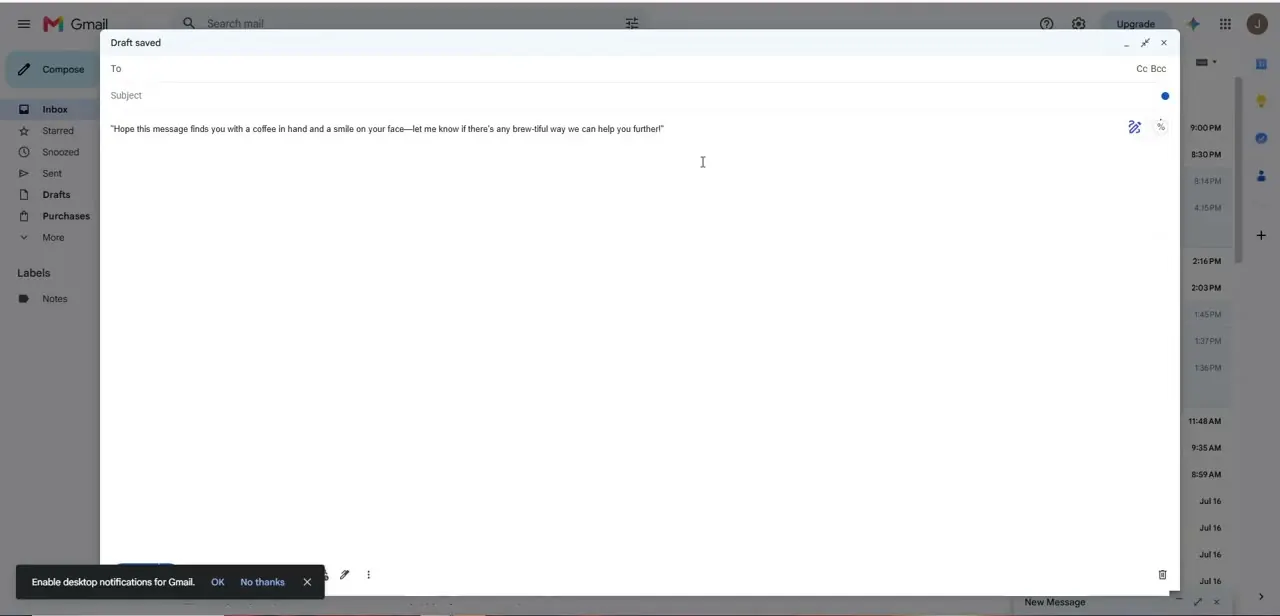
With the compose window open, use the extension's icon to have ChatGPT start a message from a short instruction, or continue writing from a line or two you've already typed. In this example, a single prompt line about a follow-up email produces a natural opening sentence directly in the body field, which you can keep, edit, or discard. The generation happens right in the same text box you'd type in normally, which is what makes this feel different from switching to a separate ChatGPT tab, copying a response, and pasting it back — there's no context-switching cost between writing and generating.
05Review the full draft before sending
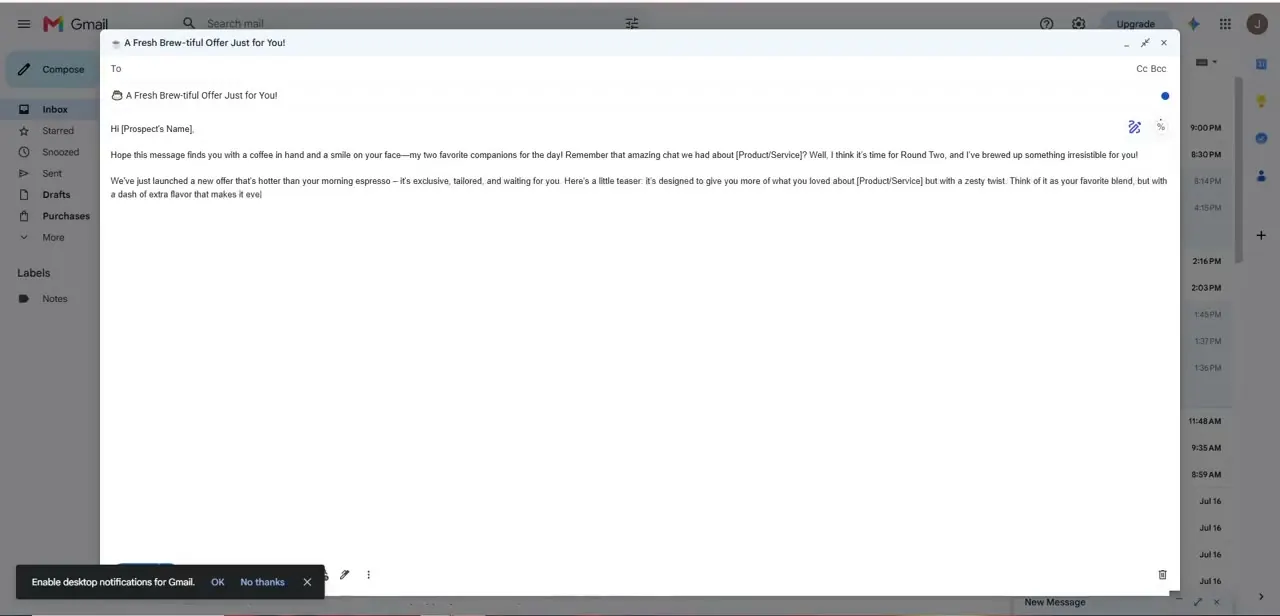
Let the tool expand the opening into a complete message, then read through the whole thing before it goes anywhere. AI-drafted email tends to include placeholder brackets like [Product/Service] or [Prospect's Name] that need replacing with real details, and it's easy to miss one if you skim instead of reading the finished draft top to bottom. A message that goes out with a leftover placeholder bracket looks far worse than one that took an extra thirty seconds to proofread, so treat this review step as non-negotiable rather than optional, especially for anything going to a customer or prospect.
06Use the readability and spam-score checks
Beyond drafting, the same integration typically surfaces a readability score and a spam-likelihood score for the message you've written, based on common email deliverability patterns. Running a quick check before sending a batch of similar emails, like a follow-up sequence, catches phrasing that might otherwise land the message in a promotions tab or spam folder. Words and formatting that trigger spam filters aren't always obvious to the person writing the email, since they read as normal marketing language — an automated check like this one catches patterns a human proofread would likely miss entirely.
07Build it into a repeatable routine
The time savings compound once this becomes routine rather than something you reach for occasionally — subject line variations for A/B testing, first-draft replies to common questions, and lead follow-ups all become faster to produce. Keep an eye on tone for anything client-facing, since AI drafts default to a fairly generic voice that's worth adjusting to match how you'd actually write to that specific person. Over a few weeks of regular use, most people settle into a pattern of letting the tool handle the first draft and structure while they focus their own editing time on the parts that actually need a personal touch — the opening line referencing something specific, or the closing ask — rather than rewriting a whole message from a blank page every time.
Frequently asked questions
Does ChatGPT connect to Gmail natively?
No, there's no official built-in integration. The connection works through a third-party browser extension that adds ChatGPT's drafting tools into the Gmail compose window.
Is it safe to install a Gmail-ChatGPT extension?
Check the developer, rating, and user count in the Chrome Web Store before installing, since any extension that works inside Gmail needs permission to read and modify what's on the page. Stick to well-reviewed, widely used extensions.
What can I actually automate once it's connected?
Common uses include generating subject line variations, drafting or rewriting email bodies, and checking readability or spam scores before sending, all from inside the normal Gmail compose window.
Do I need to edit AI-drafted emails before sending them?
Yes — always review the full draft first. AI-generated emails often include placeholder text like [Prospect's Name] that needs to be replaced, and the default tone tends to be generic rather than matched to your usual voice.
How long does the setup take?
Installing the extension and granting Gmail permissions takes a couple of minutes. After that, the drafting tools are available immediately in every new compose window.
Watch the full walkthrough
The same steps, demonstrated on screen from start to finish.


