Easy Tech Tuts
How To Clear Elementor Cache In WordPress, Delete Cache, Solve Error 500 Easily 2026
By Impran M N
When Elementor stops loading properly, widgets break, or a page throws an Error 500, cached files are frequently the actual cause rather than anything wrong with the design itself. WordPress caching happens at more than one layer — Elementor keeps its own cache of generated CSS, and a separate caching plugin like LiteSpeed Cache adds another layer on top of that. This guide walks through clearing both, in the right order, so a stale cache doesn't get mistaken for a real bug.
01Find Elementor's Tools menu
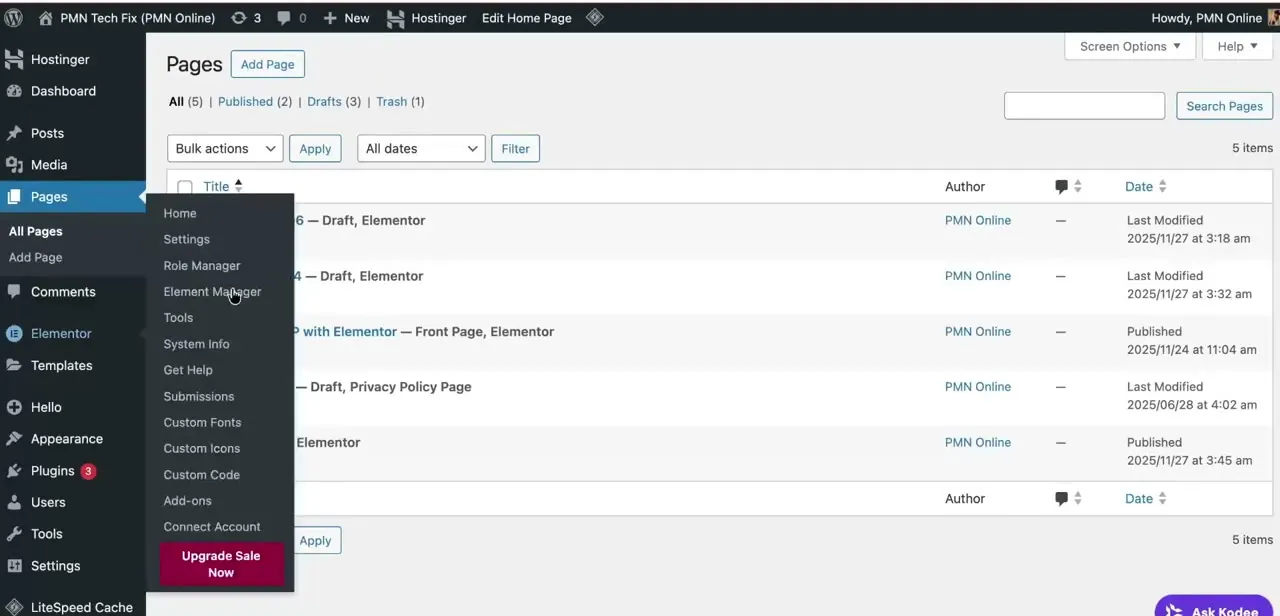
In your WordPress admin, hover over Elementor in the left sidebar to expand its submenu — Home, Settings, Role Manager, Element Manager, and Tools are all listed there, with Tools being the one that matters here. This submenu is easy to overlook if you're used to going straight into the page editor, but the cache controls live in the admin dashboard, not inside the visual editor itself.
02Clear Elementor's own cache
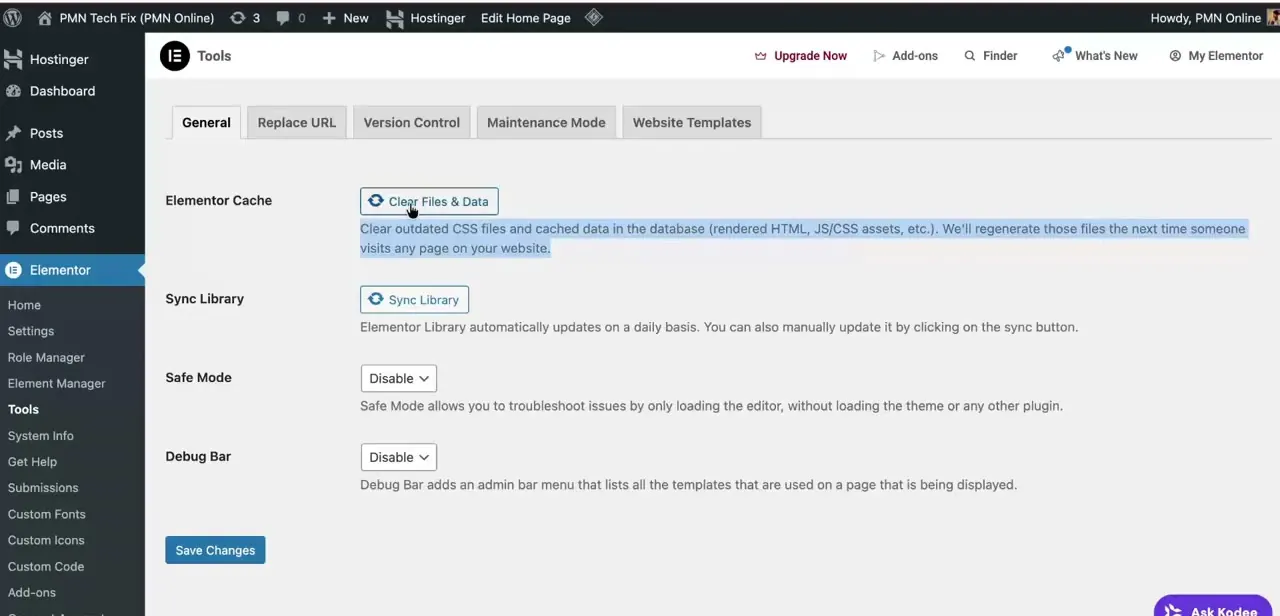
On the Tools page's General tab, the Elementor Cache section has a single "Clear Files & Data" button. Clicking it wipes outdated CSS files and any cached rendered HTML, JS, and CSS assets stored in the database — Elementor regenerates fresh versions automatically the next time someone visits a page on your site, so there's no manual rebuild step afterward. This same screen also has a Sync Library button for refreshing Elementor's own template library, and a Safe Mode toggle that loads only the editor without your theme or other plugins, which is useful if you suspect a conflict rather than stale cache.
03Clear your caching plugin separately
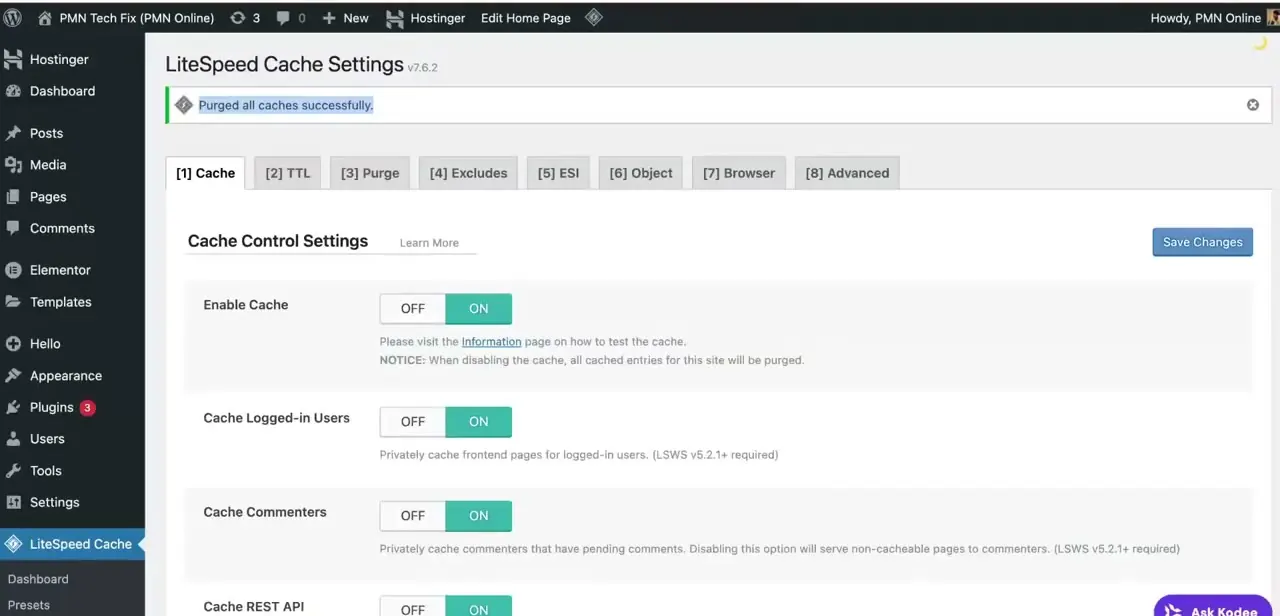
Elementor's own cache and a caching plugin's cache are two different systems, and clearing one does not clear the other. If you're running LiteSpeed Cache, WP Super Cache, W3 Total Cache, or a similar plugin, open its settings and use its own purge option — LiteSpeed Cache, for example, shows a clear "Purged all caches successfully" confirmation once it's done. Skipping this step is the most common reason someone clears Elementor's cache, sees no change, and assumes the fix didn't work.
04Regenerate CSS after major changes
The same "Clear Files & Data" action that clears the cache also forces Elementor to regenerate its CSS files from scratch, which resolves a common category of issue: layout that looks broken or partially unstyled right after updating Elementor, a theme, or a plugin that Elementor's styling depends on. Make this your default first step after any major update, before assuming an update actually broke something structurally.
05Work through Error 500 methodically
A 500 error is a generic server-side failure, so clearing cache is the right first move but not always the last one. After clearing both cache layers, reload the site in a private browser window to rule out a stale page still being served from your browser's own cache. If the error persists, check your host's error log for the specific line that's failing — that log almost always points to a specific plugin or a PHP memory limit, which is a different fix than a cache clear.
06Confirm the fix inside the editor
Once both caches are cleared, reopen the affected page in the Elementor editor and check that widgets render correctly and styling looks right, rather than just checking the live front end. The editor and the live page can occasionally show different results if one is still pulling from a cached asset the other already refreshed, so checking both gives you confidence the fix actually landed everywhere rather than in just one place.
Frequently asked questions
Why does clearing cache fix Elementor Error 500?
Stale cached CSS or rendered HTML can conflict with updated code after a plugin or theme change, and clearing both Elementor's cache and any caching plugin's cache forces the site to rebuild fresh versions rather than serving broken leftovers.
Do I need to clear cache after every Elementor update?
It's good practice to use Elementor's "Clear Files & Data" option after major Elementor, theme, or plugin updates, since it also regenerates CSS and avoids leftover styling conflicts.
Does LiteSpeed Cache affect Elementor?
Yes — LiteSpeed Cache and similar plugins cache pages at a separate layer from Elementor's own cache, so if changes aren't showing after an Elementor cache clear, purge the caching plugin too.
What if clearing cache doesn't fix Error 500?
If the error persists after clearing both cache layers, check your host's error log for the specific failure — it usually points to a plugin conflict or a PHP memory limit that needs separate troubleshooting.
Where exactly do I clear Elementor's cache?
In the WordPress admin, go to Elementor → Tools → General tab, and click "Clear Files & Data" under the Elementor Cache section.
Watch the full walkthrough
The same steps, demonstrated on screen from start to finish.